
Product Overview
The Newmight 9-in-1 USB C Dual Monitor Docking Station expands your laptop's connectivity, offering a comprehensive solution for various peripherals. This docking station features dual HDMI ports for 4K display output, a Gigabit Ethernet port for stable network connections, 100W Power Delivery charging, three USB 3.0 ports for high-speed data transfer, and an SD/TF card reader.
It is designed for plug-and-play operation, requiring no driver installation for most functions.

Image: Overview of the Newmight 9-in-1 USB C Docking Station, highlighting its various ports including USB 3.0, PD 100W, Ethernet, HDMI, and SD/TF card slot.
Package Contents
- Newmight 9-in-1 USB C Dual Monitor Docking Station
- User Manual (this document)
- (Note: Specific cables like USB-C host cable are integrated or assumed to be included with the device itself.)
Setup Instructions
- Connect to Host Device: Plug the integrated USB-C cable from the docking station into a compatible USB-C port (Thunderbolt 3/4 enabled) on your laptop, tablet, or smartphone.
- Power Delivery (Optional): For charging your host device, connect a USB-C power adapter (up to 100W) to the PD port on the docking station.
- Connect Displays:
- Connect your monitors to the HDMI 1 and HDMI 2 ports on the docking station using HDMI cables. Ensure your monitors and HDMI cables support 4K@30Hz for optimal resolution.
- Important Note for macOS Users: macOS devices do not support Multi-Stream Transport (MST) mode. When connecting two monitors, both external displays will mirror each other (A-B-B mode), or mirror the laptop screen (A-A-A mode). They cannot display independent extended content (A-B-C).
- For Windows Users: The docking station supports Mirror Mode (A-A-A), Extend Mode 1 (A-B-B), and Extend Mode 2 (A-B-C) for multiple displays.

Image: Illustration of multiple display modes for Windows, including Mirror Mode (A-A-A), Extend Mode 1 (A-B-B), and Extend Mode 2 (A-B-C).

Image: Illustration of multiple display modes for macOS, showing Mirror Mode (A-A-A) and Extend Mode (A-B-B), with a warning about macOS not supporting MST for independent extended displays.
- Connect Ethernet: Plug an Ethernet cable into the RJ45 port on the docking station for a stable wired network connection. For 1Gbps speeds, use a CAT6 or higher Ethernet cable.

Image: The docking station connected to a laptop via USB-C, with an Ethernet cable plugged into the RJ45 port, illustrating a Gigabit Ethernet connection.
- Connect USB Devices: Plug your USB peripherals (e.g., keyboard, mouse, external hard drive) into the USB 3.0 ports.
- Insert SD/TF Cards: Insert SD or TF (Micro SD) cards into the corresponding slots for data access. Both slots can be used simultaneously.
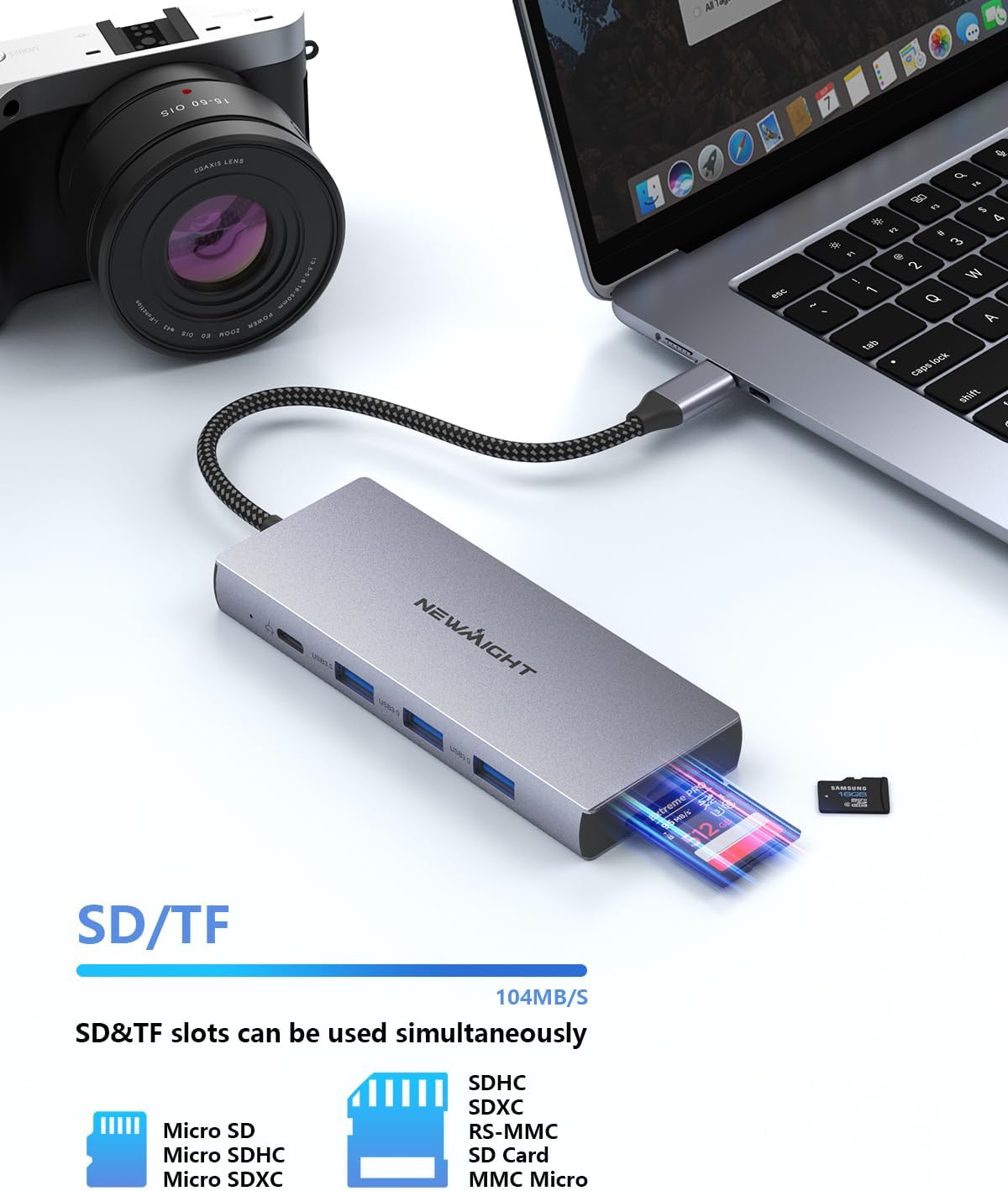
Image: A Micro SD card being inserted into the SD/TF card slot of the docking station, demonstrating its card reading capability.
Operating Instructions
- Automatic Detection: The docking station is plug-and-play. Your operating system should automatically detect and configure connected devices.
- Display Settings: After connecting monitors, adjust display settings (resolution, arrangement, mirror/extend mode) through your operating system's display preferences.
- Data Transfer: USB 3.0 ports support data transfer speeds up to 5Gbps. SD/TF card slots support up to 104MB/s.
- Charging: The PD 100W port provides power to your host device. Ensure your power adapter and USB-C cable support the required wattage.

Image: The docking station connected to a laptop and a power adapter, illustrating the 100W Power Delivery charging function.
Compatibility
The Newmight 9-in-1 USB C Dual Monitor Docking Station is compatible with most USB-C devices featuring Thunderbolt 3/4 ports.
Supported Operating Systems:
- macOS
- Windows
- Linux
- Android
- iOS
Compatible Devices (Examples):
- MacBook Pro/Air (2023/2022/2021/2020/M1/M2, etc.)
- iPad Pro 2022/2021/2020
- iMac models from 2017 onwards
- iPhone 15 Series
- Samsung Chromebook Pro
- Dell XPS 13/15
- Lenovo Yoga 900/910
- HP Spectre X360
- Surface Book 2 and newer

Image: Visual representation of the docking station's compatibility with various operating systems (Mac OS, Windows, Linux, Android) and devices (Macbook Pro, Macbook Air, Chromebook, iPad Pro 2022, Surface, iPhone 15 Series).
Troubleshooting
- No Display Output:
- Ensure the USB-C connection to your host device is secure and that your host device's USB-C port supports video output (DisplayPort Alternate Mode).
- Verify that HDMI cables are securely connected to both the docking station and the monitors.
- Check your display settings on your host device to ensure the external monitors are detected and configured correctly.
- For 4K@30Hz resolution, confirm that your laptop, monitor, and HDMI cables all support this specification.
- No Charging:
- Ensure a compatible USB-C PD power adapter is connected to the docking station's PD port.
- Verify that your host device supports USB-C Power Delivery.
- Ethernet Not Working:
- Check the Ethernet cable connection to both the docking station and your router/modem.
- Ensure network drivers are up to date on your host device (though typically plug-and-play).
- Confirm your Ethernet cable is CAT6 or higher for optimal 1Gbps performance.
- USB Devices Not Detected:
- Reconnect the USB device to a different USB 3.0 port on the docking station.
- Ensure the USB-C connection from the docking station to your host device is stable.
- Overheating:
- It is normal for the docking station to become warm during heavy use, especially when charging and driving multiple displays.
- Ensure adequate ventilation around the device. Avoid placing it in enclosed spaces.
- If screens intermittently turn off due to overheating, reduce the load by disconnecting non-essential peripherals or using a lower resolution on displays if possible.
Maintenance
- Cleaning: Use a soft, dry cloth to clean the docking station. Avoid liquid cleaners or abrasive materials.
- Storage: Store the device in a cool, dry place away from direct sunlight and extreme temperatures.
- Handling: Handle the docking station with care. Avoid dropping it or subjecting it to strong impacts.
Specifications
| Feature | Specification |
|---|---|
| Model Number | Ethernet-9 in 1 |
| Brand | Newmight |
| Color | Gray |
| Material | Metal |
| Dimensions (L x W x H) | 130mm x 14mm x 47mm (approx.) |
| Total Ports | 9 |
| HDMI Ports | 2 (up to 4K@30Hz each) |
| Ethernet Port | 1 (Gigabit, up to 1000Mbps) |
| USB 3.0 Ports | 3 (up to 5Gbps data transfer) |
| Power Delivery (PD) Port | 1 (up to 100W charging) |
| Card Reader Slots | 1 x SD, 1 x TF (Micro SD) - simultaneous use, up to 104MB/s |
| Compatible Host Interface | USB-C (Thunderbolt 3/4 compatible) |
| Operating Systems | macOS, Windows, Linux, Android, iOS |
Warranty and Support
Information regarding specific warranty terms and customer support contact details is not available in this manual. Please refer to the product packaging or the official Newmight website for warranty information and technical support.
For further assistance, you may visit the Newmight brand store on Amazon.