
1. Introduction
Thank you for choosing the Yansoo A15G Dash Cam. This device is designed to provide comprehensive road surveillance with its 4K front and 1080P rear cameras, built-in 5G WiFi, GPS, and advanced features like night vision, parking monitor, and emergency lock. This manual will guide you through the installation, operation, and maintenance of your dash cam to ensure optimal performance and safety.
2. What's in the Box
Please verify that all the following components are included in your package:
- Yansoo A15G Dash Cam (Front Unit)
- Rear Camera (Waterproof)
- Car Charger with GPS Module
- Suction Cup Mount
- 3M Adhesive Mount
- 64GB Memory Card
- Card Reader
- Installation Tools (Pry tool, cable clips, 3M adhesive pad)
- User Manual

Image: All components included in the Yansoo A15G Dash Cam package, neatly arranged.

Image: A visual breakdown of the Yansoo A15G Dash Cam, rear camera, cigarette lighter power cord, 64GB card, card reader, suction cup mount, 3M mount, electrostatic film, cable hiding clips, 3M adhesive pad, car wiring trim tool, and user manual.
3. Product Overview
The Yansoo A15G Dash Cam consists of a main front unit and a separate rear camera. The front unit features a 3-inch IPS screen, wide-angle lens (170° FOV), and control buttons. The rear camera is compact and waterproof, designed for external mounting.

Image: The Yansoo A15G Dash Cam front unit with its suction cup mount, a separate rear camera, and a smartphone displaying the dash cam's live view and GPS tracking.
4. Setup & Installation
4.1 Inserting the Memory Card
- Ensure the dash cam is powered off.
- Locate the memory card slot on the side of the main unit.
- Insert the provided 64GB memory card (or another compatible card up to 256GB) into the slot until it clicks into place.
- To remove, gently push the card in until it springs out.
Note: For optimal performance, it is recommended to format the memory card regularly within the dash cam's settings.
4.2 Mounting the Front Camera
- Clean the windshield area where you intend to mount the dash cam.
- Attach the suction cup mount or 3M adhesive mount to the dash cam.
- Position the dash cam on the windshield, ideally behind the rearview mirror, ensuring it does not obstruct your view.
- Secure the mount firmly to the windshield.
4.3 Installing the Rear Camera
- Mount the rear camera on the rear window or above the license plate using the adhesive.
- Route the rear camera cable to the front unit, carefully tucking it along the vehicle's headliner and A-pillars using the included pry tool.
- Connect the rear camera cable to the designated port on the main dash cam unit.
- If reverse guide lines are desired, connect the rear camera's red wire to the vehicle's reverse light power source.
4.4 Connecting Power
- Connect the car charger (with built-in GPS) to the dash cam's power input.
- Plug the car charger into your vehicle's cigarette lighter socket.
- The dash cam will automatically power on and begin recording when the vehicle starts.

Image: An illustration demonstrating the simple installation process, showing the front camera mounted on the windshield and the rear camera installed above the license plate, with cable routing.
5. Operating Instructions
5.1 Basic Recording
The Yansoo A15G Dash Cam automatically starts recording when powered on. It captures footage from both the front and rear cameras simultaneously.
- Front Camera: Records in Ultra HD 4K (2160p) resolution at 30 frames per second, providing clear details.
- Rear Camera: Records in Full HD 1080P resolution at 25 frames per second, offering comprehensive coverage of the rear view.
- The front camera features a 170° wide-angle lens, and the rear camera has a 160° wide-angle lens for extensive coverage.
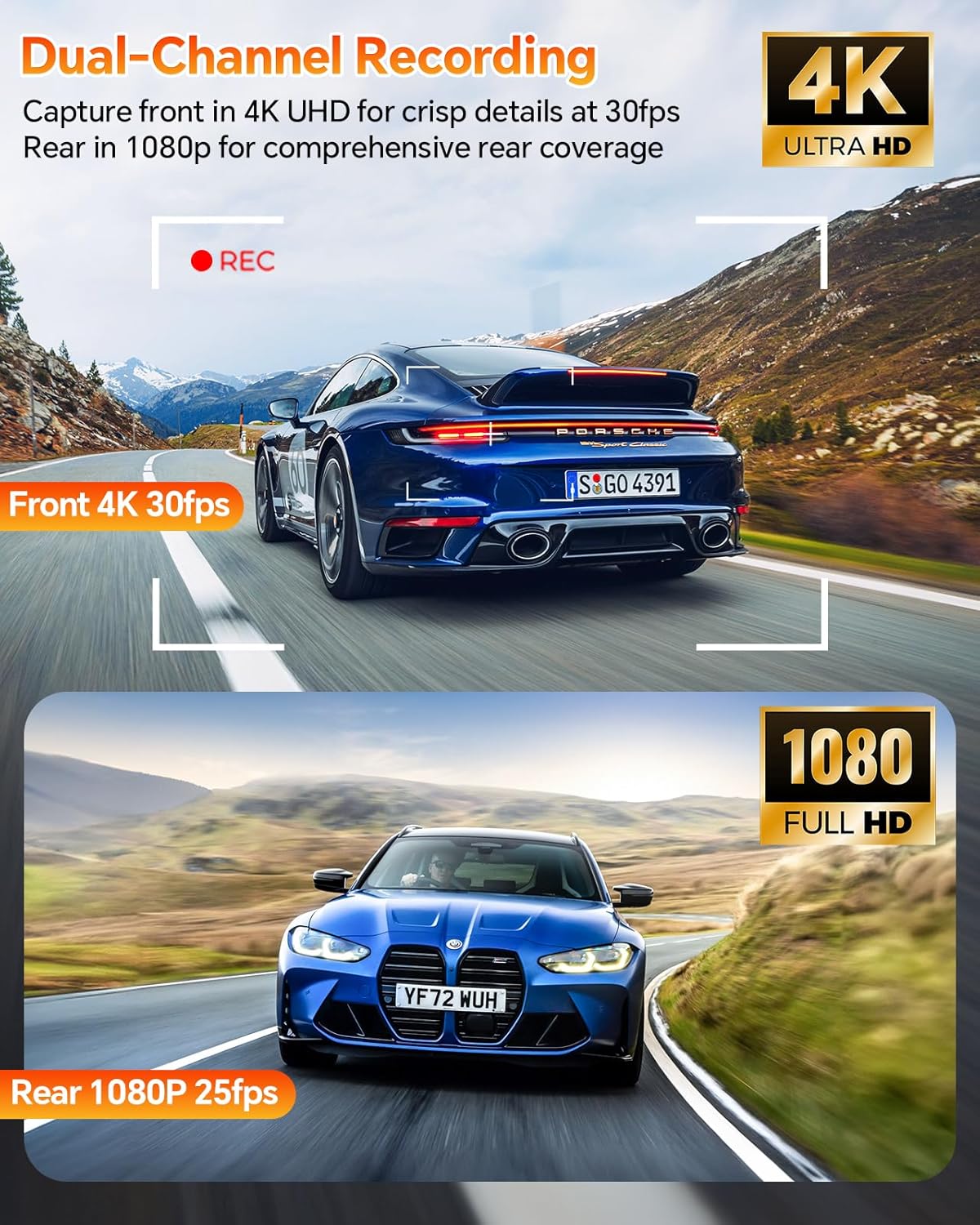
Image: An illustration showing the dash cam's dual-channel recording, with a car driving away (front 4K 30fps) and a car approaching (rear 1080P 25fps).

Image: A graphic illustrating the wide field of view provided by the 170° front camera and 160° rear camera, showing comprehensive coverage of the road.
5.2 Loop Recording
The dash cam utilizes seamless loop recording. When the memory card is full, the oldest unprotected files are automatically overwritten to ensure continuous recording without manual intervention.

Image: A visual representation of loop recording, showing old files being overwritten as new footage is recorded, with the dash cam and a 64GB memory card.
5.3 G-Sensor (Emergency Lock)
The built-in G-sensor detects sudden impacts, collisions, or bumps. When triggered, it automatically locks the current footage, preventing it from being overwritten by loop recording. This ensures critical evidence is preserved.
- It is recommended to set the G-sensor sensitivity to 'low' to avoid locking unnecessary footage from minor bumps.
- Footage can also be manually locked by pressing the emergency lock button on the dash cam.

Image: A graphic depicting a car collision and the dash cam's G-sensor automatically locking footage, alongside a manual one-press lock button.
5.4 Parking Monitor (24/7 Surveillance)
The dash cam offers 24/7 parking surveillance to protect your vehicle while stationary.
- Motion/Impact Detection: The camera automatically starts recording when motion or impact is detected while parked.
- Time-Lapse Recording: In parking mode, the dash cam can record continuously at a reduced frame rate, maximizing storage and battery life.
- Note: Full functionality of the parking monitor, especially for continuous power, requires a separate hardwire kit (sold separately).

Image: A visual showing a person attempting to break into a car, with a shield icon indicating 24-hour protection, and a hardwire kit accessory.

Image: A car with a 24-hour clock icon and a time-lapse effect, indicating continuous monitoring, with a note about needing a Type-C hardwire kit.
5.5 5G Wi-Fi & App Control
The dash cam features built-in 5G Wi-Fi for fast connectivity and control via a smartphone app.
- Download the dedicated app (compatible with iOS and Android devices) from your app store.
- Connect your smartphone to the dash cam's 5G Wi-Fi network.
- Through the app, you can:
- View live footage from both cameras.
- Playback recorded videos.
- Download videos to your phone.
- Adjust dash cam settings.
- Share footage.

Image: A smartphone displaying the dash cam app interface with options for live view, playback, and camera settings, alongside the dash cam unit.
5.6 GPS & Speed Tracking
The built-in GPS module (integrated into the car charger) tracks your vehicle's location, speed, and route.
- This data is embedded with the video footage and can be viewed on the dash cam's screen or through the app/computer software (GXPlayer).
- Real-time speed and compass information are displayed on the 3-inch IPS screen.
- Note: GPS functionality requires the use of the included original car charger.

Image: A car driving on a road with GPS pins, and a laptop and smartphone displaying map data and driving information from the dash cam.
5.7 Super Night Vision
Equipped with a Sony sensor and Multi-frame Synthesis Technology, the dash cam provides enhanced clarity in low-light conditions.
- HDR (High Dynamic Range) technology balances exposure and reduces glare from headlights, improving nighttime visibility.
- A 6-glass lens and WDR (Wide Dynamic Range) ensure accurate colors and sharp images day and night.

Image: A car driving at night, highlighting the dash cam's Super Night Vision features like Super Sensor, 1.8 Large Aperture, and WDR Technology.
5.8 Upgraded 1080P Waterproof Rear Camera
The rear camera is fully waterproof, ensuring reliable performance in all weather conditions.
- When the rear camera's red wire is connected to the reverse light, reverse guide lines will automatically appear on the display when the vehicle is in reverse, assisting with parking.
- The Wi-Fi dash cam also features a 'Rearcam Mirror/Mirror Flip' function to adjust the rear camera orientation for optimal viewing.
6. Maintenance
6.1 Formatting the Memory Card
To maintain optimal performance and prevent file corruption, it is recommended to format the memory card regularly (e.g., once a month) using the dash cam's menu settings.
- Access the dash cam's menu settings.
- Navigate to the 'Format' or 'SD Card Management' option.
- Confirm the formatting process. All data on the card will be erased.
7. Troubleshooting
- Dash Cam not powering on: Ensure the car charger is securely plugged into both the dash cam and the vehicle's cigarette lighter. Check if the vehicle's power outlet is functioning.
- Recording stops unexpectedly: The memory card might be full or corrupted. Format the memory card. Ensure the G-sensor sensitivity is not set too high, causing frequent emergency locks.
- Poor video quality: Clean the camera lenses. Ensure the protective film has been removed. Check video resolution settings.
- GPS not working: Ensure the original car charger with the built-in GPS module is being used. Verify the dash cam has a clear view of the sky.
- Wi-Fi connection issues: Ensure the dash cam's Wi-Fi is enabled. Restart both the dash cam and your smartphone. Try reconnecting through the app.
- Rear camera not displaying: Check all cable connections between the front and rear cameras. Ensure the rear camera is properly powered.
8. Specifications
| Model Name | A15G Dash Cam |
| Front Camera Resolution | 4K (2160p) |
| Rear Camera Resolution | 1080P |
| Front Camera FOV | 170° |
| Rear Camera FOV | 160° |
| Connectivity | 5G Wi-Fi, USB |
| Special Features | App Control, Built-In GPS, Built-In WiFi, G-Sensor, Loop Recording, Night Vision, WDR, Parking Monitor |
| Display | 3-inch IPS Screen |
| Memory Card Support | Up to 256GB (64GB included) |
| Power Source | Car Charger (12V/24V) |
| Operating Temperature | Not explicitly stated, but Super Capacitor implies wide range. |
| Product Dimensions | 3.2 x 1.6 x 2.3 inches |
| Item Weight | 1.08 pounds |
9. Warranty & Support
The Yansoo A15G Dash Cam comes with a 12-month extended warranty. For any questions, concerns, or technical assistance, please contact our dedicated aftersales support team. Refer to the contact information provided on the product packaging or the official Yansoo website.

