
Introduction
The Caydo M1C Art Projector is a versatile DLP projector designed to enhance artistic creation and provide portable entertainment. It allows users to effortlessly project images, designs, and photos onto various surfaces for tracing, sketching, and decorating. Featuring an exclusive drawing assistant app and multiple connectivity options, the M1C offers a seamless and intuitive experience for artists, designers, and hobbyists.
Setup
Package Contents
Before beginning, please ensure all items are present in the package:
- 1x M1C Art Projector
- 1x Tripod
- 1x Adaptor
- 1x HDMI Cable
- 1x Remote
- 1x User Manual
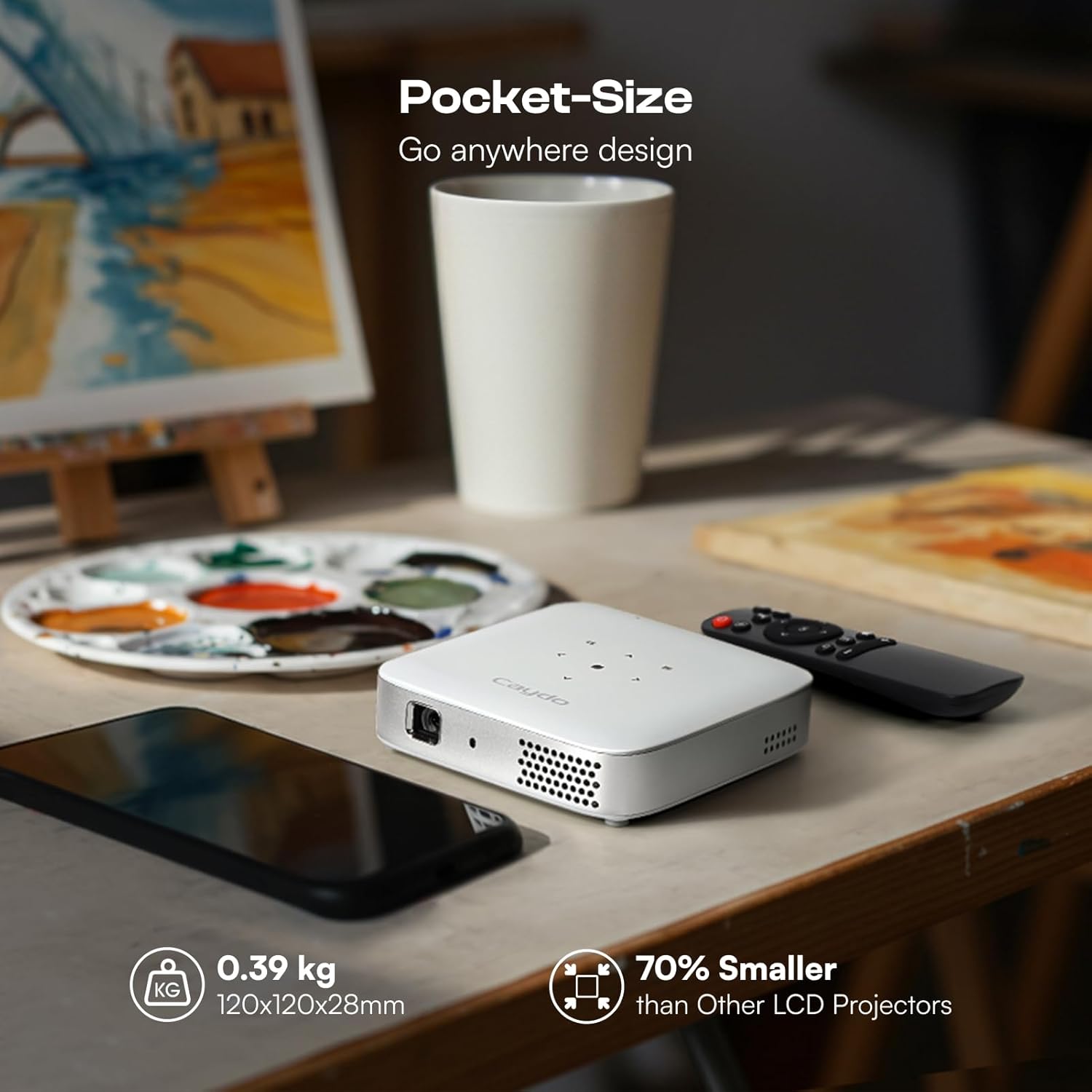
Image: The Caydo M1C Art Projector shown with its included tripod, remote control, and power adapter.
Physical Setup
- Attach the Tripod: Screw the included tripod into the threaded mount on the bottom of the projector. Adjust the tripod legs to achieve desired height and stability.
- Power On: Connect the power adapter to the projector and a power outlet. Press and hold the power button on the projector for a few seconds until the device powers on.
Connecting to Wi-Fi
To access online features and screen mirroring, connect your projector to a Wi-Fi network:
- Navigate to the 'Settings' icon on the projector's main menu using the remote control.
- Select 'Networking Setting' and then 'Wi-Fi Setting'.
- Choose your desired Wi-Fi network from the list and enter the password.
Video: This video demonstrates how to access and adjust settings on the Caydo Art Projector, including network settings for Wi-Fi connectivity.
Connecting Devices
The Caydo M1C offers various ways to connect your devices:
- Screen Mirroring (EShare, AirPlay, Miracast): For wireless projection from your smartphone or tablet, ensure both your device and the projector are connected to the same Wi-Fi network. Use the respective screen mirroring function on your device (e.g., EShare app, AirPlay for iOS, Miracast for Android) to connect to the projector.
- USB Drive: To transfer images directly, scan the QR code within the exclusive drawing app or insert a USB drive into the projector's USB port.
- HDMI Cable: Connect your computer or other HDMI-compatible devices using the provided HDMI cable for a wired connection.
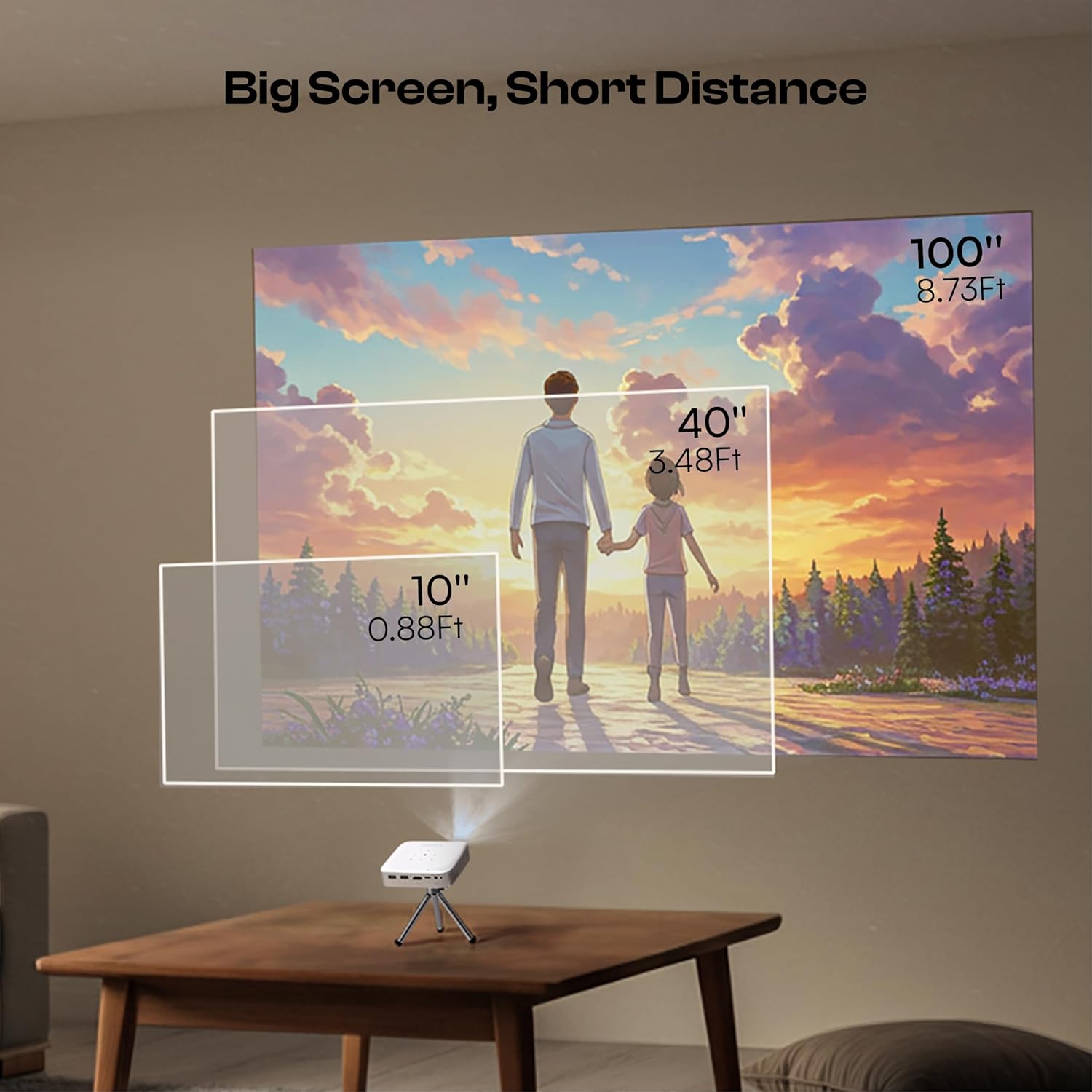
Image: The side of the Caydo M1C Art Projector displaying its HDMI, USB, and other connectivity ports.
Video: This video demonstrates how to navigate the Caydo Art Drawing App and utilize its features for creative projects.
Operating Instructions
Navigation and Interface
Use the included remote control to navigate the projector's intuitive on-screen interface. The main menu provides access to applications, settings, files, and various input signals.
Exclusive Drawing Assistant App
The built-in art software features tools designed to make your artistic process smoother and more intuitive. Ensure your app is updated to the newest 1.8 version for optimal experience.
- Zooming & Rotating: Adjust the scale and rotation of your projected image to fit your canvas or surface perfectly.
- 3x3 Grids: Utilize the grid overlay for precise tracing and scaling of complex images.
- Drawing Modes: Explore 4 unique drawing modes: Gridify, Sketchify, Comicize, and Monochromize to customize your styles.
- Background Colors: Choose from 3 background colors to suit your preference and drawing surface.

Image: The projector displaying its built-in drawing app with options for image selection, scaling, rotation, and various processing modes.
Video: A quick overview of the Caydo M1C Art Projector's capabilities, including its drawing app and projection features.
Keystone Correction and Focus
The projector features automatic keystone correction for a perfectly rectangular image, even when projected at an angle. You can also manually adjust the keystone if needed.
- Auto Keystone: The projector automatically adjusts the image shape to correct for distortion.
- Manual Keystone: Access 'Projection Setting' in the main menu, then 'Keystone Correction' to manually adjust the corners of the projected image.
- Focus: Adjust the focus ring on the projector lens until the image appears sharp and clear.

Image: The projector demonstrating its auto keystone correction and 50% zooming capabilities for flexible image placement.
Brightness Adjustment
The M1C features a 110 ANSI lumen LED lamp, providing vivid and clear projection. Brightness settings can be adjusted in the 'Projection Setting' menu to suit your environment.
Maintenance
To ensure the longevity and optimal performance of your Caydo M1C Art Projector, follow these maintenance guidelines:
- Cleaning the Lens: Gently wipe the projector lens with a soft, lint-free cloth. Avoid using abrasive cleaners or excessive force.
- Keeping Vents Clear: Ensure the ventilation vents on the projector are not obstructed to prevent overheating. Regularly clean any dust accumulation from the vents using a soft brush or compressed air.
- Storage: When not in use, store the projector in a cool, dry place away from direct sunlight and extreme temperatures. Use the original packaging or a protective case to prevent dust and damage.
Troubleshooting
If you encounter any issues with your Caydo M1C Art Projector, refer to the following common troubleshooting tips:
- No Image/Power: Ensure the power adapter is securely connected to both the projector and a working power outlet. Press and hold the power button for a few seconds.
- Blurry Image: Adjust the focus ring on the projector lens. If the image is distorted, check the keystone correction settings (auto or manual). Ensure the projection surface is flat and the projector is stable.
- Connection Issues (Wi-Fi/Screen Mirroring): Verify that both the projector and your device are connected to the same Wi-Fi network. Restart both devices. For screen mirroring, ensure the correct mirroring protocol (EShare, AirPlay, Miracast) is selected.
- No Sound: Check the volume settings on both the projector and the connected device. If using an external speaker, ensure it is properly connected and powered on.
- Image Too Small/Large: Adjust the distance of the projector from the projection surface. The projector supports screen sizes from 10 to 100 inches.
Specifications
| Feature | Detail |
|---|---|
| Item Weight | 1.98 pounds |
| Product Dimensions | 4.72 x 4.72 x 1.1 inches |
| Item Model Number | X-1059 |
| Special Features | DLP, Built-in Speaker, Bluetooth, 2.4G/5G WiFi, 10"-100" Projection Size |
| Connectivity Technology | WiFi; Bluetooth; HDMI; USB; 3.5mm Jack; Wireless; Wired |
| Display Resolution | 1280 x 720 |
Warranty
The Caydo M1C Art Projector comes with a standard manufacturer's warranty. Please refer to the warranty card included in your package for specific terms and conditions. Keep your proof of purchase for any warranty claims.
Support
For technical assistance, customer service, or any questions regarding your Caydo M1C Art Projector, please contact Caydo Online. They are committed to providing prompt assistance and addressing any concerns within 24 hours.
Contact Information:
- Seller: Caydo Online
- Amazon Store: Visit the Caydo Store


