
1. Introduction
The FREEWOLF A2 is a transparent wireless gaming mouse designed for versatility and performance. It features dual-mode connectivity (2.4G wireless and Bluetooth 5.0), a PixArt 3212 optical sensor with adjustable DPI, a built-in rechargeable battery with a digital display, and customizable RGB backlighting. Its ergonomic design ensures comfort during extended use across various operating systems like Windows, Mac, and Linux.

Image 1.1: The FREEWOLF A2 Transparent Wireless Gaming Mouse, showcasing its transparent shell and internal components.
2. Package Contents
Please verify that all items are present in the package:
- FREEWOLF A2 Wireless Gaming Mouse
- USB Receiver (2.4G dongle)
- USB-C Charging Cable
- User Manual (this document)
3. Product Overview
Familiarize yourself with the various components and features of your FREEWOLF A2 mouse.

Image 3.1: Exploded diagram illustrating the internal components of the FREEWOLF A2 mouse, including the transparent shell, battery, PCB board, and switches.

Image 3.2: Top-down view of the FREEWOLF A2 mouse with key components labeled, including the 2.4G receiver storage, DPI switch, power switch, and dimensions.
Key Features:
- Dual Mode Connection: 2.4G Wireless and Bluetooth 5.0.
- PixArt 3212 Sensor: High sensitivity and accuracy.
- Adjustable DPI: 5 levels up to 4000 DPI.
- Rechargeable Battery: Built-in 400 mAh battery with USB-C charging.
- Digital Screen: Displays battery percentage and DPI level.
- RGB Backlight: Customizable lighting effects.
- Ergonomic Design: Comfortable for various grip styles.
4. Setup
4.1. Charging the Mouse
Before first use, it is recommended to fully charge the mouse. Connect the provided USB-C charging cable to the mouse's charging port and the other end to a USB power source (e.g., computer USB port, USB wall adapter). The digital screen will display the battery percentage during charging.
Note: The USB-C cable is for charging only and does not provide a wired connection for mouse operation.

Image 4.1: Close-up of the FREEWOLF A2 mouse showing the digital screen displaying battery percentage.
4.2. Connecting via 2.4G Wireless
- Locate the USB receiver (dongle) stored in the compartment on the underside of the mouse.
- Plug the USB receiver into an available USB port on your computer.
- Slide the power switch on the underside of the mouse to the '2.4G' position.
- The mouse should connect automatically. Your computer will typically install the necessary drivers.
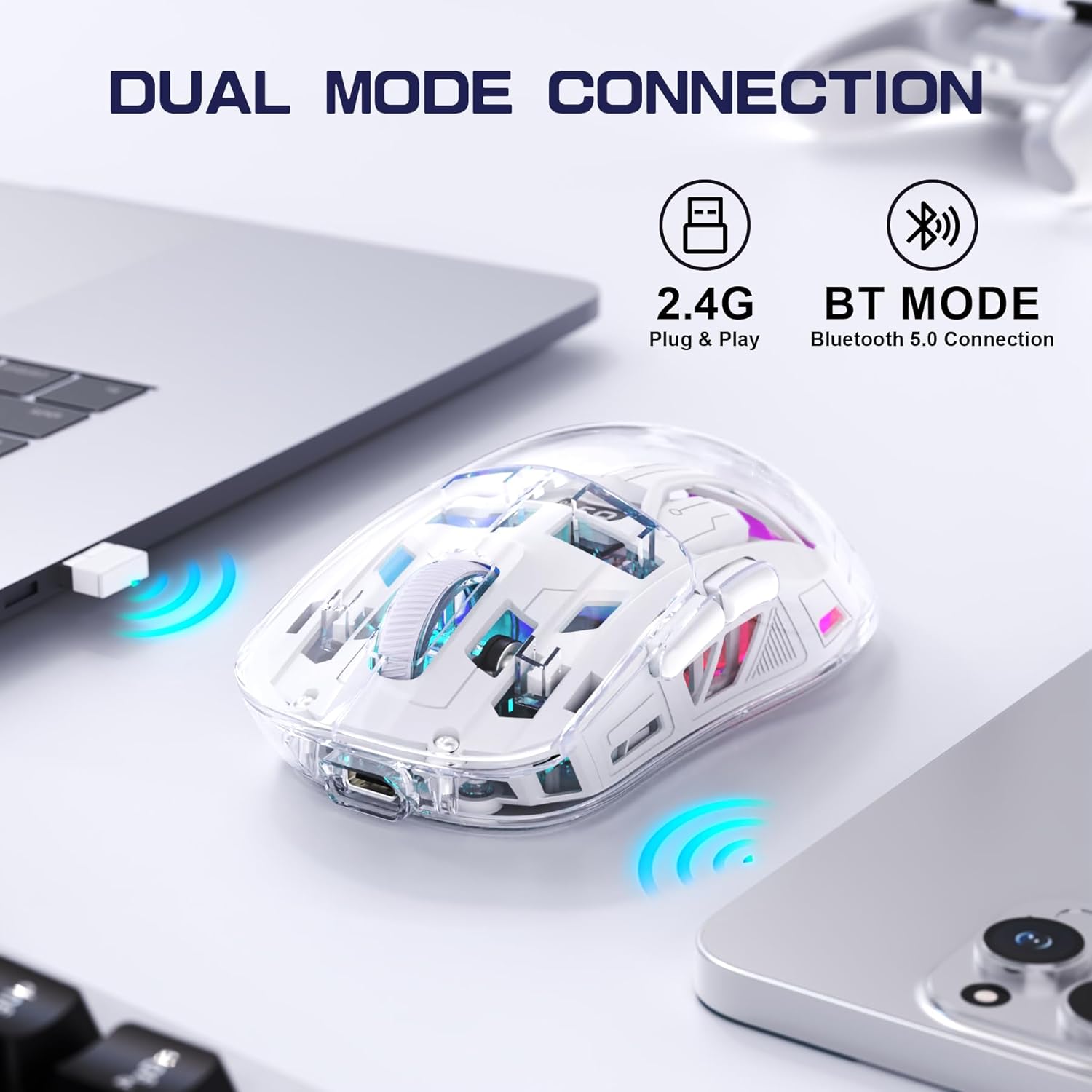
Image 4.2: The FREEWOLF A2 mouse connected to a laptop via its 2.4G wireless USB receiver.
4.3. Connecting via Bluetooth 5.0
- Slide the power switch on the underside of the mouse to the 'BT' (Bluetooth) position.
- On your computer or device, open Bluetooth settings.
- Search for new devices. The mouse should appear as 'FREEWOLF A2' or similar.
- Select the mouse to pair. Follow any on-screen prompts.
5. Operating Instructions
5.1. DPI Adjustment
The mouse features 5 adjustable DPI levels (1200-4000 DPI) to suit different tasks and preferences. To change the DPI, press the DPI button located on the underside of the mouse. The digital screen will briefly display the current DPI setting.

Image 5.1: Diagram illustrating the 5 adjustable DPI levels (1200, 1600, 2000, 2400, 4000) available on the FREEWOLF A2 mouse.
5.2. RGB Backlight Control
The FREEWOLF A2 mouse features vibrant RGB backlighting. To cycle through different lighting effects or turn the backlight off, press and hold the scroll wheel button for a few seconds.

Image 5.2: Two FREEWOLF A2 mice on a desk, showcasing their cool RGB lighting effects in a low-light environment.
5.3. Battery Display
The integrated digital screen on the mouse continuously displays the current battery percentage, allowing you to monitor power levels and recharge as needed.
5.4. Ergonomic Design
The mouse is designed to conform to various hand grip styles (Palm Grip, Fingertip Grip, Claw Grip), reducing discomfort during prolonged use.
Image 5.3: A hand demonstrating a comfortable grip on the FREEWOLF A2 mouse, highlighting its ergonomic design.
6. Maintenance
- Cleaning: Use a soft, dry cloth to clean the mouse. Avoid using harsh chemicals or abrasive materials.
- Storage: When not in use, store the mouse in a cool, dry place. If storing for an extended period, ensure the mouse is fully charged and turn off the power.
- Battery Care: To prolong battery life, avoid fully discharging the mouse frequently. Recharge when the battery level is low.
7. Troubleshooting
- Mouse not responding:
- Ensure the mouse is powered on and the correct connection mode (2.4G or BT) is selected.
- Check battery level on the digital screen and recharge if necessary.
- For 2.4G mode, ensure the USB receiver is securely plugged into a working USB port. Try a different USB port.
- For Bluetooth mode, ensure Bluetooth is enabled on your device and the mouse is paired correctly. Try unpairing and re-pairing.
- Restart your computer or device.
- Cursor movement is erratic or frozen:
- Clean the optical sensor on the underside of the mouse.
- Ensure you are using the mouse on a suitable surface (not highly reflective or transparent).
- Check for interference from other wireless devices.
- Adjust DPI settings to see if it resolves the issue.
- RGB backlight not working:
- Ensure the mouse has sufficient battery charge.
- Press and hold the scroll wheel button to cycle through lighting modes or turn the backlight on/off.
- Charging issues:
- Ensure the USB-C cable is properly connected to both the mouse and the power source.
- Try a different USB-C cable or power adapter.
- Confirm the power source is functional.
8. Specifications
| Feature | Detail |
|---|---|
| Model Number | A2 |
| Connectivity Technology | 2.4G Wireless, Bluetooth 5.0 |
| Movement Detection Technology | Optical (PixArt 3212) |
| Adjustable DPI | 1200-4000 (5 levels) |
| Battery Capacity | 400 mAh (Built-in) |
| Charging Port | USB-C |
| Special Features | Ergonomic Design, LED Lights (RGB), Portable, Rechargeable, Digital Battery Display |
| Product Dimensions | 6.89 x 4.53 x 0.04 inches |
| Item Weight | 4.9 ounces |
| Manufacturer | FREEWOLF |
9. Warranty and Support
Specific warranty information for the FREEWOLF A2 Transparent Wireless Gaming Mouse is not provided in the available product data. Please refer to the product packaging or the retailer's website for details regarding warranty coverage.
For technical support or further assistance, please contact the manufacturer or your point of purchase. Contact information may be available on the product packaging or the official FREEWOLF website.


