1. Introduction
The FREEWOLF A2 Transparent Wireless Gaming Mouse offers a versatile and responsive experience for PC users. Featuring dual-mode connectivity (2.4G wireless and Bluetooth 5.0), adjustable DPI settings, a rechargeable battery with a digital display, and customizable RGB backlighting, this mouse is designed for various computing tasks, including gaming and office work.

Image: The FREEWOLF A2 mouse in purple, showcasing its transparent design and the included USB receiver.
2. Key Features
- Dual Mode Connection: Supports 2.4G wireless (via USB receiver) and Bluetooth 5.0 for flexible connectivity.
- Adjustable DPI: 5 levels of DPI (up to 4000) for precise cursor control, powered by a PixArt 3212 optical sensor.
- Rechargeable Battery: Built-in 400 mAh battery with USB-C charging, offering extended use on a single charge.
- Digital Battery Display: An integrated screen shows the current battery percentage.
- RGB Backlight: Customizable RGB lighting effects enhance the aesthetic appeal.
- Ergonomic Design: Shaped for comfort during prolonged use, accommodating various grip styles.
- Durable Switches: Rated for over 5 million clicks.
- Transparent Shell: Unique design allows visibility of internal components and lighting.

Image: Visual representation of the mouse's core features, including dual mode, PixArt 3212 sensor, RGB lighting, digital screen, adjustable DPI, and transparent design.
3. Package Contents
Please check the package for the following items:
- FREEWOLF A2 Wireless Gaming Mouse
- USB Receiver (stored inside the mouse)
- USB-C Charging Cable
- User Manual (this document)
4. Setup Instructions
4.1. Charging the Mouse
- Locate the USB-C charging port on the front of the mouse.
- Connect the provided USB-C cable to the mouse and the other end to a USB power source (e.g., computer USB port, wall adapter).
- The digital screen on the mouse will display the charging status. A full charge can last up to 30 days, depending on usage and RGB lighting settings.
Note: The USB-C cable is for charging only and does not support wired data connection for mouse operation.

Image: The mouse's digital screen indicating battery charge level.
4.2. Connecting via 2.4G Wireless
- Remove the USB receiver from its storage slot on the underside of the mouse.
- Plug the USB receiver into an available USB port on your computer.
- Locate the power switch on the underside of the mouse. Slide the switch to the '2.4G' position.
- The mouse should automatically connect to your computer.
4.3. Connecting via Bluetooth 5.0
- Locate the power switch on the underside of the mouse. Slide the switch to the 'BT' position.
- On your computer or device, enable Bluetooth and search for new devices.
- Select 'FREEWOLF A2' (or similar) from the list of available devices to pair.
- The mouse supports connection to up to two Bluetooth devices (BT1/BT2). To switch between them, press the DPI button on the underside of the mouse while in Bluetooth mode.

Image: Illustration of the dual-mode connection, showing 2.4G (plug and play) and Bluetooth 5.0 connectivity.
5. Operating Instructions
5.1. Adjusting DPI (Sensitivity)
- The mouse has 5 adjustable DPI levels (e.g., 1200, 1600, 2000, 2400, 4000).
- Press the DPI button located on the underside of the mouse to cycle through the DPI settings.
- The digital screen may briefly display the current DPI level.
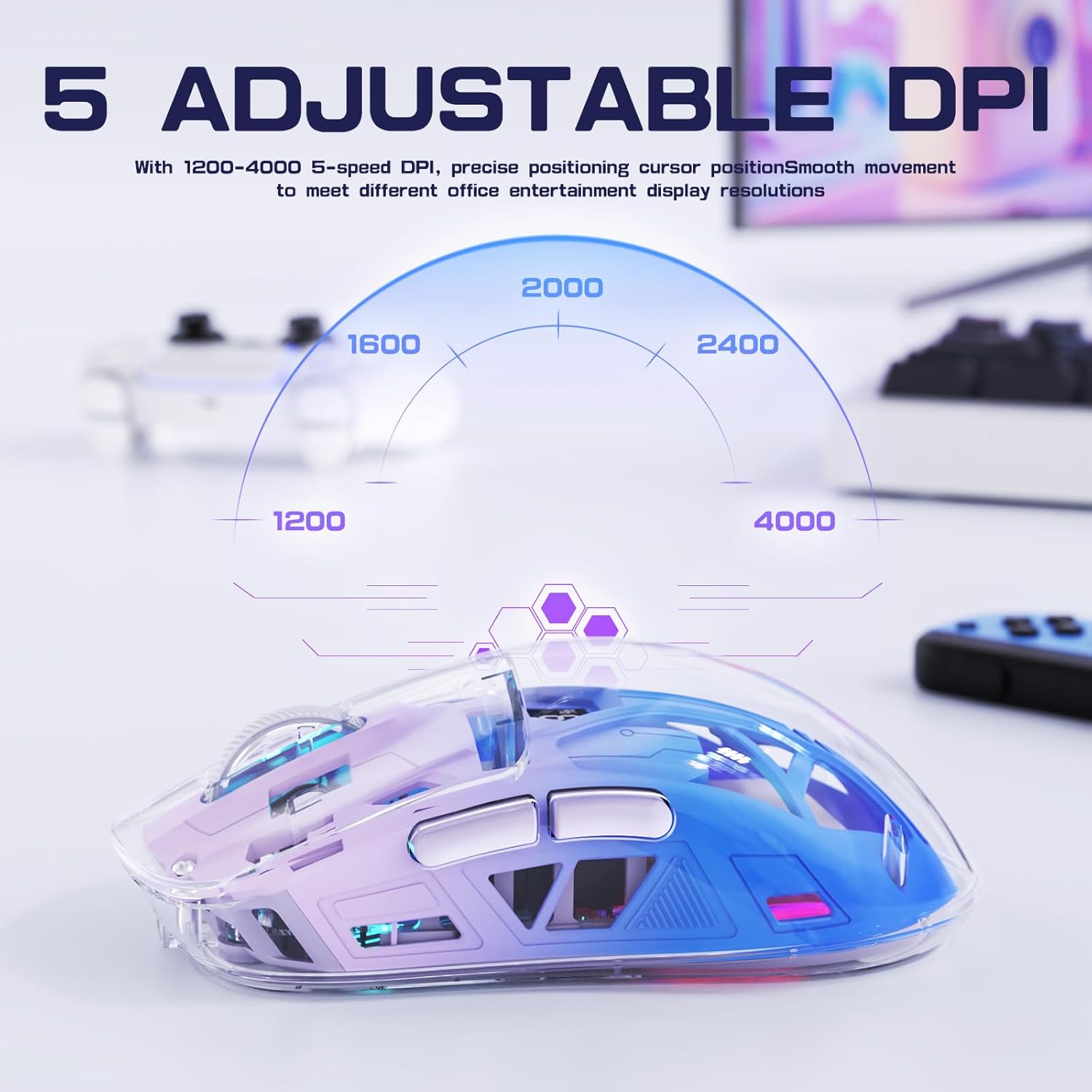
Image: Visual guide to the 5 adjustable DPI settings.
5.2. RGB Backlight Control
- The mouse features dynamic RGB lighting effects.
- To cycle through different RGB lighting modes or turn off the lighting, press and hold the scroll wheel button for approximately 3 seconds.
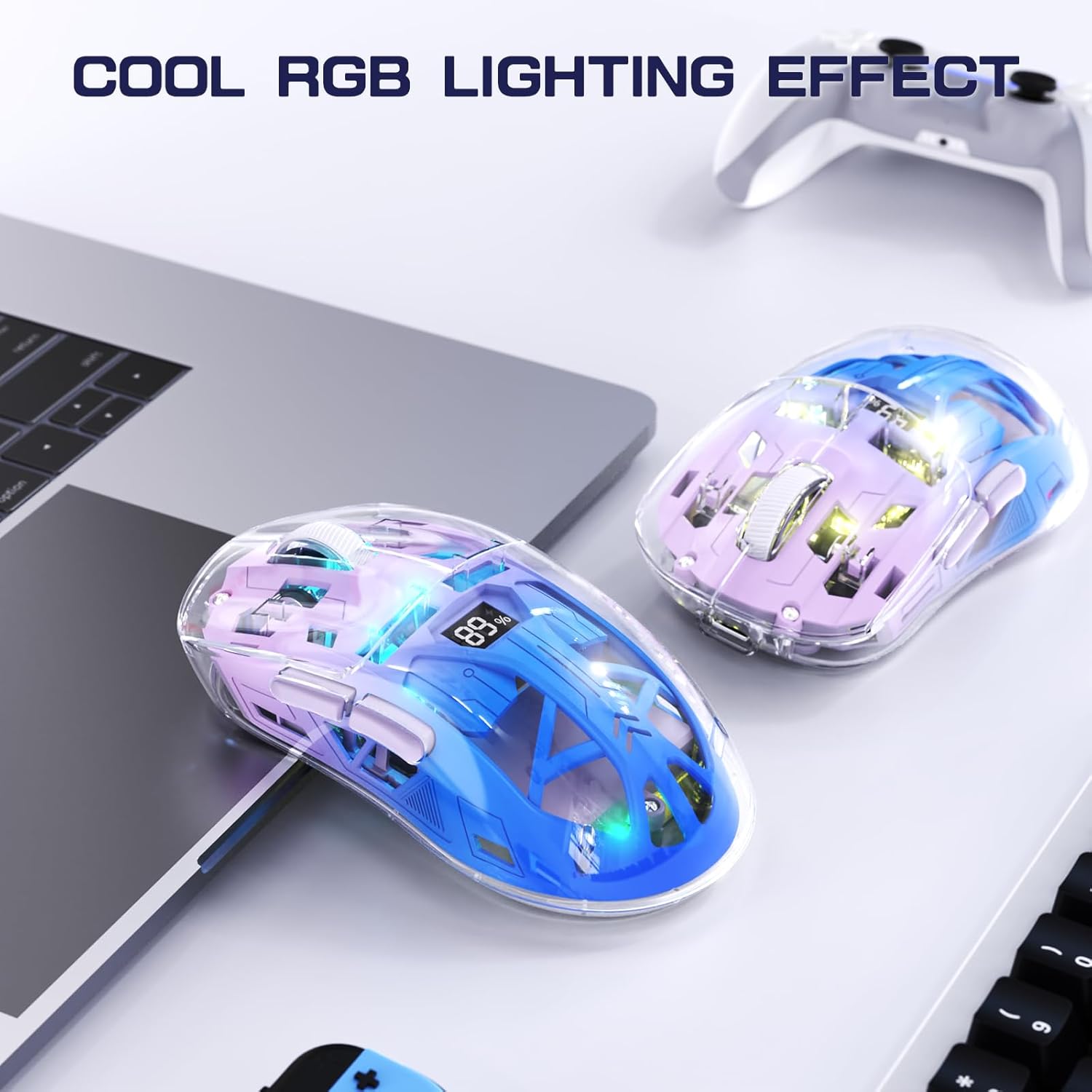
Image: The mouse displaying its RGB lighting effects.
5.3. Power On/Off
Use the switch on the underside of the mouse to turn it ON (2.4G or BT mode) or OFF.
5.4. Side Buttons
The mouse includes two side buttons, typically functioning as 'Forward' and 'Backward' in web browsers and file explorers. Their functionality may vary in certain applications or games.
6. Maintenance
- Cleaning: Use a soft, dry cloth to clean the mouse. Avoid using harsh chemicals or abrasive materials.
- Storage: When not in use, store the USB receiver inside the mouse to prevent loss. Store the mouse in a cool, dry place.
- Battery Care: Avoid fully discharging the battery frequently. Charge the mouse regularly to maintain battery health.
7. Troubleshooting
| Issue | Possible Solution |
|---|---|
| Mouse not responding |
|
| Lag or intermittent connection |
|
| RGB lighting not working |
|
| DPI adjustment not working |
|
8. Specifications
| Feature | Detail |
|---|---|
| Model Number | A2 |
| Connectivity | 2.4G Wireless, Bluetooth 5.0 |
| Sensor | PixArt 3212 Optical |
| DPI Levels | 5 adjustable levels (up to 4000 DPI) |
| Battery Capacity | 400 mAh (Rechargeable Lithium) |
| Charging Port | USB-C |
| Switch Lifespan | 5 Million Clicks |
| Product Dimensions | 6.89 x 4.53 x 0.04 inches |
| Item Weight | 5.3 ounces |
| Compatibility | Windows, Mac, Linux |
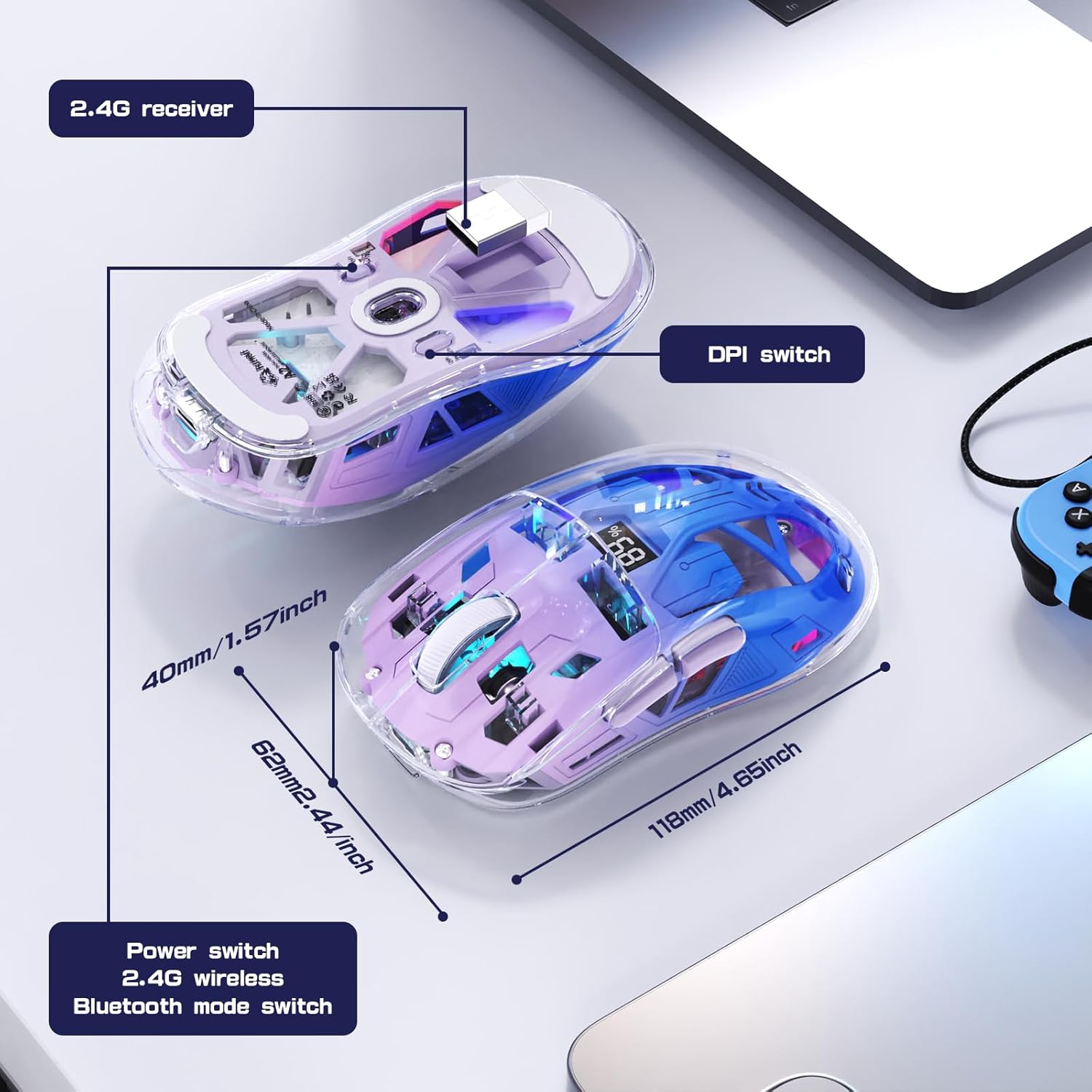
Image: Exploded diagram showing internal components and key external features with dimensions.
9. Product Overview Video
Video: An official product video from Ajazz US showcasing the FREEWOLF A2 Wireless Gaming Mouse, its features, and usage scenarios.
10. Warranty and Support
This product comes with a standard manufacturer's warranty. For detailed warranty information, please refer to the warranty card included in your product packaging or contact FREEWOLF customer support.
For technical support, troubleshooting assistance, or any inquiries regarding your FREEWOLF A2 mouse, please visit the official FREEWOLF website or contact their customer service department. Contact information can typically be found on the product packaging or the brand's official online presence.