Introduction
This manual provides essential information for setting up, operating, maintaining, and troubleshooting your iiyama STYLE INFINITY 17.3-inch laptop. Please read this manual thoroughly before using your new device to ensure proper functionality and longevity.
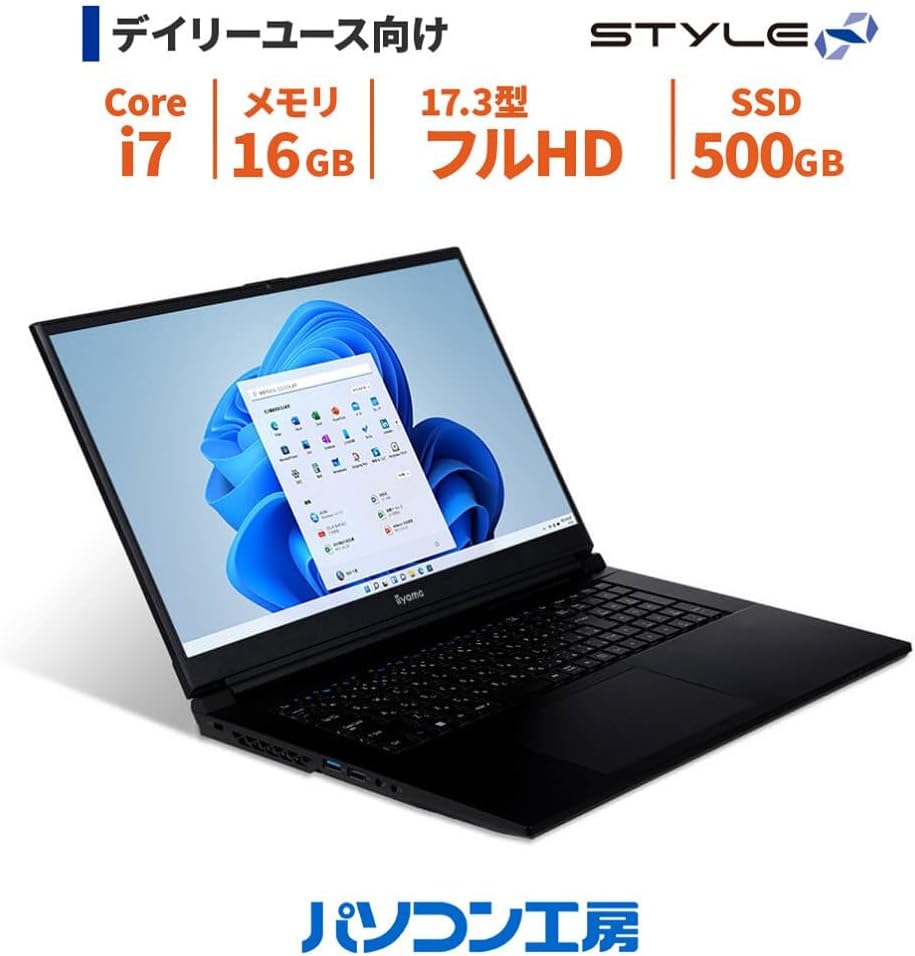
Figure 1: iiyama STYLE INFINITY laptop with Windows 11 interface.
Setup
1. Unpacking
Carefully remove all components from the packaging. Ensure the following items are present:
- iiyama STYLE INFINITY Laptop
- AC Adapter and Power Cord
- User Manuals (including this document)
- Warranty Card
2. Connecting Power
Connect the AC adapter to the laptop's power input port and then plug the power cord into a wall outlet. The laptop can be used while charging, or on battery power once sufficiently charged.

Figure 2: Side view of the laptop, illustrating port locations. The power input is typically located on the side or rear.
3. Initial Boot and Windows Setup
Press the power button to turn on the laptop. Follow the on-screen instructions to complete the Windows 11 Home setup process. This includes selecting your region, language, connecting to a network, and creating a user account.
Operating Instructions
1. Power On/Off
- To Power On: Press the power button located on the laptop.
- To Power Off: Click the Start button in Windows, then select Power > Shut down.
- To Restart: Click the Start button in Windows, then select Power > Restart.
- To Sleep: Click the Start button in Windows, then select Power > Sleep, or close the laptop lid.
2. Keyboard and Touchpad
The laptop features a Japanese keyboard and a multi-touch compatible touchpad. Refer to the image below for layout.

Figure 3: Keyboard and touchpad layout.
- Touchpad Gestures: The touchpad supports multi-touch gestures for scrolling, zooming, and other functions. Refer to Windows settings for customization.
- Function Keys: Use the Fn key in combination with the F1-F12 keys for quick access to system functions like volume control, screen brightness, and Wi-Fi toggle.
3. Connecting to Wi-Fi
To connect to a wireless network:
- Click the Wi-Fi icon in the taskbar.
- Select your desired network from the list.
- Enter the network security key (password) if prompted.
- Click Connect.
4. Using External Ports
Your laptop is equipped with various ports for connecting external devices:
- USB Ports: Connect USB devices such as external drives, mice, or keyboards. The laptop has 2x USB 3.1 (Type-C), 1x USB 3.0, and 1x USB 2.0 ports.
- HDMI / Mini DisplayPort: Connect external monitors or projectors for extended display.
- Audio Jacks: Separate headphone/speaker output and microphone input jacks are provided.
- LAN Port: For wired network connections (1000BASE-T).
- Micro SD Card Reader: Insert a micro SD card to access stored data.
Maintenance
1. Cleaning the Laptop
To maintain your laptop's appearance and performance:
- Use a soft, lint-free cloth slightly dampened with water or a specialized screen cleaner for the display.
- For the keyboard and chassis, use a soft, dry cloth. Avoid harsh chemicals.
- Periodically clean the ventilation grilles to prevent dust buildup, which can affect cooling.
2. Battery Care
To maximize battery life and longevity:
- Avoid fully discharging the battery frequently.
- If storing the laptop for an extended period, ensure the battery is charged to approximately 50-70%.
- Operate the laptop in a moderate temperature environment.
3. Software Updates
Regularly update your operating system and drivers to ensure optimal performance, security, and compatibility. Windows Update can be accessed via Settings > Windows Update.
Troubleshooting
This section addresses common issues you might encounter.
No Power / Laptop Not Turning On
- Ensure the AC adapter is securely connected to both the laptop and a working power outlet.
- Verify the power outlet is functional by plugging in another device.
- If using battery power, ensure the battery is charged.
Display Issues
- If the screen is blank, try adjusting the brightness using the function keys.
- If an external monitor is connected, ensure the display output settings are correct (e.g., duplicate, extend).
- Restart the laptop.
Network Connectivity Problems
- For Wi-Fi, ensure Wi-Fi is enabled and you are connected to the correct network. Try restarting your router.
- For wired LAN, ensure the Ethernet cable is properly connected to both the laptop and the router/modem.
- Run the Windows Network Troubleshooter (Settings > Network & internet > Advanced network settings > Network troubleshooter).
For more complex issues, refer to the official iiyama support website or contact customer service.
Specifications

Figure 4: Front view of the iiyama STYLE INFINITY laptop.
| Feature | Detail |
|---|---|
| Model Name | STYLE INFINITY |
| Model Number | STYLE-17FH126-i7-UX3X-M |
| Operating System | Windows 11 Home |
| Display | 17.3-inch Full HD (1920x1080) Non-Glare LCD, 144Hz Refresh Rate |
| Processor | Intel Core i7-13700H (up to 5.00GHz, 14 Cores/20 Threads, 24MB Cache) |
| Graphics | Intel UHD Graphics |
| Memory | 16GB DDR4-3200 S.O.DIMM (PC4-25600) |
| Storage | 500GB NVMe M.2 SSD |
| Optical Drive | Not Included |
| Card Reader | Micro SD Card Reader |
| Audio | High Definition Audio, Built-in Stereo Speakers, Built-in Microphone |
| Camera | 1 Megapixel |
| Wired LAN | 1000BASE-T |
| Wireless Connectivity | Wi-Fi 6E (IEEE802.11ax/ac/n/g/b/a), Bluetooth 5 |
| Keyboard | Japanese Keyboard |
| Pointing Device | Multi-touch Touchpad |
| External Ports | 2x USB 3.1 (Type-C), 1x USB 3.0, 1x USB 2.0, 1x HDMI, 1x Mini DisplayPort, 1x Headphone/Speaker Out, 1x Microphone In |
| TPM | TPM2.0 Compatible |
| Battery Life | Approx. 4.6 hours |
| Weight | Approx. 2.52 kg (including battery) |
| Dimensions (WxDxH) | Approx. 399mm x 264mm x 30.5mm (including rubber feet) |
Warranty and Support
Warranty Information
Your iiyama STYLE INFINITY laptop comes with a standard 1-year warranty. Please retain your proof of purchase and the warranty card included in the packaging for any warranty claims. The warranty covers manufacturing defects and hardware failures under normal use conditions.
Customer Support
For technical assistance, troubleshooting beyond this manual, or warranty service, please contact iiyama customer support. You can find contact information and additional resources on the official iiyama website.
Before contacting support, please have your laptop's model number (STYLE-17FH126-i7-UX3X-M) and serial number ready.


