
Lenovo IdeaPad 5 2-in-1 16AHP9
Lenovo IdeaPad 5 2-in-1 16AHP9 Laptop User Manual
Model: 83DS
1. Introduction
This manual provides essential information for setting up, operating, maintaining, and troubleshooting your Lenovo IdeaPad 5 2-in-1 16AHP9 laptop. The IdeaPad 5 2-in-1 is a versatile device featuring a 16-inch Full HD+ IPS touchscreen display, powered by an AMD Ryzen 5 8645HS processor with AMD Radeon 760M Graphics, 16GB LPDDR5 RAM, and a 512GB NVMe SSD. It operates on Windows 10 Pro and offers a flexible 2-in-1 design for various usage modes.

Figure 1: Lenovo IdeaPad 5 2-in-1 in tent mode.
2. What's in the Box
Verify that all items are present in the package:
- Lenovo IdeaPad 5 2-in-1 16AHP9 Laptop
- 65W AC Adapter
- Stylus
- 32GB USB Drive
- Quick Start Guide (not included in this digital manual)
3. Initial Setup
3.1. Charging the Battery
Before first use, connect the 65W AC adapter to the laptop's USB-C power jack and a power outlet. Allow the battery to charge fully. The battery indicator light will show charging status.
3.2. Powering On
Press the power button, typically located on the side or keyboard deck, to turn on the laptop. The system will boot into Windows 10 Pro.
3.3. Initial Windows Setup
Follow the on-screen instructions to complete the Windows 10 Pro setup, including region, language, network connection, and user account creation.
3.4. Connecting to Wi-Fi
During Windows setup or afterward, click the Wi-Fi icon in the taskbar, select your network, enter the password, and click Connect. The laptop supports MediaTek Wi-Fi 6 (2x2).

Figure 2: Laptop powered on, showing the display.
4. Operating Your Laptop
4.1. Power Management
- Power On: Press the power button.
- Sleep Mode: Close the lid or press the power button briefly.
- Shut Down: Go to Start Menu > Power > Shut down.
- Restart: Go to Start Menu > Power > Restart.
4.2. Using 2-in-1 Modes
The IdeaPad 5 2-in-1 can be used in multiple configurations:
- Laptop Mode: Traditional laptop use with keyboard and touchpad.
- Tent Mode: Fold the screen back to form a tent shape, ideal for presentations or media viewing.
- Stand Mode: Fold the screen back with the keyboard facing down, suitable for touch interaction.
- Tablet Mode: Fold the screen completely back against the base for a tablet experience.

Figure 3: Laptop in a flexible stand mode with stylus.
4.3. Touchscreen and Stylus
Interact with the 16-inch IPS touchscreen using your fingers or the included stylus for navigation, drawing, and writing.
4.4. Keyboard and Fingerprint Reader
The full-size backlit keyboard includes a Numpad for efficient data entry. The integrated fingerprint reader provides secure and convenient login via Windows Hello.
4.5. Connectivity Ports
The laptop features various ports for external devices:
- 2 x USB 3.2 Gen 2 Type-C (supports Power Delivery, DisplayPort, 10Gbps data transfer)
- 1 x USB 3.2 Gen 1 Type-A (Always On, 5Gbps)
- 1 x USB 3.2 Gen 1 Type-A (5Gbps)
- 1 x HDMI v1.4
- 1 x Card Reader
- 1 x Headphone/Microphone Combo Jack
- 1 x USB-C Power Jack

Figure 4: Left side ports including USB-C and HDMI.
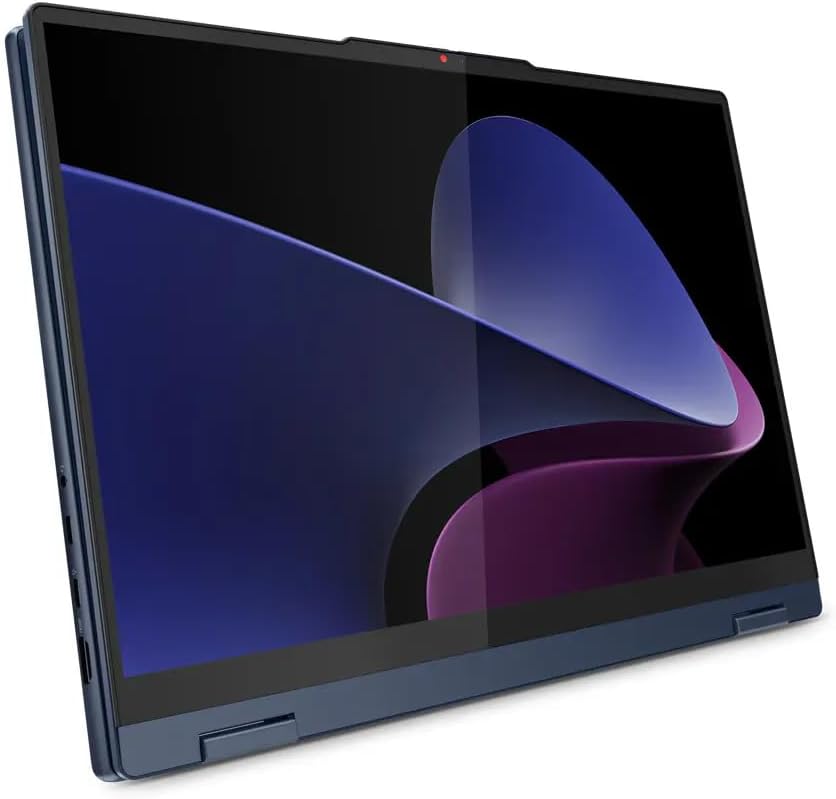
Figure 5: Right side ports including USB-A and card reader.
4.6. Camera and Privacy Shutter
The integrated 1080p FHD camera is equipped with a physical privacy shutter. Slide the shutter to cover the camera lens when not in use for enhanced privacy.
5. Maintenance and Care
5.1. Cleaning Your Laptop
- Screen: Use a soft, lint-free cloth lightly dampened with water or a screen cleaner. Avoid harsh chemicals.
- Chassis and Keyboard: Use a soft, dry cloth. For stubborn dirt, a slightly damp cloth can be used. Ensure no liquid enters openings.
- Ports: Keep ports free of dust and debris. Use compressed air if necessary, holding the can upright.
5.2. Battery Care
To prolong battery life:
- Avoid extreme temperatures.
- Do not fully discharge the battery regularly.
- For long-term storage, charge the battery to about 50-60%.
- Use only the provided 65W AC adapter.
5.3. Software Updates
Regularly check for and install Windows updates and Lenovo driver updates to ensure optimal performance and security. Go to Windows Settings > Update & Security > Windows Update.
5.4. Data Backup
Regularly back up your important data to an external drive or cloud storage to prevent data loss.
6. Troubleshooting
6.1. Common Issues and Solutions
| Issue | Possible Solution |
|---|---|
| Laptop does not power on. | Ensure the AC adapter is securely connected and the power outlet is functional. Try a different outlet. If battery is completely drained, allow it to charge for a few minutes before attempting to power on. |
| Screen is blank or black. | Check if the laptop is powered on. Press Fn + F2 (or similar function key) to ensure the display is not turned off. Connect to an external monitor to check if the issue is with the laptop's display. |
| Wi-Fi connection issues. | Restart your router and modem. Ensure Wi-Fi is enabled on the laptop (check network settings). Try forgetting and re-connecting to the network. Update Wi-Fi drivers. |
| Slow performance. | Close unnecessary applications. Check Task Manager for high CPU/RAM usage. Run a disk cleanup. Ensure Windows and drivers are up to date. Consider running a malware scan. |
| Keyboard backlight not working. | Press Fn + Spacebar (or similar function key) to adjust backlight brightness. Ensure the feature is enabled in BIOS/UEFI settings if applicable. |
For more complex issues, refer to the Lenovo support website or contact customer service.
7. Technical Specifications
| Feature | Detail |
|---|---|
| Model Name | IdeaPad 5 2-in-1 16AHP9 |
| Item Model Number | 83DS |
| Processor | AMD Ryzen 5 8645HS 6-Core (Up to 5.0 GHz, 16 MB Smart cache, 6 Cores, 12 Threads) |
| RAM | 16GB LPDDR5 6400 MHz |
| Storage | 512GB NVMe M.2 SSD |
| Graphics | AMD Radeon 760M Graphics |
| Display | 16" LED-backlit IPS Touchscreen, 1920 x 1200 resolution, 300 nits, Glossy, 45% NTSC, 60Hz, TÜV Low Blue Light, Glass |
| Operating System | Windows 10 Pro |
| Wireless Connectivity | MediaTek Wi-Fi 6 (2x2), Bluetooth 5.3 |
| Ports | 2x USB 3.2 Gen 2 Type-C, 2x USB 3.2 Gen 1 Type-A, 1x HDMI v1.4, 1x Card Reader, 1x Headphone/Microphone Combo Jack, 1x USB-C Power Jack |
| Camera | 1080p FHD Camera with Privacy Shutter |
| Keyboard | Fullsize Backlit Keyboard with Numpad |
| Security | Fingerprint Reader |
| Battery | 3 Cell 57 Wh, up to 6 hours average usage |
| Dimensions (LxWxH) | 14.02 x 10.03 x 0.72 inches (35.61 x 25.48 x 1.83 cm) |
| Weight | 4.41 lbs (2.0 kg) |
| Color | Cosmic Blue |
8. Warranty and Support
8.1. Product Warranty
Your Lenovo IdeaPad 5 2-in-1 16AHP9 laptop comes with a standard manufacturer's warranty. Please refer to the warranty documentation included with your product for specific terms, conditions, and duration. Warranty details may vary by region.
8.2. Technical Support
Lenovo provides 1 year of support within the US for this product. For technical assistance, driver downloads, or service requests, please visit the official Lenovo Support website:
When contacting support, have your laptop's model number (83DS) and serial number ready.