
Ntaanoo Ntaanoo
Ntaanoo Bluetooth Tracker User Manual
Model: Ntaanoo Bluetooth Tracker (Black Pro 2-Pack)

Introduction
Thank you for choosing the Ntaanoo Bluetooth Tracker. This device is designed to help you keep track of your valuable belongings using the Apple Find My network. Its compact size, long battery life, and robust features make it an ideal solution for locating keys, luggage, wallets, and more. This manual will guide you through the setup, operation, and maintenance of your new tracker.
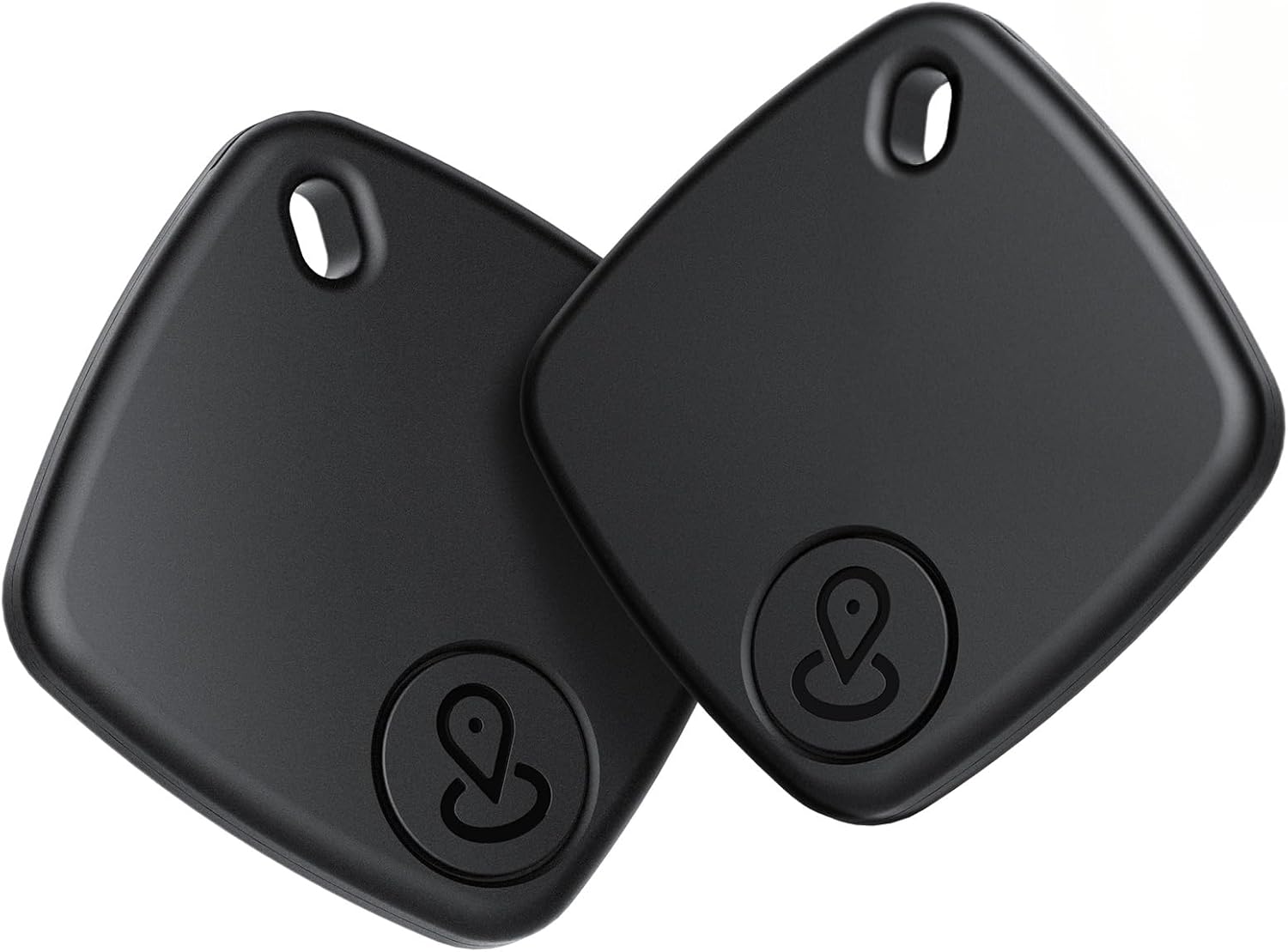
Image: Two Ntaanoo Bluetooth Trackers, showcasing their sleek black design.
Safety Information
- Keep the device away from extreme temperatures and direct sunlight.
- Do not attempt to disassemble or modify the tracker, as this will void the warranty and may cause damage.
- The device contains a replaceable coin cell battery. Keep batteries out of reach of children. If swallowed, seek immediate medical attention.
- Dispose of batteries and the device according to local regulations.
Package Contents
Your Ntaanoo Bluetooth Tracker package includes the following items:
- Ntaanoo Bluetooth Tracker (x2)
- Key Ring (x2)
- Lanyard (x2)
- User Manual (x1)

Image: A visual representation of the package contents, showing the two trackers, key rings, lanyards, and the user manual.
Setup and Pairing
The Ntaanoo Bluetooth Tracker works exclusively with Apple Find My (iOS devices only). No additional app download is required.
Initial Pairing
- Ensure Bluetooth is enabled on your iOS device.
- Open the pre-installed Find My app on your iPhone or iPad.
- Navigate to the Items tab.
- Tap Add Item, then select Add Other Item.
- Bring your Ntaanoo tracker close to your iOS device. The device will be detected as "Ei Tag".
- Tap Connect.
- Follow the on-screen prompts to assign a name and an emoji to your tracker for easy identification.

Image: Visual steps for pairing the Ntaanoo tracker with an iOS device via the Find My app.
Operating Instructions
Finding Nearby Items
When your Ntaanoo tracker is within Bluetooth range (up to 200 feet/60 meters), you can use the Find My app to locate it by playing a sound. The built-in speaker emits a loud sound (90-100 dB) to help you pinpoint its location.
- Open the Find My app.
- Go to the Items tab.
- Select your Ntaanoo tracker from the list.
- Tap Play Sound. The tracker will emit a series of beeps.
- Alternatively, you can ask Siri: "Hey Siri, find my [item name]."

Image: Demonstrates using the Find My app to play a sound on the tracker to locate nearby items, with sound waves indicating the tracker's audible alert.
Finding Far Away Items (Worldwide Tracking)
Even if you are out of Bluetooth range, the Ntaanoo tracker leverages the vast Apple Find My network to help you locate your items. Millions of Apple devices anonymously relay the location of your tracker to the Find My network, allowing you to see its real-time location on a map.
- Open the Find My app.
- Go to the Items tab.
- Select your Ntaanoo tracker.
- The map will display the last known location of your tracker.
- Tap Directions to get navigation to the tracker's location.

Image: Illustrates tracking a far-away item using the Find My app's map and navigation features, showing the tracker's location on a city map.
Left-Behind Remind
Receive instant notifications if you leave an item behind. If the Bluetooth connection between your iOS device and the tracker is disconnected, the Find My app will immediately alert you.
- This feature is typically enabled by default.
- To manage notifications, go to the Items tab in the Find My app, select your tracker, and adjust the 'Notify When Left Behind' settings.

Image: Shows an iPhone screen with a notification indicating that an item with the tracker has been left behind.
Lost Mode
If your item is truly lost, you can activate Lost Mode. This feature allows anyone who finds your tracker and has an Apple device to view your contact information, helping them return your item.
- Open the Find My app and go to the Items tab.
- Select your Ntaanoo tracker.
- Scroll down and tap Enable under 'Lost Mode'.
- Follow the prompts to enter your contact phone number and a message.
- You can also choose to be notified when your item is found.

Image: Illustrates the process of enabling Lost Mode within the Find My app, including entering contact information.
Checking Contact Information (Found Item)
If you find an Ntaanoo tracker that is in Lost Mode, you can check the owner's contact information:
- Bring the found tracker close to your iPhone or iPad.
- Open the Find My app, go to the Items tab, and tap Identify Found Item.
- Select the detected tag.
- Tap Continue On Website to view the owner's contact details.

Image: Shows the process of identifying a found item and accessing the owner's contact information via the Find My app.
Privacy Protection
Your privacy is paramount. The Ntaanoo Bluetooth Tracker works with Apple Find My, ensuring that all location data transmission is anonymous and encrypted. Only you can access your item's location, and the tracker itself does not store location history.

Image: A visual representation of the privacy and encryption features of the Ntaanoo tracker within the Find My network.
Share Your Items
You can share the location of your Ntaanoo tracker with family and friends who also use iOS or macOS devices (version 14.5+). This allows multiple trusted individuals to help keep track of important items.

Image: Depicts the ability to share item locations with others through the Find My app.
Anti-Stalking System
The Ntaanoo tracker includes an anti-stalking system that promptly notifies you if an unknown tracker is detected nearby and moving with you over time. This feature is designed to keep your tracking experience secure and discreet.

Image: Shows an iPhone displaying an alert from the anti-stalking system, notifying the user of an unknown tracker detected nearby.
Maintenance
Battery Replacement
The Ntaanoo Bluetooth Tracker is powered by a replaceable CR2032 coin cell battery, which can last up to 1 year. The Find My app will notify you when the battery is low and needs replacement.
- Locate the small groove on the side of the tracker.
- Use a small, flat tool (like a coin) to gently pry open the cover.
- Remove the old CR2032 battery.
- Insert a new CR2032 battery with the positive (+) side facing up.
- Align the cover and press firmly until it clicks into place, ensuring a secure seal.
Water Resistance
The Ntaanoo tracker has an IP67 water-resistant rating, meaning it can withstand splashes, rain, and brief immersion in water (up to 1 meter for 30 minutes). However, it is not recommended for swimming or prolonged submersion. Ensure the battery cover is securely closed to maintain water resistance.

Image: Highlights the tracker's long battery life (365 days), IP67 water and dust resistance, and the ease of battery replacement.
Troubleshooting
| Problem | Possible Cause | Solution |
|---|---|---|
| Tracker not connecting to iPhone/iPad. | Bluetooth is off; tracker battery is low/dead; tracker is out of range; pairing issue. | Ensure Bluetooth is on. Check/replace battery. Bring tracker closer to device. Try re-pairing the tracker by removing it from the Find My app and adding it again. |
| Sound is too low or not playing. | Obstruction; low battery. | Ensure the tracker is not muffled. Replace the battery if it's low. |
| Location not updating. | Tracker is out of range of Apple devices; low battery. | Ensure the tracker is in an area where it can connect to the Find My network. Check/replace battery. |
| Left-Behind Remind not working. | Feature disabled; app permissions. | Check settings in the Find My app for the specific tracker. Ensure Find My app has necessary location permissions. |
Specifications
- Model Number: Ntaanoo
- Dimensions: 38.2mm x 38.2mm x 6.8mm (1.5 x 1.5 x 0.27 inches)
- Item Weight: 9 grams (0.32 ounces)
- Connectivity: Bluetooth 5.2
- Battery: CR2032 Lithium Metal (included, replaceable)
- Battery Life: Up to 1 year
- Water Resistance: IP67 (Dust and Water-Resistant)
- Compatible Devices: iPhone, iPad (iOS Only)
- Material: Silicone, Plastic

Image: Illustrates the compact and lightweight design of the Ntaanoo tracker, including its precise dimensions.
Warranty and Support
Ntaanoo provides a 1-year warranty for this product, covering manufacturing defects from the date of purchase. For technical support, troubleshooting assistance, or warranty claims, please contact Ntaanoo customer service through the retailer's platform or visit the official Ntaanoo store page on Amazon.
Ntaanoo Store: https://www.amazon.com/stores/Ntaanoo/page/82F1EBA2-A3CA-493C-BA6F-3C86FE0ED281
Ask a question about this manual
Ask about setup, troubleshooting, compatibility, parts, safety, or missing instructions. Manuals+ will review the question and use this page’s manual context to help answer it.