
Introduction
Thank you for choosing the DBKWT P60 Language Translator Device. This portable, intelligent translator is designed to facilitate seamless communication across language barriers, offering real-time translation for a wide range of languages, both online and offline. This manual provides essential information on how to set up, operate, and maintain your device to ensure optimal performance.
Product Overview
The DBKWT P60 is a compact and versatile language translation device. Key features include:
- AI Translation: Supports up to 142 languages with high accuracy (up to 98%) and rapid response times (0.3 seconds).
- Two-Way Voice Translation: Equipped with dual noise-canceling microphones for precise voice recognition in both online and offline modes.
- Photo Translation: Features a high-definition camera for translating text from images, useful for signs and menus.
- Recording Translation: Translates recorded voice content, storing up to 60 minutes of audio.
- Real-Time Text Conversion: Translates spoken words into text in real-time, with the ability to sync content via QR code.
- Offline Translation: Supports 18 offline languages for use without an internet connection.
- User-Friendly Interface: Features a 3.9-inch large screen and responsive physical buttons for intuitive operation.
- Portable Design: Lightweight and pocket-sized for convenience during travel or daily use.
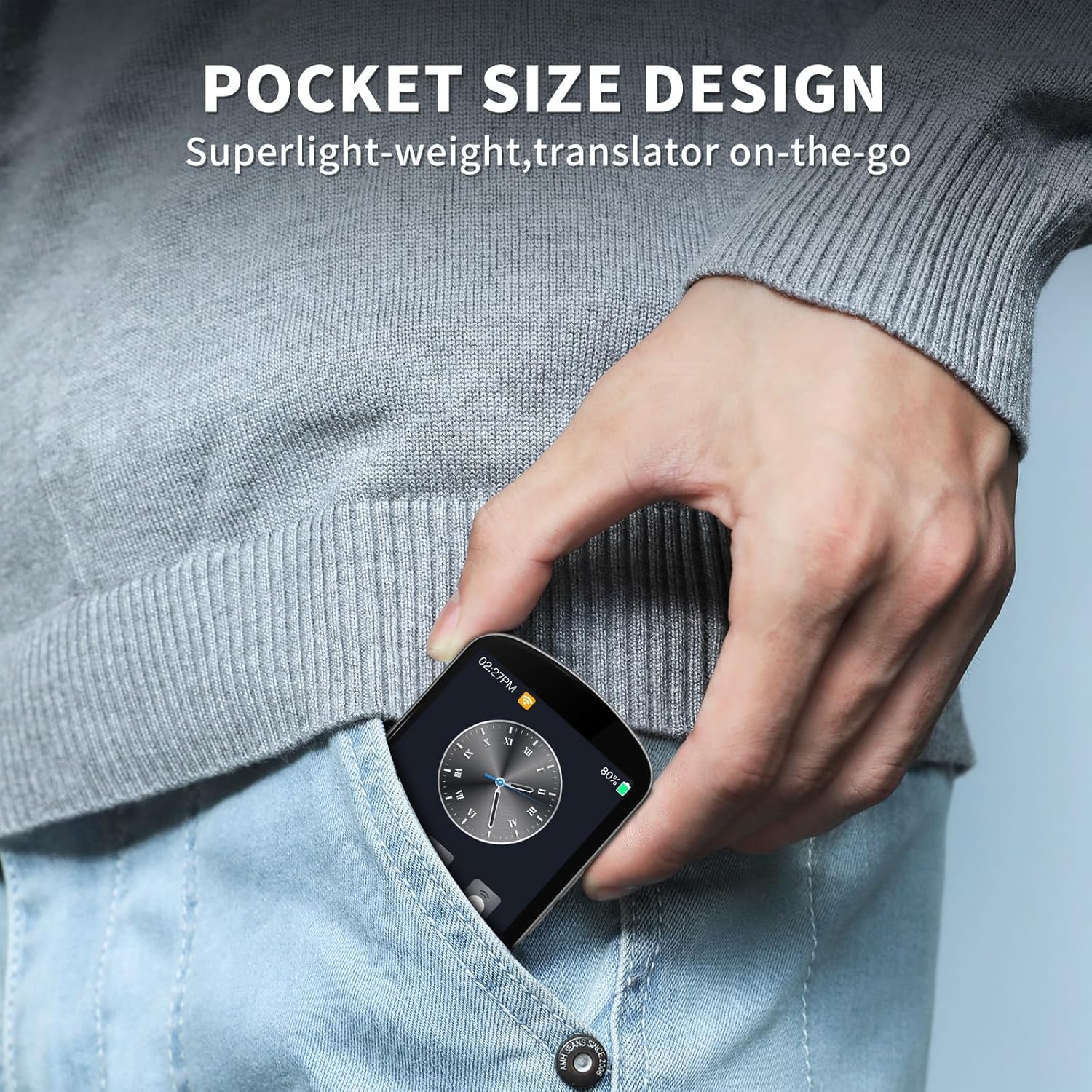
Image: The DBKWT P60 device demonstrating its compact, pocket-sized design for easy portability.
Setup
1. Charging the Device
Before first use, fully charge the DBKWT P60 device. Connect the provided USB-C cable to the charging port on the device and the other end to a compatible USB power adapter (not included) or a computer USB port. The charging indicator will show the charging status.
2. Powering On/Off
- To Power On: Press and hold the Power button (usually located on the side) for a few seconds until the screen illuminates.
- To Power Off: Press and hold the Power button until a power-off menu appears on the screen. Select "Power Off" or slide the power-off icon.
3. Initial Language Selection
Upon first startup, you will be prompted to select the device's system language and your preferred source and target translation languages. Follow the on-screen instructions to complete this setup.
4. Wi-Fi Connection (for Online Features)
To access online translation features and a wider range of languages, connect the device to a Wi-Fi network:
- From the main screen, navigate to "Settings".
- Select "Wi-Fi" and turn it on.
- Choose your desired Wi-Fi network from the list.
- Enter the Wi-Fi password if prompted and tap "Connect".
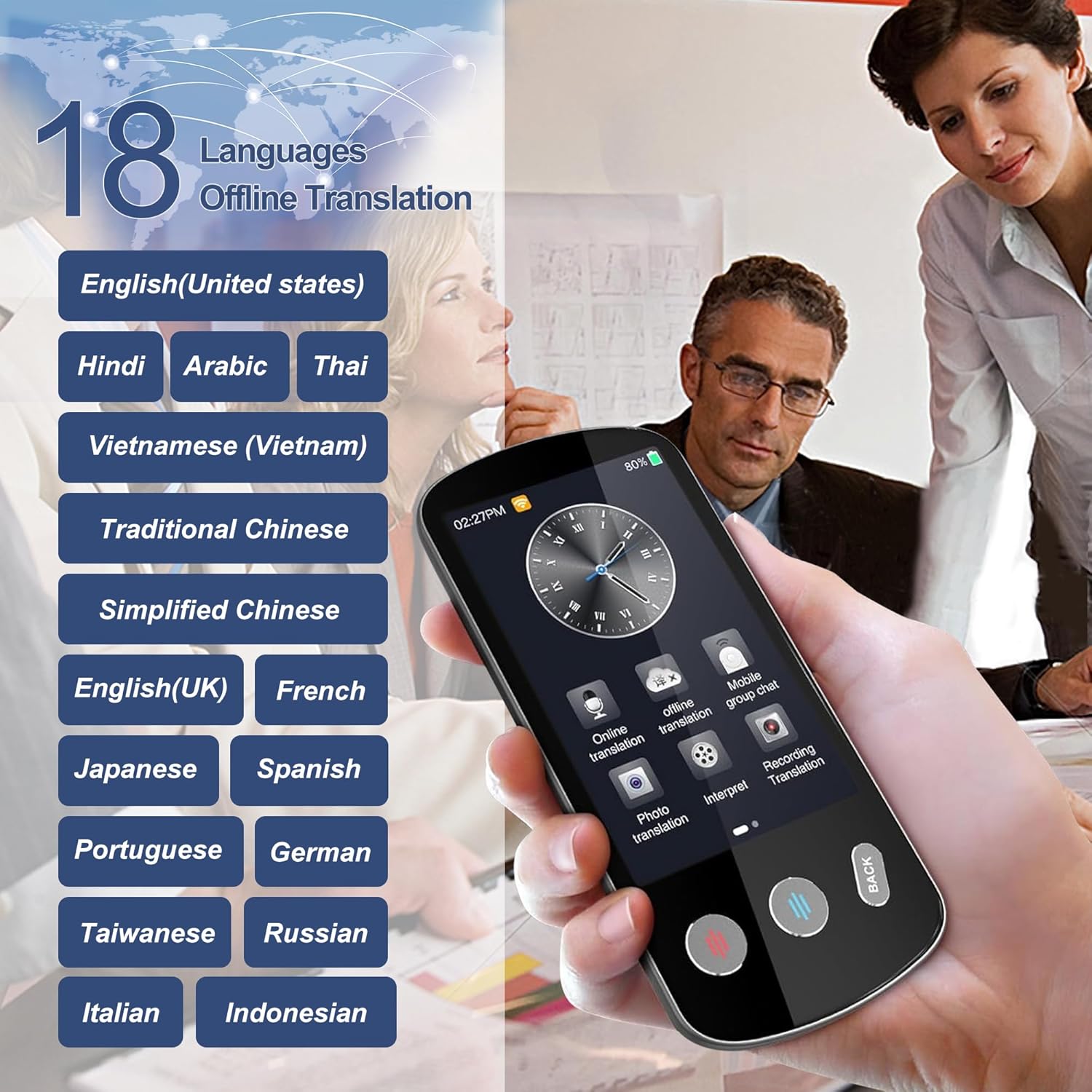
Image: The DBKWT P60 device displaying its interface with options for online and offline translation, along with a list of supported offline languages.
Operating Instructions
1. Voice Translation (Two-Way)
The P60 supports real-time two-way voice translation. Ensure your device is connected to Wi-Fi for online translation or has offline language packs downloaded for offline use.
- From the main menu, select "Voice Translation".
- On the screen, select the source language (your language) and the target language (the language you want to translate to).
- Press and hold the designated button (often marked with a microphone icon or color-coded) for your source language. Speak clearly into the device's microphone.
- Release the button. The device will process your speech and display/speak the translation in the target language.
- For the other person to speak, they should press and hold their designated language button and speak.

Image: The DBKWT P60 device's voice translation interface, highlighting the responsive tactile buttons used for initiating speech input for different languages.
2. Photo Translation
Use the camera to translate text from images such as signs, menus, or documents.
- From the main menu, select "Photo Translation".
- Point the device's camera at the text you wish to translate. Ensure good lighting and focus.
- Tap the capture button on the screen.
- The device will process the image and display the translated text. You may be able to select specific areas of text for translation.

Image: The DBKWT P60 device showcasing its two-way real-time translation capabilities, including online/offline modes, accuracy, and photo translation features.
3. Recording Translation
The device can record spoken content and translate it.
- Select "Recording Translation" from the main menu.
- Tap the record button to start recording.
- Tap the stop button to end the recording.
- Select the recorded audio file and choose the target language for translation. The device will display the translated text.
Maintenance
1. Cleaning the Device
To keep your device clean, gently wipe the screen and body with a soft, dry, lint-free cloth. Do not use liquid cleaners, aerosols, or abrasive materials, as these can damage the device.
2. Storage
Store the device in a cool, dry place away from direct sunlight and extreme temperatures. When not in use for extended periods, ensure the device is partially charged (around 50%) to preserve battery health.
3. Battery Care
The device uses a Lithium-Ion battery. To prolong battery life:
- Avoid fully discharging the battery frequently.
- Avoid leaving the device connected to a charger for excessively long periods after it's fully charged.
- Operate and store the device within recommended temperature ranges.
Troubleshooting
- Device does not power on:
Ensure the device is fully charged. Connect it to a power source and wait a few minutes before attempting to power it on again.
- Translation is inaccurate or slow:
Check your Wi-Fi connection. Online translation generally offers higher accuracy and speed. Ensure you are speaking clearly and directly into the microphone. For offline translation, verify that the necessary language packs are downloaded and up to date.
- Cannot connect to Wi-Fi:
Double-check the Wi-Fi password. Try restarting the device and your Wi-Fi router. Ensure the device is within range of the Wi-Fi signal.
- Photo translation not working:
Ensure there is adequate lighting and the text is clear and in focus. Hold the device steady. Some complex fonts or handwritten text may be difficult for the device to recognize.
- Audio output is unclear or silent:
Check the device's volume settings. Ensure the speaker is not obstructed. If using headphones, ensure they are properly connected.
Specifications
| Feature | Detail |
|---|---|
| Brand | DBKWT |
| Model | P60 (Translator) |
| Dimensions | 18.8 x 6.86 x 3.56 cm |
| Weight | 72.6 g |
| Battery Type | 1 Lithium Ion (included) |
| Online Languages Supported | Up to 142 |
| Offline Languages Supported | 18 |
| Translation Accuracy | Up to 98% |
| Response Time | 0.3 seconds |
| Screen Size | 3.9 inches |
| Recording Storage | Up to 60 minutes |
Warranty and Support
For warranty information and technical support, please refer to the documentation included with your purchase or contact DBKWT customer service through their official website or the retailer where the device was purchased. Please have your model number (P60) and purchase date ready when contacting support.