1. Introduction
Welcome to the Bigme HiBreak E-Ink Smartphone user manual. This document provides essential information for setting up, operating, maintaining, and troubleshooting your device. The Bigme HiBreak is designed to offer a unique, eye-friendly mobile experience with its E-Ink display, combining smartphone functionality with the comfort of an e-reader.
2. What's in the Box
Please verify that all items are present in your Bigme HiBreak package:
- Bigme HiBreak Cell Phone
- USB Type-C Charging Cable (not explicitly listed but standard)
- SIM Ejector Tool (not explicitly listed but standard)
- Quick Start Guide (not explicitly listed but standard)
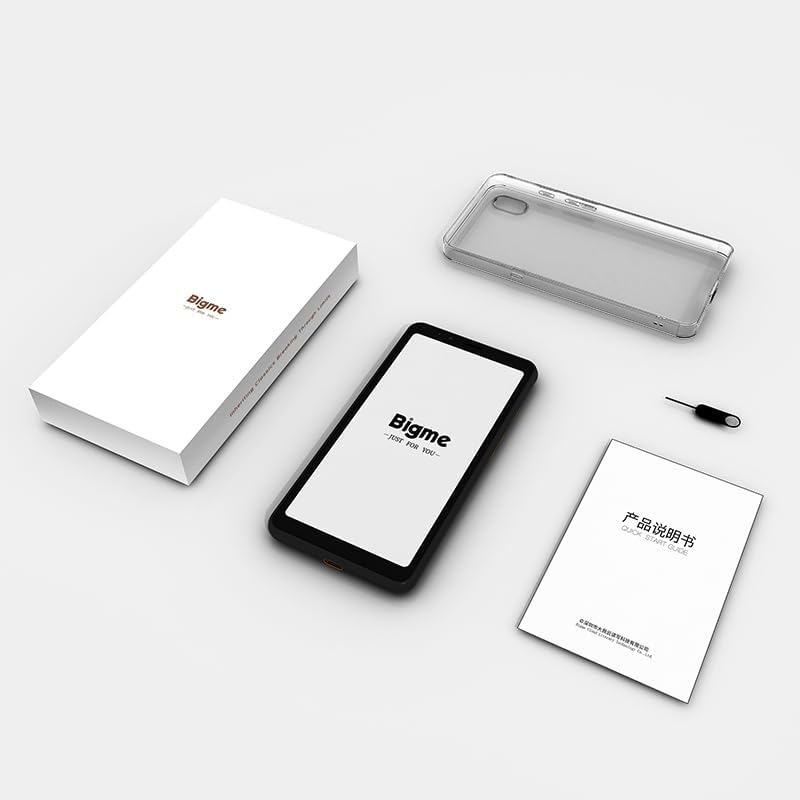
Figure 2.1: Contents of the Bigme HiBreak retail box. The image displays the Bigme HiBreak smartphone, a clear protective case, a small instruction manual, and a SIM ejector tool, all neatly arranged next to the product box.
3. Product Overview
The Bigme HiBreak features a minimalist design with a focus on its E-Ink display. Familiarize yourself with the device's physical components.

Figure 3.1: Front and back view of the Bigme HiBreak smartphone. The front shows the E-Ink display with a beach scene, while the back reveals the textured finish and single camera lens.

Figure 3.2: Overview of Bigme HiBreak's core features. This image highlights the AI Assistant for intelligent Q&A and creative writing, the Android 11 operating system allowing third-party app installation, and the high-performance octa-core processor with 6GB RAM and 128GB ROM, expandable up to 1TB.
3.1 Device Components

Figure 3.3: Detailed diagram of the Bigme HiBreak components. This illustration points out the Front 5MP camera, Speaker, Customizable Function Button, microSD Card / SIM Card Slot, Paperlike E-Ink Screen, Volume / Page-Turn Buttons, Power Button, Rear 13MP camera, LED Flash, Microphone, and Type-C Port.
- E-Ink Screen: 5.84-inch HD E-Ink display (720x1440 pixels) for a paper-like viewing experience.
- Front Camera: 5MP camera, located at the top front.
- Rear Camera: 13MP camera with LED flash, located on the back.
- Power Button: On the right side, used to power on/off and wake/sleep the device.
- Volume/Page-Turn Buttons: On the right side, controls volume and can be customized for page-turning in reading apps.
- USB Type-C Port: At the bottom, for charging and data transfer.
- SIM/microSD Card Slot: On the left side, for inserting SIM cards and expandable storage.
- Speaker & Microphone: For audio output and input.
4. Setup
4.1 Inserting SIM and microSD Cards
- Locate the SIM/microSD card slot on the left side of the device.
- Insert the SIM ejector tool into the small hole next to the slot to open the tray.
- Place your Nano-SIM card(s) and/or microSD card (up to 1TB, if desired) into the tray, ensuring correct orientation.
- Gently push the tray back into the slot until it clicks into place.
4.2 Initial Power On
- Press and hold the Power Button on the right side of the device until the Bigme logo appears on the screen.
- Follow the on-screen prompts to complete the initial Android 11 setup, including language selection, Wi-Fi connection, Google account login, and security settings.
5. Operating Instructions
5.1 E-Ink Display Features
The E-Ink display is designed for comfortable viewing, especially for reading. It features a 36-level adjustable front light and Bigme Super Refresh technology.
- Adjustable Front Light: Swipe down from the top of the screen to access the quick settings panel. Adjust the brightness slider to your preferred level for optimal viewing in various lighting conditions.
- Bigme Super Refresh: This technology minimizes ghosting (residual images) on the E-Ink screen, providing a smoother experience for dynamic content like web browsing or video playback. The device automatically manages refresh rates.

Figure 5.1: Bigme Super Refresh technology in action. The image shows the E-Ink screen displaying text with a clear indication of 'Auto ghosting elimination technology', demonstrating improved display performance.
5.2 Basic Navigation and App Management
The Bigme HiBreak runs on Android 11, offering a familiar smartphone interface.
- Touch Gestures: Navigate the interface using standard Android touch gestures (tap, swipe, pinch-to-zoom).
- Installing Apps: Access the Google Play Store to download and install a wide variety of third-party applications.

Figure 5.2: User interacting with the Bigme HiBreak, showcasing various popular and educational apps on the E-Ink display, demonstrating the 'flowable interaction' and app compatibility.
5.3 Camera Usage and OCR
The HiBreak is equipped with 5MP front and 13MP rear HD cameras.
- Taking Photos/Videos: Open the Camera app to capture images and record videos.
- Document Scanning (Offline OCR): Utilize the cameras for scanning documents. The built-in OCR (Optical Character Recognition) functionality supports formulas, graphics, and 54 languages, allowing for quick digitization and sharing of documents. The flash can improve clarity in low-light conditions.

Figure 5.3: Bigme HiBreak's camera capabilities. This image highlights the 5MP front and 13MP rear cameras, emphasizing their utility for document scanning with improved clarity in low-light conditions due to the built-in flash.
5.4 Smart Features
- Smart Voice-to-Text: Equipped with dual-microphone array technology for clear recordings and efficient transcription. Cloud synchronization to the Bigme cloud allows for easy multi-device access.
- AI Assistant: The built-in AI Assistant can help generate speeches, articles, and creative content, boosting productivity.
- Office Assistant: Features full recording review and intelligent transcription for meetings, capturing crucial details.

Figure 5.4: Bigme HiBreak's versatile capabilities. This image illustrates the device's use as a smart office tool for meetings with recording and transcription, an AI Assistant for content generation, a tool for information retrieval (web browsing, news, apps), and a device for a paper-like reading experience with audiobooks.
5.5 Reading Experience
The E-Ink screen provides a comfortable, paper-like reading experience, reducing eye strain.

Figure 5.5: User enjoying a paper-like reading experience on the Bigme HiBreak. The image shows a person holding the smartphone, displaying an e-book with text-to-speech playback settings, emphasizing the customizable reading environment.
6. Connectivity
6.1 Mobile Network Bands
The Bigme HiBreak supports various mobile network bands. Please check compatibility with your local carrier.

Figure 6.1: Table detailing the mobile network bands supported by the Bigme HiBreak. The table lists various 3GPP bands (B1, B2, B3, B5, B7, B8, B20, B28, B34, B38, B39, B40, B41), their major operators, regions, and system types (UMTS, CDMA, GSM, FDD-LTE, TD-SCDMA).
6.2 Wi-Fi and Bluetooth
The device supports standard Wi-Fi and Bluetooth connectivity for internet access and pairing with accessories.
- Wi-Fi: Connect to available Wi-Fi networks via Settings > Network & internet > Wi-Fi.
- Bluetooth: Pair with Bluetooth headphones, speakers, or other devices via Settings > Connected devices > Connection preferences > Bluetooth.
6.3 GPS Navigation
The Bigme HiBreak includes GPS for precise navigation, making it suitable for mapping and location-based services.
7. Maintenance & Care
7.1 Cleaning the Device
- Use a soft, lint-free cloth to clean the screen and body of the device.
- Avoid using harsh chemicals, abrasive cleaners, or aerosol sprays.
- Do not expose the device to excessive moisture.
7.2 Battery Care
- The device is equipped with a 3300mAh Lithium-Polymer battery.
- Charge the device using the provided USB Type-C cable and a compatible power adapter.
- Avoid extreme temperatures, as they can affect battery life and performance.
- For optimal battery longevity, avoid fully discharging the battery frequently.
7.3 Protective Case
The Bigme HiBreak comes with a high-quality TPU protective case, offering translucent softness and durability to protect your device from daily wear and tear.
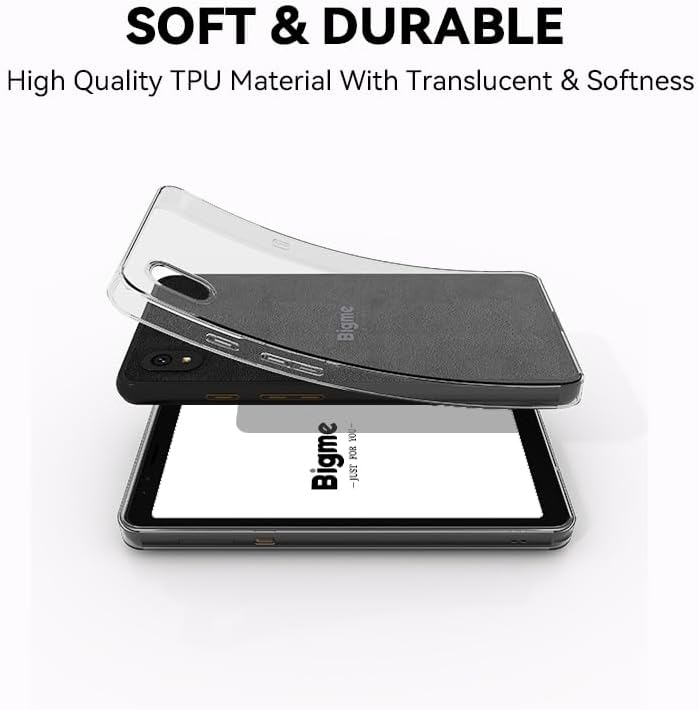
Figure 7.1: Bigme HiBreak with its included soft and durable TPU protective case. The image shows the clear, flexible case being placed over the smartphone, highlighting its translucent quality and protective design.
8. Troubleshooting
If you encounter issues with your Bigme HiBreak, refer to the following common solutions:
| Issue | Possible Cause / Solution |
|---|---|
| Device does not power on | Ensure the battery is charged. Connect to a charger for at least 30 minutes. If still unresponsive, press and hold the power button for 10-15 seconds for a forced restart. |
| Poor call quality / Missing calls/texts | Check SIM card insertion. Verify mobile network signal strength. Ensure cellular bands are supported by your carrier (refer to Section 6.1). Disable advanced calling features in network settings if experiencing issues with specific carriers (e.g., T-Mobile). Restart the device. |
| Screen ghosting / artifacts | This is normal for E-Ink displays but should be minimal with Bigme Super Refresh. If persistent, try adjusting refresh settings in display options or restart the device. |
| Apps crashing / Device slow | Close background apps. Clear app cache (Settings > Apps > [App Name] > Storage & cache > Clear cache). Ensure sufficient storage space. Restart the device. |
| Wi-Fi / Bluetooth connectivity issues | Toggle Wi-Fi/Bluetooth off and on. Restart your router/paired device. Forget the network/device and reconnect. |
| Device unresponsive / Frozen | Press and hold the Power Button for 10-15 seconds to force a restart. |
8.1 Factory Reset
If issues persist, a factory reset may be necessary. Warning: This will erase all data on your device. Back up important data before proceeding.
- Go to Settings > System > Reset options.
- Select 'Erase all data (factory reset)'.
- Confirm your decision and follow the on-screen prompts.
9. Specifications
Key technical specifications for the Bigme HiBreak E-Ink Smartphone:
| Feature | Specification |
|---|---|
| Display | 5.84 Inches E-Ink, 720x1440 Pixels Resolution |
| Front Light | 36-Level Adjustable |
| Operating System | Android 11 |
| Processor | Octa-core (specific model not provided, but 2.3GHz mentioned in image) |
| RAM | 6 GB |
| Internal Storage | 128 GB |
| Expandable Storage | microSD up to 1 TB |
| Rear Camera | 13 MP |
| Front Camera | 5 MP |
| Battery | 3300mAh Lithium-Polymer (included) |
| Connectivity | 4G LTE, Wi-Fi, Bluetooth, GPS |
| Ports | USB Type-C |
| Item Weight | 6 ounces |
| Color | Black |

Figure 9.1: Key specifications and features of the Bigme HiBreak. This infographic highlights the HD dual camera, Android 11 OS, Octa-core 2.3GHz CPU, 6GB RAM, 128GB ROM, 4G LTE SIM/microSD card slot, and the eye-friendly 5.84-inch ePaper display with Bigme super refresh auto ghosting elimination technology.
10. Warranty and Support
For warranty information and customer support, please refer to the documentation included with your purchase or visit the official Bigme website. If you require assistance with your Bigme HiBreak, please contact Bigme customer service directly.
11. Important Notes
Video Content: Please note that no official product videos with 'Seller' creator type were available in the provided data for embedding in this manual.