
Agreago V3
Agreago Projector User Manual
Model: V3
Brand: Agreago
Introduction
This user manual provides detailed instructions for the operation, setup, maintenance, and troubleshooting of your Agreago V3 Projector. Please read this manual thoroughly before using the product to ensure proper function and longevity. The Agreago V3 Projector is designed to deliver a high-quality visual experience with its native 1080P resolution, 15000 lumens brightness, and advanced connectivity options.
What's in the Box
Upon opening the package, please verify that all components are present and in good condition:
- Agreago V3 Projector
- Remote Control
- Power Cable
- HDMI Cable (if included, not specified but common)
- User Manual (this document)
- Drawstring Bag
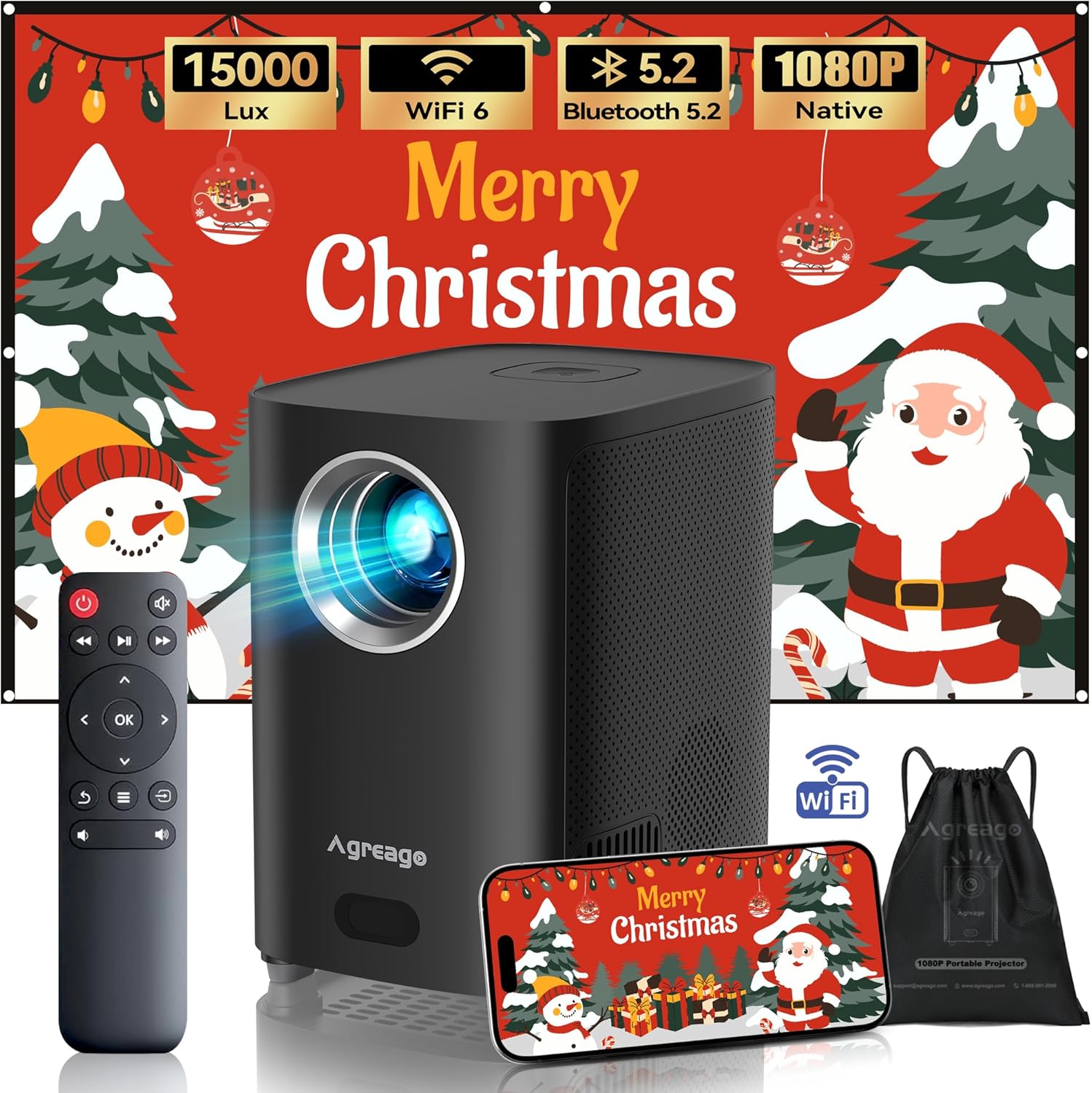
Image: Contents of the Agreago V3 Projector package, showing the projector unit, remote control, and a portable drawstring bag.
Product Features
- Native 1080P HD Resolution: Delivers vibrant and sharp images with a true 1920x1080 resolution and 15000 lumens brightness, supporting up to a 300-inch screen. Features diffuse reflection for eye protection.
- WiFi 6 and Bluetooth 5.2: Equipped with 5G and 2.4G Dual-Band WiFi for faster, wider range, and smoother wireless transmission. Bluetooth 5.2 allows easy connection to external speakers for enhanced audio.
- Built-in Dual Stereo Speakers: Provides loud and clear stereo sound without external speakers, featuring crisp highs, strong midranges, and booming bass. Includes a 3.5mm headphone port for private listening.
- Multiple Device Compatibility: Features HDMI, USB, AV, and Audio ports for connection to iPhones, Android phones, TV Sticks, Laptops, tablets, Xbox, PS5, USB disks, and external speakers.
- Flexible Projection: Supports remote screen adjustment, zoom function (50% to 100%), and various installation methods including ceiling, tabletop, tripod, and wall mount.
- Portable Design: Compact and lightweight, includes a drawstring bag for easy transport, making it suitable for outdoor use, backyard parties, or RV camping.
- Electric Focus: Allows for easy adjustment of focus using the remote control to achieve a clear, straight-edged image with uniform focus.
Setup
1. Placement
Choose a stable, flat surface for the projector. Ensure there is adequate ventilation around the unit. For optimal viewing, position the projector directly in front of the projection surface (wall or screen).

Image: Illustration of different projector placement options, including tabletop, tripod, and ceiling mount, demonstrating flexibility in setup.
2. Power Connection
Connect the power cable to the projector's power input port and then plug the other end into a standard electrical outlet.
3. Initial Power On
Press the power button on the projector or the remote control to turn on the device. The indicator light will illuminate.
4. Focus Adjustment
Use the remote control's focus buttons to adjust the image clarity until it is sharp and clear on the screen. The projector features electric focus for precise adjustments.

Image: A user adjusting the electric focus of the projector using the remote control, resulting in a sharp and clear projected image.
Operating Instructions
1. Source Selection
After powering on, navigate to the input source menu using the remote control. Select the desired input (HDMI, USB, AV, etc.) corresponding to your connected device.
2. Menu Navigation
Use the arrow keys and OK button on the remote control to navigate through the projector's on-screen menu. Adjust settings such as picture mode, sound, and network configurations.
3. Screen Size Adjustment (Zoom)
The projector supports a zoom function to resize the image from 50% to 100% without moving the projector. Access this feature through the picture settings menu.

Image: Visual representation of the projector's ability to produce screen sizes ranging from 32 inches to an ultra-large 300 inches, suitable for various viewing environments.
4. Power Off
Press the power button on the remote control or the projector to turn off the unit. Allow the projector to cool down before unplugging it.
Connectivity
1. Wired Connections
The projector is equipped with multiple ports for wired connections:
- HDMI: Connect to laptops, gaming consoles (Xbox, PS5), TV sticks, and other HDMI-enabled devices.
- USB: For connecting USB disks to play media files directly.
- AV: For connecting older devices with AV output.
- Audio Out (3.5mm): For connecting external headphones or speakers.

Image: An overview of the projector's multimedia compatibility, highlighting its various input ports and the range of devices it can connect to, such as TV sticks, laptops, and gaming consoles.
2. Wireless Connections (WiFi)
The projector supports WiFi 6 (5G and 2.4G Dual-Band) for screen mirroring and network access.
- Go to the "Network settings" menu on the projector.
- Select your WiFi network and enter the password to connect.
- For iOS devices, ensure your device is connected to the same WiFi, then select "Aplay" from the projector's home page and use screen mirroring on your iOS device.
- For Android devices, ensure your device is connected to the same WiFi, then select "Miracast" from the projector's home page and use "Smart View" or similar screen sharing feature on your Android device.

Image: Step-by-step guide for connecting iOS devices to the projector via WiFi for screen mirroring.

Image: Step-by-step guide for connecting Android devices to the projector via WiFi for screen mirroring.
3. Bluetooth Connection
The projector features Bluetooth 5.2 for connecting to external audio devices like Bluetooth speakers or headphones.
- Enable Bluetooth on the projector from the settings menu.
- Put your Bluetooth audio device into pairing mode.
- Select your device from the list of available devices on the projector's Bluetooth menu to connect.

Image: A visual representation of the projector's Bluetooth connectivity, showing it paired with external speakers for an enhanced audio experience.
Maintenance
Regular maintenance ensures optimal performance and extends the lifespan of your projector.
- Lens Cleaning: Gently wipe the projector lens with a soft, lint-free cloth specifically designed for optical surfaces. Do not use abrasive cleaners.
- Ventilation: Ensure the projector's ventilation openings are clear of dust and obstructions. Do not block the air vents during operation.
- Storage: When not in use for extended periods, store the projector in a cool, dry place, preferably in its original packaging or the provided drawstring bag, to protect it from dust and damage.
Troubleshooting
| Problem | Possible Cause | Solution |
|---|---|---|
| No image displayed | Power cable disconnected, incorrect input source, device not connected properly. | Check power connection, select correct input source, ensure HDMI/USB/AV cables are securely connected. |
| Image is blurry | Focus not adjusted, projector too close/far from screen. | Use the remote control to adjust the electric focus. Adjust projector distance if necessary. |
| No sound | Volume too low, external speakers not connected/paired, audio source issue. | Increase volume. If using Bluetooth, ensure proper pairing. Check audio settings on source device. |
| WiFi connection unstable | Interference, distance from router, incorrect password. | Ensure projector is within WiFi range. Re-enter password. Reduce interference from other devices. |
Specifications
| Feature | Detail |
|---|---|
| Brand | Agreago |
| Model Number | V3 |
| Native Resolution | 1920 x 1080P |
| Brightness | 15000 Lumens |
| Contrast Ratio | 15000:1 |
| Connectivity | WiFi 6 (5G & 2.4G Dual-Band), Bluetooth 5.2, HDMI, USB, AV, 3.5mm Audio |
| Projection Size | 40" - 300" |
| Item Weight | 2 pounds |
| Product Dimensions | 5.5 x 6.1 x 4.2 inches |
| Special Features | Electric Focus, Lightweight, Built-in Dual Speakers |
Warranty and Support
Agreago is committed to improving product quality and service. We provide 24/7 customer service and offer a Lifetime Service of 100% for this product. If you have any questions or require assistance, please contact the Agreago service team as indicated in your user manual or through the official Agreago channels.
For further support, please visit the official Agreago store: Agreago Store on Amazon.
Related documentsV3


Ask a question about this manual
Ask about setup, troubleshooting, compatibility, parts, safety, or missing instructions. Manuals+ will review the question and use this page’s manual context to help answer it.