
1. Introduction
This manual provides essential information for the proper installation, operation, and maintenance of the Walfront HMI PLC All in One Industrial Control Board, Model WSB7020R. This device integrates a Human Machine Interface (HMI) with a Programmable Logic Controller (PLC) into a single unit, designed for industrial control applications.
The WSB7020R features a 7-inch TFT LCD display, 12 digital inputs, and 8 relay outputs, making it suitable for various automation tasks. It is compatible with FX3U series PLCs.

Figure 1: Walfront HMI PLC All in One Industrial Control Board and accessories.
This image displays the Walfront HMI PLC unit from an angled front view, showcasing its 7-inch display. Alongside the unit are four installation screws and four fixing brackets, which are included for mounting the device.
2. Package Contents
Verify that all items listed below are present in the package:
- 1 x HMI PLC Unit (Model WSB7020R)
- 4 x Installation Screws
- 4 x Fixing Brackets
3. Specifications
| Feature | Specification |
|---|---|
| Model | WSB7020R |
| Material | ABS |
| Dimensions (Unit) | Approx. 202x148x51mm / 7.95x5.83x2.01in |
| Opening Size (Installation) | Approx. 190x135mm / 7.48x5.31in |
| Display Screen | 7 inch TFT LCD |
| Resolution | 800x480px |
| Color Depth | 260,000 colors |
| Brightness | 400 cd/m² (with backlit display) |
| Touch Screen Type | 4-wire industrial resistive |
| Touch Screen Hardness | 4H |
| Processor | 32-bit 240MHz ARM9 |
| Memory | 128MB NAND FLASH |
| Input Points | 12 |
| Output Points | 8 |
| Output Type | Relay |
| Output Current | 5A |
| Load | 24V |
| High Speed Count | 6/3K |
| Pulse Output | None |
| Analog Input | Default 3AD 0-10V, 3AD 0-20mA (AD0, AD1) |
| Analog Output | 2OA 0-10V |
| Clock | Supported |
| Download Speed (PLC) | 38.4Kbps |
| Operating System | Linux |
| Connectivity | USB, RS232C (for communication) |

Figure 2: Physical dimensions of the HMI PLC unit.
This image illustrates the key dimensions of the Walfront HMI PLC unit, including its length (202mm / 7.95in), width (148mm / 5.83in), and depth (51mm / 2.01in). The required opening size for installation (190mm / 7.44in by 135mm / 5.31in) is also indicated.
4. Setup and Installation
4.1 Mounting the Unit
- Prepare an opening in the control panel with dimensions of approximately 190x135mm (7.48x5.31in). Refer to Figure 2 for precise measurements.
- Insert the HMI PLC unit into the prepared opening from the front.
- From the rear of the panel, attach the four fixing brackets to the unit's mounting slots.
- Secure the unit by tightening the four installation screws through the brackets. Ensure the unit is firmly seated and flush with the panel surface.
4.2 Electrical Connections
The unit requires a DC24V, 5A power supply. Connect the power supply to the designated terminals on the rear of the unit. Ensure correct polarity.
Connect input devices (sensors, switches) to the 12 input points and output devices (relays, indicators) to the 8 relay output points as per your application's wiring diagram. Refer to the electronic manual for detailed wiring schematics.

Figure 3: Rear view of the HMI PLC unit with connection terminals.
This image shows the back panel of the HMI PLC unit, highlighting various connection ports including USB, RS232C, and multiple green terminal blocks for digital inputs, relay outputs, and power supply connections.
5. Software and Programming
5.1 HMI Programming
- Use HMI Studio 5.1 software for developing the Human Machine Interface program.
- To download the HMI program to the device, connect the unit to your computer using a USB male-to-male cable.
5.2 PLC Programming
- The PLC component is compatible with FX3U series programming.
- Programming, downloading, and debugging of the PLC program can be performed using GX Developer or GX Works2 software.
- The PLC download speed is 38.4Kbps.
- Note: Monitoring writing is not supported.

Figure 4: HMI PLC unit in a programming environment.
This image depicts a user interacting with a computer, presumably for programming, with the HMI PLC unit visible in the foreground. Text overlays highlight features such as the 4-wire industrial resistive touch screen, low power consumption, stable performance, and the ability to program, download, debug, and monitor using software (excluding monitoring writing).
6. Operating the Device
Once powered on and programmed, the HMI PLC unit operates according to the loaded HMI and PLC programs. The 7-inch TFT LCD display provides a visual interface for monitoring and control.
- Display: The 800x480px resolution and 260,000 colors ensure clear visualization of process data and control elements. The 400 cd/m² brightness with backlight allows for easy observation of status in various lighting conditions.
- Touch Screen: The 4-wire industrial resistive touch screen allows for user interaction with the HMI application. Its 4H hardness provides durability in industrial environments.
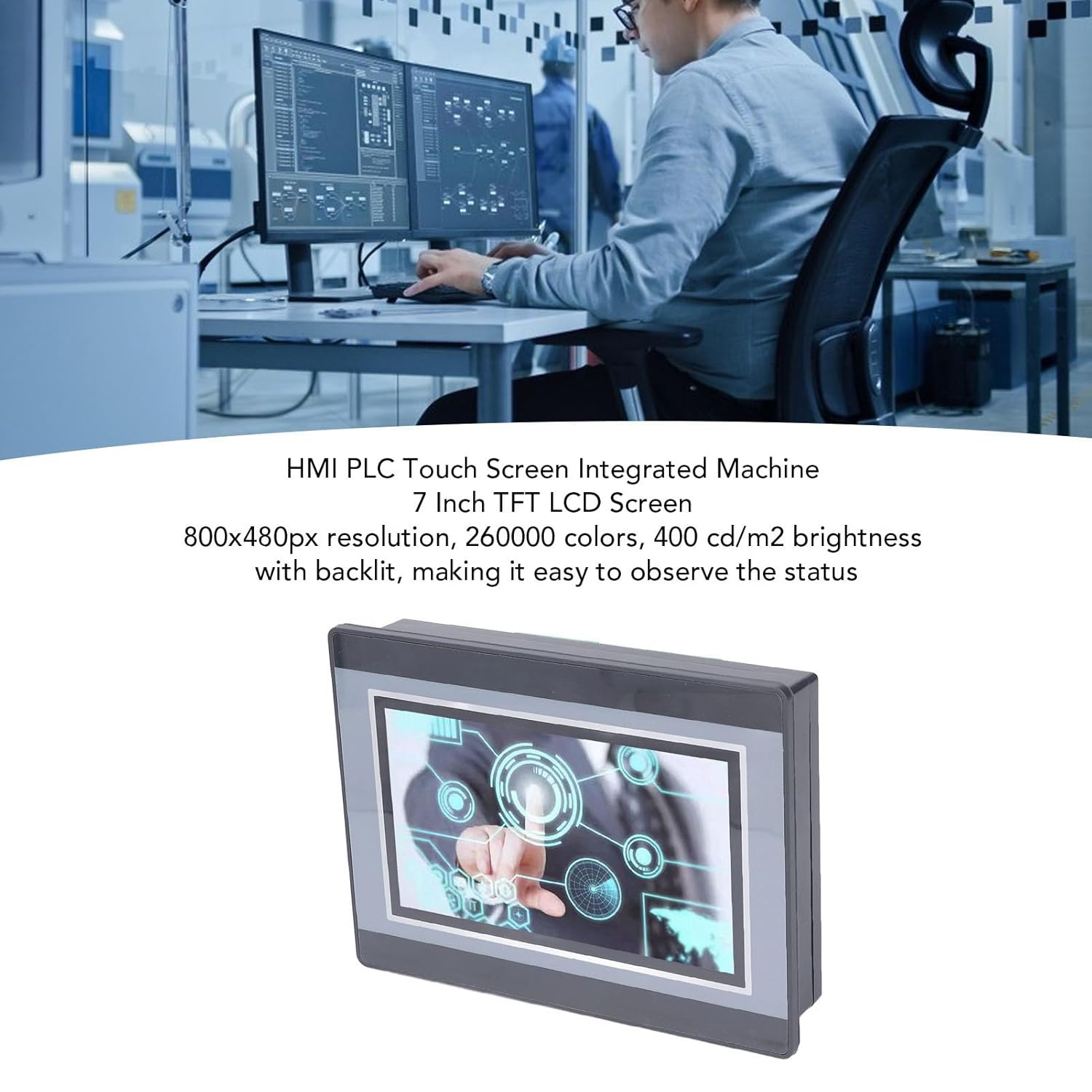
Figure 5: HMI PLC display in operation.
This image provides a close-up view of the HMI PLC's 7-inch TFT LCD display, showing a graphical user interface with various control elements and data visualizations. The display's clarity and color depth are evident.
7. Maintenance
To ensure the longevity and reliable operation of your Walfront HMI PLC unit, follow these general maintenance guidelines:
- Cleaning: Regularly clean the display surface with a soft, lint-free cloth. For stubborn dirt, use a mild, non-abrasive cleaning solution specifically designed for electronic displays. Do not spray cleaners directly onto the screen.
- Environmental Conditions: Operate the device within its specified environmental conditions (temperature, humidity) to prevent damage.
- Connections: Periodically check all electrical connections for tightness and signs of wear or corrosion.
- Software Updates: Keep HMI and PLC programming software updated to the latest versions for optimal performance and security.
8. Troubleshooting
This section provides general guidance for common issues. For complex problems, consult the electronic manual or contact technical support.
- No Power:
- Verify the DC24V power supply is connected correctly and is providing the specified voltage and current (5A).
- Check power cables and connections for damage.
- Display Not Responding:
- Ensure the unit is powered on.
- If the screen is blank, check power. If the screen is on but unresponsive, try restarting the unit.
- Verify the HMI program is loaded correctly.
- Communication Issues (HMI/PLC):
- Ensure USB or RS232C cables are securely connected.
- Verify correct communication parameters (baud rate, parity, data bits, stop bits) in both the device and the programming software.
- Confirm that the correct drivers for the communication interface are installed on your computer.
- PLC Program Not Running:
- Check if the PLC program was downloaded successfully.
- Verify the PLC is in RUN mode (if applicable via software).
- Review the PLC program logic for errors.
9. Applications
The Walfront HMI PLC All in One unit is designed for a wide range of industrial automation control scenarios due to its integrated functionality and robust design. Potential applications include, but are not limited to:
- Printing Industry
- Chemical Industry
- Plastic Manufacturing
- Building Materials Production
- Home Furnishings Manufacturing
- Packaging Industry
- Textile Industry
- Food Processing
- Metallurgy

Figure 6: Wide application range of the HMI PLC unit.
This diagram visually represents the diverse industrial sectors where the HMI PLC unit can be flexibly applied, including printing, chemical, plastic, building materials, home furnishings, packing, textile, food, and metallurgy industries.
10. Support and Warranty
For technical support, further documentation, or warranty information, please refer to the official Walfront website or contact your authorized distributor. Keep your purchase receipt for warranty claims.
The product is designed for industrial use and should be installed and operated by qualified personnel.