
Introduction
Thank you for choosing the BENFEI USB-C 6-in-1 Multifunctional Hub. This device is designed to expand the connectivity of your USB-C enabled laptop, tablet, or smartphone, providing essential ports for display, data transfer, and power delivery. This manual provides detailed instructions for setup, operation, maintenance, and troubleshooting to ensure optimal performance.
Product Overview
The BENFEI USB-C 6-in-1 Hub features a compact and lightweight design with a durable aluminum case and a flexible silicone woven cable. It integrates six essential ports:
- 1 x HDMI Port: Supports video output up to 4K resolution at 60Hz.
- 1 x USB-C Power Delivery (PD) Port: Supports up to 100W pass-through charging (85W to host device, 15W reserved for hub operation). This port does not support data or video output.
- 2 x USB-A 3.2 Gen 2 Ports: Offers data transfer speeds up to 10Gbps.
- 2 x USB-C 3.2 Gen 2 Data Ports: Offers data transfer speeds up to 10Gbps. These ports do not support power delivery or video output.

Image: Detailed diagram illustrating the BENFEI USB-C 6-in-1 Hub with labels for each port, including 2x USB-A 3.2 Gen 2 (10Gbps), 2x USB-C 3.2 Gen 2 Data (10Gbps), HDMI (4K@60Hz), and PD-IN (100W).
Setup Instructions
Follow these steps to set up your BENFEI USB-C 6-in-1 Hub:
- Connect to Host Device: Plug the integrated USB-C cable of the hub into a compatible USB-C port on your laptop, tablet, or smartphone. Ensure your host device's USB-C port supports video output for HDMI functionality.
- Power Connection (Optional): If your host device requires charging or if you are connecting power-intensive peripherals, connect a USB-C power adapter (not included) to the hub's USB-C PD-IN port. The hub supports up to 100W power input.
- Connect Peripherals: Connect your desired devices to the available ports on the hub:
- HDMI: Connect an HDMI cable from the hub to an external monitor or TV for video output.
- USB-A/USB-C Data: Connect USB flash drives, external hard drives, keyboards, mice, or other USB devices.
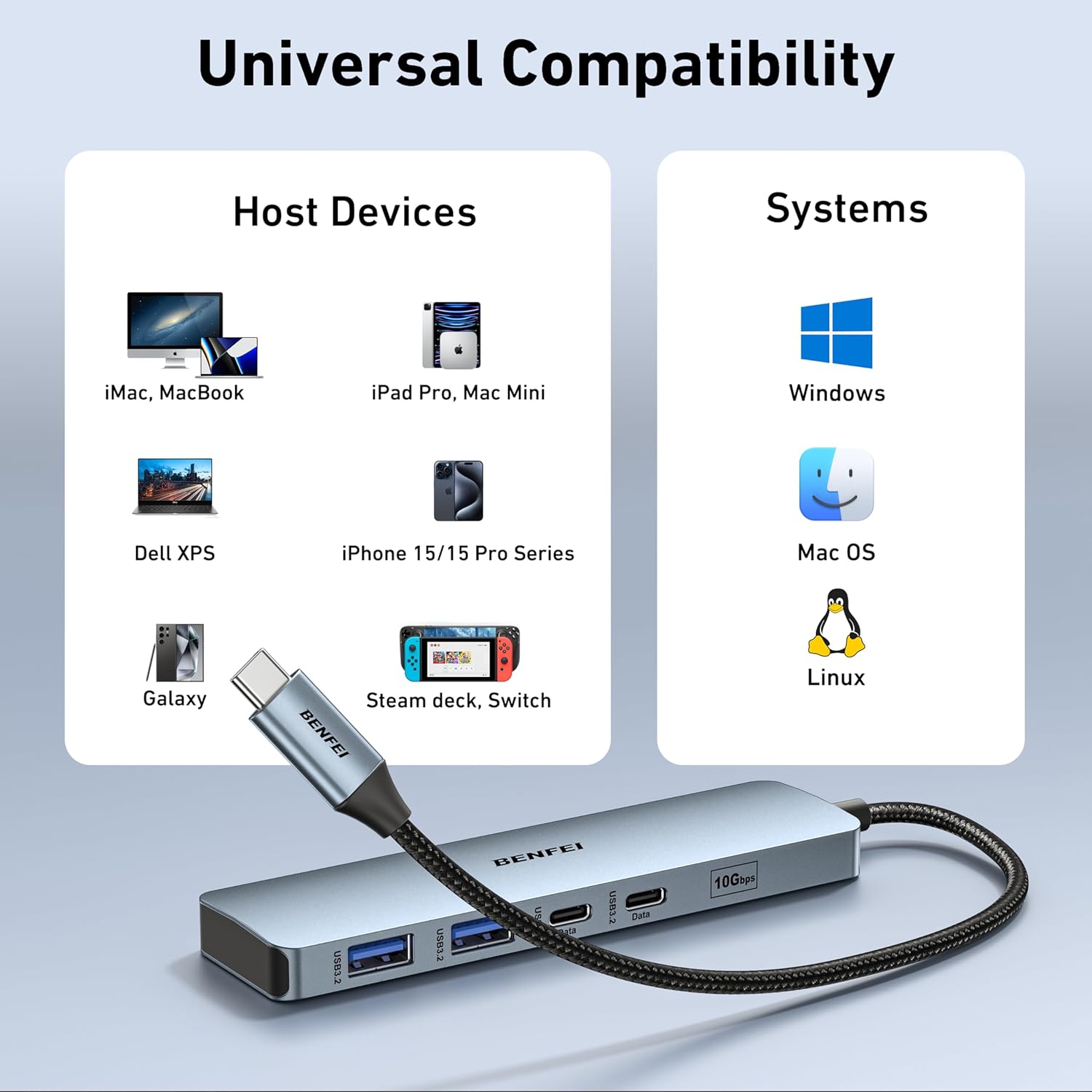
Image: The BENFEI USB-C Hub connected to a laptop, demonstrating its universal compatibility with various host devices and operating systems like Windows, Mac OS, iOS, and Chrome OS.
Operating Instructions
The BENFEI USB-C Hub operates on a plug-and-play basis, requiring no additional drivers for most operating systems.
HDMI Display Output
To extend or mirror your screen to an external display:
- Ensure your host device's USB-C port supports DisplayPort Alternate Mode (Alt Mode).
- Connect an HDMI cable from the hub's HDMI port to your monitor or TV.
- Adjust display settings on your host device (e.g., Extend, Mirror) as needed.
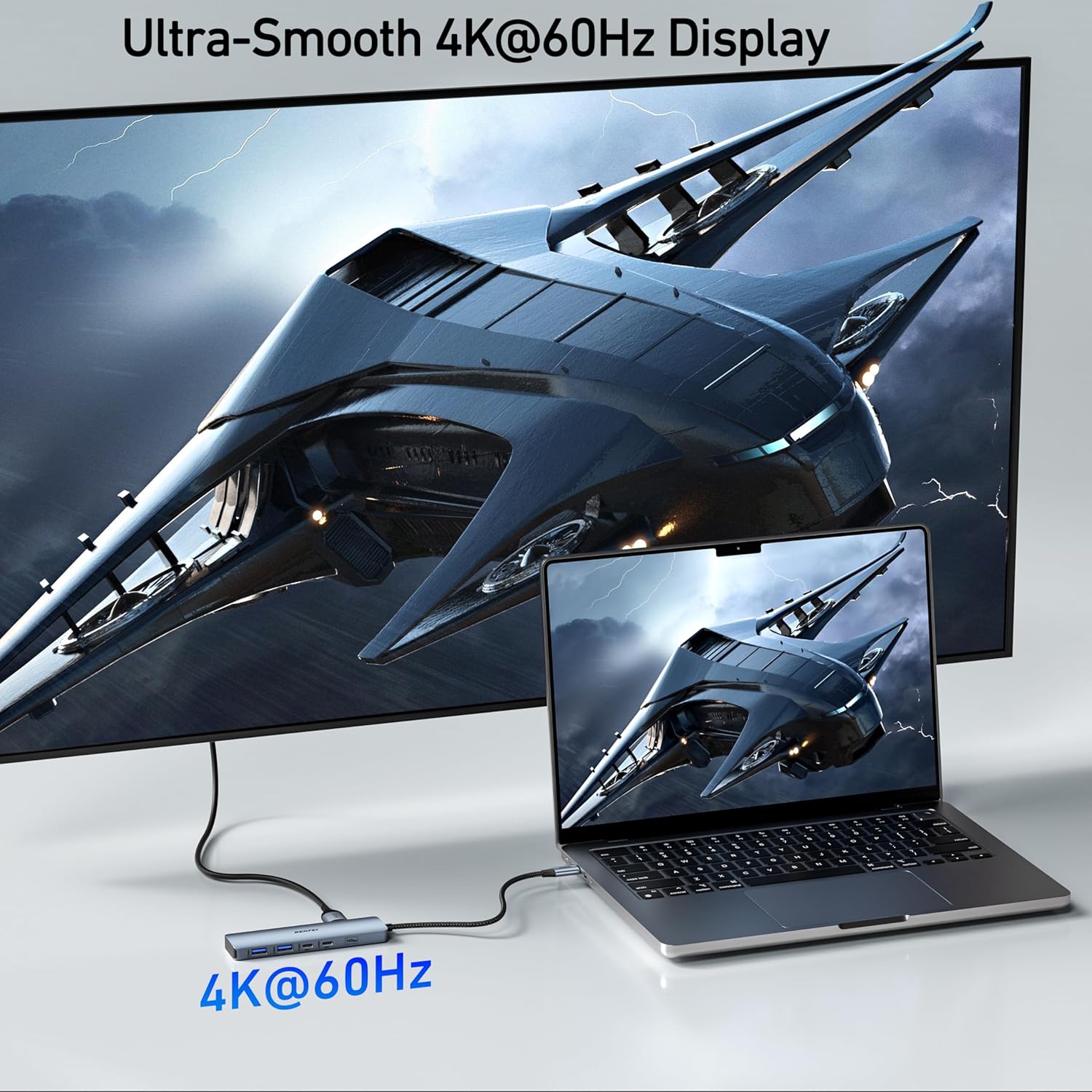
Image: A laptop connected to a large external monitor through the BENFEI USB-C Hub, showcasing a smooth 4K@60Hz display for an enhanced visual experience.
USB Data Transfer
The USB-A and USB-C data ports support high-speed data transfer:
- Plug your USB devices (e.g., external drives, flash drives) into the corresponding USB-A or USB-C data ports.
- The hub supports USB 3.2 Gen 2, providing speeds up to 10Gbps for rapid file transfers.

Image: A laptop connected to an external hard drive via the BENFEI USB-C Hub, illustrating ultra-fast 10Gbps data transfer speeds for both USB-A and USB-C devices.
Power Delivery
To charge your host device through the hub:
- Connect a USB-C power adapter to the hub's PD-IN port.
- The hub will pass up to 85W of power to your connected laptop, while reserving 15W for its own operation and connected peripherals.

Image: A laptop displaying a charging indicator, connected to a power adapter through the BENFEI USB-C Hub's 100W Power Delivery port, showing 100W input and 85W output to the laptop.
Maintenance
To ensure the longevity and optimal performance of your BENFEI USB-C Hub:
- Keep the hub clean and free from dust. Use a soft, dry cloth for cleaning.
- Avoid exposing the hub to extreme temperatures, humidity, or direct sunlight.
- Do not attempt to disassemble or repair the device yourself. Contact customer support for assistance.
- Handle the silicone woven cable with care to prevent damage.
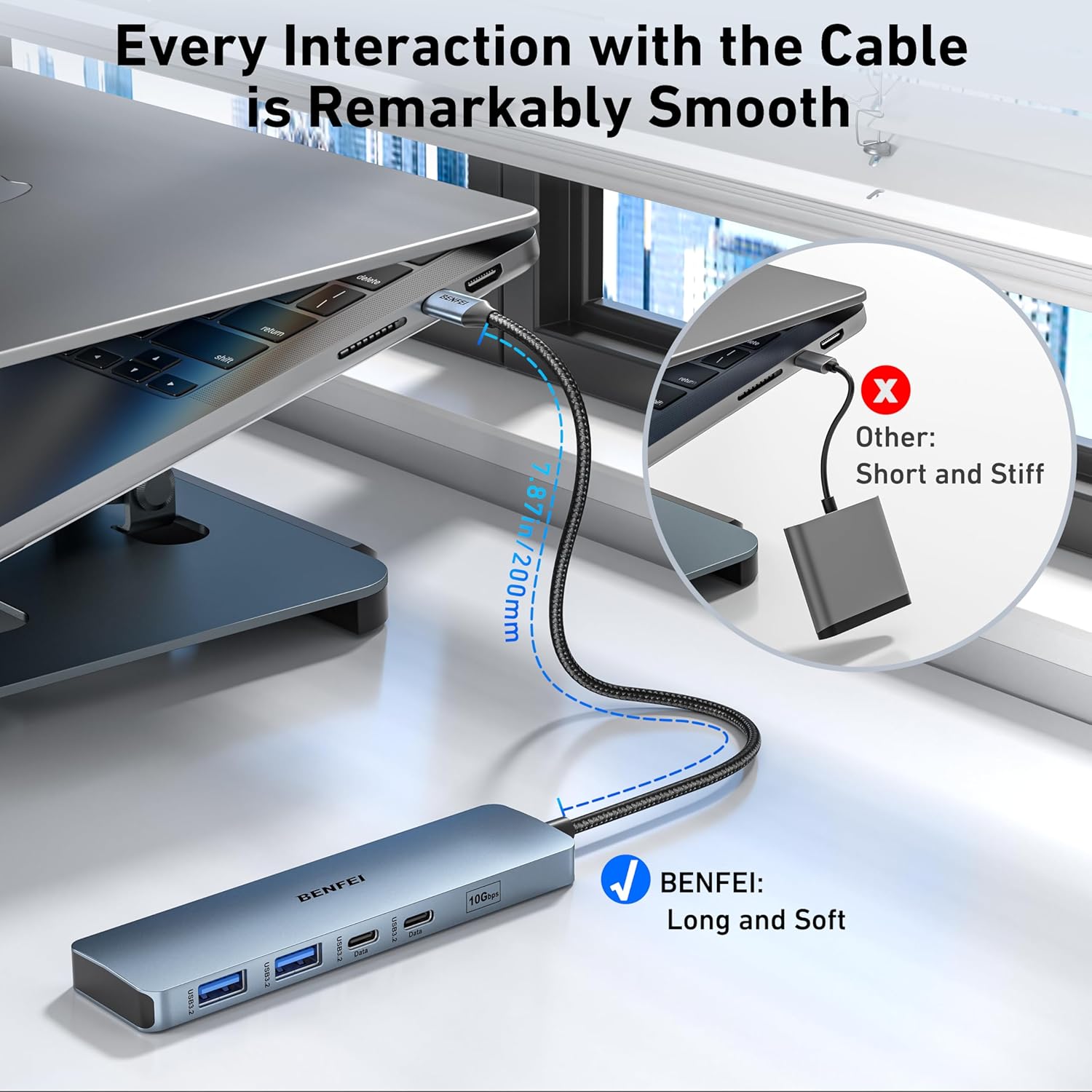
Image: A close-up view of the BENFEI USB-C Hub's silicone woven cable, highlighting its flexibility and durable construction, designed for smooth interaction and resistance to tangling.
Troubleshooting
If you encounter issues with your BENFEI USB-C Hub, refer to the following common problems and solutions:
| Problem | Possible Solution |
|---|---|
| No video output via HDMI. | Ensure your host device's USB-C port supports DisplayPort Alt Mode. Try a different HDMI cable or monitor. Check display settings on your host device. |
| Devices connected to USB data ports are not recognized. | Ensure the hub is securely connected to the host device. Try connecting the device directly to the host to confirm functionality. Restart your host device. |
| Host device is not charging via PD port. | Verify that your USB-C power adapter is functional and connected to the hub's PD-IN port. Ensure the power adapter provides sufficient wattage for your host device. |
| Slow data transfer speeds. | Ensure connected devices and cables support USB 3.2 Gen 2 speeds. Avoid connecting multiple high-bandwidth devices simultaneously if possible. |
Specifications
| Feature | Detail |
|---|---|
| Model Number | 000377 |
| Ports | 1x HDMI (4K@60Hz), 1x USB-C PD-IN (100W), 2x USB-A 3.2 Gen 2 (10Gbps), 2x USB-C 3.2 Gen 2 Data (10Gbps) |
| HDMI Resolution | Up to 4K@60Hz |
| Power Delivery | Up to 100W input (85W to host) |
| Data Transfer Rate | 10 Gigabits Per Second (USB 3.2 Gen 2) |
| Compatible Devices | MacBook, iPad Pro, iMac, iPhone 15 Pro/Max, Surface Book 2, Surface Go, HP Envy 13, Pixelbook, Galaxy Book, Samsung Galaxy S8/S9/S8 Plus/S9 Plus/Note 8/Note 9, Dell XPS 15/XPS 13, Chromebook, Intel NUC, Steam Deck, Switch, and other USB-C devices supporting video output and/or data transfer. |
| Operating Systems | Mac OS, iOS, Windows, Chrome OS, Linux |
| Material | Aluminum enclosure, Silicone woven cable |
| Color | Gray |
Warranty and Support
BENFEI provides an unconditional 18-month warranty for this product, ensuring long-term satisfaction. For any questions, technical support, or warranty claims, please contact BENFEI customer service. Our friendly and easy-to-reach customer service team is available to assist you in a timely manner.
For further assistance, please visit our official website or contact us via the details provided on the product packaging.
