
1. Introduction and Overview
The reMarkable Paper Pro is an advanced digital paper tablet designed to provide a paper-like writing and reading experience. It features an 11.8-inch Canvas Color display, allowing you to write, sketch, and read in color. This ultra-slim and portable device is engineered for focused work, offering an unmatched tactile experience for notes, documents, and creative tasks.
Key features include:
- Color Display: Experience writing, sketching, and reading in color on the 11.8-inch Canvas Color display.
- Paper-like Writing: The display and Marker Plus pen are designed to deliver realistic friction and natural writing feel.
- Adjustable Reading Light: Read comfortably day or night with the low-glare display and adjustable front light.
- Organization Tools: Easily sort notes and documents with folders and tags, write directly on PDFs, and convert handwriting to typed text.
- Long Battery Life: Enjoy up to two weeks of battery life on a single charge.
2. What's in the Box
Your reMarkable Paper Pro Bundle includes the following components:
- reMarkable Paper Pro Digital Paper Tablet (11.8" Canvas Color display)
- Marker Plus Pen with built-in eraser
- 6 spare Marker tips
- Book Folio Cover in Mosaic Weave
- USB-C cable
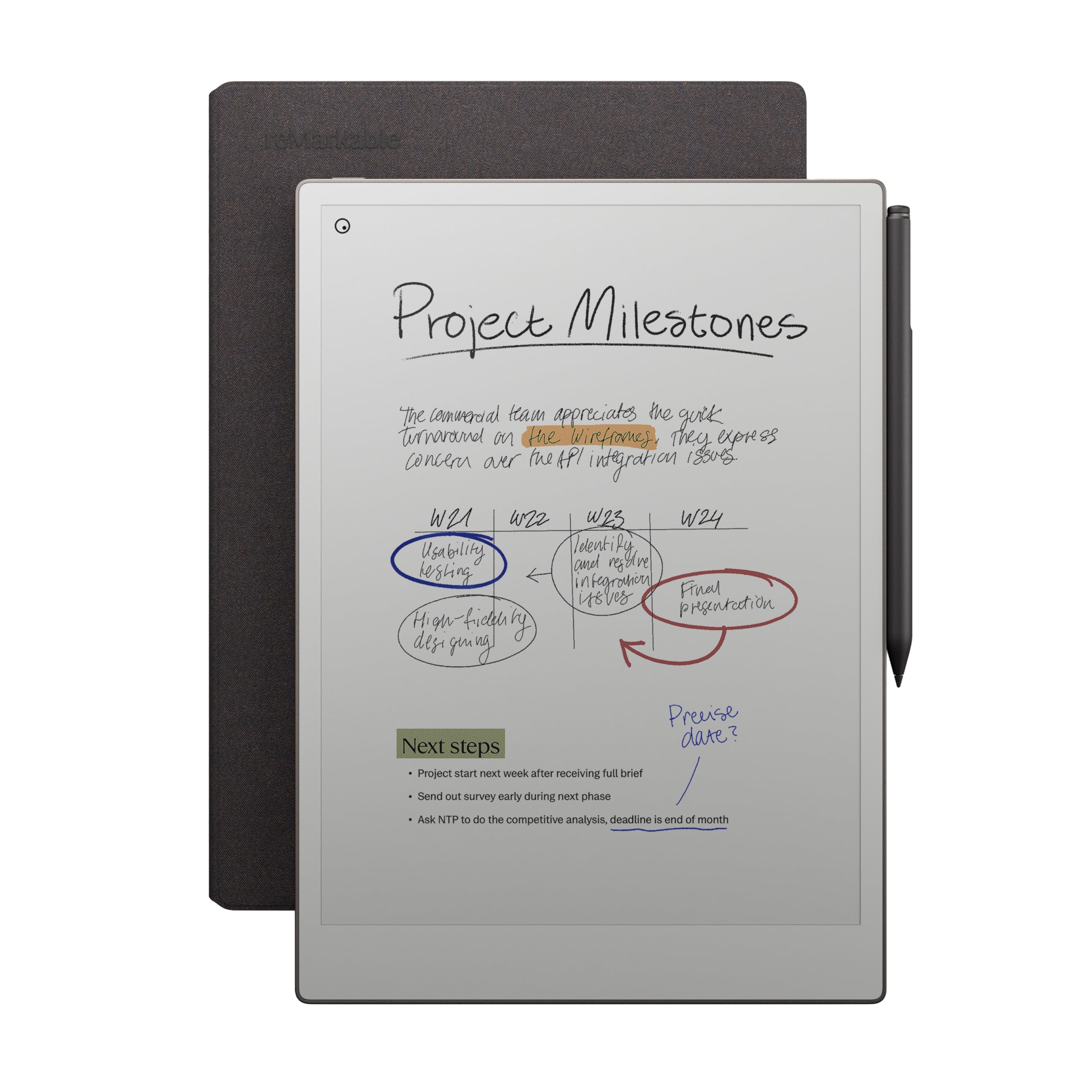
Image: The reMarkable Paper Pro tablet, Marker Plus pen, and Book Folio cover are displayed together, illustrating the complete bundle contents.
3. Setup
3.1 Initial Charging
Before first use, ensure your reMarkable Paper Pro is fully charged. Connect the included USB-C cable to the device's USB-C port and to a compatible power adapter (not included). The device will indicate when charging is complete.
3.2 Attaching the Marker Plus Pen
The Marker Plus pen attaches magnetically to the side of your reMarkable Paper Pro tablet. Simply align the pen with the magnetic strip on the right edge of the device until it snaps into place. The pen will charge wirelessly when attached.

Image: A close-up view of the Marker Plus pen magnetically attaching to the side of the reMarkable Paper Pro tablet, highlighting the secure connection.
3.3 Initial Device Setup
Follow the on-screen instructions to complete the initial setup, which includes connecting to Wi-Fi and setting up your reMarkable account. This allows for cloud synchronization of your notes and documents.
4. Operating Your reMarkable Paper Pro
4.1 Basic Navigation
Navigate the device using touch gestures. Swipe to browse files, tap to open documents, and use the sidebar menu for various tools and settings.
4.2 Note-Taking and Sketching
Select different pen types (e.g., fineliner, ballpoint, calligraphy, paintbrush) and colors from the toolbar. Adjust thickness and use the eraser function on the Marker Plus for corrections. The device offers a responsive, paper-like writing experience.

Image: A person's hand is shown writing on the reMarkable Paper Pro tablet with the Marker Plus pen, demonstrating the natural writing experience.
4.3 Annotating Documents and PDFs
Open PDF files and other documents to write directly on them. Use the highlighting tool with various colors to emphasize text. Your annotations are saved with the document.

Image: The reMarkable Paper Pro tablet shows a document with various handwritten notes and highlights in different colors, illustrating its annotation capabilities.
4.4 Converting Handwriting to Text
Select handwritten notes and use the conversion feature to transform them into typed text. This function improves organization and readability.
4.5 File Organization and Cloud Sync
Organize your notes and documents into folders and apply tags for easy searching. The reMarkable cloud service automatically syncs your content across your devices (desktop and mobile apps), ensuring your work is always accessible.
Video: An unboxing and overview of the reMarkable Paper Pro, demonstrating its features and initial setup. This video highlights the device's design and core functionalities.
4.6 Adjustable Reading Light
The reMarkable Paper Pro features an adjustable reading light. Access this setting through the device's menu to customize the brightness for optimal viewing in various lighting conditions, reducing eye strain.
5. Maintenance
5.1 Cleaning the Screen
To clean the screen, gently wipe it with a soft, lint-free cloth. Avoid using harsh chemicals or abrasive materials that could damage the display.
5.2 Replacing Marker Tips
The Marker Plus pen tips are replaceable. When a tip wears down, use the included tip removal tool (or tweezers) to gently pull out the old tip. Insert a new tip firmly until it clicks into place.
5.3 Battery Care
For optimal battery longevity, avoid fully discharging the device frequently. Charge the device when the battery level is low. Store the device in a cool, dry place when not in use for extended periods.
6. Troubleshooting
6.1 Device Not Responding
If the device is unresponsive, try a soft reset by holding the power button for 10-15 seconds until the reMarkable logo appears. If the issue persists, ensure the device is charged.
6.2 Pen Not Writing
Check if the Marker Plus pen tip is worn out and needs replacement. Ensure the pen is properly attached to the device for charging. If the problem continues, try restarting the reMarkable Paper Pro.
6.3 Synchronization Issues
Verify that your reMarkable Paper Pro is connected to a stable Wi-Fi network. Check your reMarkable cloud account status via the desktop or mobile app. Ensure both the device and the app are running the latest software versions.
7. Specifications
| Brand | reMarkable |
| Model Name | RM83C-1001NW |
| Connectivity Technology | USB |
| Screen Size | 11.8 Inches |
| Memory Storage Capacity | 64 GB |
| Battery Life | 2 weeks |
| Included Components | reMarkable Paper Pro, Marker Plus, 6 spare Marker tips, Book Folio, USB-C cable |
| Color | Burgundy |
| Product Dimensions | 15.04"L x 9.33"W x 1.66"Th |
| Item Weight | 1.16 Pounds |
| Other Special Features | Color Display, Reading Light |
| Human-Interface Input | Touchscreen with Stylus Support |
8. Warranty and Support
8.1 Warranty Information
The reMarkable Paper Pro comes with a 1-Year Limited Warranty. This warranty covers defects in materials and workmanship under normal use. For full details, please refer to the warranty documentation included with your product or visit the official reMarkable website.
8.2 Customer Support
For technical assistance, troubleshooting, or warranty claims, please contact reMarkable customer support:
- Online Support: Visit the reMarkable Support Center for FAQs, guides, and contact options.
- Email Support: Submit a support request through the reMarkable website.


