
1. Introduction
The STARSCOPE Sentinel Camera Bulb is a versatile security device designed for surveillance. It integrates a 360-degree HD camera with night vision, motion detection, and two-way audio into a standard light bulb form factor, allowing for easy installation in any compatible light socket. This manual provides detailed instructions for installation, operation, and maintenance to ensure optimal performance of your device.
2. Safety Information
- Ensure the power supply to the light socket is turned off before installation or removal of the camera bulb.
- This device is designed for use in standard E26/E27 light sockets. Do not attempt to install it in incompatible sockets.
- The camera is rated for indoor use. If used outdoors, ensure it is protected from direct exposure to water and extreme weather conditions, as it is Not Water Resistant.
- Do not disassemble or modify the device. This may void the warranty and pose safety risks.
- Keep the device away from children and pets.
- Operate the device within the specified temperature and humidity ranges.
3. Package Contents
Verify that all items are present in your package:
- 1x STARSCOPE Sentinel Camera Bulb
- Mounting screws and anchors
- Reset pin

Figure 3.1: Package contents including the camera bulb, mounting hardware, and reset pin.
4. Setup and Installation
Follow these steps to install and set up your STARSCOPE Sentinel Camera Bulb:
- Power Off: Before installation, ensure the power to the light socket is completely turned off at the circuit breaker to prevent electrical shock.
- Screw In: Carefully screw the STARSCOPE Sentinel Camera Bulb into a standard E26/E27 light socket. Ensure it is securely fastened but do not overtighten.
- Power On: Restore power to the light socket. The camera will power on and initiate its startup sequence. You may hear a chime or see an indicator light.
- Download App: Download the "YI IoT" app from the Apple App Store or Google Play Store. You can also scan the QR code provided in the quick start guide or visit http://www.yunyiiot.com/yunyiapp/index.html.
- Register/Login: Open the app and create a new account or log in if you already have one.
- Add Device: Follow the in-app instructions to add your new camera. This typically involves:
- Turning on Bluetooth on your smartphone.
- Allowing the app to discover the camera.
- Connecting the camera to your 2.4GHz Wi-Fi network and entering the Wi-Fi password.
- Completion: Once connected, the camera will appear in your app, and you can begin live viewing and configuring settings.
Video 4.1: Demonstration of screwing the camera bulb into a light fixture. This video shows the physical installation process.

Figure 4.2: Visual guide for the quick and easy setup process, including Bluetooth pairing and Wi-Fi connection.

Figure 4.3: Screenshot showing the YI IoT app download page on App Store and Google Play, with a QR code for easy access.
5. Operating Instructions
The STARSCOPE Sentinel Camera Bulb offers a range of features accessible through the YI IoT app:
5.1. Live View and Pan/Tilt/Zoom (PTZ)
Access the live video feed from your camera via the app. You can remotely control the camera's viewing angle:
- 360° Pan: Rotate the camera horizontally to cover a full 360-degree area.
- 90° Tilt: Adjust the camera vertically to view different elevations.
- Digital Zoom: Pinch to zoom on the live feed for closer inspection of details.

Figure 5.1: Illustration of the camera's 360-degree pan and 90-degree tilt capabilities, controlled via smartphone app.

Figure 5.2: Demonstrates the wide surveillance coverage provided by the camera, showing a panoramic view of a house and yard.
5.2. Motion Detection Alerts
The camera is equipped with motion detection. When movement is detected within its field of view, the camera will:
- Send instant alerts to your smartphone via the app.
- Begin recording the event (if an SD card is inserted or cloud storage is active).
You can adjust motion detection sensitivity and alert settings within the app.

Figure 5.3: Visual representation of motion detection, showing an alert notification on a smartphone when activity is detected.

Figure 5.4: An outdoor scene where the camera is actively detecting motion, highlighting its surveillance capabilities.
5.3. Two-Way Audio
The built-in speaker and microphone allow for real-time two-way communication:
- Tap the microphone icon in the app to speak through the camera's speaker.
- Listen to audio from the camera's surroundings through your smartphone.

Figure 5.5: Depicts a delivery person interacting with someone through the camera's two-way audio feature.

Figure 5.6: Shows a user communicating with family members via the camera's two-way audio, illustrating its use for interaction.
5.4. Night Vision
The camera features both infrared and full-color night vision modes to provide clear surveillance in low-light or complete darkness.
- Infrared Night Vision: Provides black and white video in complete darkness.
- Full Color Night Vision: Utilizes built-in lights to capture color video even in dark conditions.
The camera automatically switches between day and night modes based on ambient light levels.

Figure 5.7: Side-by-side comparison demonstrating the clarity of both infrared and full-color night vision capabilities.
5.5. Video Recording and Storage
The STARSCOPE Sentinel Camera Bulb supports two methods for video recording and storage:
- Micro SD Card: Insert a Micro SD card (up to 64GB, not included) into the designated slot on the camera for local storage of recordings.
- Cloud Storage: Optional cloud storage is available, often with a trial period, which may require a subscription for continued use. This allows for remote access and backup of recordings.
Configure recording settings (e.g., continuous recording, event-triggered recording) within the app.
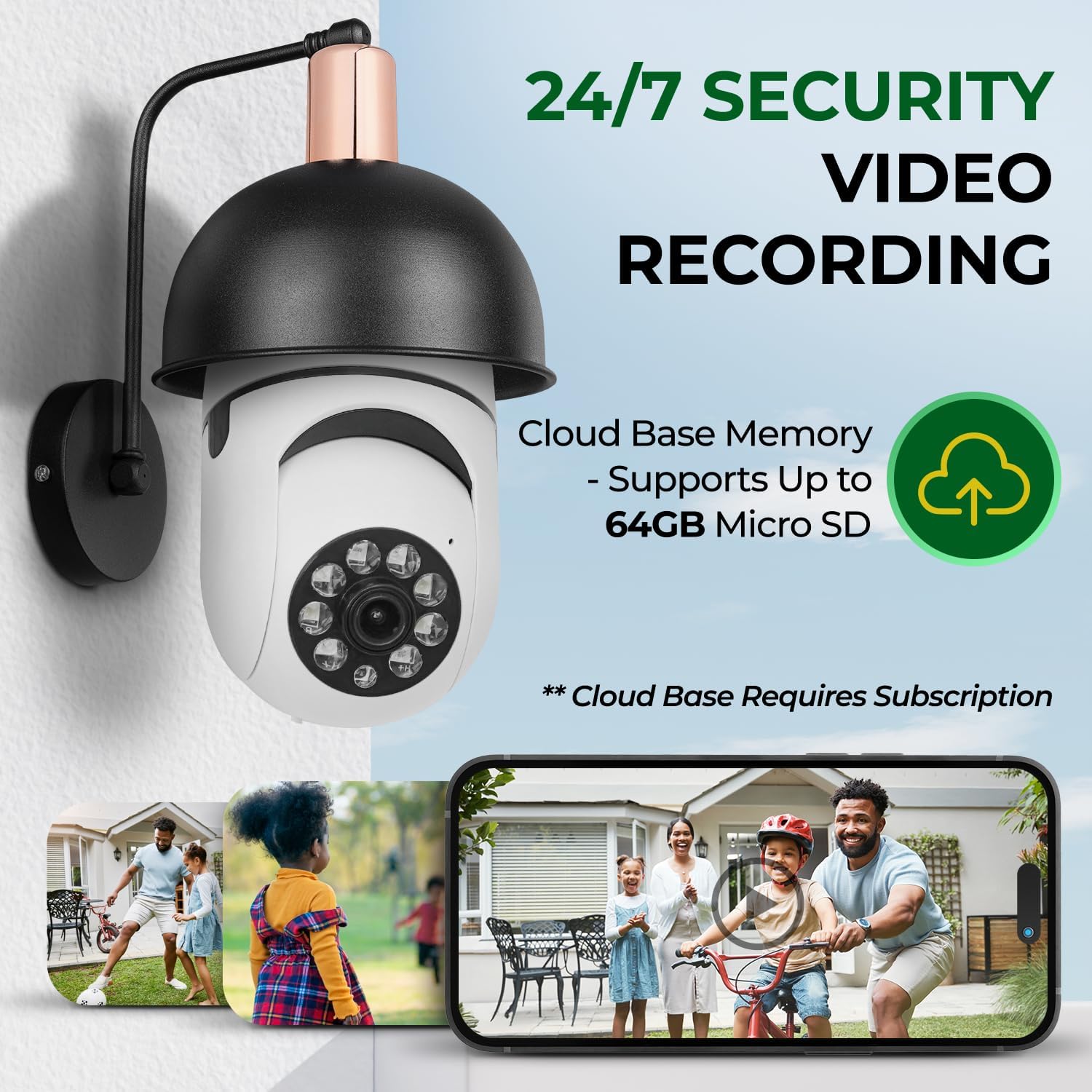
Figure 5.8: Illustrates the 24/7 recording feature, highlighting support for a 64GB Micro SD card and optional cloud storage.

Figure 5.9: Details the recording capabilities, including Micro SD card support and cloud storage options with a trial period.
6. Maintenance
- Cleaning: Gently wipe the camera lens and body with a soft, dry cloth. Do not use harsh chemicals or abrasive cleaners.
- Firmware Updates: Periodically check the YI IoT app for available firmware updates. Keeping your camera's firmware updated ensures optimal performance and security.
- Storage Management: If using a Micro SD card, regularly review and back up important footage. Format the SD card periodically to maintain performance.
7. Troubleshooting
| Problem | Possible Cause | Solution |
|---|---|---|
| Camera not connecting to Wi-Fi. | Incorrect Wi-Fi password, 5GHz Wi-Fi network, weak signal, camera too far from router. |
|
| No live view or video feed. | No internet connection, camera offline, app issue. |
|
| Motion detection alerts not received. | App notification settings, motion detection sensitivity, camera offline. |
|
| Two-way audio not working. | Microphone/speaker permissions, volume settings, internet latency. |
|
| SD card recording issues. | SD card full, corrupted, or incompatible. |
|
8. Specifications
| Feature | Detail |
|---|---|
| Brand | STARSCOPE |
| Model Name | Smarty Security Camera |
| Model Number | SM001 |
| Connectivity Technology | Wireless (Wi-Fi) |
| Video Capture Resolution | 720p |
| Night Vision | Night Color |
| Special Features | 2-Way Audio, Built-In Light, Cry Detection, HD Resolution, Night Vision |
| Indoor/Outdoor Usage | Indoor (Not Water Resistant) |
| Compatible Devices | Smartphone |
| Controller Type | YI IoT App |
| Mount Type | Ceiling Mount (via light socket) |
| Installation Type | Screw In |
| Enclosure Material | Plastic |
| Water Resistance Level | Not Water Resistant |
| Power Source | Corded Electric |
| Storage | Supports up to 64GB Micro SD card (not included) |
| Item Dimensions | 3 x 3 x 7 inches |
9. Warranty and Support
9.1. Warranty Information
Specific warranty details for the STARSCOPE Sentinel Camera Bulb are not provided in this manual. Please refer to the product packaging or contact STARSCOPE customer support for warranty terms and conditions.
9.2. Customer Support
For technical assistance, troubleshooting, or further inquiries, please refer to the YI IoT app's help section or visit the official STARSCOPE website. You can also find support resources related to the YI IoT app at http://www.yunyiiot.com/yunyiapp/index.html.