
thinkcar ThinkScan 689BT
ThinkScan 689BT OBD2 Diagnostic Tool User Manual
Comprehensive Vehicle Diagnostics for Professionals and Enthusiasts
1. Introduction
The ThinkScan 689BT is a professional-grade OBD2 diagnostic tool designed for comprehensive vehicle analysis. It features an 8-inch HD touchscreen, runs on Android 10, and offers advanced functionalities such as full system diagnosis, bi-directional control, ECU coding, and over 34 reset functions. This manual provides detailed instructions for setting up, operating, and maintaining your device to ensure optimal performance and accurate vehicle diagnostics.
2. Setup and Initial Configuration
2.1 Unboxing and Device Overview
Carefully remove all components from the packaging. The main unit is the 8-inch tablet, accompanied by the Bluetooth BT5.0 Diag Mini2 Dongle and necessary cables. Familiarize yourself with the device's ports and buttons.

Figure 2.1: ThinkScan 689BT main unit with the Bluetooth dongle.
2.2 Charging the Device
Before first use, ensure the device is fully charged using the provided power adapter. The 4150mAh battery provides over 12 hours of operation.
2.3 Connecting the Bluetooth Dongle
Plug the Bluetooth BT5.0 Diag Mini2 Dongle into your vehicle's OBD2 port. The dongle will establish a wireless connection with the ThinkScan 689BT tablet, allowing for diagnostics within a 35ft (12m) range.
2.4 Initial Software Setup and Updates
Upon first power-on, follow the on-screen prompts to configure language settings and Wi-Fi connection. Connect to a stable Wi-Fi network (2.4GHz & 5GHz supported) to download the latest software updates. The device offers lifetime free updates, ensuring access to the newest vehicle models and diagnostic features.
3. Operating Instructions
3.1 Full System Diagnosis
The ThinkScan 689BT can access all available electronic control modules (ECMs) in a vehicle, including Engine, Transmission, ABS, Airbag, TPMS, and more. This allows for comprehensive fault code reading, live data streaming, and ECU information retrieval.
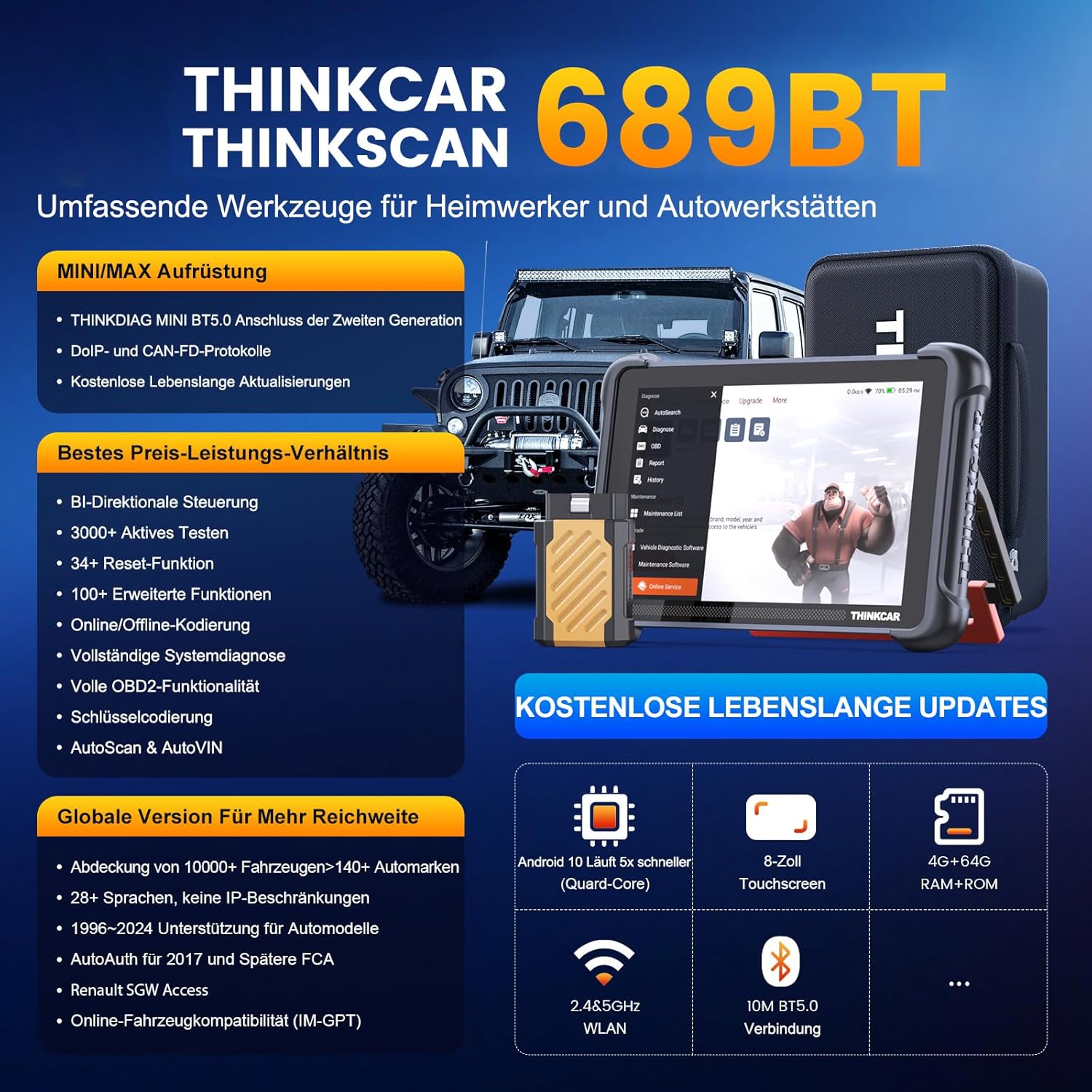
Figure 3.1: Example of a full system diagnosis scan displaying various modules.
To perform a full system diagnosis:
- Connect the Bluetooth dongle to the vehicle's OBD2 port.
- On the tablet, select "Diagnose" from the main menu.
- Choose "Auto VIN" for automatic vehicle identification or manually select the vehicle type.
- Select "Health Report" or "System Scan" to initiate a comprehensive scan of all available systems.
- Review the displayed fault codes (DTCs) and system statuses.
3.2 Live Data Stream
Monitor real-time data from various sensors and components in graphical or text format. This feature is crucial for identifying intermittent issues and verifying component operation.

Figure 3.2: Live data streams displayed graphically for multiple parameters.
To view live data:
- After a system scan, select the desired module (e.g., Engine Control Module).
- Choose "Live Data" or "Data Stream."
- Select the parameters you wish to monitor. The device can display up to 4 data streams simultaneously.
3.3 Bi-directional Control (Active Testing)
This function allows the diagnostic tool to send commands directly to vehicle components to test their functionality. This helps in quickly pinpointing faulty parts without disassembling the vehicle.
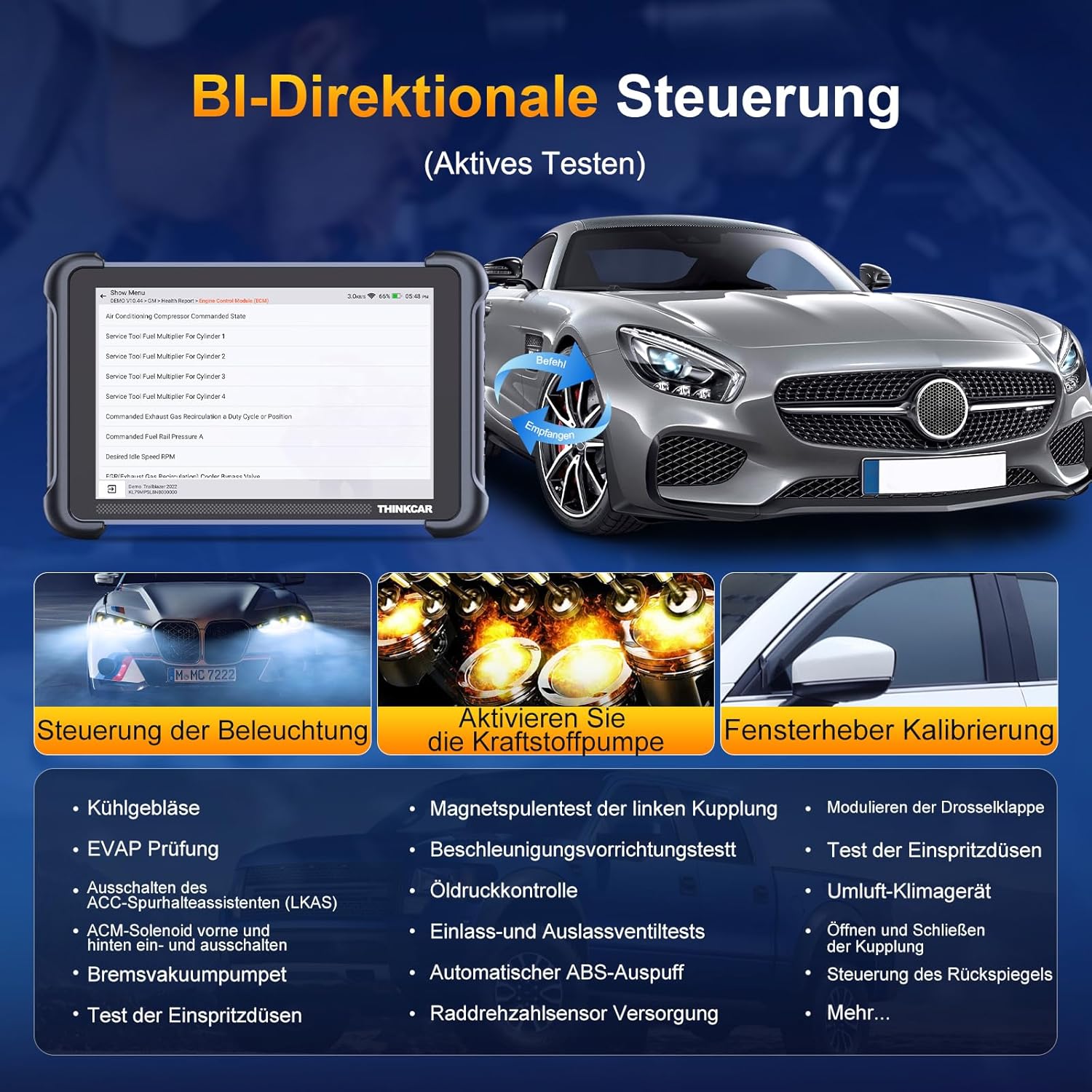
Figure 3.3: Examples of bi-directional control, such as activating lights or fuel pump.
Common active tests include:
- Coolant pump activation
- Window up/down control
- Lighting control
- Fuel pump on/off
- Injector tests
To perform active tests, navigate to Diagnosis > Vehicle Models > System > Active Test. Note that available functions vary by vehicle model and year.
Video 3.1: Demonstration of the ThinkScan 689BT's bi-directional control and system diagnosis capabilities.
3.4 ECU Coding
ECU coding allows for customization of vehicle settings, activation of hidden features, or deactivation of unwanted functions. It is also used to program adaptive data for specific components after repairs or replacements.

Figure 3.4: Visual representation of ECU coding processes.
Examples of ECU coding applications:
- Changing interior lighting color
- Activating/deactivating auto-hold function
- Customizing dashboard display
- Disabling automatic start/stop
Note: ECU coding functions vary significantly by vehicle make, model, and year. Always ensure you understand the implications before making changes.
3.5 Reset Functions (34+)
The ThinkScan 689BT supports over 34 common maintenance and reset functions, enabling users to perform various service tasks.

Figure 3.5: Icons representing various reset functions available on the device.
Key reset functions include:
- Oil Lamp Reset: Resets the oil service light after an oil change.
- EPB (Electronic Parking Brake) Reset: Resets brake pads after replacement.
- BMS (Battery Management System) Reset: Registers new battery replacement.
- SAS (Steering Angle Sensor) Reset: Calibrates the steering angle sensor.
- ABS Bleeding: Bleeds the brake system to restore ABS sensitivity.
- Injector Coding: Codes new injector parameters into the ECU.
- DPF (Diesel Particulate Filter) Regeneration: Initiates DPF regeneration process.
- TPMS (Tire Pressure Monitoring System) Reset: Resets tire pressure sensors.
- ETS (Electronic Throttle System) Reset: Clears adaptive values for the throttle body.
Access these functions via the "Maintenance" section on the device. Always refer to your vehicle's service manual for specific procedures.
3.6 OBD2 10 Modes
The ThinkScan 689BT supports all 10 modes of the OBDII standard, providing comprehensive engine and emission-related diagnostics:
- Read Codes: Retrieves Diagnostic Trouble Codes (DTCs).
- Erase Codes: Clears DTCs and turns off the Check Engine Light.
- I/M Readiness: Checks the readiness of emission-related monitors.
- Live Data: Displays real-time data from vehicle sensors.
- Freeze Frame Data: Shows engine conditions at the time a fault code was set.
- O2 Sensor Test: Retrieves O2 sensor monitoring test results.
- On-Board Monitor Test: Retrieves results for emission-related powertrain components.
- EVAP System Test: Initiates a test of the evaporative emission system.
- Vehicle Information: Retrieves vehicle information (VIN, Cal ID, CVN).
- DTC Lookup: Provides detailed descriptions of DTCs.
4. Maintenance
4.1 Software Updates
Regularly check for and install software updates to ensure your device has the latest vehicle coverage, bug fixes, and new features. Updates are provided free for life.
4.2 Device Cleaning
Clean the device with a soft, damp cloth. Avoid using abrasive cleaners or solvents. Keep the touchscreen clean to maintain responsiveness.
4.3 Storage
Store the device in its protective case in a cool, dry place when not in use to prevent damage from dust, moisture, and extreme temperatures.
5. Troubleshooting
This section addresses common issues you might encounter with your ThinkScan 689BT device.
5.1 Device Not Powering On
- Ensure the device is fully charged. Connect it to the power adapter and allow it to charge for at least 30 minutes before attempting to power on again.
- Verify the power button is pressed and held for a few seconds.
5.2 Connection Issues with Vehicle
- Check if the Bluetooth dongle is securely plugged into the vehicle's OBD2 port.
- Ensure the vehicle's ignition is in the ON position (engine can be off).
- Verify Bluetooth is enabled on the ThinkScan 689BT tablet.
- Restart both the vehicle and the diagnostic tool.
- Confirm vehicle compatibility. While the device supports over 140 car brands, specific functions may vary.
5.3 Software Freezing or Slow Performance
- Close any unnecessary applications running in the background.
- Ensure the device has sufficient storage space.
- Perform a software update to resolve potential bugs.
- If the issue persists, perform a factory reset (note: this will erase all user data).
5.4 Inaccurate Readings or Functionality Issues
- Ensure the vehicle's VIN is correctly identified by the device.
- Verify that the software is up to date.
- Consult the vehicle's service manual for specific diagnostic procedures.
- Contact customer support with your vehicle's model, year, and VIN for compatibility checks and advanced assistance.
6. Specifications
| Feature | Specification |
|---|---|
| Model | ThinkScan 689BT |
| Operating System | Android 10.0 |
| Processor | 2.0GHz 4-Core |
| RAM | 4GB |
| ROM | 64GB |
| Display | 8-inch HD Touchscreen |
| Battery | 4150mAh (up to 12+ hours working time) |
| Connectivity | 2.4GHz & 5GHz Wi-Fi, Bluetooth BT5.0 (12m range) |
| Supported Protocols | CANFD, DoIP, OBD2, EOBD, ISO 14230-4 (KWP2000), ISO 15765-4 (CAN), ISO 9141-2 (ISO), SAE J1850 (VPW), SAE J1850 (PWM) |
| Vehicle Coverage | 140+ car brands, 10000+ car models (US 1996+, EU 2000+, Asia 2008+) |
| Weight | 1.66 Kilograms |
7. Warranty Information
This product comes with a manufacturer's warranty. For detailed information regarding warranty coverage, terms, and conditions, please refer to the warranty card included in your product packaging or visit the official thinkcar website. Please retain your proof of purchase for warranty claims.
8. Support and Contact
For technical assistance, product inquiries, or troubleshooting not covered in this manual, please contact thinkcar customer support. You can reach our professional support team via:
- In-App Chat: Available directly within the ThinkScan 689BT software.
- Email: Refer to the official thinkcar website for the most current support email address.
- Official Website: Visit the thinkcar Store on Amazon for FAQs and additional resources.
When contacting support, please provide your device's serial number, vehicle make, model, and year, and a detailed description of the issue.
Related documentsThinkScan 689BT


Ask a question about this manual
Ask about setup, troubleshooting, compatibility, parts, safety, or missing instructions. Manuals+ will review the question and use this page’s manual context to help answer it.