
3DMakerpro Premium
3DMakerpro Seal Lite Handheld 3D Scanner User Manual
Model: Premium Kit
Brand: 3DMakerpro
1. Introduction
The 3DMakerpro Seal Lite is a high-precision handheld 3D scanner designed for detailed object reproduction, ideal for 3D printing and modeling. This manual provides essential information for setting up, operating, and maintaining your Seal Lite scanner to ensure optimal performance and longevity.
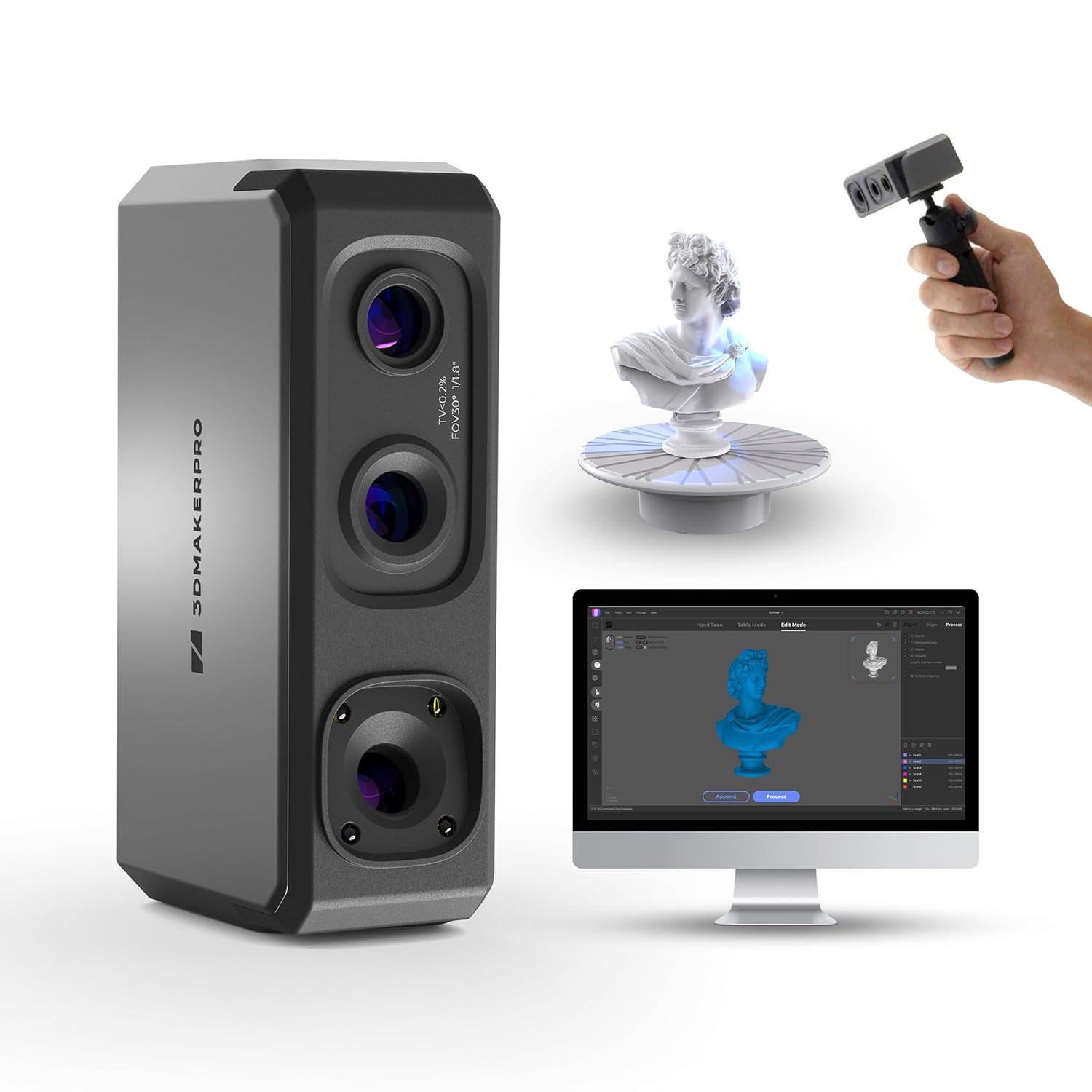
Image: The 3DMakerpro Seal Lite 3D scanner, along with a monitor displaying scanned models, a small bust on a turntable, and a hand holding the scanner.
2. What's in the Box
Verify that all components are present in your Premium Kit:
- 3D Scanner (Seal Lite)
- Power Adapter
- Data Transmission Cable
- Tripod
- Turntable
- User Manual

Image: An exploded view showing the 3D scanner, power adapter, data cable, tripod, turntable, and manual, indicating the contents of the Premium Kit.
3. Setup
- Unpacking: Carefully remove all components from the packaging.
- Power Connection: Connect the power adapter to the scanner and plug it into a power outlet.
- Data Connection: Connect the data transmission cable from the scanner to your computer's USB port.
- Software Installation:
- Download the official JMStudio software from the 3DMakerpro website.
- Install JMStudio on your Windows (10/11 64bit) or MacOS (12/13) operating system.
- Ensure your system meets the minimum requirements for smooth operation.
- Mounting (Optional):
- Attach the scanner to the provided tripod for stable scanning.
- Place the turntable on a flat, stable surface if you plan to use it for object scanning.

Image: The 3DMakerpro Seal Lite scanner set up with a tripod, connected to a desktop computer and a laptop, demonstrating software compatibility.
4. Operating Instructions
4.1. Scanning Modes
The Seal Lite supports multiple scanning modes for various object sizes and types:
- Handheld Scanning: Suitable for objects between 10mm to 300mm. Provides flexibility for larger or irregularly shaped items.
- Turntable Scanning: Ideal for objects between 10mm to 100mm. Offers automated, precise 360-degree capture.

Image: Demonstrates handheld scanning of a golden deer statue and turntable scanning of a dinosaur figurine, illustrating the two primary scanning modes.
4.2. Achieving High Accuracy and Detail
The Seal Lite utilizes Precision Blue imaging system and structured light technology for exceptional detail:
- Accuracy: Achieves 0.02mm accuracy.
- Point Spacing: Minimum point spacing of 0.07mm for intricate details.
- Anti-Shaking Lenses: Optical stabilization filters out jitter for smooth, continuous scanning.

Image: A person scanning a tree branch with the Seal Lite, highlighting the blue light technology and its ability to capture fine textures.
4.3. Scanning Process
- Prepare the Object:
- Ensure the object is clean and free of debris.
- For transparent, reflective, or very dark objects, apply a matte scanning spray to improve capture quality.
- Avoid scanning deformable objects like clothes or animals without proper stabilization.
- Positioning:
- Maintain a recommended scanning distance of 180-280mm from the object.
- For turntable scanning, center the object on the turntable.

Image: A person holding the Seal Lite scanner towards a child's face, with an arrow indicating the optimal scanning distance of 180-280mm.
- Software Settings:
- Open JMStudio software.
- Select the appropriate scanning mode (handheld or turntable).
- Adjust the 9-level light adjustment setting based on ambient light and object material for optimal results.
- Scanning:
- Initiate the scan within JMStudio.
- Move the scanner smoothly around the object, maintaining the recommended distance. The scanner captures data at up to 10 frames per second (10FPS).
- The software will display the real-time scan progress.

Image: The Seal Lite scanner on a tripod next to a laptop displaying a 3D scan in progress, illustrating the 10FPS scanning speed.
- Post-processing:
- After scanning, use JMStudio's tools for processing, aligning, and merging scan data.
- The software supports exporting models in OBJ, STL, PLY, and ASC formats, compatible with various 3D modeling software.
5. Maintenance
- Cleaning: Use a soft, dry cloth to clean the scanner's lenses and body. Avoid abrasive materials or harsh chemicals.
- Storage: Store the scanner in a cool, dry place, away from direct sunlight and extreme temperatures.
- Software Updates: Regularly check for and install JMStudio software updates to ensure optimal performance and access to new features.
6. Troubleshooting
| Problem | Possible Cause | Solution |
|---|---|---|
| Scanner not recognized by computer. | Loose cable connection, driver issue, insufficient power. |
|
| Poor scan quality / Missing details. | Incorrect scanning distance, object material, lighting, or movement. |
|
| Software crashes or freezes. | System not meeting requirements, outdated drivers, software bug. |
|
| Scanner loses tracking during handheld scan. | Too fast movement, lack of distinct features on object, insufficient lighting. |
|
7. Specifications
| Feature | Detail |
|---|---|
| Accuracy | 0.02mm |
| Minimum Point Spacing | 0.07mm |
| Scanning Speed | Up to 10 FPS (Frames Per Second) |
| Work Distance | 180-280mm (7.09-11.02 inches) |
| Light Adjustment | 9 Levels |
| Weight | 190g |
| Output Formats | OBJ, STL, PLY, ASC |
| Compatibility | Windows 10/11 (64bit), MacOS 12/13 |
| Dimensions (Package) | 11 x 11 x 4 inches |
| Package Weight | 4 Pounds |
8. Warranty and Support
3DMakerpro products are designed for reliability and performance. For warranty information, technical support, or service inquiries, please refer to the official 3DMakerpro website or contact their customer service directly. Keep your purchase receipt for warranty claims.
Visit the official 3DMakerpro Store: 3DMakerpro Store on Amazon
Related documentsPremium


Ask a question about this manual
Ask about setup, troubleshooting, compatibility, parts, safety, or missing instructions. Manuals+ will review the question and use this page’s manual context to help answer it.