
1. Introduction
This user manual provides comprehensive instructions for the ALLIMITY Remote Control, model TBS43FHDPR001. It is designed to be compatible with various Polaroid TV models, ensuring ease of use and full functionality. Please read this manual carefully before using the remote control to ensure proper operation and longevity.
2. Product Overview
The ALLIMITY Remote Control is a replacement remote designed to operate specific Polaroid TV models. It features an ergonomic design for comfortable grip and offers stable remote control performance with a long transmission distance.
2.1 Key Features
- No programming or installation required.
- Covers all functions of the original remote.
- Lightweight and easy to grip ergonomic design.
- Offers longer transmission distance and stable performance.
2.2 Compatible Models
This remote control is compatible with the following Polaroid TV models:
- TBS43FHDPR001
- TQL32R4PR020
- TQL32R4PR022
- TQL32R4PR024
- TQL32R4PR029
- TQL32R4PR025
- KDE32ML314ATS-6
- TVLED32HD32HD. PR003
- TQLHD32PR001
2.3 Remote Control Layout

Figure 1: Front view of the ALLIMITY remote control, showing all buttons including power, input, number keys, navigation, volume, channel, and media controls.
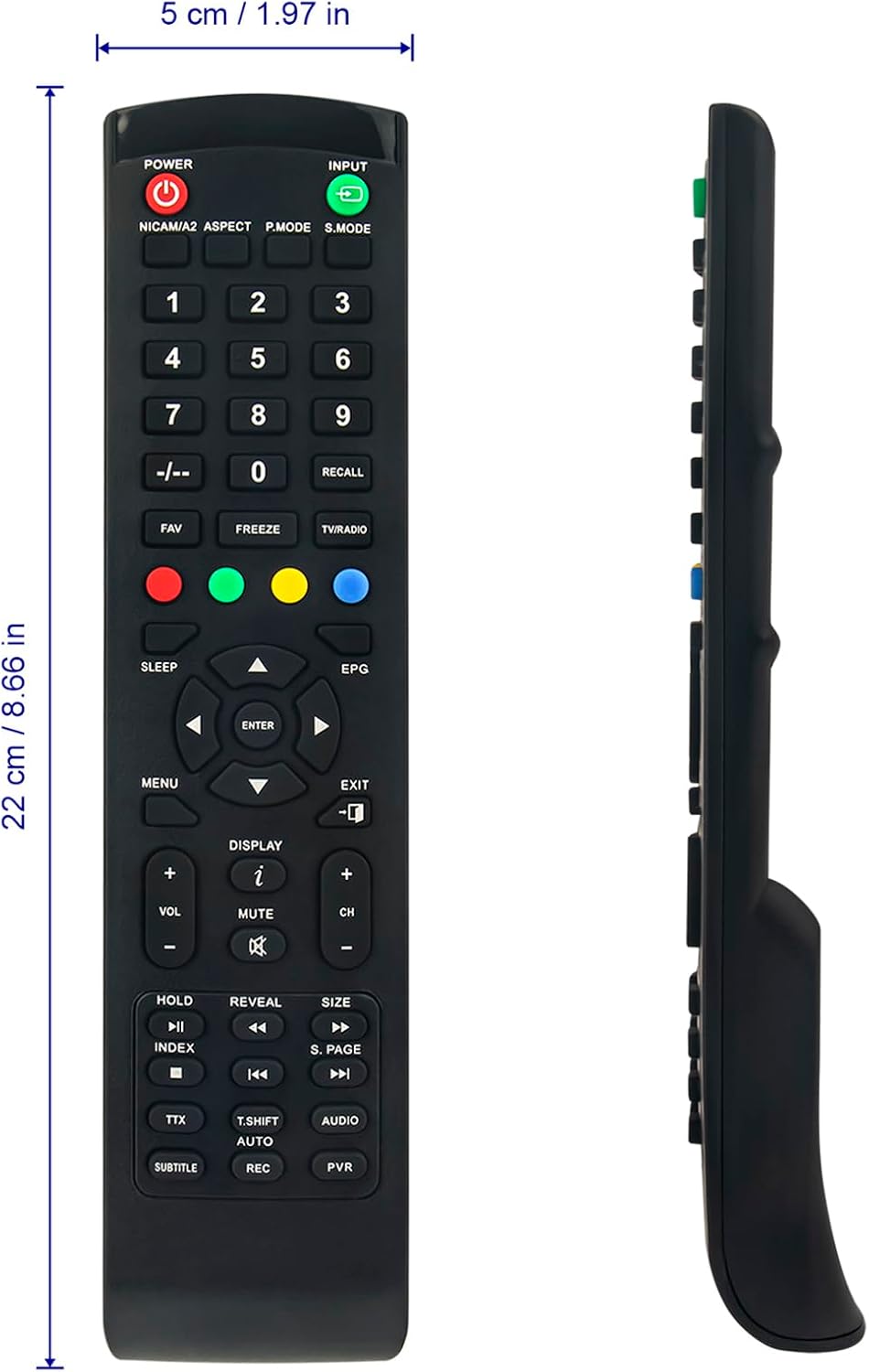
Figure 2: Side view of the ALLIMITY remote control, illustrating its ergonomic curve and dimensions (22 cm / 8.66 in length, 5 cm / 1.97 in width).

Figure 3: Angled view of the ALLIMITY remote control, showcasing the button layout and overall design from a top-down perspective.
3. Setup
3.1 Battery Installation
The remote control requires two AAA batteries (not included). Follow these steps to install the batteries:
- Locate the battery compartment cover on the back of the remote control.
- Press down on the tab and slide the cover downwards to open.
- Insert two AAA batteries, ensuring the positive (+) and negative (-) terminals align correctly with the markings inside the compartment.
- Slide the battery cover back into place until it clicks securely.

Figure 4: Back view of the ALLIMITY remote control, highlighting the battery compartment cover.
3.2 Initial Use
This remote control is designed for immediate use with compatible Polaroid TV models without any programming. Simply install the batteries and point the remote towards your TV.
4. Operating Instructions
The remote control provides full functionality for your compatible Polaroid TV. Below are common operations:
- Power Button: Press to turn the TV on or off.
- Input Button: Cycles through available input sources (HDMI, AV, etc.).
- Number Buttons (0-9): Directly select channels.
- Volume Up/Down (VOL +/-): Adjusts the audio volume.
- Channel Up/Down (CH +/-): Changes the TV channel.
- Mute Button: Toggles audio mute on/off.
- Navigation Buttons (Up, Down, Left, Right, Enter): Navigate through TV menus and confirm selections.
- Menu Button: Opens the TV's main menu.
- Exit Button: Exits the current menu or function.
- EPG Button: Accesses the Electronic Program Guide.
- Colored Buttons (Red, Green, Yellow, Blue): Perform specific functions within certain TV menus or applications, as indicated on the TV screen.
- Media Control Buttons (Play, Pause, Stop, Rewind, Fast Forward): Control media playback if supported by the TV.
5. Maintenance
Proper maintenance ensures the longevity and optimal performance of your remote control.
5.1 Cleaning
- Wipe the remote control with a soft, dry cloth.
- For stubborn dirt, slightly dampen the cloth with water or a mild, non-abrasive cleaner.
- Do not use harsh chemicals, solvents, or abrasive cleaning pads.
- Ensure no liquid enters the remote control's interior.
5.2 Battery Replacement
- Replace batteries when the remote control's response becomes sluggish or stops working.
- Always replace both batteries at the same time.
- Do not mix old and new batteries, or different types of batteries.
- Remove batteries if the remote control will not be used for an extended period to prevent leakage.
6. Troubleshooting
If you encounter issues with your remote control, refer to the following troubleshooting guide:
| Problem | Possible Cause | Solution |
|---|---|---|
| Remote control not working. | Dead or incorrectly installed batteries. | Replace batteries, ensuring correct polarity (+/-). |
| Remote control range is poor. | Weak batteries; Obstruction between remote and TV; Infrared sensor on TV is blocked. | Replace batteries; Remove any obstructions; Ensure TV's IR sensor is clear. |
| Some buttons not responding. | Dirt or debris under buttons; Remote control damage. | Clean the remote control; If damage is suspected, consider replacement. |
| Remote control does not control TV. | Incompatible TV model; TV is off or unplugged. | Verify TV model compatibility (refer to Section 2.2); Ensure TV is powered on. |
7. Specifications
| Feature | Detail |
|---|---|
| Brand | ALLIMITY |
| Model Number | TBS43FHDPR001 |
| Product Dimensions | 17 x 5 x 1 cm |
| Item Weight | 59 Grams |
| Connectivity Technology | Infrared |
| Number of Buttons | 25 |
| Maximum Range | 10 Meters |
| Special Features | Ergonomic |
| Max Number of Supported Devices | 10 (referring to the number of compatible TV models) |
8. Warranty and Support
For warranty information or technical support, please refer to the original product packaging or contact the retailer where the product was purchased. As this is a replacement remote, specific warranty terms may vary.
For further assistance, you may also visit the ALLIMITY official website or contact their customer service if available.
