
1. Introduction
Thank you for choosing the Kapbom G4-5 360 IP Wi-Fi Bulb Security Camera. This manual provides essential information for the proper installation, operation, and maintenance of your device. Please read this manual thoroughly before use and retain it for future reference.
2. Product Overview
The Kapbom G4-5 is a versatile security camera designed to provide comprehensive surveillance with its 360-degree panoramic view and smart features. It integrates seamlessly into standard E27 light bulb sockets for easy installation.
Key Features:
- 360° Panoramic View: Ensures complete coverage of the environment, eliminating blind spots with full camera rotation for continuous monitoring.
- Wi-Fi Connectivity for Remote Monitoring: Monitor everything in real-time via the companion application on your smartphone, from anywhere.
- Advanced Night Vision: Obtain clear and detailed images even in low-light conditions, thanks to integrated infrared technology.
- Intelligent Motion Detection: Receive automatic alerts on your phone as soon as the camera identifies suspicious movements, allowing for immediate response.
- Two-Way Audio: Communicate with individuals in the monitored environment for security, convenience, or direct control.

Figure 2.1: Detailed view of the Kapbom G4-5 camera components. This image highlights the E27 light socket for power, the integrated WiFi module, the microphone, white and infrared LEDs for illumination and night vision, HD lenses for clear imaging, a light sensor for automatic mode switching, and the reset button and SD card slot for local storage and device management.
3. Package Contents
Please check the package contents upon opening. If any items are missing or damaged, contact your retailer.
- Kapbom G4-5 360 IP Wi-Fi Bulb Security Camera
- User Manual
- Mounting Accessories (if applicable, e.g., screws, wall plugs)
4. Setup
4.1 Physical Installation
- Ensure the power to the light socket is turned off before installation.
- Carefully screw the Kapbom G4-5 camera into a standard E27 light bulb socket.
- Turn on the power to the light socket. The camera will power on and initiate its self-test sequence.

Figure 4.1: The Kapbom G4-5 camera installed in a universal light socket. This image illustrates the camera's design for easy integration into existing E27 bulb fixtures, highlighting its compatibility and the associated 'Yoosee' application for control and monitoring.
4.2 App Download and Account Creation
- Download the companion app (e.g., "Yoosee" or specified app) from your smartphone's app store (iOS App Store or Google Play Store).
- Open the app and follow the on-screen instructions to create a new account or log in if you already have one.
4.3 Camera Pairing
- In the app, tap the "+" icon or "Add Device" to begin the pairing process.
- Select the option for "Wi-Fi Camera" or "Smart Bulb Camera".
- Follow the app's instructions to connect the camera to your Wi-Fi network. This typically involves scanning a QR code generated by the app or entering your Wi-Fi credentials.
- Wait for the camera to connect. A voice prompt or indicator light will confirm successful connection.
- Once connected, you can name your camera and begin monitoring.
5. Operating Instructions
After successful setup, you can access and control your camera through the companion app.
5.1 Live View and Pan/Tilt Control
- Open the app and select your camera from the device list to access the live video feed.
- Use the on-screen joystick or swipe gestures to pan (horizontal) and tilt (vertical) the camera lens for a 360-degree view.
5.2 Two-Way Audio
- Tap the microphone icon in the live view to speak through the camera's speaker.
- Tap the speaker icon to listen to audio from the camera's environment.
5.3 Recording and Playback
- The camera supports continuous recording or motion-triggered recording to a microSD card (not included) or cloud storage (subscription may be required).
- To view recorded footage, navigate to the "Playback" or "History" section in the app.
5.4 Motion Detection and Alerts
- Enable motion detection in the camera settings within the app.
- Adjust sensitivity levels and set up alert notifications to receive instant alerts on your smartphone when motion is detected.
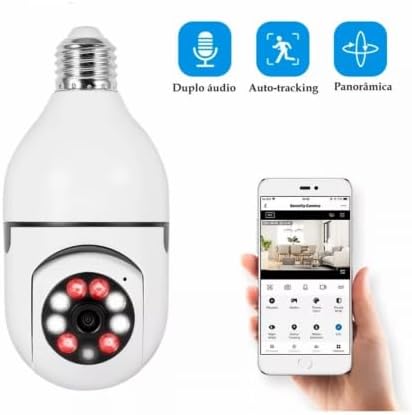
Figure 5.1: The Kapbom G4-5 camera alongside a smartphone displaying its control application. The app interface features icons for 'Dual Audio', 'Auto-tracking', and 'Panoramic' view, illustrating the camera's interactive functionalities for comprehensive monitoring and communication.
6. Maintenance
6.1 Cleaning
- Ensure the camera is powered off before cleaning.
- Use a soft, dry cloth to wipe the camera lens and body. Do not use liquid cleaners or abrasive materials.
6.2 Firmware Updates
- Regularly check the app for available firmware updates. Updates can improve performance, add new features, and enhance security.
- Follow the in-app instructions for firmware updates. Do not power off the camera during an update.
6.3 SD Card Management
- If using a microSD card for storage, ensure it is formatted periodically through the app to maintain optimal recording performance.
- Replace the microSD card if it becomes corrupted or reaches its end of life.
7. Troubleshooting
If you encounter issues with your Kapbom G4-5 camera, refer to the following common problems and solutions:
- Camera not powering on: Ensure the light socket has power and the camera is screwed in correctly. Test the socket with a regular bulb.
- Unable to connect to Wi-Fi:
- Ensure your Wi-Fi network is 2.4GHz (5GHz networks are generally not supported).
- Check your Wi-Fi password for accuracy.
- Move the camera closer to your Wi-Fi router.
- Reset the camera using the reset button (refer to Figure 2.1 for location) and try pairing again.
- No image or blurry image:
- Check your internet connection speed.
- Clean the camera lens with a soft, dry cloth.
- Two-way audio not working:
- Ensure microphone and speaker permissions are granted to the app on your smartphone.
- Check the volume settings on both your phone and within the app.
- Motion alerts not received:
- Verify that motion detection is enabled in the app settings.
- Check your phone's notification settings to ensure the app is allowed to send notifications.
- Adjust motion detection sensitivity.
8. Specifications
| Brand | Kapbom (Generic) |
| Model Name | G4-5 (camera h45) |
| Connectivity Technology | Wireless (Wi-Fi 2.4GHz) |
| Application Environment | Outdoor Security (suitable for covered outdoor areas) |
| Special Features | HD Resolution, Motion Sensor, Night Vision, Two-Way Audio, Barking Detection, Frame Rate Control |
9. Warranty and Support
Specific warranty information for the Kapbom G4-5 camera is not provided in this manual. Please refer to the warranty card included with your product or contact your retailer for details regarding warranty coverage and support services.


