
1. Product Overview
The NETGEAR Nighthawk Dual-Band WiFi 7 Router (RS200) delivers advanced WiFi 7 technology for speeds up to 6.5 Gbps. Designed to cover up to 2,500 sq. ft. and support up to 80 devices, it ensures fast and reliable connectivity for 4K streaming, video conferencing, and smart home devices. This router enhances network performance with features like ultra-low latency and increased 5 GHz capacity.

Image: NETGEAR Nighthawk WiFi 7 Router RS200 highlighting revolutionary performance and unrivaled WiFi speed.
Key Features:
- Blazing-fast WiFi 7 Speeds: Up to 6.5Gbps for gaming, streaming, and video conferencing.
- Extended Coverage: Provides WiFi coverage for up to 2,500 sq. ft.
- High Device Capacity: Supports up to 80 concurrent devices.
- Multi-Gig Internet Port: Features a 2.5 Gig internet port for high-speed internet plans.
- Advanced Antenna Design: All-new patented antenna design for enhanced WiFi performance.
- NETGEAR Armor: Includes a 30-day trial for comprehensive cybersecurity protection.

Image: Product highlights of the NETGEAR Nighthawk WiFi 7 Router RS200, detailing maximum wireless speed, device capacity, WiFi coverage, and internet port speed.
2. What's in the Box
Upon unboxing your NETGEAR Nighthawk WiFi 7 Router (RS200), you should find the following components:
- One (1) WiFi 7 Dual-Band Router (RS200)
- One (1) 2m Ethernet cable
- One (1) 12V/2.5A power adapter
- Quick start guide

Image: The NETGEAR Nighthawk WiFi 7 Router RS200 shown with its power adapter and Ethernet cable, as typically found in the box.
3. Setup Instructions
Follow these steps to set up your NETGEAR Nighthawk WiFi 7 Router:
- Connect Your Modem: This router does not include a built-in cable modem. A separate cable modem (with coax inputs) is required for internet service. Connect your existing cable or fiber modem to the 2.5 Gig Internet port on the router using the provided Ethernet cable.
- Power On: Connect the 12V/2.5A power adapter to the router's DC input and plug it into a power outlet.
- Download the Nighthawk App: For the easiest setup and management, download the NETGEAR Nighthawk app on your mobile device. The app will guide you through the installation process.
- Follow On-Screen Instructions: The Nighthawk app will provide step-by-step instructions to configure your WiFi network name (SSID) and password.
- Connect Devices: Once setup is complete, connect your wireless devices to the new WiFi network.
For detailed visual guidance, refer to the quick start guide included in your package.

Image: The NETGEAR Nighthawk WiFi 7 Router RS200 alongside a smartphone showing the Nighthawk app interface, illustrating easy setup and management.
Video: An official NETGEAR video explaining the role of a WiFi router and how to ensure your modem and router match your internet speed plan for optimal performance.
4. Operating Your Router
The Nighthawk RS200 leverages WiFi 7 technology to provide a superior internet experience. It offers 2.4x faster speeds than WiFi 6, significantly lower latency for real-time responsiveness, and 20% more data transmission.
Optimizing Performance:
- Placement: Position your router in a central location within your home, away from obstructions and interference sources like microwaves or cordless phones, to maximize WiFi coverage.
- Dual-Band Functionality: The router automatically optimizes connections across its dual bands (2.4 GHz and 5 GHz) to provide the best speed for each device.
- Wired Connections: Utilize the (3) 1 Gbps Ethernet LAN ports and the (1) 2.5 Gbps Ethernet LAN port for devices requiring stable, high-speed wired connections, such as gaming consoles or desktop computers.

Image: The NETGEAR Nighthawk WiFi 7 Router RS200 positioned in a home, demonstrating its enhanced WiFi power and coverage capabilities through its patented antenna design.

Image: Rear view of the NETGEAR Nighthawk WiFi 7 Router RS200, highlighting its multi-gig speed support with a 2.5 Gbps Internet port, one 2.5 Gbps Ethernet LAN port, and three 1 Gbps Ethernet LAN ports for fast wired connections.
5. Maintenance
To ensure your router operates at peak performance and remains secure, regular maintenance is recommended:
- Firmware Updates: The Nighthawk app provides automatic firmware updates, ensuring you always have the latest features, performance enhancements, and security patches.
- NETGEAR Armor: Activate your 30-day trial of NETGEAR Armor powered by Bitdefender to protect all connected devices from online threats. This suite of tools offers cybersecurity, VPN, extended warranty, and priority support.
- Physical Cleaning: Keep the router's vents clear of dust and obstructions to prevent overheating. Use a soft, dry cloth to clean the exterior.
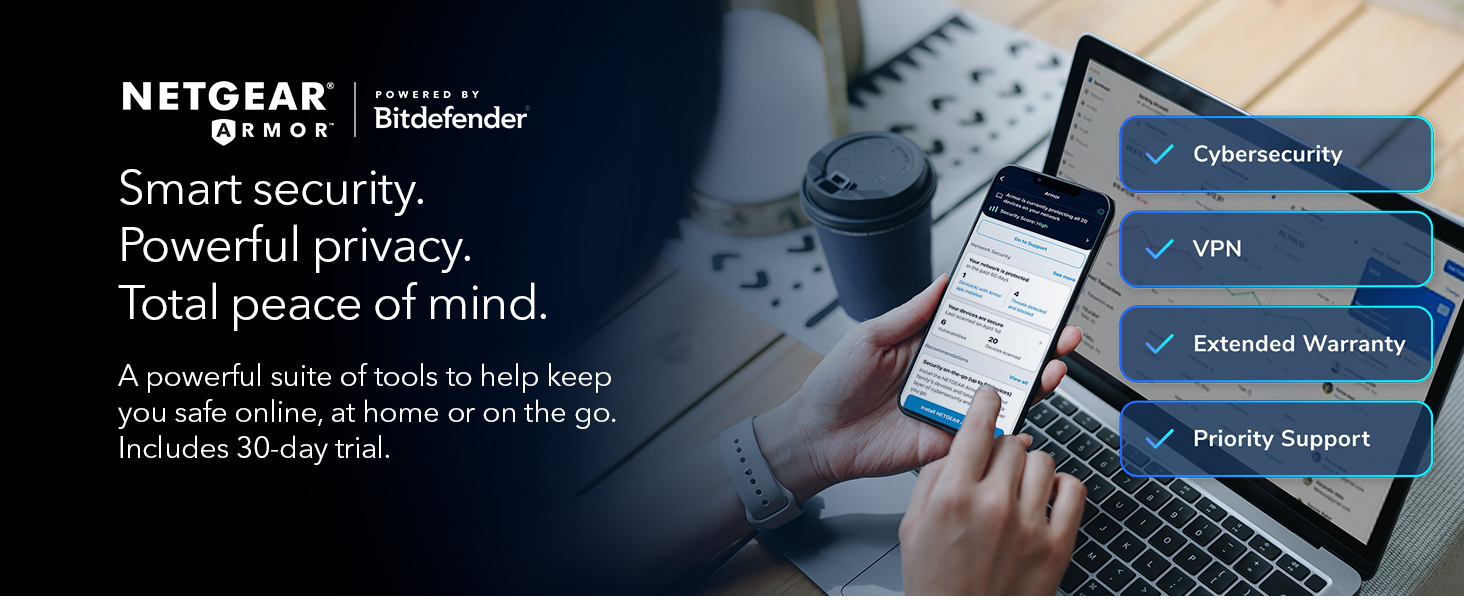
Image: NETGEAR Armor, powered by Bitdefender, showcasing its features including cybersecurity, VPN, extended warranty, and priority support, accessible via a smartphone and laptop.
6. Troubleshooting
If you encounter issues with your router, consider the following common solutions:
- No Internet Connection: Ensure your modem is properly connected to the router's Internet port and is functioning correctly. Verify that your internet service plan is active.
- Router Not Auto-Recovering: If your internet service temporarily disconnects, the router may not automatically re-establish connection. A hard reset (power cycle) by unplugging and replugging the power adapter may be necessary.
- Slow Speeds/Buffering: Check that your router and modem's speed capabilities match your internet service plan. Ensure optimal router placement and minimize interference.
- Device Connectivity Issues: Confirm that your devices are within the router's coverage area. For older devices, ensure they are backward compatible with WiFi 7 standards.
Expert Assistance:
For additional support with setup and optimization of your NETGEAR router, you can call Asurion for free expert help at 866-853-4942.
Image: A man wearing headphones, representing expert support, with text indicating free expert help for NETGEAR router setup and optimization.
7. Specifications
| Feature | Detail |
|---|---|
| Brand | NETGEAR |
| Model Name | RS200-100NAS |
| Wireless Type | 802.11.be (WiFi 7) |
| Frequency Band Class | Dual-Band |
| Wireless Speed | Up to 6.5 Gbps |
| WiFi Coverage | Up to 2,500 sq. ft. |
| Device Capacity | Up to 80 devices |
| Internet Port | One (1) 2.5 Gig Internet Port |
| Ethernet LAN Ports | Three (3) 1 Gbps, One (1) 2.5 Gbps |
| USB Port | One (1) USB 3.0 port |
| Special Feature | Internet Security (NETGEAR Armor) |
| Compatible Devices | Gaming Console, Personal Computer, Security Camera, Smart Television, Smartphone |
| Product Dimensions | 10.8 x 7.1 x 7 inches |
| Item Weight | 3.37 pounds |
| Color | Black |
8. Warranty and Support
NETGEAR offers various support options to ensure a smooth experience with your Nighthawk router:
- Free Expert Help: Contact Asurion at 866-853-4942 for complimentary assistance with router setup and optimization.
- NETGEAR Armor: The 30-day trial of NETGEAR Armor includes features like extended warranty and priority support, in addition to cybersecurity and VPN services.
- Protection Plans: Additional protection plans are available for purchase, including 3-Year and 4-Year Protection Plans, as well as a Complete Protect plan covering multiple devices.


