
Audizio Nardo
Audizio Nardo Internet Radio User Manual
Model: Nardo
Brand: Audizio
Introduction
Welcome to the user manual for your Audizio Nardo Internet Radio. This manual provides detailed instructions for setting up, operating, and maintaining your device. The Audizio Nardo is a versatile internet radio offering a wide range of listening options including Internet Radio, DAB+, FM, and Bluetooth streaming. It features a 40 Watt speaker, 250 memory presets, a remote control, dual alarm, sleeptimer, and USB playback.
Safety Information
Please read all safety instructions carefully before using the device.
- Do not expose the unit to rain or moisture.
- Do not place objects filled with liquids, such as vases, on the apparatus.
- Ensure proper ventilation. Do not block ventilation openings.
- Use only the power adapter supplied with the device.
- Disconnect the power plug from the mains during lightning storms or when unused for long periods.
- Do not attempt to repair the unit yourself. Refer all servicing to qualified personnel.
What's in the Box
Verify that all components are present:
- Audizio Nardo Internet Radio
- Remote Control
- Power Adapter
- Quick Start Guide

Image: The Audizio Nardo Internet Radio, showing the main unit, remote control, and power adapter, which are included in the box.
Product Overview
The Audizio Nardo features a compact and stylish design, making it suitable for various environments such as kitchens or bedrooms.

Image: The Audizio Nardo Internet Radio placed on a table in a room, highlighting its compact and stylish design. It supports Bluetooth, WLAN, FM, and DAB+ radio.
Front Panel Controls and Display
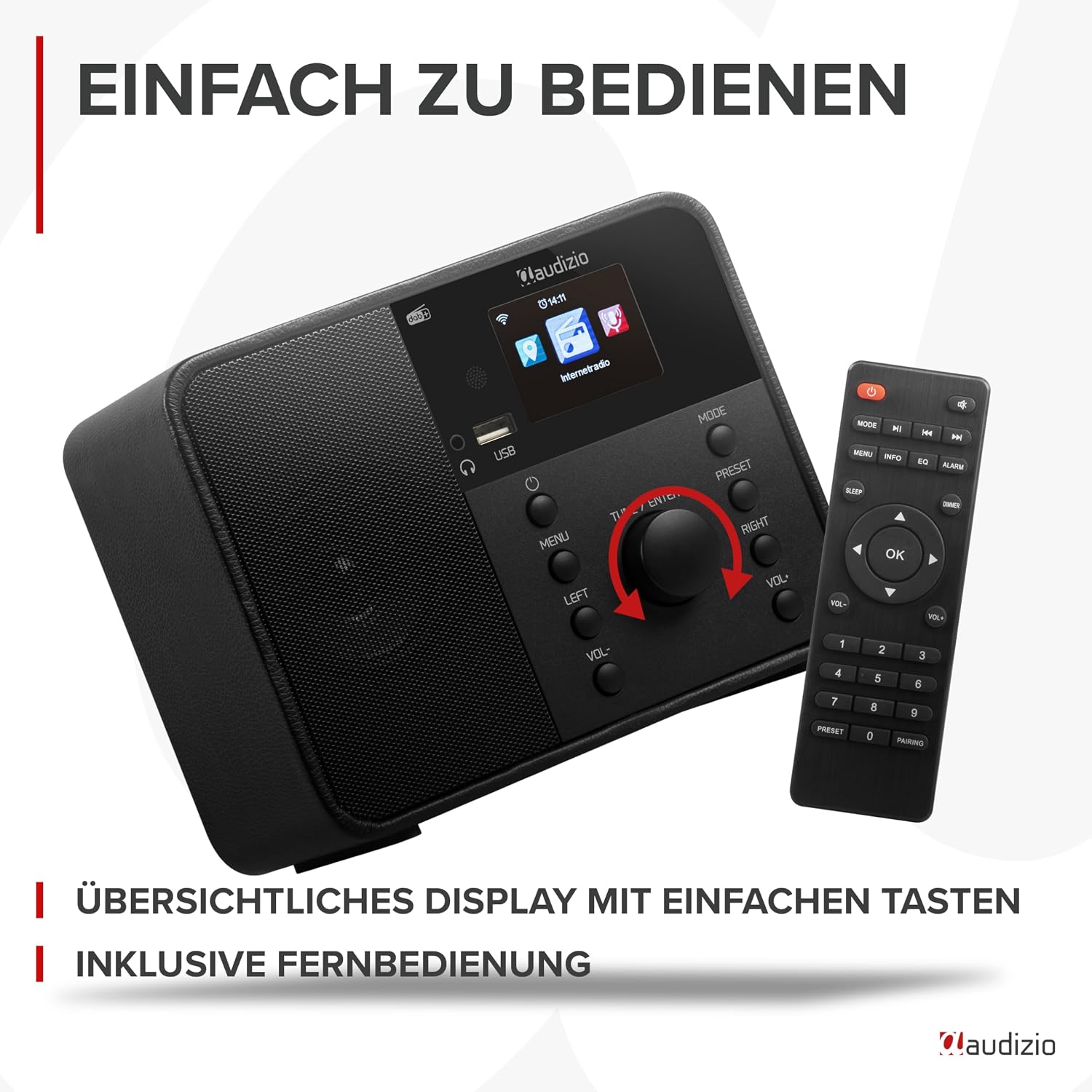
Image: Close-up of the Audizio Nardo Internet Radio's front panel, showing the clear display and user-friendly buttons, alongside its included remote control for convenient operation.
- Display: Shows current mode, time, station information, and menu options.
- Power Button: Turns the unit on/off.
- Menu Button: Accesses the main menu.
- Left/Right Buttons: Navigate through menus and options.
- TUNE / ENTER Knob: Rotates to tune stations or scroll through options, press to confirm selection.
- VOL- / VOL+ Buttons: Adjust volume down and up.
- MODE Button: Switches between Internet Radio, DAB+, FM, Bluetooth, and USB modes.
- PRESET Button: Accesses preset stations.
- USB Port: For playing music from USB storage devices.
- Headphone Jack: For private listening.
Rear Panel Connections

Image: View of the Audizio Nardo Internet Radio's rear panel, detailing the connection ports: DC IN 5V, AUX IN, and the extendable antenna. The front panel is also visible for context.
- DC IN 5V: Power input for the supplied adapter.
- AUX IN: 3.5mm auxiliary input for connecting external audio devices.
- Antenna: Extendable antenna for DAB+ and FM reception.
Setup
Power Connection
- Connect the supplied power adapter to the "DC IN 5V" port on the back of the Audizio Nardo.
- Plug the power adapter into a wall outlet.
- The radio will power on automatically or enter standby mode.
Initial Setup and Network Connection
Upon first power-on, the radio will guide you through the initial setup wizard.
- Language Selection: Use the TUNE / ENTER knob to select your preferred language and press to confirm.
- Network Configuration: The radio will prompt you to connect to a Wi-Fi network.
- Select "Scan Network" to find available Wi-Fi networks.
- Choose your network from the list.
- Enter the Wi-Fi password using the TUNE / ENTER knob to select characters and press to confirm each character. Press and hold to confirm the entire password.
- Once connected, the radio will display a Wi-Fi icon on the screen.
- Time and Date: The time and date will usually synchronize automatically via the internet connection.
Operating Instructions
Switching Modes
Press the MODE button repeatedly to cycle through the available modes:
- Internet Radio
- DAB+ Radio
- FM Radio
- Bluetooth
- USB Playback
- AUX In
Internet Radio
Access thousands of radio stations from around the world.
- Select "Internet Radio" mode.
- Use the TUNE / ENTER knob to navigate through categories (e.g., "Local Stations", "Genre", "Location").
- Press the knob to select a category or station.
- To save a station as a preset, press and hold the PRESET button, then select a preset number and confirm.
DAB+ Radio
Enjoy high-quality digital radio broadcasts.
- Select "DAB+ Radio" mode.
- The radio will automatically scan for available DAB+ stations.
- Use the TUNE / ENTER knob to scroll through the station list.
- Press the knob to select a station.
- To save a station as a preset, press and hold the PRESET button, then select a preset number and confirm.
FM Radio
Tune into traditional FM radio stations.
- Select "FM Radio" mode.
- Press the TUNE / ENTER knob to initiate an auto-scan for FM stations.
- Alternatively, rotate the TUNE / ENTER knob to manually tune to a frequency.
- To save a station as a preset, press and hold the PRESET button, then select a preset number and confirm.
Bluetooth Streaming
Stream audio wirelessly from your smartphone, tablet, or other Bluetooth-enabled device.

Image: The Audizio Nardo Internet Radio on a wooden table, with a smartphone in the background demonstrating Bluetooth music streaming from services like Spotify or YouTube. The image highlights the built-in full-range speakers.
- Select "Bluetooth" mode. The radio will enter pairing mode, indicated on the display.
- On your Bluetooth device, search for "Audizio Nardo" in the Bluetooth settings.
- Select "Audizio Nardo" to pair. Once connected, you can play audio from your device through the radio.
USB Playback
Play music files directly from a USB flash drive.
- Insert a USB flash drive into the USB port on the front of the radio.
- Select "USB Playback" mode.
- The radio will automatically detect and display the music files.
- Use the TUNE / ENTER knob to navigate and select tracks.
AUX In
Connect external audio devices using a 3.5mm audio cable.
- Connect one end of a 3.5mm audio cable to the "AUX IN" port on the back of the radio.
- Connect the other end to the headphone jack or audio output of your external device.
- Select "AUX In" mode.
- Control playback from your external device.
Alarm and Sleeptimer
The Audizio Nardo features a dual alarm function and a sleeptimer.
- Alarm: Access alarm settings via the main menu to set up two independent alarms with customizable sources (buzzer, radio station) and times.
- Sleeptimer: Set a timer for the radio to automatically turn off after a specified duration. This can be found in the system settings or by pressing a dedicated button on the remote control.
Maintenance
- Cleaning: Use a soft, dry cloth to clean the surface of the radio. Do not use abrasive cleaners or solvents.
- Antenna: Ensure the antenna is fully extended for optimal DAB+ and FM reception.
- Storage: If storing the radio for an extended period, disconnect it from the power supply.
Troubleshooting
| Problem | Possible Cause | Solution |
|---|---|---|
| No power | Power adapter not connected or faulty outlet. | Check power connections. Try a different outlet. |
| No internet radio connection | Incorrect Wi-Fi password, weak signal, or router issue. | Re-enter Wi-Fi password. Move radio closer to router. Restart router. |
| Poor DAB+/FM reception | Antenna not extended or poor signal area. | Fully extend the antenna. Try repositioning the radio. |
| Bluetooth device won't pair | Radio not in pairing mode, device too far, or already paired with another device. | Ensure radio is in Bluetooth mode. Move devices closer. Disconnect from other devices. |
| No sound from USB | Unsupported file format, corrupted files, or USB drive issue. | Ensure files are MP3/WMA. Try a different USB drive or files. |
Specifications
| Feature | Detail |
|---|---|
| Model Number | Nardo |
| Product Dimensions | 23.5 x 17.5 x 21 cm (approx. 9.25 x 6.9 x 8.27 inches) |
| Item Weight | 1.43 Kilograms (approx. 3.15 lbs) |
| Connectivity Technology | Bluetooth, Auxiliary, USB, WLAN |
| Supported Radio Bands | DAB+, FM, Internet Radio |
| Output Power | 40 Watt |
| Power Source | Corded Electric (220 Volt) |
| Material | Plastic |
| Color | Black |
| Special Features | WLAN, Bluetooth, DAB+, Dual Alarm, Sleeptimer, Remote Control, USB Playback, 250 Presets |
Warranty and Support
For warranty information and technical support, please refer to the contact details provided in the quick start guide or visit the official Audizio website.
Official Audizio Website: www.audizio.com
Related documentsNardo


Ask a question about this manual
Ask about setup, troubleshooting, compatibility, parts, safety, or missing instructions. Manuals+ will review the question and use this page’s manual context to help answer it.