1. Introduction
Thank you for choosing the RUIZU X52 64GB Clip-on MP3 Player. This compact and versatile digital audio player is designed to provide high-quality music playback, voice recording, FM radio, and fitness tracking features. With its lightweight design and convenient clip, it is an ideal companion for various activities, from daily commutes to intense workouts. This manual will guide you through the setup, operation, and maintenance of your new device.

The RUIZU X52 MP3 Player, showcasing its compact design and integrated clip for portability.
2. Key Features
- Bluetooth 5.3 Connectivity: Enjoy wireless audio with seamless connection to Bluetooth headphones or speakers. Supports multiple playback modes including sequential, playlist loop, single track repeat, and shuffle.
- Generous Storage: Equipped with 64GB of internal memory, expandable up to 128GB via a Micro SD card (not included), providing ample space for your music and audiobooks.
- Extended Battery Life & Fast Charging: Offers up to 20 hours of playback with wired headphones and 5 hours in Bluetooth mode. Rapidly recharges in approximately 1.5 hours.
- Integrated Pedometer: Track your fitness activities with the built-in pedometer, monitoring steps, distance, speed, and time.
- High-Fidelity Audio: Delivers clear and faithful sound reproduction for an immersive listening experience.
- Compact and Lightweight Design: Constructed from durable ABS material, weighing only 25g with dimensions of 2.3 x 1.4 x 0.7 inches. Features a secure clip for hands-free portability.
- Multi-functional Device: Beyond music playback, it includes voice recording, FM radio, A-B repeat, bookmarking, file folder management, alarm clock, video playback, image viewing, and e-book reading capabilities.
- Wide Audio Format Support: Compatible with MP3, WMA, APE, FLAC, WAV, M4A, DRM, ACELP, and OGG audio formats.

The RUIZU X52 supports Bluetooth 5.3 for wireless audio and offers multiple playback options including sequential, single track repeat, list repeat, and shuffle.
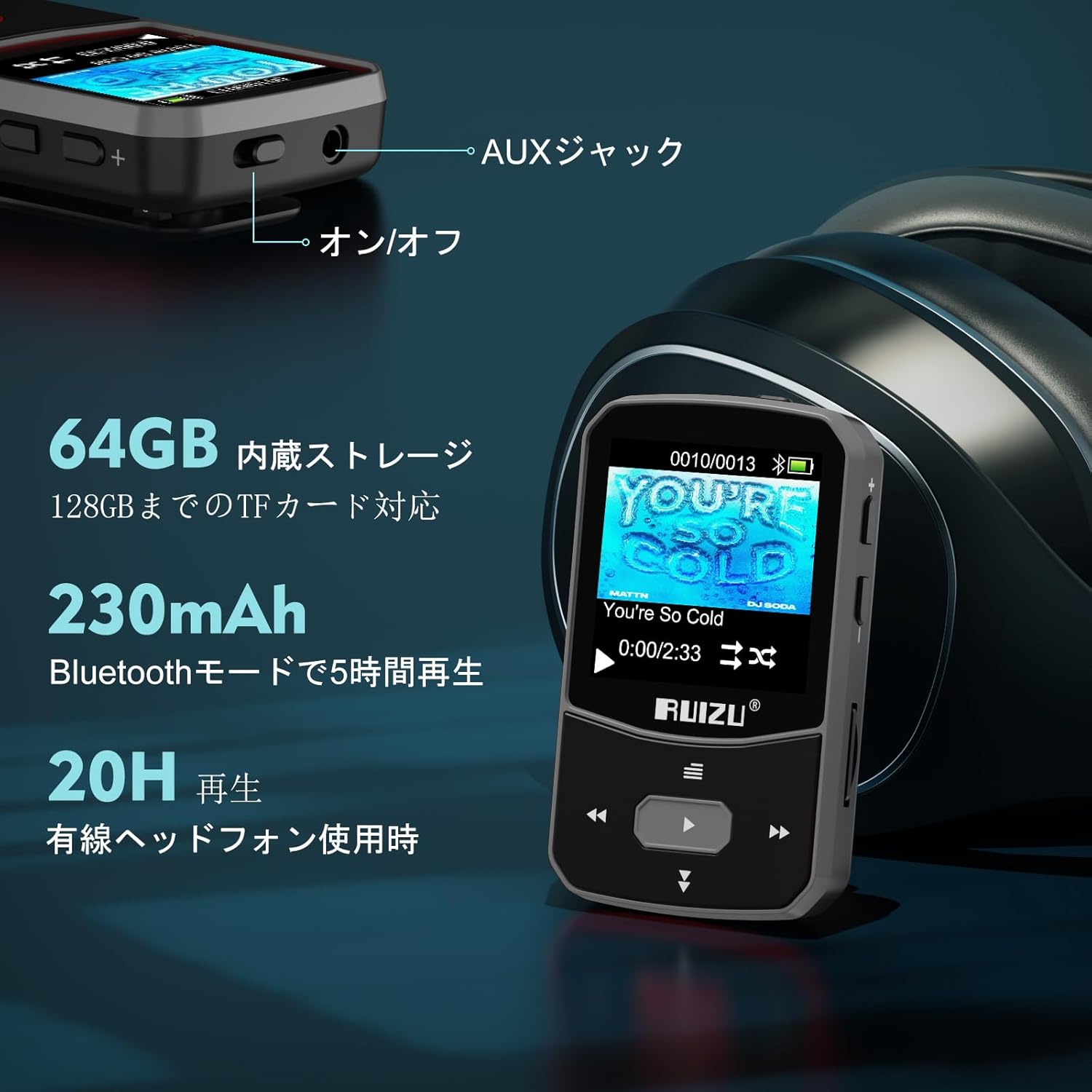
Details on the RUIZU X52's storage capacity (64GB internal, 128GB expandable) and battery performance (20 hours with wired headphones, 5 hours with Bluetooth).

The RUIZU X52 is a versatile device offering multiple functions beyond music playback, indicated by various icons on its screen.
3. Setup Guide
3.1. Charging the Device
Before first use, fully charge your RUIZU X52 MP3 player. Connect the device to a USB power adapter (DC 5V 500mA - 800mA recommended) or a computer's USB port using the provided Type-C USB cable. A full charge typically takes about 1.5 hours.
3.2. Loading Music and Files
You can transfer music and other supported files to your MP3 player in two ways:
- Via Computer (USB):
- Connect the MP3 player to your computer using the supplied Type-C USB cable.
- The player will appear as a removable disk drive on your computer.
- Drag and drop your music files (MP3, WMA, APE, FLAC, WAV, M4A, DRM, ACELP, OGG) or other media files into the player's storage folders.
- Once transfer is complete, safely eject the device from your computer before disconnecting the cable.
- Via OTG (On-The-Go) Function:
If your smartphone supports OTG, you can directly transfer files from your phone to the MP3 player using an OTG cable (not included).
- Connect your smartphone to the MP3 player using an OTG cable.
- Access the files on your phone and transfer them to the MP3 player's storage.

Connecting the RUIZU X52 to a computer via USB-C cable for easy music file transfer.

The OTG function allows direct file transfer from a compatible smartphone to the RUIZU X52 MP3 player.
3.3. Inserting a Micro SD Card
The device supports Micro SD cards up to 128GB. Locate the Micro SD card slot on the side of the player and gently insert the card until it clicks into place. Ensure the card is inserted correctly to avoid damage.
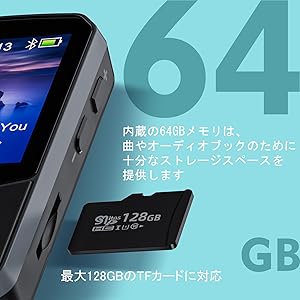
The RUIZU X52 supports expandable storage via a Micro SD card, shown here next to the player.
4. Operating Instructions
4.1. Basic Controls
- Power On/Off: Press and hold the power button (usually on the side) to turn the device on or off.
- Navigation: Use the directional buttons (up, down, left, right) to navigate through menus. The center button typically acts as 'Enter' or 'Select'.
- Volume Control: Use the '+' and '-' buttons on the side to adjust the volume.
- Back/Return: The 'Left' button often functions as a 'Back' or 'Return' button to go to the previous screen or menu.
4.2. Music Playback
- From the main menu, select "Music" or "Folder" to browse your audio files.
- Select a song to begin playback.
- During playback, use the directional buttons for play/pause, next/previous track.
- Access playback options (shuffle, repeat, A-B repeat) through the menu.
4.3. Bluetooth Connection
- Ensure your Bluetooth headphones or speaker are in pairing mode.
- On the MP3 player, navigate to the "Bluetooth" menu.
- Select "Search Device" to find available Bluetooth devices.
- Choose your device from the list to pair. Once paired, audio will stream wirelessly.
4.4. FM Radio
To use the FM radio, you must connect wired headphones, as they act as the antenna.
- Plug in the wired headphones into the AUX jack.
- From the main menu, select "FM Radio".
- You can choose to auto-scan for stations or manually tune to a specific frequency.
- Save your favorite stations to the preset list.
- The device also supports recording audio directly from the FM radio.
Enjoying FM radio on the RUIZU X52, which requires wired headphones to function as an antenna.
4.5. Voice Recorder
- Select "Voice Recorder" from the main menu.
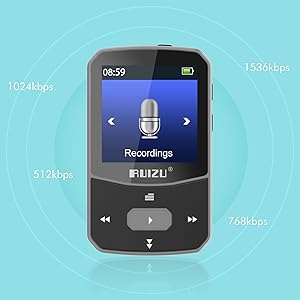
- Choose your desired bitrate (e.g., 512kbps, 768kbps, 1024kbps, 1536kbps) and file format (MP3 or WAV).
- Press the record button to start and stop recording.
- Recorded files are automatically named with the current date and time.

The RUIZU X52's voice recording function allows selection of bitrate and file format for optimal audio capture.
4.6. Pedometer
- Access the "Pedometer" function from the main menu.
- Start your activity, and the device will track your steps, distance, speed, and time.
- You can view your history data, which is stored in up to 7 slots.
- To ensure new data is saved, it is recommended to clear the pedometer history before starting a new tracking session if all slots are full.

The RUIZU X52 features a pedometer to track fitness metrics like steps, distance, speed, and time, ideal for active users.
4.7. Other Functions (Video, Image, E-book, Alarm, Stopwatch, Calendar)
Explore other features by navigating through the main menu. For video and image viewing, ensure files are in compatible formats and resolutions (e.g., AMV for video, JPEG/BMP/GIF for images, often requiring conversion to 128x128 resolution for optimal display). The e-book reader supports text files, though word wrap may not be available.
5. Maintenance
- Cleaning: Use a soft, dry cloth to clean the device. Avoid liquid cleaners or abrasive materials.
- Storage: Store the player in a cool, dry place away from direct sunlight and extreme temperatures.
- Battery Care: To prolong battery life, avoid fully discharging the battery frequently. Charge the device regularly, even if not in use for extended periods.
- Water Resistance: The device is not waterproof. Avoid exposure to water or high humidity. A waterproof protective pouch is included for added protection during outdoor activities.
- Software Updates: Check the manufacturer's website periodically for any available firmware updates to ensure optimal performance.
6. Troubleshooting
| Problem | Solution |
|---|---|
| Device does not power on. | Ensure the battery is charged. Connect to a power source and try again. If unresponsive, perform a reset (refer to manual for specific reset instructions, if available, or hold power button for 10-15 seconds). |
| Cannot transfer files from computer. |
|
| Bluetooth device not pairing. |
|
| FM Radio not working or poor reception. | Ensure wired headphones are securely plugged into the AUX jack, as they function as the antenna. Try moving to an area with better signal reception. |
| Pedometer data not saving correctly. | If all 7 history slots are full, clear the pedometer history before starting a new tracking session to ensure data is saved. |
| Buttons are confusing or unresponsive. | Familiarize yourself with the button functions as described in section 4.1. Some buttons may have different functions depending on the context (e.g., 'Left' for back, 'Up' for screen lock when held). If unresponsive, try restarting the device. |
7. Technical Specifications
| Feature | Detail |
|---|---|
| Model Name | X52 |
| Brand | RUIZU |
| Internal Memory | 64 GB |
| Expandable Memory | Supports Micro SD card up to 128 GB |
| Screen Size | 1.5 inches |
| Connectivity Technology | Bluetooth 5.3, AUX, USB |
| Continuous Playback Time | Approx. 20 hours (wired headphones), 5 hours (Bluetooth) |
| Charging Time | Approx. 1.5 hours |
| Supported Audio Formats | MP3, WMA, APE, FLAC, WAV, M4A, DRM, ACELP, OGG |
| Other Functions | FM Radio, Equalizer, Voice Recorder, Pedometer, Video Playback, Image Viewer, E-book Reader, Alarm Clock, Stopwatch, Calendar |
| Dimensions | Approx. 2.3 x 1.4 x 0.7 inches (5.8 x 3.5 x 1.8 cm) |
| Weight | Approx. 25g |
| Included Components | 3.5mm wired stereo headphones x 1, RUIZU Clip MP3 Player Bluetooth x 1, Armband x 1, User Manual x 1, Waterproof protective pouch x 1 |
8. Warranty & Support
For warranty information and customer support, please refer to the warranty card included in your product packaging or visit the official RUIZU website. Keep your purchase receipt as proof of purchase for warranty claims.
If you encounter any issues not covered in this manual, please contact RUIZU customer service for assistance.

The RUIZU X52 package includes the MP3 player, wired headphones, an armband, a user manual, and a waterproof pouch.


