
Introduction
The Paladone Super Mario Icon Light, Model 13742, brings the iconic characters of the Mushroom Kingdom to your space. This officially licensed light features Super Mushroom, Super Star, and Fire Flower icons on a themed base. It offers multiple lighting modes to enhance your environment. This manual provides essential information for setup, operation, and care of your icon light.
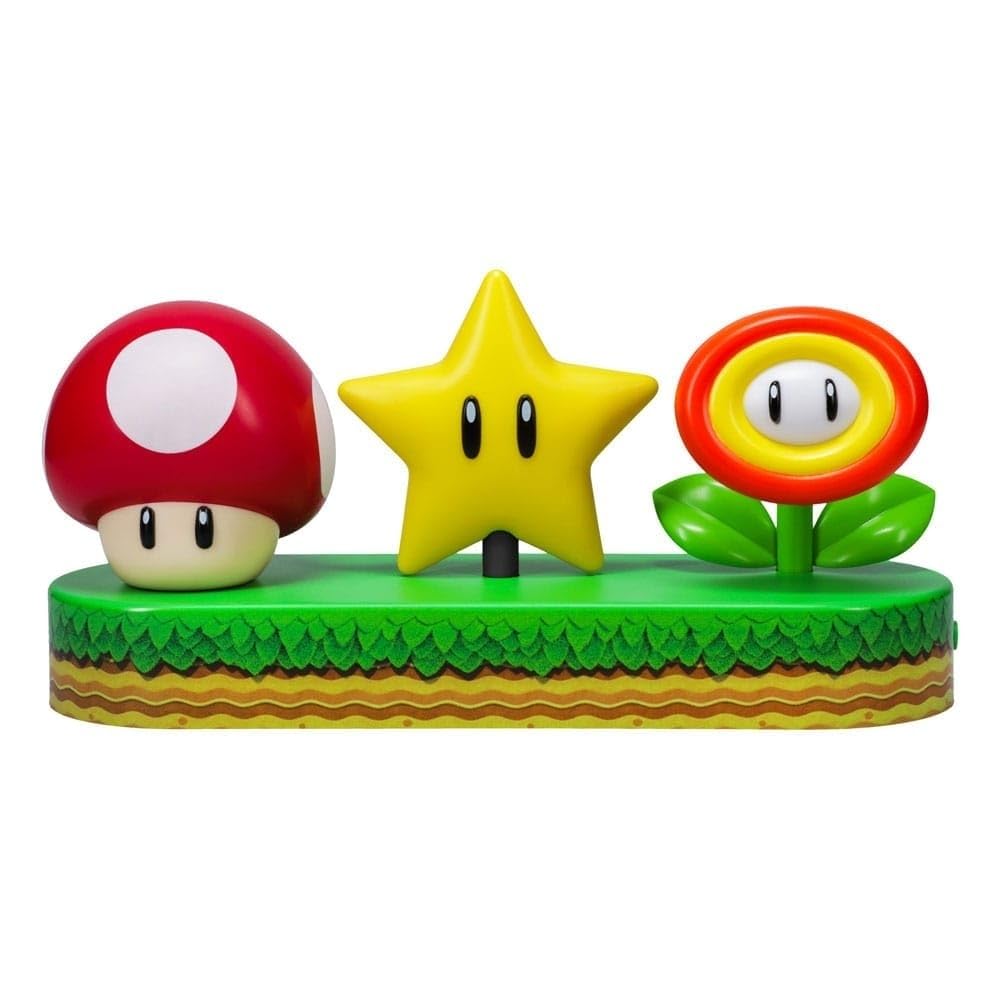
Image: The Paladone Super Mario Icon Light, showcasing the Super Mushroom, Super Star, and Fire Flower characters.
Setup
Your Super Mario Icon Light can be powered via USB or AAA batteries. Please ensure the light is placed on a stable, flat surface.
Powering the Device
- USB Power: Connect the included USB cable to the USB-C port located on the back of the light. Plug the other end into a compatible USB power source (e.g., computer, USB wall adapter - not included).
- Battery Power: For portable use, the light requires 3 × AAA batteries (not included).
- Locate the battery compartment on the underside of the light.
- Using a small Phillips head screwdriver, open the battery compartment cover.
- Insert 3 AAA batteries, ensuring correct polarity (+/-).
- Replace the battery compartment cover and secure it with the screw.

Image: The bottom of the Super Mario Icon Light, highlighting the battery compartment and USB-C input.
Operating Instructions
The Super Mario Icon Light features a control button on the side to cycle through various lighting modes.
Lighting Modes:
- Steady Glow: All icons illuminate continuously.
- Phasing Mode: Icons illuminate in a sequential pattern.
- Music-Reactive Mode: The lights respond to ambient sounds or music.
To switch between modes, press the green button located on the side of the light. Each press will cycle to the next mode. To turn off the light, press the button until all lights are off.
Video: An overview of the Paladone Super Mario Icon Light, demonstrating its unboxing and various lighting modes.
Maintenance
To ensure the longevity and optimal performance of your Super Mario Icon Light, follow these simple maintenance guidelines:
- Cleaning: Wipe the light gently with a soft, dry cloth. Do not use abrasive cleaners or solvents, as these may damage the finish.
- Battery Replacement: If using batteries, replace all three AAA batteries simultaneously when the light dims or stops functioning. Do not mix old and new batteries.
- Storage: When not in use for extended periods, remove the batteries and store the light in a cool, dry place away from direct sunlight.
Troubleshooting
If you encounter any issues with your Super Mario Icon Light, please refer to the following common solutions:
| Problem | Possible Cause | Solution |
|---|---|---|
| Light does not turn on. | No power supply or depleted batteries. | Ensure USB cable is securely connected to a working power source, or replace all 3 AAA batteries with new ones. |
| Lights are dim or flickering. | Low battery power. | Replace all 3 AAA batteries with new ones, or switch to USB power. |
| Music-Reactive mode is not working. | Insufficient ambient sound or microphone obstruction. | Ensure there is clear sound input near the light. Check for any obstructions around the light's base that might block the microphone. |
Specifications
| Feature | Detail |
|---|---|
| Model Number | 13742 |
| Power Source | USB (cable included) or 3 x AAA Batteries (not included) |
| Light Source Type | LED |
| Control Method | Touch button |
| Product Dimensions (D x W x H) | 4.09" x 11.89" x 5.91" |
| Material | Plastic |
| Weight | 1.01 Grams |
| Indoor/Outdoor Usage | Indoor |
Warranty and Support
Manufacturer Warranty: The manufacturer warranty description states "Not applicable." Please refer to your retailer's return policy for details on product returns or defects.
Support: For further assistance or inquiries, please visit the official Paladone website or contact your point of purchase.
This product is officially licensed.