
1. Introduction
This manual provides detailed instructions for the setup, operation, and maintenance of your KUIIYER 2D QR 1D Barcode Scanner. Please read this manual thoroughly before using the device to ensure proper functionality and to maximize its performance and lifespan.
2. Product Overview
The KUIIYER barcode scanner is a versatile device designed for efficient scanning of various 1D and 2D barcodes. It features an 800 x 600 pixel CMOS image sensor, built-in auxiliary light, and supports multiple connection and scanning modes.

Figure 2.1: KUIIYER Barcode Scanners (Wired and Wireless Models)
2.1. Components (Wired Model)

Figure 2.2: Wired Scanner Components
- 800 x 600 Pixel CMOS Scanning Window: High-resolution sensor for accurate barcode reading.
- Built-in Auxiliary Light: Enhances scanning performance in various lighting conditions.
- Scan Button: Activates the scanning function.
- Indicator Light: Provides status feedback (e.g., power, scan success).
- Buzzer: Emits audible alerts for scan success or errors.
- USB Power Cord: For wired connection and power supply.
- KUIIYER Logo: Brand identification.
2.2. Components (Wireless Model)

Figure 2.3: Wireless Scanner Components
- 800 x 600 Pixel CMOS Scanning Window: High-resolution sensor for accurate barcode reading.
- Built-in Auxiliary Light: Enhances scanning performance in various lighting conditions.
- Bluetooth Receiver: For wireless connectivity.
- Scan Button: Activates the scanning function.
- Indicator Light: Provides status feedback (e.g., power, scan success).
- Buzzer: Emits audible alerts for scan success or errors.
- USB Charging Port: For recharging the internal battery.
- 2000 mAh Large Capacity Battery: Provides extended wireless operation.
3. Setup
3.1. Connection Modes
The KUIIYER barcode scanner offers three primary connection modes to suit various operational environments:
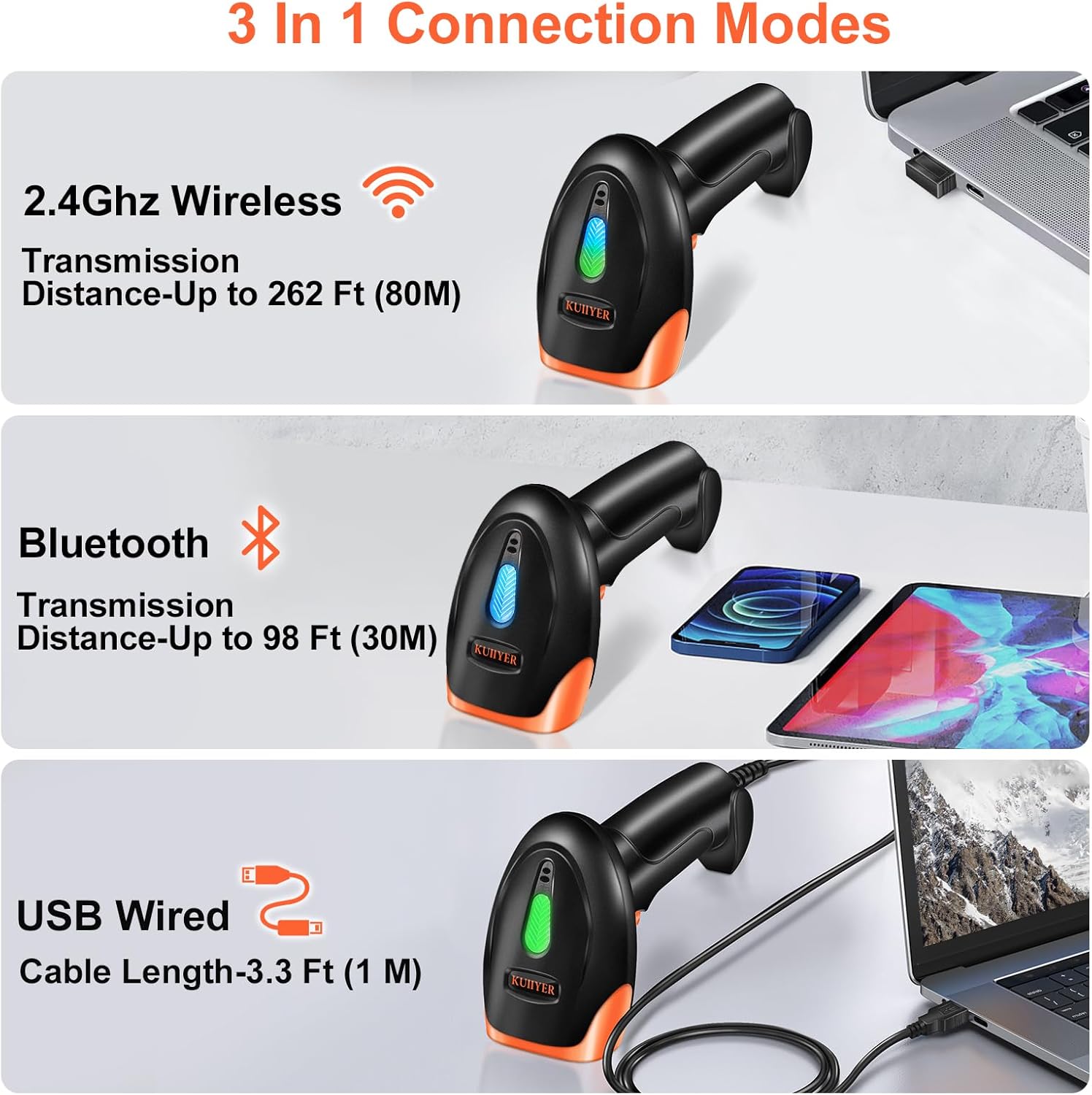
Figure 3.1: Three Connection Modes
3.1.1. USB Wired Connection

Figure 3.2: USB Wired Plug and Play Connection
- Connect the scanner to your PC or POS system using the provided USB cable.
- The scanner is plug-and-play, requiring no driver installation.
- It is compatible with Windows, macOS, Linux, and universal POS systems.
- The USB cable length is approximately 5.3 ft (1.6 m).
3.1.2. 2.4GHz Wireless Connection
For wireless operation, use the included 2.4GHz USB dongle.
- Plug the 2.4GHz USB dongle into an available USB port on your computer.
- The scanner should automatically pair with the dongle. If not, refer to the pairing instructions in the full user manual (not provided here).
- The wireless transmission distance is up to 262 ft (80 m) in open areas.
3.1.3. Bluetooth Connection
The scanner can also connect via Bluetooth to compatible devices.
- Ensure your device's Bluetooth is enabled.
- Put the scanner into Bluetooth pairing mode (refer to the full user manual for specific steps).
- Search for the scanner on your device's Bluetooth settings and connect.
- The Bluetooth transmission distance is up to 98 ft (30 m) in open areas.
4. Operating Instructions
4.1. Scanning Modes
The scanner supports three distinct scanning modes to optimize workflow for different applications:
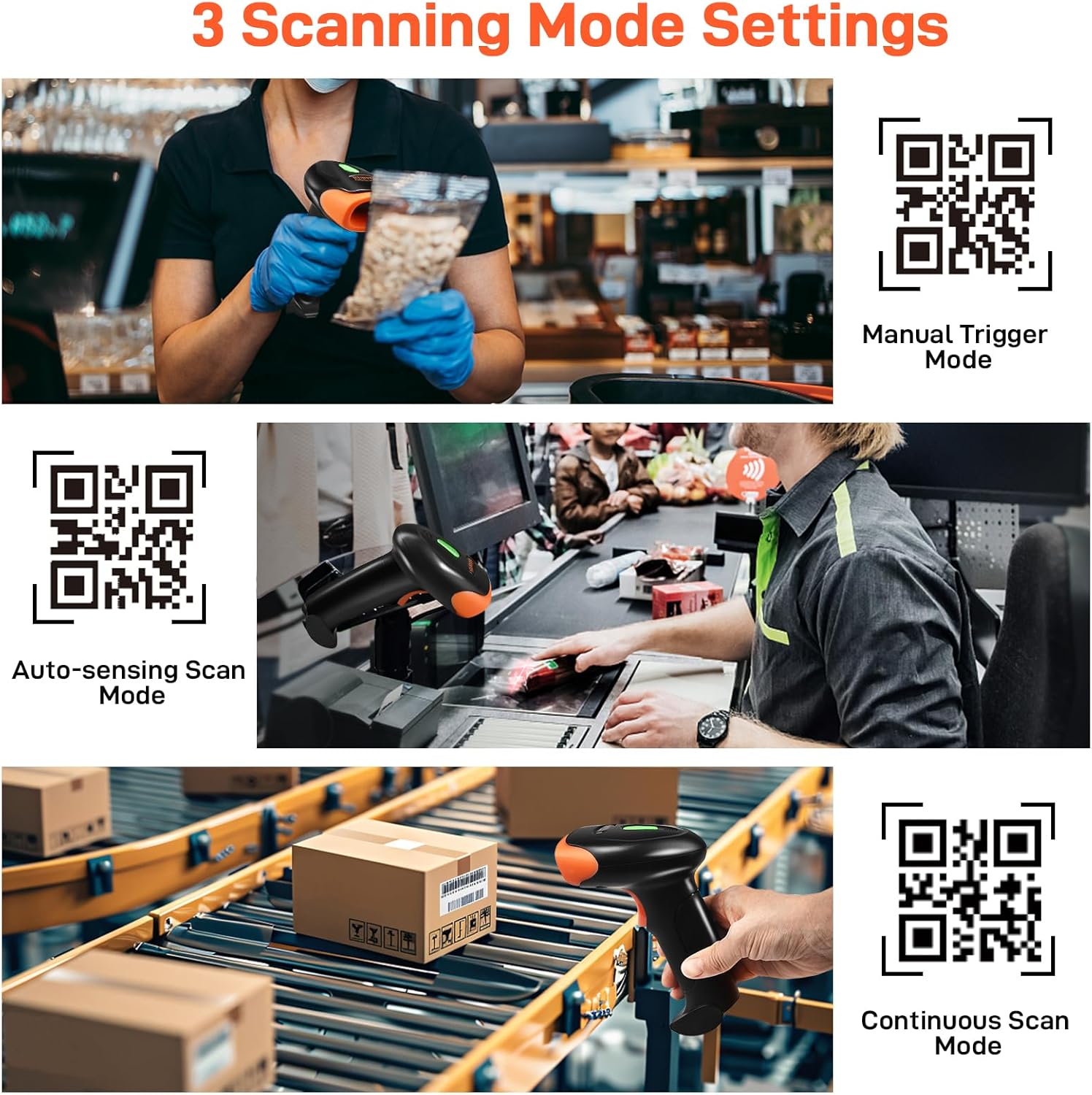
Figure 4.1: Three Scanning Mode Settings
4.1.1. Manual Trigger Mode
In this mode, the scanner will only activate when the scan button is pressed. This is ideal for precise, on-demand scanning.
- To activate: Scan the configuration barcode: $Set#Code^31
- Press the scan button to initiate a scan.
4.1.2. Auto-sensing Scan Mode
The scanner automatically detects a barcode when it enters its scanning field and initiates a scan without requiring a button press. This is useful for hands-free operation.
- To activate: Scan the configuration barcode: $Set#Code^30
- Position the barcode within the scanner's field of view.
4.1.3. Continuous Scan Mode
The scanner continuously emits a scan beam, reading any barcode that passes through its field. This mode is suitable for high-volume scanning environments like conveyor belts.
- To activate: Scan the configuration barcode: $Set#Code^32
- Move barcodes past the scanner's window for continuous reading.
4.2. Data Uploading Modes
The scanner supports two methods for uploading scanned data to your connected device:
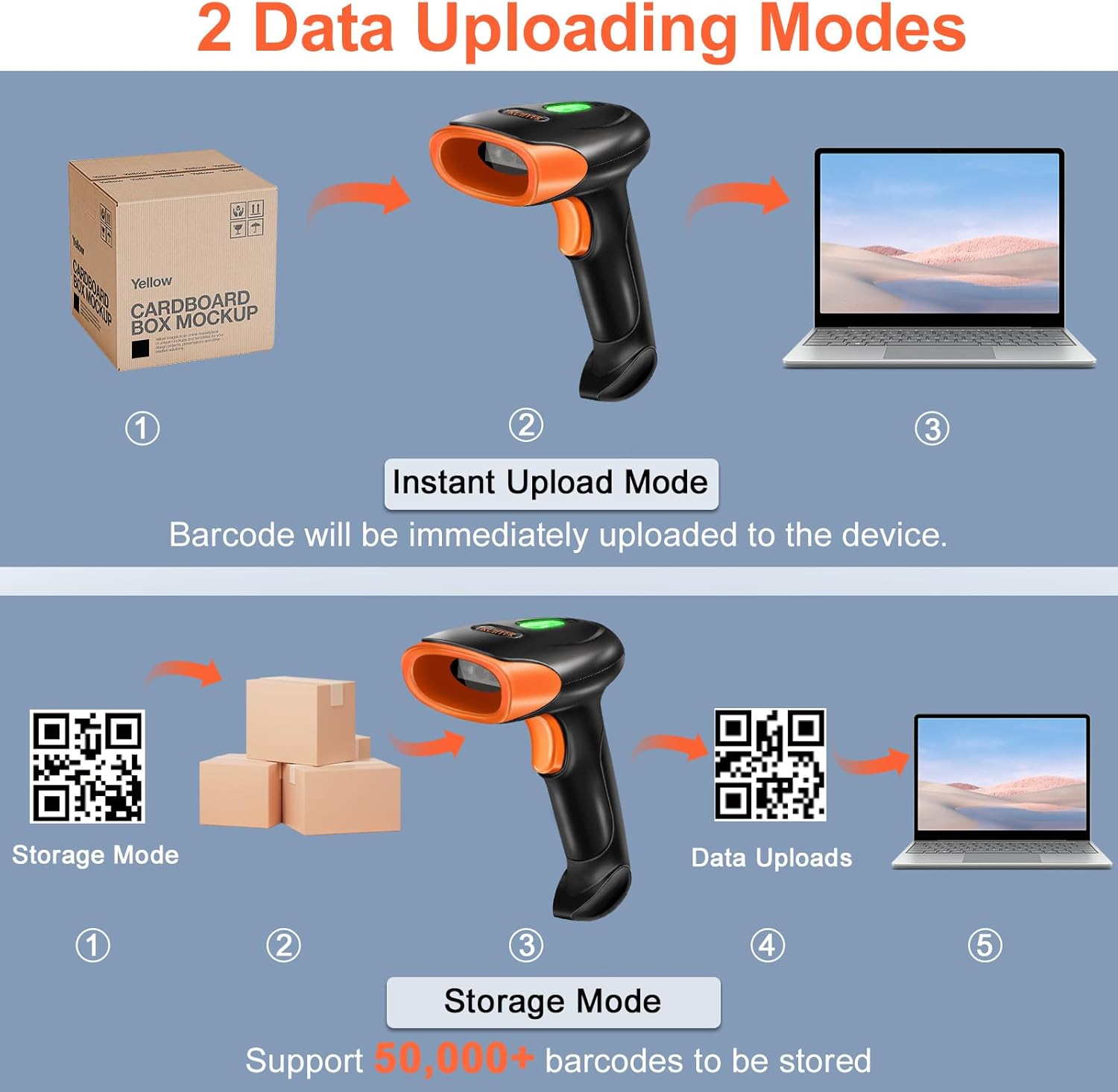
Figure 4.2: Two Data Uploading Modes
4.2.1. Instant Upload Mode
In this mode, each barcode scanned is immediately transmitted to the connected device. This is the default mode for real-time data entry.
- Ensure the scanner is connected to your device (USB, 2.4GHz, or Bluetooth).
- Scan a barcode; the data will appear on your device instantly.
4.2.2. Storage Mode
When operating out of range or when real-time upload is not required, the scanner can store scanned barcodes internally. It supports storing over 50,000 barcodes.
- To enable Storage Mode: Scan the configuration barcode: %%ALLMEM-SET
- Scan barcodes as usual; they will be saved to the scanner's memory.
- To upload stored data: Connect the scanner to your device and scan the configuration barcode: %%ALLMEM-SC
- The stored data will then be transmitted to your device.
4.3. Supported Barcode Types
The KUIIYER scanner is capable of reading a wide array of 1D and 2D barcode symbologies, including complex, damaged, or screen-displayed codes.
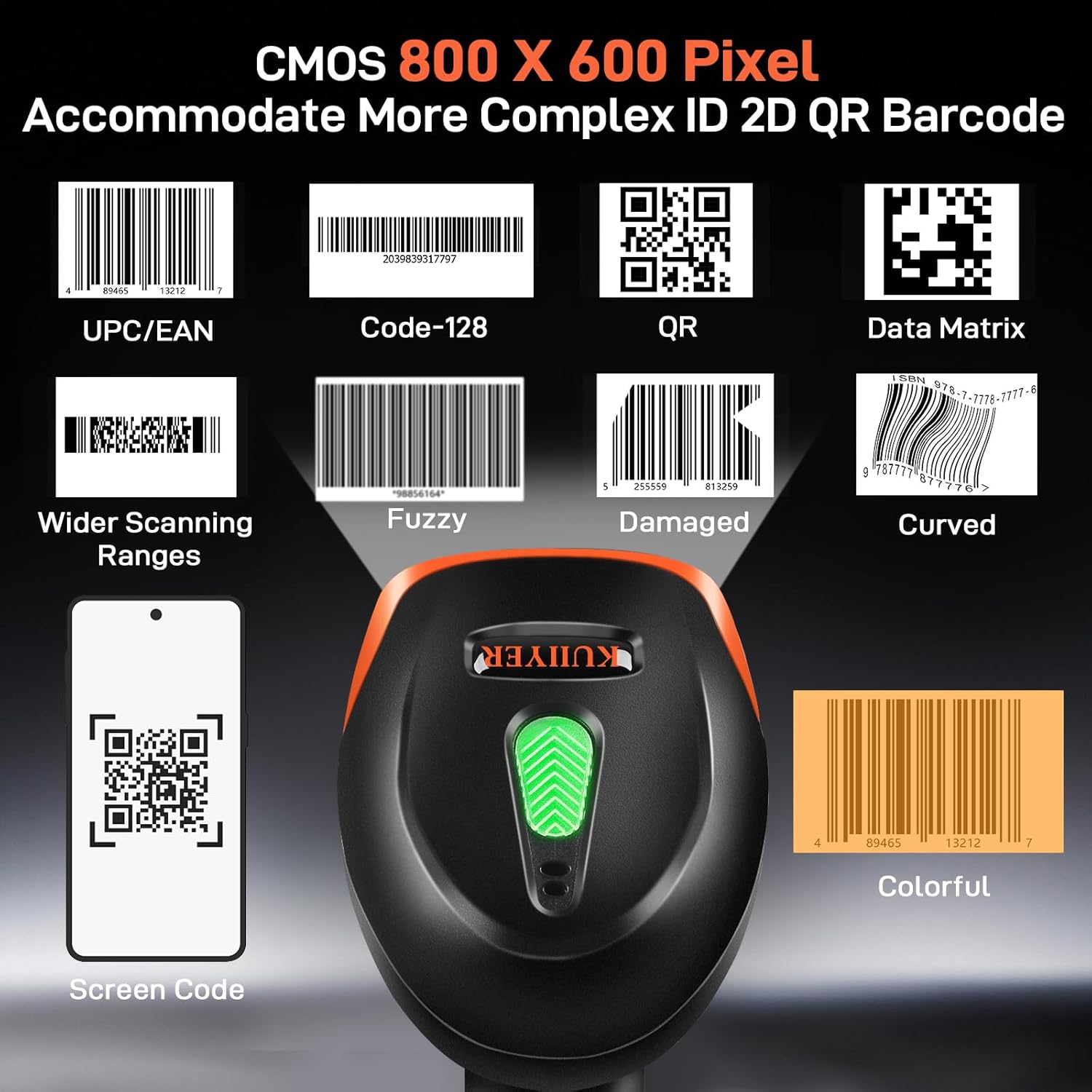
Figure 4.3: Supported Barcode Symbologies
- 1D Codes: UPC/EAN, Code-128, Code-39, Code-93, Code-11, Interleaved 2 of 5, Industrial 2 of 5, Matrix 2 of 5, Standard 2 of 5, Codabar, MSI, GS1 DataBar, etc.
- 2D Codes: QR Code, Data Matrix, PDF417, Aztec Code, Maxicode, etc.
- Special Conditions: Wider scanning ranges, fuzzy, damaged, curved, screen codes, and colorful codes.
5. Maintenance
5.1. Cleaning and Care
To ensure optimal performance and longevity of your scanner:
- Keep the scanning window clean. Use a soft, dry, lint-free cloth to gently wipe the surface. Avoid abrasive materials or harsh chemicals.
- Store the scanner in a clean, dry environment when not in use.
- Avoid exposing the scanner to extreme temperatures or direct sunlight for prolonged periods.
5.2. Durability
The KUIIYER barcode scanner is built for durability:
- It has an IP54 dust and waterproof rating, providing protection against dust ingress and splashing water.
- The high-strength ABS+PC material shell allows the scanner to withstand drops from up to 1.5 meters (5 feet) to the ground, offering shockproof and drop-proof performance.
6. Troubleshooting
If you encounter issues with your KUIIYER barcode scanner, consider the following general troubleshooting steps:
- No Scan Output: Ensure the scanner is properly connected (USB cable, 2.4GHz dongle, or Bluetooth paired). Check if the scanner is in the correct scanning mode (e.g., Manual Trigger requires button press).
- Poor Reading Performance: Clean the scanning window. Ensure the barcode is not excessively damaged or poorly printed. Adjust the distance and angle of the scanner to the barcode.
- Wireless Connection Issues: For 2.4GHz, ensure the dongle is securely plugged in. For Bluetooth, ensure the scanner is paired and within range. Recharge the battery if using a wireless model.
- Incorrect Data Output: Verify the scanner's language settings (supports 32 multi-languages). Ensure your host system's input language matches.
- Scanner Not Powering On: For wired models, check the USB connection. For wireless models, ensure the battery is charged.
For more specific troubleshooting or persistent issues, please contact customer support.
7. Specifications
7.1. Technical Data
| Feature | Specification |
|---|---|
| Brand | KUIIYER |
| Model | 2D QR 1D Barcode Scanner |
| Scanning Technology | 800 x 600 Pixel CMOS Image Sensor |
| Connectivity Technology | Bluetooth, 2.4GHz Wireless, USB Cable |
| Compatible Devices | Desktop, Laptop, Smartphone (via Bluetooth) |
| Power Source | Battery Powered (Wireless), USB Powered (Wired) |
| Battery Capacity (Wireless) | 2000 mAh |
| IP Rating | IP54 (Dust and Water Resistant) |
| Drop Resistance | Up to 1.5m (5ft) |
| Supported Languages | 32 multi-languages setting |
8. Applications
The KUIIYER barcode scanner is suitable for a wide range of professional environments due to its versatility and robust design:

Figure 8.1: Wide Range of Applications
- Retail: Supermarkets, convenience stores, boutiques for checkout and inventory management.
- Libraries: Cataloging and checking out books.
- Healthcare: Pharmacies for medication tracking and patient identification.
- Hospitality: Restaurants and hotels for order processing and guest services.
- Logistics: Warehouses and shipping centers for inventory, tracking, and package management.
- Banking: Document and transaction processing.
9. Warranty and Support
9.1. Warranty Information
Your KUIIYER barcode scanner comes with a comprehensive warranty:
- 90-Day Unconditional Return: For any reason, within 90 days of purchase.
- 24-Month Promise: For any quality-related issues that may arise during this period.
9.2. Customer Support
Should you require assistance, the KUIIYER professional customer team is available to handle your inquiries and provide support. Please refer to your product packaging or the official KUIIYER website for contact details.