
1. Introduction
This manual provides essential information for the safe and efficient use of your new ATOZEE 10-inch Android 14 Tablet. Please read it thoroughly before operating the device and retain it for future reference.
What's in the Box
- ATOZEE 10-inch Android 14 Tablet
- USB Charging Cable
2. Product Overview
The ATOZEE 10-inch Android 14 Tablet is designed for versatile use, offering a clear display and efficient performance for various tasks.
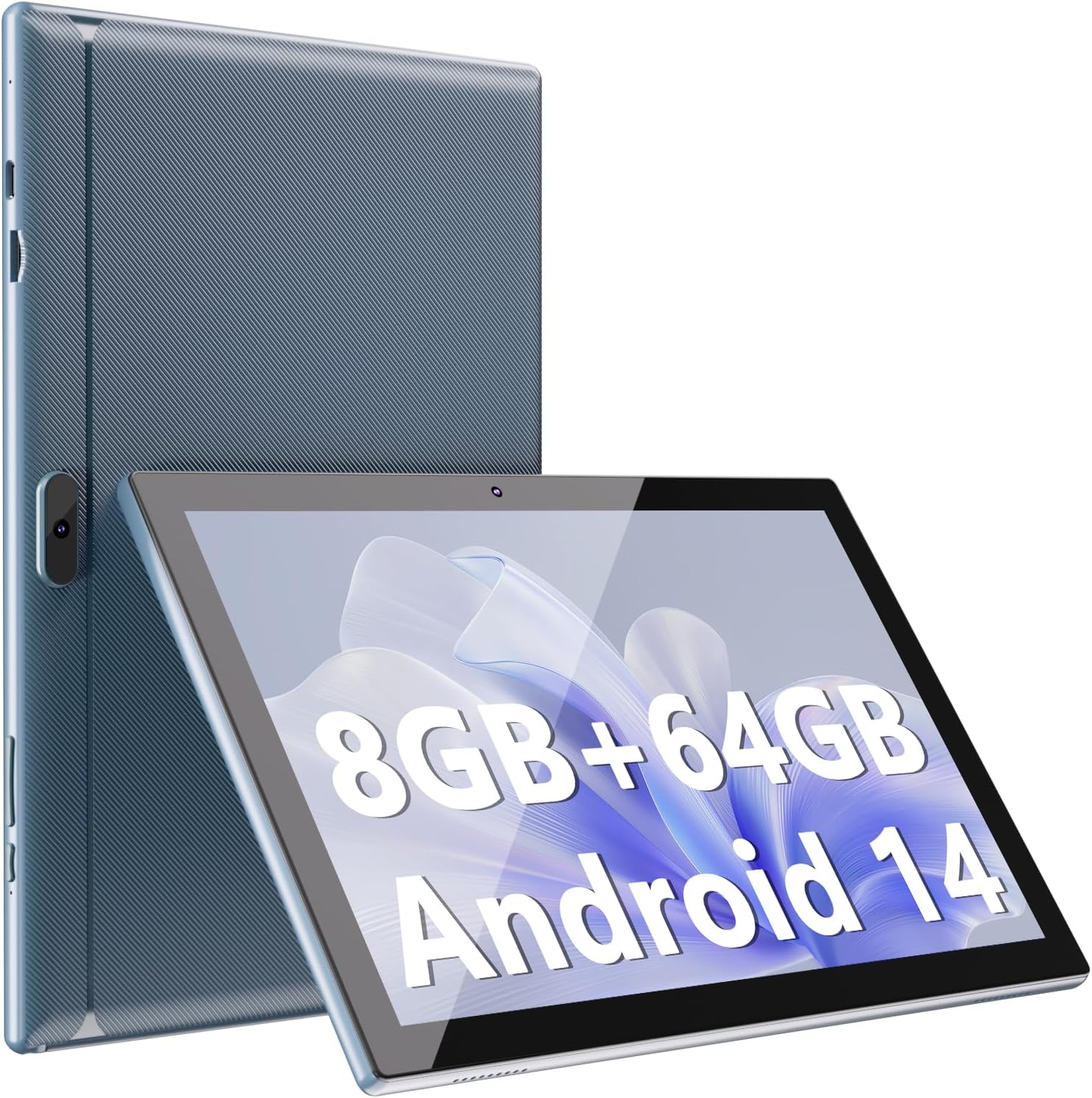
Figure 1: ATOZEE 10-inch Android 14 Tablet, showcasing its display and rear casing.
Key Features
- Operating System: Android 14
- Display: 10.1-inch HD IPS (1280x800 pixels)
- Processor: Quad-core (RK3326S)
- Memory: 8GB RAM (2GB physical + 6GB virtual)
- Storage: 64GB internal, expandable up to 1024GB via MicroSD card
- Cameras: 8MP Rear Camera, 2MP Front Camera
- Connectivity: WiFi-6 (802.11ax), Bluetooth
- Battery: 6000mAh

Figure 2: Android 14 operating system interface, highlighting privacy, security, and parental control features.

Figure 3: The tablet's 10.1-inch HD IPS display, offering clear visuals and eye protection features.

Figure 4: The tablet's dual cameras, suitable for video calls and capturing moments.

Figure 5: Illustration of the tablet's RK3326S Quad-Core processor, designed for efficient performance.
3. Setup Guide
3.1 Initial Charging
Before first use, fully charge your tablet. Connect the provided USB charging cable to the tablet's Type-C port and the other end to a compatible USB power adapter (not included) or a computer's USB port. The charging indicator will show the charging status.
3.2 Powering On/Off
- To Power On: Press and hold the Power button located on the side of the tablet until the ATOZEE logo appears on the screen.
- To Power Off: Press and hold the Power button until a power menu appears. Select "Power off" from the options.
- To Restart: From the power menu, select "Restart".
3.3 Initial Device Configuration
Upon first power-on, the tablet will guide you through the initial setup process:
- Language Selection: Choose your preferred language.
- Wi-Fi Connection: Select an available Wi-Fi network and enter the password to connect to the internet.
- Google Account: Sign in with your Google account or create a new one. This is necessary for accessing the Google Play Store and other Google services.
- Date and Time: Set the correct date and time, or allow the network to set it automatically.
- Security: Set up a screen lock (PIN, pattern, or password) for device security.
3.4 Inserting a MicroSD Card (Optional)
To expand storage, insert a MicroSD card (up to 1024GB, not included) into the designated slot. Ensure the tablet is powered off before inserting or removing the card. After insertion, you may need to format the card via the tablet's settings for optimal performance.
4. Operating Instructions
4.1 Basic Navigation
- Touch: Tap an icon or option to select it.
- Swipe: Drag your finger across the screen to scroll through pages or content.
- Pinch-to-Zoom: Use two fingers to zoom in or out on images and web pages.
- Home Screen: Tap the Home icon to return to the main screen.
- Recent Apps: Tap the Recent Apps icon to view and switch between recently used applications.
4.2 Connecting to Wi-Fi
- Go to Settings > Network & internet > Wi-Fi.
- Toggle Wi-Fi On.
- Select your desired network from the list and enter the password if prompted.
4.3 Bluetooth Pairing
- Go to Settings > Connected devices > Bluetooth.
- Toggle Bluetooth On.
- The tablet will scan for available devices. Select the device you wish to pair with and follow any on-screen prompts.
4.4 Using the Cameras
Open the Camera application from the home screen or app drawer. You can switch between the front (2MP) and rear (8MP) cameras. Tap the shutter button to take photos or record videos.
4.5 Managing Storage
To view and manage your tablet's internal storage (64GB) and any inserted MicroSD card, go to Settings > Storage. You can move files between internal storage and the MicroSD card to free up space.
4.6 Reading Mode
The tablet features a Reading Mode designed to reduce eye strain. This mode adjusts screen colors and brightness for a more comfortable reading experience. Access this feature through the quick settings panel or display settings.
5. Maintenance
5.1 Cleaning the Device
Use a soft, lint-free cloth to clean the screen and body of the tablet. Avoid using abrasive cleaners, solvents, or aerosol sprays, as these can damage the device's surfaces.
5.2 Battery Care
- To prolong battery life, avoid exposing the tablet to extreme temperatures.
- Charge the tablet using only the provided cable or a compatible, certified charger.
- If the tablet will not be used for an extended period, charge it to approximately 50% before storing.

Figure 6: Information regarding the tablet's 6000mAh battery and Type-C charging port.
5.3 Software Updates
Periodically check for system updates to ensure your tablet has the latest features and security enhancements. Go to Settings > System > System update to check for and install available updates.
6. Troubleshooting
This section addresses common issues you might encounter with your ATOZEE tablet.
6.1 Device is Slow or Unresponsive
- Restart the Tablet: A simple restart can resolve many performance issues.
- Close Background Apps: Too many apps running simultaneously can slow down the device. Close unnecessary applications.
- Clear Cache: Regularly clear the cache of apps that consume a lot of memory.
- Check Storage: Ensure you have sufficient free storage space. Delete unnecessary files or move them to a MicroSD card.
6.2 Wi-Fi Connectivity Issues
- Restart Router/Modem: Power cycle your Wi-Fi router and modem.
- Forget Network: In Wi-Fi settings, "forget" the problematic network and then reconnect.
- Check Signal Strength: Ensure you are within range of your Wi-Fi router.
6.3 Tablet Does Not Power On
- Charge Battery: Connect the tablet to a charger and allow it to charge for at least 30 minutes before attempting to power it on again.
- Force Restart: Press and hold the Power button for 10-15 seconds to perform a force restart.
6.4 Screen Not Responding to Touch
- Restart Tablet: If possible, restart the device.
- Clean Screen: Ensure the screen is clean and free of debris or moisture.
6.5 Factory Reset
If persistent issues occur, a factory reset may be necessary. This will erase all data on your tablet. Back up important data before proceeding. Go to Settings > System > Reset options > Erase all data (factory reset).
7. Specifications
| Feature | Detail |
|---|---|
| Brand | ATOZEE |
| Model Name | ATOZEEYQ10S |
| Operating System | Android 14 |
| Screen Size | 10.1 Inches |
| Screen Resolution | 1280 x 800 pixels (HD IPS) |
| Processor | Quad-core (RK3326S) |
| RAM | 8GB (2GB physical + 6GB virtual) |
| Internal Storage | 64 GB |
| Expandable Storage | Up to 1024GB via MicroSD card |
| Rear Camera | 8 MP |
| Front Camera | 2 MP |
| Wireless Type | 802.11ax (WiFi-6) |
| Bluetooth | Yes |
| Battery Capacity | 6000mAh Lithium Ion |
| Average Battery Life | 7-13 Hours (usage dependent) |
| Product Dimensions | 9.6 x 6.7 x 0.3 inches |
| Item Weight | 1 pounds |
8. Warranty and Support
For warranty information and technical support, please refer to the documentation provided with your purchase or contact ATOZEE customer service directly. Keep your proof of purchase for warranty claims.