
Introduction
This manual provides detailed instructions for the setup, operation, and maintenance of your Rownfusny Wireless Headset Model R02-P. Please read this guide thoroughly to ensure proper use and to maximize the performance and lifespan of your device.
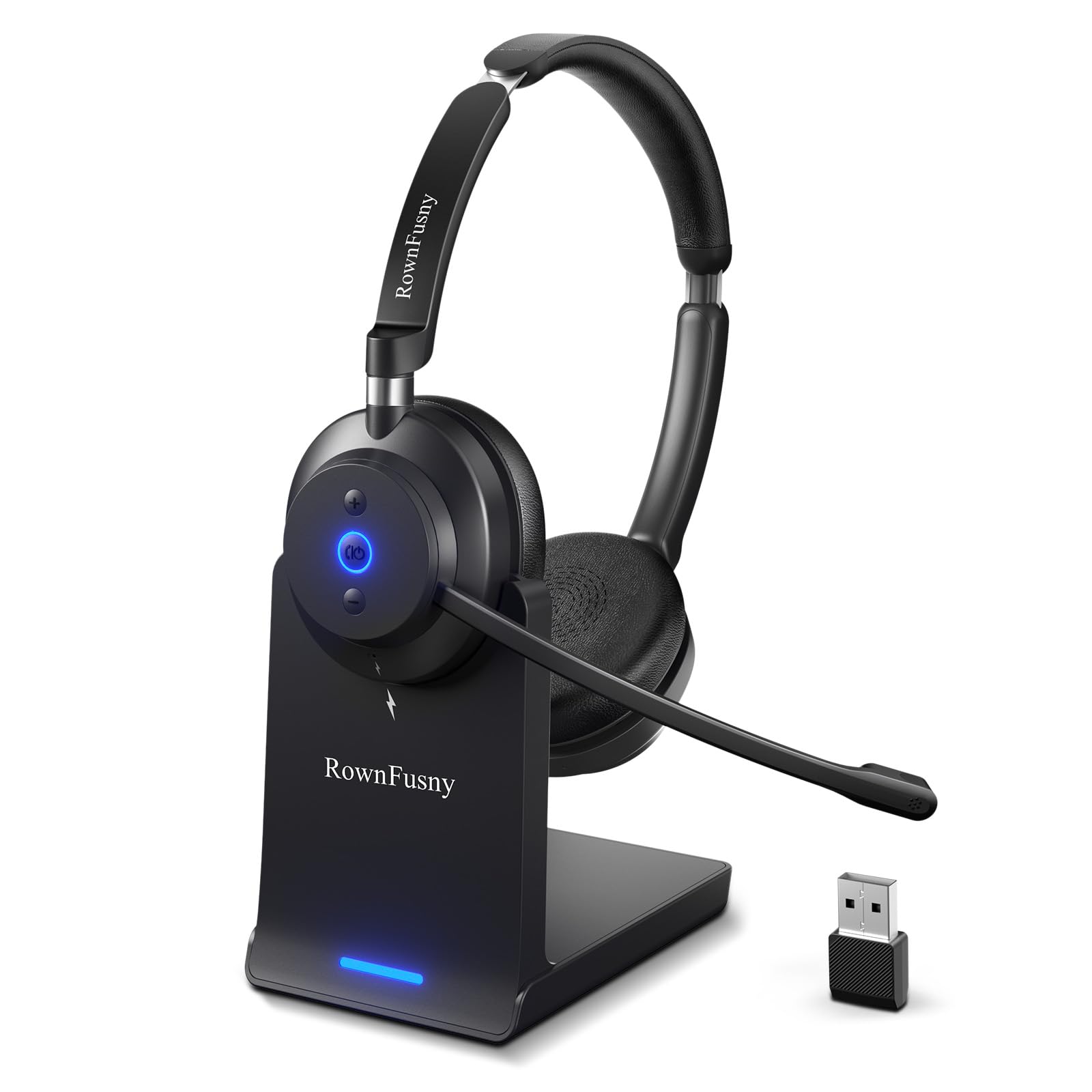
Image: The Rownfusny Wireless Headset R02-P, featuring an over-ear design with an adjustable microphone, shown with its dedicated charging dock.
Package Contents
Verify that all items are present in your package:
- 1x Wireless Headset with Mic
- 1x Headphone Charging Dock
- 1x 2.4G USB Dongle
- 1x Charging Cable
- 1x User Manual (this document)
Setup
Initial Charging
Before first use, fully charge the headset. Connect the charging cable to the charging dock or directly to the headset, then plug into a USB power source. A full charge takes approximately 2 hours.

Image: Illustration showing two charging methods: placing the headset on its dedicated charging base or connecting a Type-C cable directly to the headset.
PC Connection Settings (USB Dongle)
- Plug in the USB Dongle: Insert the 2.4G USB dongle into an available USB port on your computer. The blue light on the dongle will flash, indicating pairing mode.
- Power On & Pair: Press and hold the power button on the headset for 3 seconds. The indicator lights will flash red and blue alternately. A voice prompt will confirm "USB Mode" when automatic pairing is activated.
- Check Connection: A solid blue light on both the headset and the dongle indicates a successful connection. You will hear a voice prompt "Connected".
- Set Audio Output: Open your computer's Sound Settings and select "R02 dongle" as both the microphone and speaker device.
Pro Mode Tip: If you do not hear "USB Mode" after powering on, double-click the power button to toggle between Bluetooth and USB modes. An audio cue will confirm the switch.

Image: Step-by-step diagram illustrating how to connect the Rownfusny headset to a PC using the USB dongle, including power-on, pairing, and audio settings.
Phone Connection Settings (Bluetooth)
- Power On: Press and hold the power button on the headset for 3 seconds. Blue and red lights will flash alternately.
- Switch to Bluetooth Mode: Double-click the power button to listen for the "Bluetooth Mode" voice prompt.
- Enable Bluetooth on Your Phone: Go to your phone's Bluetooth settings, find and select "R02" from the list to connect.

Image: Step-by-step diagram illustrating how to connect the Rownfusny headset to a phone via Bluetooth, including power-on, mode switching, and device pairing.
Operating Instructions
Call Management
- Answering a Call (Phone): Press the power button once.
- Rejecting a Call (Phone): Press the power button twice.
- Joining a New Meeting (Phone): If a phone call comes in during a PC meeting, press the power button once to answer. To join a new meeting on your phone, exit the computer meeting, double-click the power button to switch modes, then manually join the meeting on your phone.

Image: A user demonstrating the dual connection capability of the Rownfusny headset, participating in a video meeting on a computer while also managing an incoming call on a smartphone.
Noise Cancellation and Mute Function
The headset features smart ENC technology to suppress up to 90% of background noise, ensuring clear communication during calls. For privacy or to silence unwanted sounds, use the one-tap mute control.
- One-touch Mute: Press the dedicated mute button on the headset to instantly mute your microphone. A voice prompt will confirm the mute status.
Tech Tip: The mute function activates exclusively during live conversations.

Image: A man wearing the Rownfusny headset, illustrating the AI Noise Cancellation feature that reduces background distractions for clearer audio.

Image: A woman pressing the one-touch mute button on the Rownfusny headset, highlighting the quick privacy feature.
Comfort and Adjustments
The headset is designed for extended wear with memory foam earpads and a lightweight 4.98oz frame. Adjustments include:
- Adjustable Headband: Extend or retract the headband for a comfortable fit.
- Rotatable Earcups: Rotate earcups 180° to switch between mono and stereo modes, or for storage.
- Adjustable Microphone: Pivot the microphone 290° to position it optimally for voice pickup or to move it out of the way when not in use.
- Vertical Tilt: Adjust the earcup angle by ±8° to relieve pressure, especially for users wearing glasses.

Image: A detailed diagram showcasing the comfort-fit curve, adjustable headband, rotatable earcups, adjustable microphone, and vertical tilt features of the Rownfusny headset.
Maintenance
Battery Life and Charging
The headset provides up to 30 hours of continuous use and up to 500 hours of standby time on a single charge. The included charging base extends playback time and offers convenient storage.
- Charging Dock: Place the headset on the charging dock to keep it powered and ready. The dock also features a USB storage slot to prevent loss of the dongle.
- Direct Charging: Use the provided Type-C cable to charge the headset directly when the dock is not available or in use.

Image: The Rownfusny headset resting on its charging dock next to a laptop, emphasizing the built-in dongle storage slot for convenience and security.
Cleaning
Wipe the headset and charging dock with a soft, dry cloth. Avoid using harsh chemicals or abrasive materials. Do not immerse the headset or dock in water.
Troubleshooting
| Problem | Possible Cause | Solution |
|---|---|---|
| Headset does not power on. | Low battery. | Charge the headset for at least 30 minutes. |
| No sound or microphone not working. | Incorrect audio settings on computer/phone; headset not connected. |
|
| Cannot switch between Bluetooth and USB modes. | Incorrect button press. | Double-click the power button to toggle modes. Listen for the voice prompt confirmation. |
| Intermittent connection or poor range. | Obstacles, interference, or distance from device. |
|
Specifications
| Feature | Detail |
|---|---|
| Brand | Rownfusny |
| Model Number | R02-P |
| Connectivity Technology | Bluetooth 5.3, 2.4G Wireless (USB Dongle) |
| Bluetooth Range | Up to 20 meters |
| Ear Placement | On Ear |
| Impedance | 32 Ohms |
| Battery Average Life | Up to 30 Hours (continuous use) |
| Battery Charge Time | 2 Hours |
| Noise Control | Active Noise Cancellation (ENC) |
| Control Type | Button Control (Touch, Voice) |
| Item Weight | 4.98 Ounces |
| Compatible Devices | Computers (PC, Mac), Desktops, Laptops, Cellphones, Tablets |
| Material | Leather, Plastic |
| Additional Features | Adjustable Headband, Fast Charging, Lightweight, Noise Cancellation |
Warranty and Support
Your Rownfusny Wireless Headset comes with a 2-Year Worry-Free Warranty from the manufacturer. This warranty covers defects in materials and workmanship under normal use.
Should any issues arise, please contact Rownfusny directly through the Amazon platform for swift response and resolution. Ensure to provide your purchase details for efficient service.
For further assistance or inquiries, refer to the contact information provided with your purchase or visit the official Rownfusny store on Amazon.


