
Machenike GTX Mini PC
Machenike GTX Mini PC User Manual
Model: GTX Mini PC
Brand: Machenike
Introduction
This user manual provides comprehensive instructions for the setup, operation, maintenance, and troubleshooting of your Machenike Mini Desktop. Designed for high performance in a compact form factor, this mini PC features an AMD Ryzen 9 7940HS processor, AMD Radeon 780M graphics, and runs on Windows 11 Pro. Please read this manual thoroughly to ensure proper use and longevity of your device.
Setup Guide
1. Unboxing and Initial Inspection
Carefully remove all components from the packaging. The box should contain the Machenike GTX Mini Desktop and its power adapter. Inspect the device for any visible damage before proceeding.

Figure 1: Machenike Mini Desktop computer, front-angled view. This image displays the compact Machenike Mini Desktop from an angled perspective, showcasing its sleek design and front-facing ports.
2. Connecting Peripherals
- Monitor: Connect your monitor to the Mini PC using an HDMI or DisplayPort cable. The device supports 4K resolution output.
- Keyboard and Mouse: Connect your USB keyboard and mouse to any available USB 3.2 Gen1 ports.
- Network: For wired internet access, connect an Ethernet cable to one of the RJ45 ports. For wireless connectivity, ensure Wi-Fi 6 is enabled.
- Power: Connect the power adapter to the DC IN port on the Mini PC, then plug the adapter into a power outlet.
3. Powering On and Initial Setup
Press the power button located on the front of the device. The system will boot up. Follow the on-screen instructions to complete the Windows 11 Pro initial setup, including language selection, network configuration, and user account creation.
Operating Instructions
1. Port Overview
The Machenike Mini Desktop is equipped with a variety of ports for versatile connectivity:

Figure 2: Front and rear port layout of Machenike Mini Desktop. This image provides a clear layout of all available ports on the Machenike Mini Desktop. The front includes USB3.2 Gen1 (5Gbps), USB3.2 Gen2 (10Gbps), Type-C, and a 3.5mm audio/power button. The rear features additional Type-C, USB3.2 Gen1 (5Gbps) x3, DP1.4, HDMI2.0, and 2.5G network ports.
- Front Ports: 4 x USB3.2 Gen1 (5Gbps), 1 x USB3.2 Gen2 (10Gbps), 2 x Type-C, 1 x 3.5mm audio/power button.
- Rear Ports: 1 x HDMI 2.1, 1 x Display Port, 2 x RJ45 (2.5G network ports), additional Type-C ports.

Figure 3: Machenike Mini Desktop with labels for dual Type-C ports. A view of the Machenike Mini Desktop highlighting its two Type-C ports, one on each side, for convenient connectivity. One is a USB4 Type-C (40Gbps) for external graphics cards and monitor PD power supply, and the other is a Type-C (10Gbps) for display PD power supply.
2. Wireless Connectivity
The device supports Wi-Fi 6 for high-speed wireless internet and Bluetooth for connecting wireless peripherals such as headphones, speakers, or input devices.
3. Customizable Lighting
The Machenike Mini Desktop features a magnetic quick-release cover with a customizable LED light panel. The phantom light effect can be adjusted via dedicated software (not included in this manual, refer to manufacturer's website for software download).

Figure 4: Exploded view of Machenike Mini Desktop showing magnetic cover and customizable LED light panel. An exploded diagram illustrating the magnetic quick-release cover and the underlying LED light panel, which allows for customizable phantom light effects controlled by software.
Maintenance
1. Cooling System
The Mini PC is equipped with a dual-fan cooling system, a storage vapor chamber, and an ice radiator to ensure efficient heat dissipation. To maintain optimal performance, ensure that the ventilation grilles are not obstructed and are kept clean from dust buildup.

Figure 5: Internal view of Machenike Mini Desktop highlighting dual fan cooling system. This diagram shows the internal components of the mini PC, emphasizing the dual fan cooling system, storage vapor chamber, and ice radiator designed for efficient heat dissipation.
2. General Care
- Keep the device in a clean, dry environment away from direct sunlight and extreme temperatures.
- Avoid spilling liquids on the device.
- Clean the exterior with a soft, dry cloth. Do not use harsh chemicals or abrasive cleaners.
3. Security
For physical security, the Machenike Mini Desktop includes a reserved Kensington security keyhole. This allows for the attachment of a compatible security cable (sold separately) to deter theft.
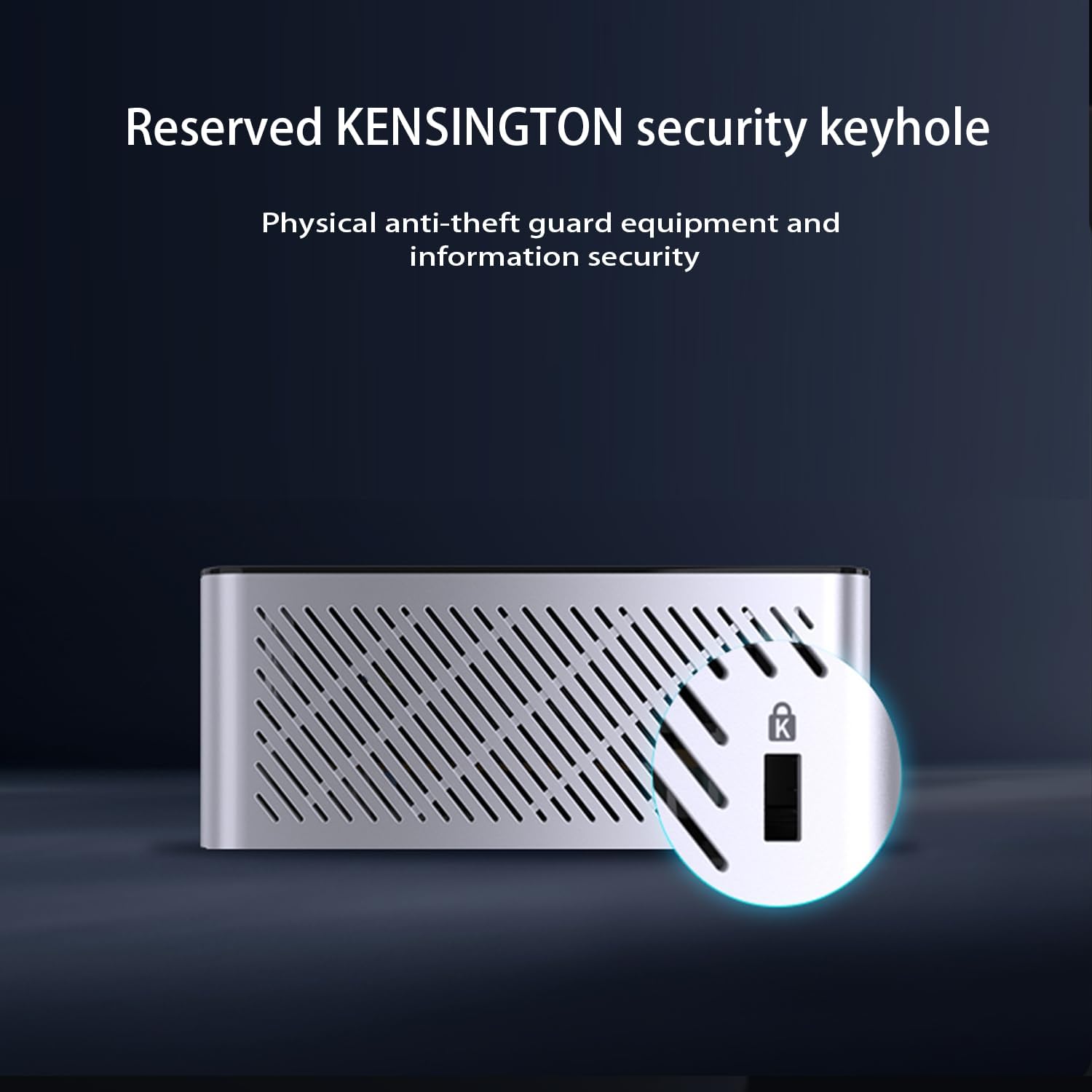
Figure 6: Close-up of Kensington security keyhole on Machenike Mini Desktop. A detailed view of the Kensington security keyhole located on the side of the Machenike Mini Desktop, providing a physical anti-theft solution for the device.
Troubleshooting
If you encounter issues with your Machenike Mini Desktop, refer to the following common troubleshooting steps:
- No Power:
- Ensure the power adapter is securely connected to both the Mini PC and a working power outlet.
- Verify the power outlet is functional by plugging in another device.
- No Display:
- Check that the HDMI or DisplayPort cable is firmly connected to both the Mini PC and the monitor.
- Ensure the monitor is powered on and set to the correct input source.
- Try a different cable or monitor if possible.
- No Internet Connection (Wi-Fi):
- Verify that Wi-Fi is enabled in Windows settings.
- Ensure you are connected to the correct Wi-Fi network and have entered the password correctly.
- Restart your Wi-Fi router and the Mini PC.
- Slow Performance:
- Close unnecessary applications running in the background.
- Check for available Windows updates and install them.
- Ensure the cooling vents are clear and the device is not overheating.
For more complex issues, consider performing a system restore or contacting technical support.
Specifications
| Feature | Specification |
|---|---|
| Processor | AMD Ryzen 9 7940HS (8 cores/16 threads, up to 5.2GHz) |
| Graphics | AMD Radeon 780M (graphic frequency 2.8GHz) |
| RAM | 16GB DDR5 (4800 MHz) |
| Storage | 1TB M.2 SSD (PCIE x 4) |
| Operating System | Windows 11 Pro |
| Video Output | HDMI 2.1, Display Port, Type-C (supports 4K resolution) |
| USB Ports | 4 x USB3.2 Gen1 (5Gbps), 1 x USB3.2 Gen2 (10Gbps), 2 x Type-C (USB4 Type-C 40Gbps, Type-C 10Gbps) |
| Network | 2 x RJ45 (2.5G network ports), Wi-Fi 6 |
| Wireless Connectivity | Wi-Fi 6, Bluetooth |
| Dimensions (LxWxH) | 5.05 x 1.96 x 5.05 inches |
| Weight | 2.25 lbs |
| Color | Grey |
Warranty and Support
Warranty Information
Warranty terms and conditions are typically provided with your purchase documentation. Please refer to the warranty card or information included in your product packaging for details regarding coverage, duration, and claims procedures.
Technical Support
For technical assistance, driver downloads, or further inquiries, please visit the official Machenike support website. Contact information and support resources can be found there.
Related documentsGTX Mini PC

Ask a question about this manual
Ask about setup, troubleshooting, compatibility, parts, safety, or missing instructions. Manuals+ will review the question and use this page’s manual context to help answer it.