
1. Introduction
This manual provides detailed instructions for the proper use and maintenance of your MMOBIEL OBD2 Scanner V521 Pro Edition. This device is designed to assist in diagnosing vehicle issues by reading and clearing diagnostic trouble codes (DTCs), monitoring live data, and performing various system tests. Please read this manual thoroughly before operating the device.
2. Product Overview

Image: MMOBIEL OBD2 Scanner V521 Pro Edition device.
Key Features:
- Professional-Grade OBD2 Diagnostics: Compatible with all OBDII/EOBD-compliant vehicles (1996 & newer), featuring Mode 6 & 8 for in-depth system monitoring.
- Complete Freeze Frame & I/M Readiness: Captures data at the moment a fault occurs and verifies emission system monitors for smog compliance.
- Live Data Streaming: Provides real-time data on various vehicle parameters like fuel system performance, coolant temperature, RPM, and air-fuel ratio.
- Full Oxygen Sensor & EVAP Testing: Allows performance of oxygen sensor tests and EVAP system leak detection.
- Advanced Cloud Print & Battery Health Monitoring: View VIN data, fault codes, and calibration details. Monitor battery health and share diagnostics via Cloud Print.
- Ergonomic Design with 11-Language Support: Features a high-resolution 2.8-inch color display and user-friendly navigation with multiple language options.
3. Setup
3.1 Connecting to Your Vehicle
Locate the 16-pin Data Link Connector (DLC) in your vehicle. This port is typically found under the dashboard on the driver's side. Plug the scanner's OBD2 connector firmly into the vehicle's DLC. The scanner will power on automatically.

Image: Illustration showing the location of the OBD2 port in a vehicle.
3.2 Initial Power-Up and Settings
Once connected, the scanner will power on. You may need to turn the vehicle's ignition to the 'ON' position (engine off) for full functionality. Navigate the menu using the directional buttons and 'OK' button.
- Language Selection: Go to 'Setup' and select 'Language' to choose from 11 available languages.
- Unit of Measure: In 'Setup', select 'Unit of Measure' to switch between metric and imperial units for data display.
Video: Demonstration of connecting the OBD2 scanner and navigating initial setup options.
4. Operating the Scanner
4.1 Reading and Clearing Diagnostic Trouble Codes (DTCs)
From the main menu, select 'OBD/EOBD' then 'Read DTC' to view current, pending, and permanent trouble codes. To clear codes, select 'Clear DTC'. This will turn off the Check Engine Light (MIL) and reset emission monitors. Ensure the underlying issue is resolved before clearing codes.

Image: Screen showing options for reading and clearing DTCs, along with vehicle information and on-board monitor status.
4.2 Live Data Streaming
Select 'Data Stream' from the main menu to view real-time operational parameters of your vehicle. This function is crucial for monitoring engine performance and identifying intermittent issues. You can view all data items or select specific ones for focused analysis.
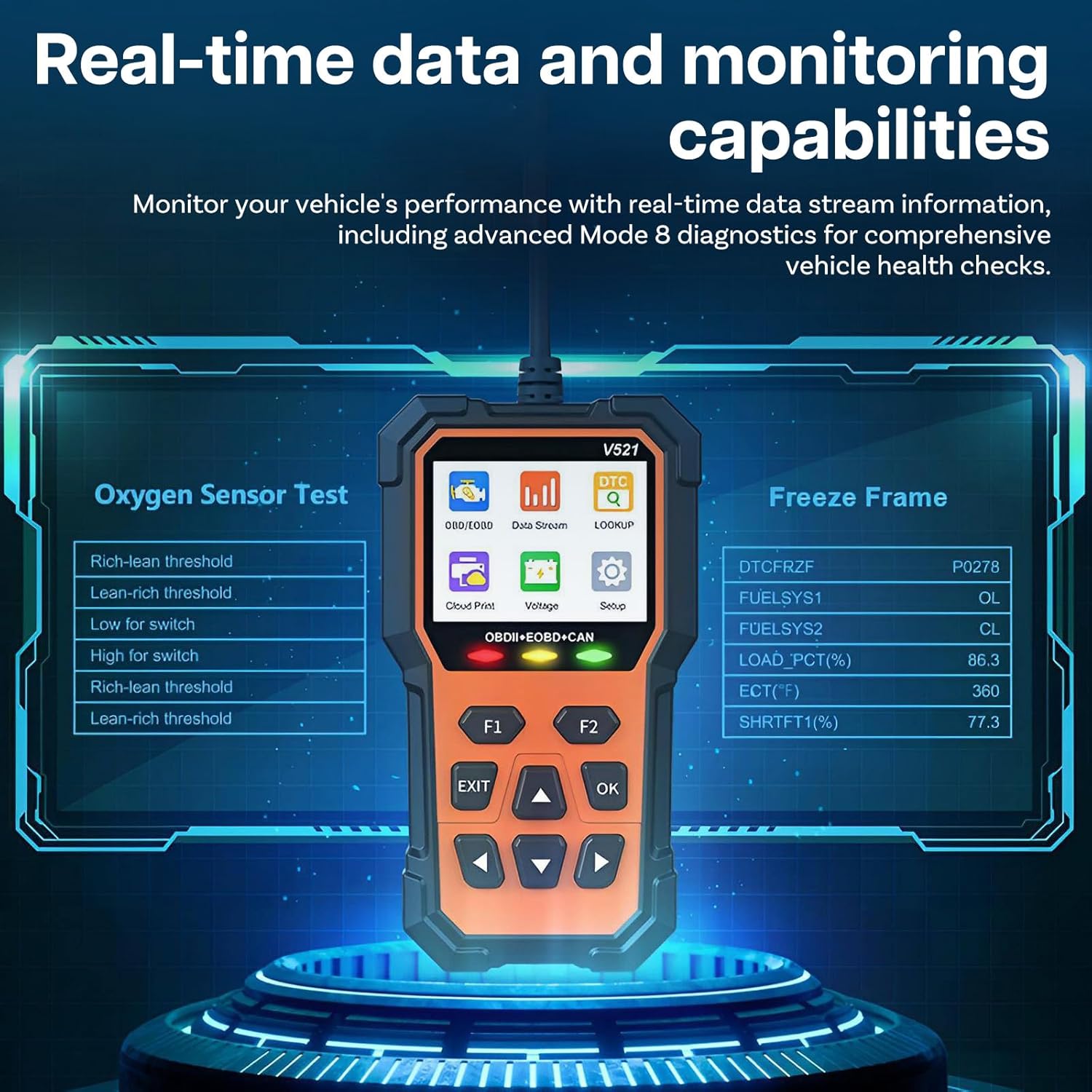
Image: Real-time data display on the scanner, showing oxygen sensor test results and freeze frame data.
4.3 Freeze Frame Data
When an emission-related fault occurs, the ECU stores a snapshot of operating conditions at that moment. Select 'Freeze Frame' to retrieve this data, which can help pinpoint the conditions under which the fault occurred.
4.4 I/M Readiness
The 'I/M Readiness' function checks if all emission-related systems are functioning correctly and have completed their self-tests. This is essential for determining if your vehicle is ready for an emissions inspection (smog test).
Video: Demonstration of using an OBD2 scanner to read engine fault codes and check I/M readiness status.
4.5 Oxygen Sensor Test & EVAP System Test
The scanner supports dedicated tests for Oxygen Sensors and the EVAP (Evaporative Emission Control) system. These tests help verify the functionality of these components, which are critical for emission control and fuel efficiency.
4.6 Mode 6 & 8 Diagnostics
The V521 Pro Edition offers advanced Mode 6 (On-Board Monitor Test Results for Non-Continuously Monitored Systems) and Mode 8 (Component/System Control Test) diagnostics. These modes provide deeper insights into specific component performance and system integrity.
4.7 Battery Health Monitoring
Select 'Voltage' from the main menu to monitor your vehicle's battery voltage in real-time. This helps in detecting potential battery issues early.
4.8 Cloud Print Function
The 'Cloud Print' feature allows you to easily transfer diagnostic reports to your smartphone for further analysis or sharing with a mechanic. This function typically involves scanning a QR code displayed on the scanner's screen.
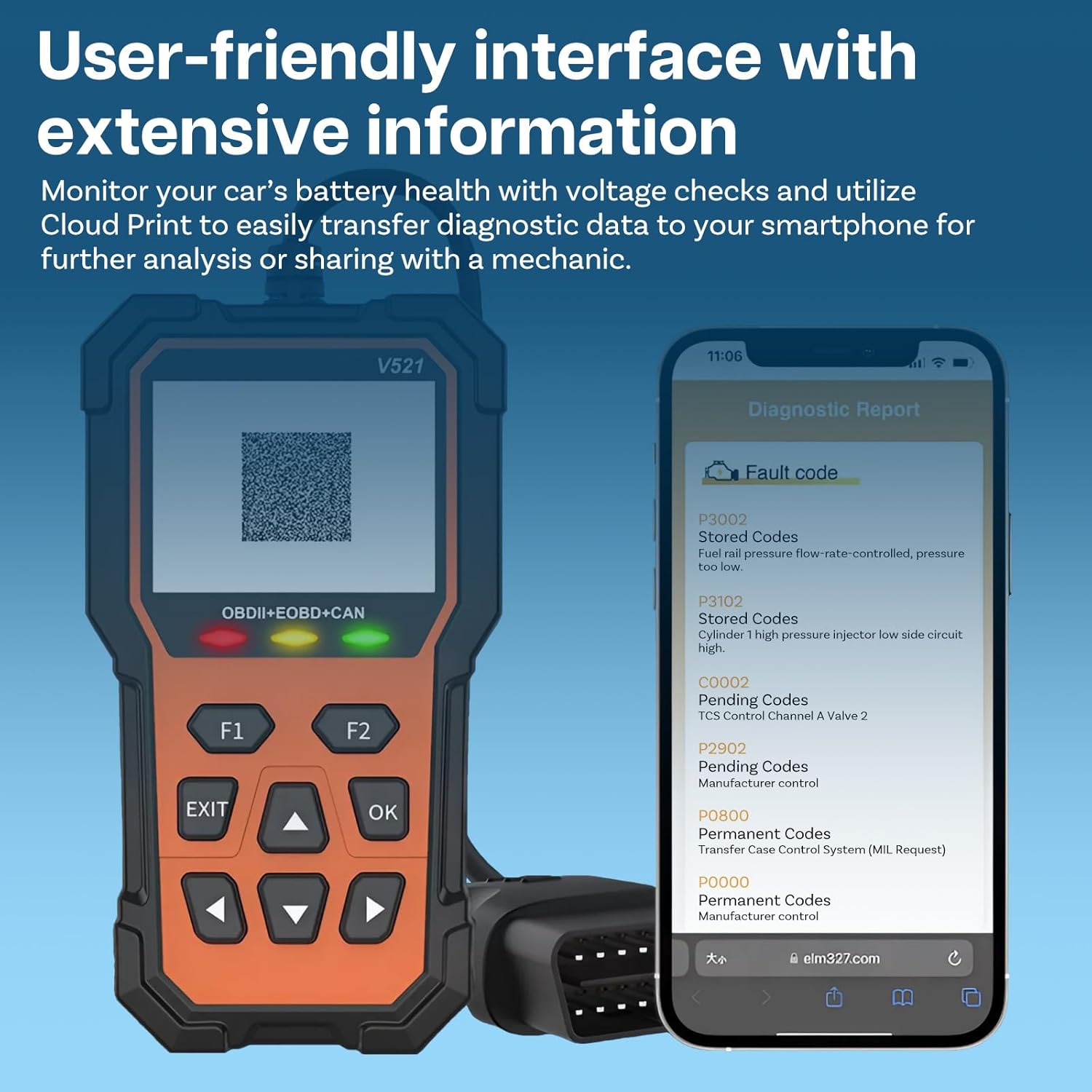
Image: The scanner's screen showing a QR code for Cloud Print, with a smartphone displaying a diagnostic report.
5. Maintenance
5.1 Software Updates
Keep your scanner's software updated to ensure compatibility with the latest vehicle models and diagnostic protocols. Check the manufacturer's website for available updates and follow the provided instructions for installation.
5.2 Cleaning and Storage
Clean the scanner's screen and body with a soft, damp cloth. Avoid using abrasive cleaners or solvents. Store the device in a dry, cool place away from direct sunlight and extreme temperatures when not in use.
6. Troubleshooting
6.1 Device Does Not Power On
- Ensure the OBD2 connector is securely plugged into the vehicle's DLC.
- Verify the vehicle's ignition is in the 'ON' position (engine off) or the engine is running.
- Check the vehicle's battery voltage. If the battery is too low, the scanner may not power on.
6.2 Communication Error
- Confirm the vehicle is OBDII/EOBD compliant (most vehicles 1996 and newer).
- Verify the connection to the DLC is secure.
- Turn the ignition off, wait 10 seconds, then turn it back on and try again.
6.3 Incorrect Readings or Freezing
- Ensure the software is up to date.
- Restart the device and the vehicle's ignition.
7. Specifications
- Model: V521
- Display: 2.8-inch Color Display
- Operating Voltage: DC 9-16V
- Operating Temperature: 0°C to 60°C (32°F to 140°F)
- Storage Temperature: -20°C to 70°C (-4°F to 158°F)
- Item Weight: Approximately 15.8 ounces
- Package Dimensions: Approximately 7.95 x 4.02 x 2.36 inches
- Language Support: 11 languages (English, German, Italian, Dutch, French, Spanish, Chinese, Russian, Japanese, Polish, Portuguese)
8. Warranty and Support
Your MMOBIEL OBD2 Scanner V521 Pro Edition is covered by a standard manufacturer's warranty. Please refer to the product packaging or the manufacturer's website for specific warranty terms and conditions. For technical support, troubleshooting assistance, or warranty claims, please contact MMOBIEL customer service through their official channels.