
1. Introduction
This manual provides instructions for the installation, operation, and maintenance of your BDFFLY BD-CP1-B-EU Wireless Carplay Screen. This device is designed to enhance your driving experience by integrating smartphone functionalities such as Apple CarPlay, Android Auto, and Mirror Link directly into your vehicle's dashboard. It features a 7-inch HD touchscreen, voice control, GPS navigation support, and a backup camera input for improved safety and convenience.
2. Package Contents
Please verify that all items listed below are included in your package:
- BDFFLY Wireless Carplay Screen (Main Unit)
- Back Rear Camera
- Power Cord (for car cigarette lighter)
- Adhesive Mount
- Stand Sticker
- User Manual
- AUX Cable

Figure 2.1: Package Contents. This image displays the main Carplay screen unit, a rear camera, a power cord, an adhesive mount, a stand sticker, the user manual, and an AUX cable, illustrating all components included in the product package.
3. Setup
3.1 Mounting the Device
- Choose a Location: Select a suitable flat surface on your dashboard or windshield that does not obstruct your view or interfere with driving controls.
- Clean the Surface: Ensure the chosen surface is clean and dry for optimal adhesion.
- Attach the Mount: Secure the adhesive mount to the dashboard or windshield. Apply firm pressure for several seconds.
- Attach the Screen: Connect the Carplay screen unit to the mount, ensuring it is securely fastened and angled for comfortable viewing.
3.2 Power Connection
- Insert the power cord into the power input port on the Carplay screen unit.
- Plug the other end of the power cord into your vehicle's 12V cigarette lighter socket.
- The device should power on automatically or by pressing the power button.
3.3 Rear Camera Installation (Optional)
If you intend to use the included rear camera:
- Mount the Camera: Install the rear camera at the back of your vehicle, typically near the license plate, ensuring a clear view.
- Route the Cable: Carefully route the camera cable from the rear of the vehicle to the Carplay screen unit, avoiding moving parts and heat sources.
- Connect the Camera: Plug the camera cable into the designated camera input port on the Carplay screen unit.
- Power Connection (if applicable): Some cameras require connection to the vehicle's reverse light power for automatic activation. Consult your vehicle's manual or a professional for this step.

Figure 3.1: Rear Camera Connection. This image demonstrates the Carplay screen displaying the feed from a connected rear camera, highlighting its high definition, 170-degree wide angle, and waterproof features, along with a diagram of the camera's wiring.
4. Operating Instructions
4.1 Basic Navigation
The BDFFLY Carplay Screen features a 7-inch HD touchscreen. Navigate through menus and applications by tapping, swiping, and pinching gestures similar to a smartphone.
4.2 Wireless Apple CarPlay and Android Auto
Connect your smartphone wirelessly to access navigation, music, calls, and messages through the Carplay or Android Auto interface.
- Ensure Bluetooth and Wi-Fi are enabled on your smartphone.
- On the Carplay screen, select the Apple CarPlay or Android Auto icon.
- Follow the on-screen prompts to pair your phone. This typically involves selecting your device from a list and confirming a pairing code.
- Once connected, the Carplay/Android Auto interface will appear on the screen, allowing access to compatible apps.
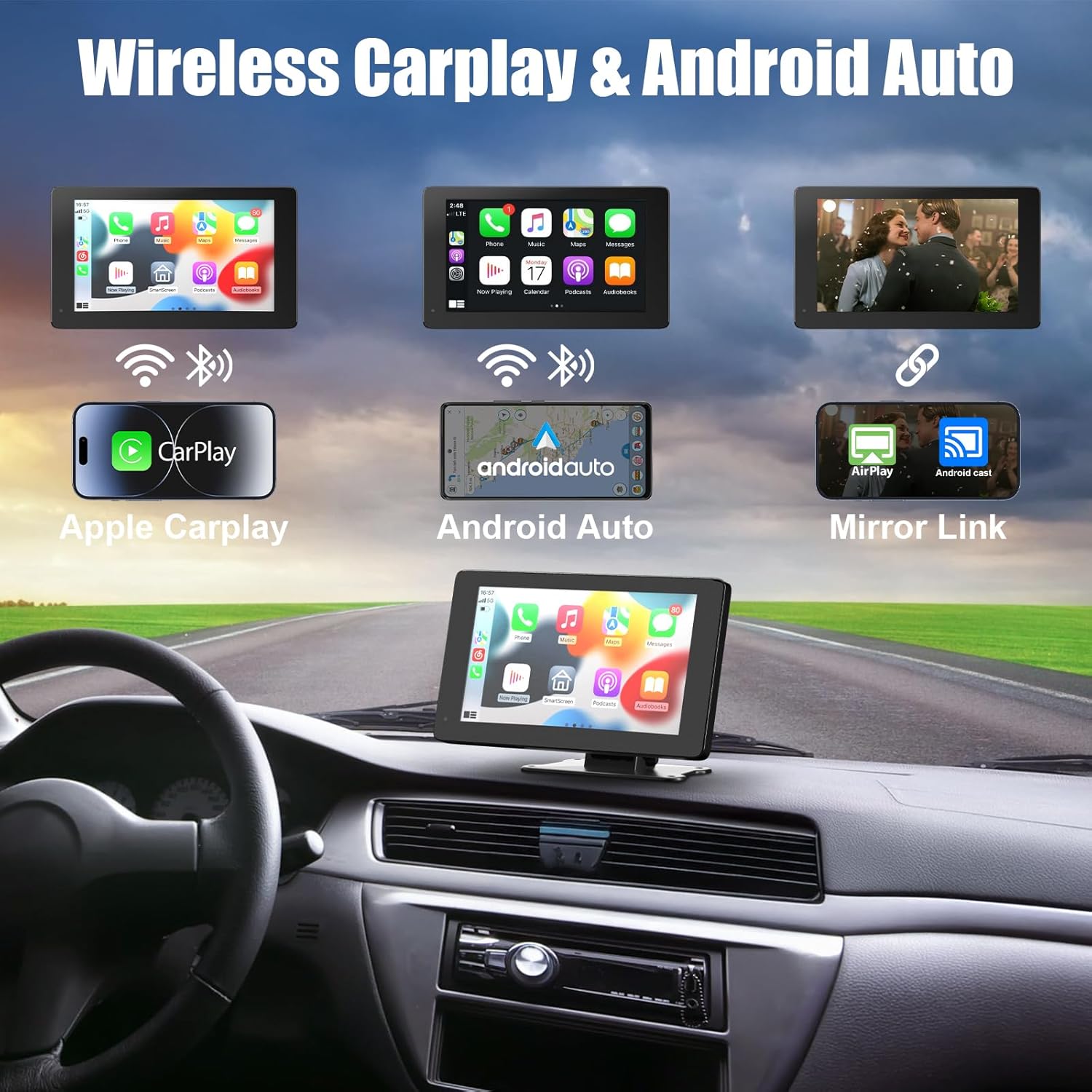
Figure 4.1: Wireless CarPlay & Android Auto. This image demonstrates the seamless wireless connection for Apple CarPlay and Android Auto, displaying their respective interfaces on the Carplay screen, along with Mirror Link functionality.
4.3 Wireless Mirror Link
Mirror Link allows you to display your smartphone's screen directly onto the Carplay unit.
- On the Carplay screen, select the 'Mirror Link' option.
- Follow the instructions on the screen to connect your smartphone. This may involve scanning a QR code or connecting via Wi-Fi Direct.
- Once connected, your phone's display will be mirrored on the Carplay screen.

Figure 4.2: Wireless Mirror Link. This image illustrates the Wireless Mirror Link feature, showing the 7-inch HD touchscreen displaying content mirrored from a smartphone, providing a visual and audio experience.
4.4 Voice Control & GPS Navigation
Utilize voice commands for hands-free operation through Siri or Google Assistant.
- Activate your phone's voice assistant (e.g., by saying "Hey Siri" or "Hey Google").
- Issue commands for navigation (e.g., "Navigate to home," "Find the nearest gas station"), making calls (e.g., "Call Joan"), or playing music (e.g., "Play music").
- The screen will display relevant information, such as navigation maps or call interfaces.

Figure 4.3: Voice Control & GPS Navigation. This image highlights the voice control capabilities, supporting Siri and Google Assistant for safe driving, with examples of voice commands for navigation and calls.
4.5 Audio Output Methods
The device offers multiple ways to output audio:
- Built-in Speakers: The Carplay unit has integrated 2W speakers for direct audio output.
- FM Emission: Transmit audio to your car's FM radio. Select an unused FM frequency (87.5MHz-108MHz) on the Carplay unit and tune your car radio to the same frequency.
- AUX to Car's Audio: Use the provided AUX cable to connect the Carplay unit's audio output to your car's AUX input for higher quality audio.
- Bluetooth & Wi-Fi: Connect the Carplay unit to your car's stereo via Bluetooth for audio playback, or use Wi-Fi for data transmission.

Figure 4.4: 4 Ways of Audio Output. This image illustrates the four audio output options: built-in speakers, FM transmission (87.5MHz-108MHz), AUX cable connection to the car's audio system, and Bluetooth/Wi-Fi connectivity.
4.6 Backup Camera Usage
When the rear camera is properly installed and connected, the Carplay screen will automatically display the camera feed when your vehicle is put into reverse gear (if wired to the reverse light trigger).
5. Maintenance
- Cleaning the Screen: Use a soft, lint-free cloth to gently wipe the screen. For stubborn smudges, slightly dampen the cloth with water or a screen-safe cleaner. Avoid harsh chemicals or abrasive materials.
- General Care: Keep the device away from extreme temperatures, direct sunlight for prolonged periods, and excessive moisture.
- Cable Management: Ensure all cables are securely routed and not pinched or tangled to prevent damage.
6. Troubleshooting
6.1 No Power
- Check if the power cord is securely plugged into both the device and the car's cigarette lighter socket.
- Ensure the car's cigarette lighter socket is functioning (test with another device).
- Verify the vehicle's ignition is on.
6.2 Cannot Connect to Apple CarPlay / Android Auto
- Ensure Bluetooth and Wi-Fi are enabled on your smartphone.
- Restart both your smartphone and the Carplay unit.
- Forget the device in your phone's Bluetooth settings and try pairing again.
- Ensure your phone's operating system is up to date.
6.3 No Audio Output
- Check the volume levels on both the Carplay unit and your car's stereo.
- If using FM transmission, ensure the Carplay unit and car radio are tuned to the exact same, clear frequency.
- If using AUX, ensure the AUX cable is properly connected and your car stereo's input is set to AUX.
- If using Bluetooth, ensure the Carplay unit is successfully paired with your car's stereo.
6.4 Rear Camera Not Displaying
- Verify the camera cable is securely connected to the Carplay unit.
- Ensure the camera is receiving power and its trigger wire (if applicable) is correctly connected to the reverse light circuit.
- Check for any physical obstructions or damage to the camera lens or cable.
7. Specifications
| Feature | Detail |
|---|---|
| Brand | BDFFLY |
| Model Number | BD-CP1-B-EU |
| Operating System | Windows CE |
| Screen Size | 7 Inches |
| Connections | USB |
| Special Features | Voice recognition, smartphone integration, backup camera |
| Compatible Devices | Smartphones, touchscreen devices |
| Vehicle Service Type | Car, Truck, Camper, Trailer |
| Connectivity Technology | USB |
| Map Type | Street |
| Included Components | Rear camera |
| Audio Output Mode | Stereo |
| Mounting Type | Windshield mount / Dashboard mount |
8. Warranty and Support
8.1 Warranty Information
Warranty terms and conditions for the BDFFLY BD-CP1-B-EU Wireless Carplay Screen are typically provided with your purchase documentation or by the retailer. Please refer to the warranty card included in your package or contact your point of purchase for detailed information regarding warranty coverage and duration.
8.2 Customer Support
For technical assistance, troubleshooting beyond this manual, or inquiries regarding your product, please contact BDFFLY customer support or the retailer from whom you purchased the device. Contact information can usually be found on the product packaging, the official BDFFLY website, or your purchase receipt.