Introduction
This manual provides detailed instructions for the safe and efficient use of your BezosMax i Mini Smartphone, model XS18 Pro-HEI. Please read this manual thoroughly before operating the device and keep it for future reference.
The BezosMax i Mini Smartphone is a compact 3G device featuring a 3.0-inch HD display, dual SIM capability, a Quad-Core processor, and 16GB of internal storage running on the Android operating system. Its ultra-compact design makes it highly portable.

Image: The BezosMax i Mini Smartphone, showcasing its compact size and user interface.

Image: Side view of the smartphone, illustrating its slim profile (10.5mm thickness).
1. Setup
1.1 Inserting SIM Cards and MicroSD Card
The device supports dual SIM cards, allowing you to use two different phone numbers simultaneously. It also supports a MicroSD card for expandable storage.
- Locate the SIM card tray on the side of the phone.
- Use the provided SIM ejector tool to open the tray.
- Carefully place your Nano-SIM cards into the designated slots. Ensure the gold contacts face downwards.
- If using a MicroSD card, insert it into its dedicated slot on the tray.
- Gently push the tray back into the phone until it is flush with the device's side.

Image: Illustration of the dual SIM card tray and MicroSD card slot.
1.2 Initial Power On
Press and hold the power button located on the side of the device until the screen lights up. Follow the on-screen prompts to complete the initial setup, including language selection, Wi-Fi connection, and Google account setup.
1.3 Charging the Device
Before first use, fully charge the device. Use the provided USB Type-C cable and a compatible power adapter.
- Connect the USB Type-C cable to the charging port at the bottom of the phone.
- Connect the other end of the cable to a power adapter and plug it into a wall outlet.
- The charging indicator will appear on the screen.
The device features a polymer battery and supports fast charging via its Type-C port.

Image: The smartphone connected to a Type-C charger, indicating charging status.
2. Operating Instructions
2.1 Basic Navigation
- Touch Screen: Tap to select, swipe to scroll, pinch to zoom.
- Home Screen: Access apps, widgets, and notifications.
- Status Bar: Displays time, battery level, signal strength, and notification icons.
2.2 Making Calls and Sending Messages
- Calls: Open the Phone app, enter the number, and tap the call icon.
- Messages: Open the Messages app, tap to compose a new message, enter the recipient and text, then send.
- Dual SIM Usage: When making a call or sending a message, the phone will prompt you to select which SIM card to use, or you can set a default SIM in settings.
2.3 Camera Usage
The smartphone is equipped with dual cameras (front and rear) for capturing photos and videos.
- Open the Camera app.
- Select between photo or video mode.
- Tap the shutter button to take a picture or start/stop recording a video.
- Switch between front and rear cameras using the camera switch icon.

Image: The smartphone's dual camera system, capable of capturing everyday moments.
2.4 Security Features
The device includes security features to protect your privacy and data.
- Face Recognition: Set up face unlock for convenient and secure access to your device. Go to Settings > Security > Face Unlock to configure.
- Password/Pattern Unlock: Standard Android security options are available.
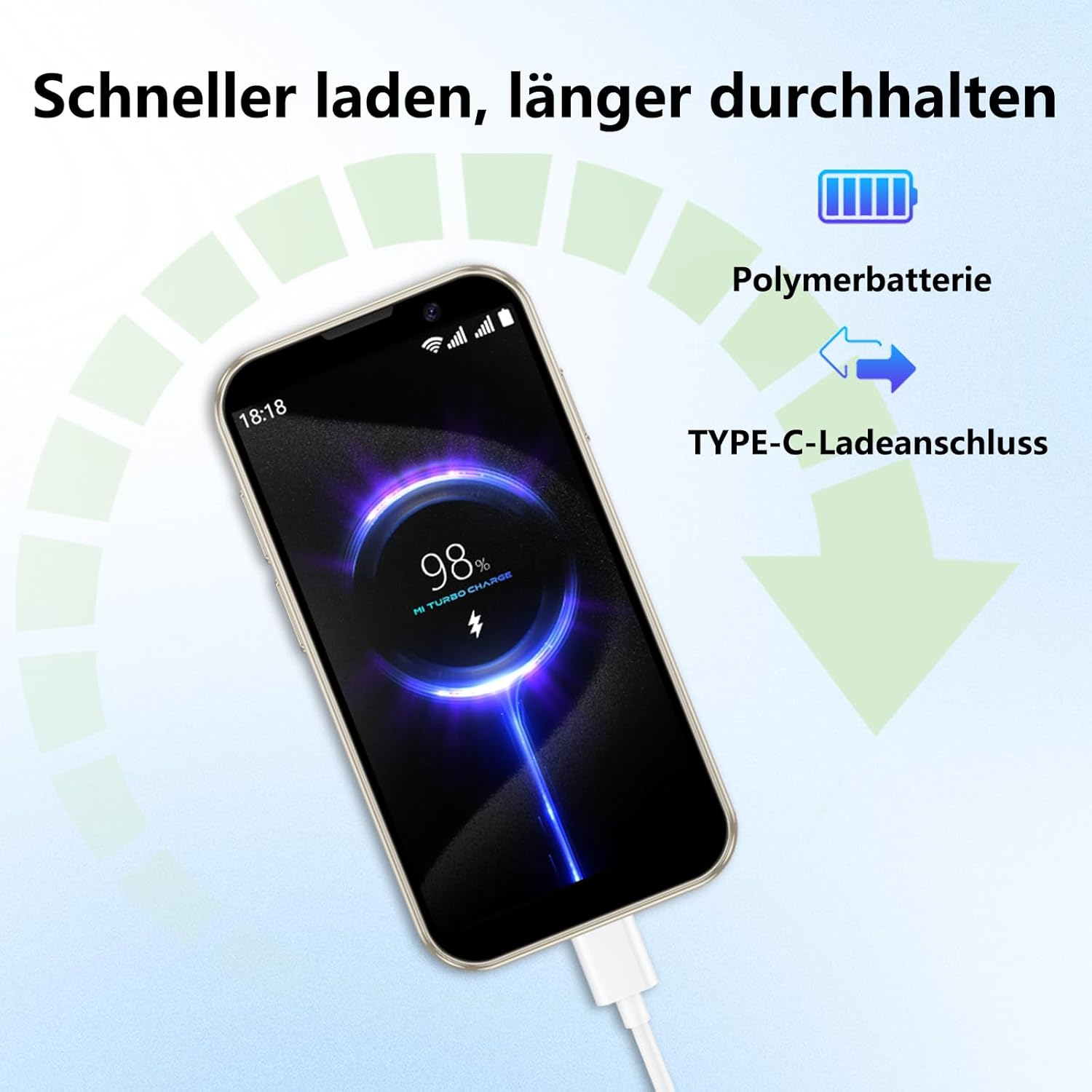
Image: Demonstrating the face recognition feature for secure device access.
2.5 Connectivity
- Wi-Fi: Connect to wireless networks for internet access. Go to Settings > Network & Internet > Wi-Fi.
- Bluetooth: Pair with other Bluetooth devices like headphones or speakers. Go to Settings > Connected devices > Bluetooth.
- Hotspot: Share your phone's mobile data connection with other devices. Go to Settings > Network & Internet > Hotspot & tethering.
- FM Radio: The device includes an FM radio function.
2.6 Scheduled Power On/Off
You can set a schedule for the phone to automatically power on or off. This feature can be found in Settings > Scheduled power on/off.
3. Maintenance
3.1 Cleaning the Device
To clean your smartphone, use a soft, lint-free cloth. Avoid using harsh chemicals, abrasive cleaners, or aerosol sprays, as these can damage the screen or finish.
3.2 Software Updates
Keep your device's software updated to ensure optimal performance and security. You can check for updates by going to Settings > System > System update.
3.3 Battery Care
- Avoid exposing the battery to extreme temperatures.
- Do not puncture or disassemble the battery.
- Use only approved chargers and cables.
4. Troubleshooting
| Problem | Solution |
|---|---|
| Device does not power on. | Ensure the battery is charged. Connect the charger and try again. If the issue persists, perform a forced restart by holding the power button for 10-15 seconds. |
| Cannot connect to Wi-Fi. | Check if Wi-Fi is enabled in settings. Restart your router and the phone. Ensure you are entering the correct password. |
| SIM card not detected. | Ensure the SIM card is correctly inserted into the tray. Restart the phone. Check if the SIM card is active with your service provider. |
| Apps are slow or crashing. | Close unnecessary background apps. Clear app cache (Settings > Apps > [App Name] > Storage > Clear cache). Restart the device. Ensure sufficient storage space is available. |
| Battery drains quickly. | Reduce screen brightness. Close unused apps. Turn off Wi-Fi, Bluetooth, or GPS when not in use. Check battery usage in settings to identify power-hungry apps. |
5. Specifications
| Feature | Detail |
|---|---|
| Brand | BezosMax i |
| Model Name | XS18 Pro-HEI |
| Operating System | Android |
| CPU Model | Cortex A13 1.2 GHz Quad-Core Processor |
| RAM | 2 GB |
| Internal Storage (ROM) | 16 GB |
| Expandable Storage | MicroSD card support |
| Screen Size | 3.0 Inches |
| Resolution | 1280 x 720 |
| Cellular Technology | 3G |
| Wireless Carrier | Unlocked |
| Connectivity | Bluetooth, Wi-Fi, Cellular |
| Charging Port | USB Type-C |
| Special Features | Dual SIM, Mini Smartphone, Face Recognition, Scheduled Power On/Off, FM Radio |
| Battery Composition | Lithium-ion (900 mAh) |
| Dimensions | 90 x 46 x 10.5 mm (approximate) |
| Weight | 138g |
6. Warranty Information
Specific warranty details for the BezosMax i Mini Smartphone XS18 Pro-HEI are not provided in this document. Please refer to the warranty card included with your product packaging or contact the retailer for information regarding warranty coverage and terms.
7. Customer Support
For technical assistance, troubleshooting beyond this manual, or service inquiries, please contact your point of purchase or refer to the official BezosMax i website for support contact details. Keep your purchase receipt and product model number (XS18 Pro-HEI) ready when contacting support.