
1. Introduction
This manual provides instructions for the ELECOM External SSD 250GB (Model: ESD-EPB0250GBK). This portable Solid State Drive offers high-speed data transfer and is designed for convenient use with various devices, including iPhone 15 series, personal computers, and tablets. It features an integrated USB Type-C cable and magnetic attachment for enhanced portability and ease of use.

Image: The ELECOM External SSD ESD-EPB0250GBK, a compact black device with an integrated USB-C cable.
2. Key Features
- High-Speed Data Transfer: Supports USB 10Gbps (USB3.2 Gen2) with read speeds up to 1000MB/s and write speeds up to 980MB/s. This allows for rapid copying of large files, photos, videos, and music.
- Integrated Type-C Cable with L-shaped Connector: The built-in USB Type-C cable is designed for neat storage and features an L-shaped connector to prevent interference with device cases, allowing for comfortable operation even when connected.
- Magnetic Attachment for iPhone: Equipped with magnets, the SSD can be securely attached to the back of MagSafe-compatible iPhones, preventing it from dangling and allowing for stable operation during use.
- ProRes Video Recording Support: Enables direct saving of 4K/60fps ProRes video footage from compatible iPhones (iPhone 15 Pro, iPhone 15 Pro Max as of July 2024).
- Compact and Lightweight Design: Weighing approximately 90g and with compact dimensions, it is highly portable and easy to carry.
- Durability and Efficiency: Being a Solid State Drive, it is shock-resistant, operates quietly, and is energy-efficient compared to traditional hard disk drives.
- Security Software (PASS): Downloadable "PASS (Password Authentication Security System)" software with automatic password authentication for up to three registered PCs. This prevents data leakage in case of theft or loss.
- Eco-Friendly Packaging: The product features paperless instructions and minimal packaging (paper, cardboard, polybag only) as part of ELECOM's "THINK ECOLOGY" initiative.

Image: A visual representation of the SSD's high-speed data transfer capabilities, showing read speeds of 1000 MB/s and write speeds of 980 MB/s.

Image: A close-up of the L-shaped USB Type-C connector, designed to fit snugly against a device without obstructing its use, even with a case.

Image: The external SSD is shown magnetically attached to the back of an iPhone, demonstrating its secure and convenient placement.

Image: An iPhone with the ELECOM SSD attached, illustrating its capability to directly save 4K/60fps ProRes video during recording.

Image: A diagram showing the dimensions (approx. 100.0mm x 57.7mm x 13.5mm) and weight (approx. 90g) of the SSD.
Video: An official product introduction video from ELECOM, highlighting the benefits of SSDs over traditional HDDs and USB memory, focusing on speed, compactness, and durability. It showcases various ELECOM SSD models.
3. Setup Guide
3.1. System Requirements
Ensure your device meets the following operating system requirements:
- Windows: Windows 11 / 10
- macOS: macOS Sonoma 14 / Ventura 13 / Monterey 12
- iOS: iOS 17 (for iPhone 15 series)
- iPadOS: iPadOS 17 / 16 / 15
- Game Consoles: PlayStation 5 (for storing PlayStation 4 game data)
Note: Full compatibility with all devices, OS versions, and applications is not guaranteed. Please check the compatibility list on the ELECOM website for verified devices.

Image: A graphic detailing the compatible operating systems (iOS, iPadOS, macOS, Windows) and game consoles (PlayStation 5) for the ELECOM SSD.
3.2. Connecting the SSD
The SSD features an integrated USB Type-C cable. Simply plug the Type-C connector into your compatible device's USB Type-C port.
- For iPhone 15 series: Connect the L-shaped USB Type-C connector to your iPhone's port. The magnetic attachment will help secure the SSD to the back of your phone.
- For PCs/Tablets: Connect the USB Type-C connector to an available USB Type-C port on your computer or tablet. Ensure the port supports USB 10Gbps (USB3.2 Gen2) for optimal performance.
- For PlayStation 5: Connect the USB Type-C connector to an available USB port on your PlayStation 5.

Image: The SSD connected to an iPhone and a PlayStation 5, illustrating its simple plug-and-play functionality.
3.3. Initial Formatting
The SSD comes pre-formatted in exFAT, making it ready for immediate use with most compatible operating systems without requiring initial formatting.
4. Operating Instructions
4.1. Data Transfer
Once connected, the SSD will appear as an external drive on your computer or device. You can drag and drop files, copy and paste, or use your system's file management tools to transfer data to and from the SSD.
- For optimal speed, ensure your device's USB port supports USB 10Gbps (USB3.2 Gen2).
- Ensure no other high-bandwidth operations are running in the background on your device.
4.2. Using with iPhone for ProRes Recording
For iPhone 15 Pro and iPhone 15 Pro Max users, connect the SSD to your iPhone. You can then select the external SSD as the storage destination for 4K/60fps ProRes video recording directly from your iPhone's camera app.
4.3. Using with PlayStation 5
Connect the SSD to your PlayStation 5 to store PlayStation 4 game data. This helps free up internal storage on your console. Please note that PlayStation 5 game software cannot be launched directly from external storage.
4.4. Using Security Software "PASS"
The "PASS (Password Authentication Security System)" software can be downloaded from the ELECOM website. This software allows you to set a password for the SSD. Once registered on up to three PCs, you can access the data without re-entering the password. If connected to an unregistered PC, a password will be required, preventing unauthorized access and data leakage in case of loss or theft.
5. Maintenance
To ensure the longevity and optimal performance of your ELECOM External SSD, follow these general maintenance guidelines:
- Handle with Care: Although the SSD is shock-resistant, avoid dropping it or subjecting it to strong impacts.
- Keep Clean: Wipe the exterior with a soft, dry cloth. Do not use liquid cleaners or solvents.
- Proper Disconnection: Always safely eject the SSD from your computer or device before physically disconnecting it to prevent data corruption.
- Temperature and Humidity: Store and operate the SSD within recommended temperature and humidity ranges to avoid damage.
- Firmware Updates: Periodically check the ELECOM website for any available firmware updates for your SSD model to ensure the best performance and compatibility.
6. Troubleshooting
If you encounter issues with your ELECOM External SSD, please refer to the following common solutions:
- SSD Not Recognized:
- Ensure the USB Type-C cable is securely connected to both the SSD and your device.
- Try connecting the SSD to a different USB Type-C port on your device.
- Test the SSD with another compatible device to determine if the issue is with the SSD or the original device.
- Restart your computer or device.
- Slow Data Transfer Speeds:
- Verify that your device's USB port supports USB 10Gbps (USB3.2 Gen2). Older USB standards will result in slower speeds.
- Ensure no other high-bandwidth operations are running in the background on your device.
- Check the cable for any damage.
- Cannot Access Data (PASS Software):
- If you are connecting to an unregistered PC, ensure you enter the correct password.
- If you have forgotten your password, refer to the PASS software documentation for recovery options (if available).
For more detailed troubleshooting steps or persistent issues, please visit the official ELECOM support website or contact customer service.
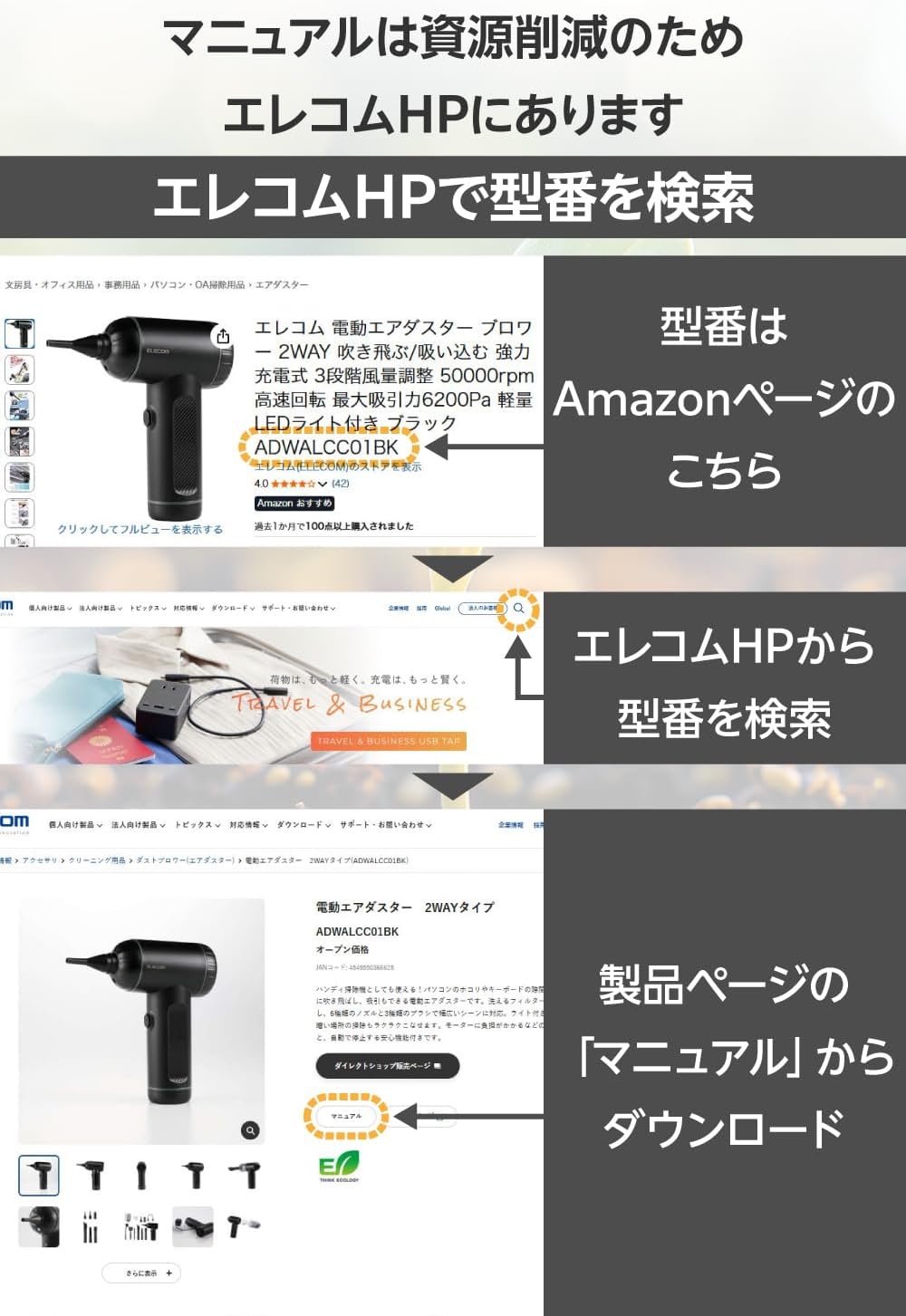
Image: A guide showing how to locate and download the full instruction manual from the ELECOM official website by searching for the model number.
7. Specifications
| Model Number | ESD-EPB0250GBK |
| Capacity | 250GB |
| Interface | USB 10Gbps (USB3.2 Gen2) |
| Connector Type | USB Type-C (Integrated L-shaped cable) |
| Data Transfer Speed | Read: Max 1000MB/s, Write: Max 980MB/s (Measured in ELECOM environment) |
| Compatible OS (Windows) | Windows 11 / 10 |
| Compatible OS (macOS) | macOS Sonoma 14 / Ventura 13 / Monterey 12 |
| Compatible OS (iOS) | iOS 17 |
| Compatible OS (iPadOS) | iPadOS 17 / 16 / 15 |
| Compatible Game Consoles | PlayStation 5 (for PS4 software data storage only) |
| Dimensions (W×D×H) | Approx. 100.0mm × 57.7mm × 13.5mm (excluding connector) |
| Weight | Approx. 90g |
| Power Supply | USB Bus Power |
| Color | Black |
| Pre-formatted | exFAT |
| Warranty Period | 1 Year |
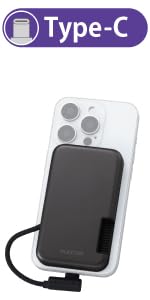
Image: A table showing estimated storage capacities for photos, videos, music, and comics across 250GB, 500GB, and 1TB SSD models.
8. Warranty and Support
8.1. Warranty Information
This ELECOM External SSD comes with a 1-year warranty from the date of purchase. Please retain your proof of purchase for warranty claims. The warranty covers defects in materials and workmanship under normal use.
8.2. Customer Support
For product inquiries, technical support, or warranty service, please contact ELECOM Customer Support:
- ELECOM General Information Center
- TEL: 0570-084-465
- FAX: 0570-050-012
- Operating Hours: 10:00 - 19:00 (Year-round)
You can also find additional resources, FAQs, and the full product manual on the official ELECOM website.
