
1. Introduction
This manual provides essential instructions for the safe and effective use of your Dekala PlaySmart Kids Phone. Please read it thoroughly before operating the device and retain it for future reference.
2. Safety Information
Warning:
- This product is intended for children aged 36 months and older.
- Adult supervision is recommended during use.
- Do not expose the device to water or extreme temperatures.
- Keep small parts away from young children to prevent choking hazards.
- Use only the provided charging cable and adapter.
3. Package Contents
Please check the package for the following items:
- Dekala PlaySmart Kids Phone
- USB Charging Cable
- User Manual (this document)
- (Additional accessories may vary by package)
4. Product Overview
The Dekala PlaySmart Kids Phone is designed to provide an engaging and educational experience for children. It features a 2.8-inch HD touchscreen and a durable build.

Figure 1: Dekala PlaySmart Kids Phone, showing the front screen and the back panel with camera lenses.
Key Features:
- 180° Rotatable Camera: For photos and video recording.
- Music Player: Enjoy pre-loaded or user-added music.
- Video Recorder: Capture moments.
- Educational Games: 26 puzzle games to stimulate learning.
- Habit Tracker: Helps children manage daily routines.
- Calendar: Basic time management.
- Learning Cards & Audiobooks: 100 learning cards and 10 audio storybooks for educational content.
- Parental Controls: Manage screen time and access to features.
5. Setup
5.1. Charging the Device
- Connect the USB charging cable to the charging port on the phone.
- Plug the other end of the USB cable into a compatible USB power adapter (not included) or a computer's USB port.
- The screen will indicate charging status. Allow approximately 2-3 hours for a full charge.
- Disconnect the charger once fully charged.
5.2. Powering On/Off
- To power on: Press and hold the power button (usually located on the side) until the screen lights up.
- To power off: Press and hold the power button, then follow the on-screen prompts to shut down.
5.3. Initial Setup
Upon first power-on, you may be prompted to set the date, time, and language. Follow the on-screen instructions.
6. Operating Instructions

Figure 2: Main interface displaying various applications and customizable wallpapers.
6.1. Navigation
- Touchscreen: Tap icons to open applications, swipe to navigate between screens.
- Home Button: A physical or on-screen button (usually at the bottom center) to return to the main screen.
6.2. Camera and Video Recorder
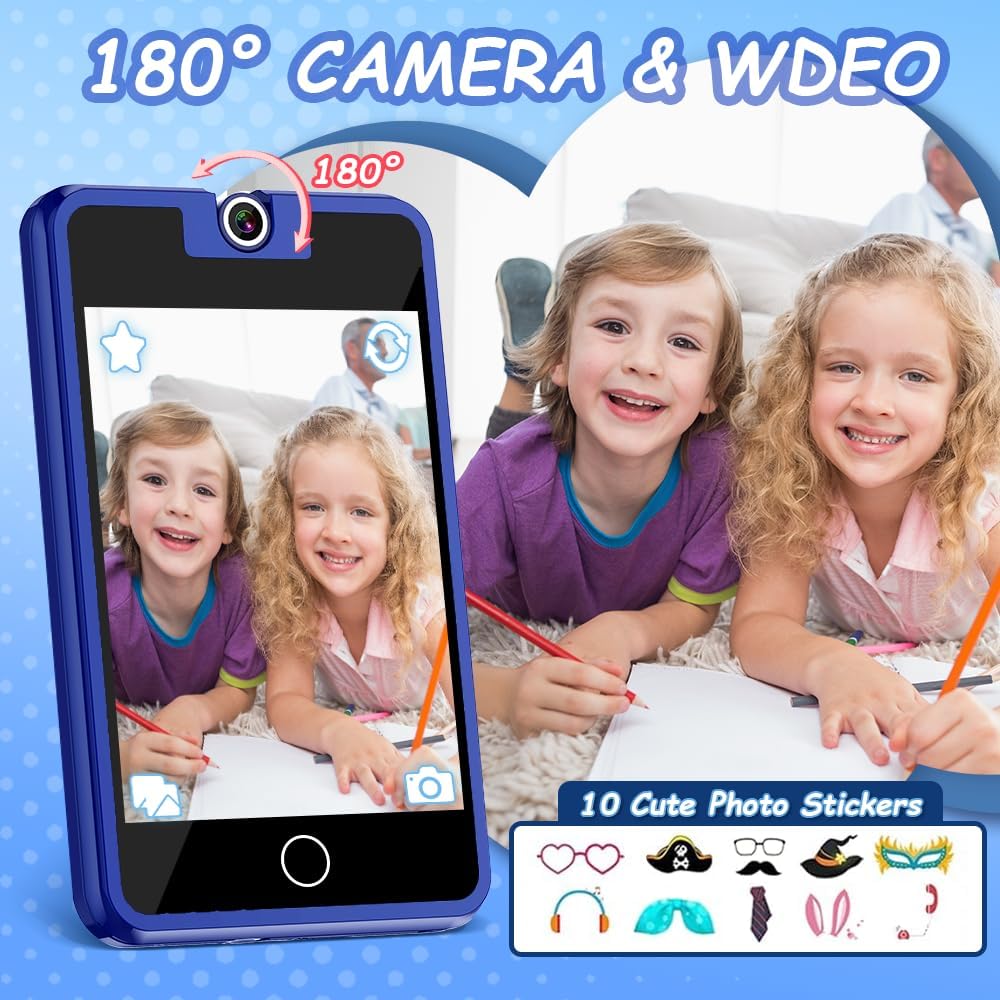
Figure 3: The 180° rotatable camera in action, allowing for both front and rear-facing shots. Includes options for fun photo stickers.
- Tap the "Camera" icon to open the camera application.
- Rotate the camera lens 180° to switch between front and rear views.
- Tap the shutter button to take a photo or start/stop video recording.
- Explore fun photo stickers and filters within the camera app.
6.3. Music Player

Figure 4: Music player interface, showing track information and playback controls.
- Tap the "Music" icon to access the music player.
- Browse pre-loaded songs or any music files transferred to the device.
- Use the on-screen controls for play, pause, skip, and volume adjustment.
6.4. Educational Games

Figure 5: Example of an educational puzzle game and the variety of games available.
- Tap the "Games" icon to view the selection of 26 puzzle games.
- Select a game to start playing.
- Parental controls can be used to manage access to games (see section 6.7).
6.5. Habit Tracker

Figure 6: The habit tracker interface, designed to help children manage and track daily routines.
- Tap the "Habit Tracker" icon.
- Set up and track daily activities such as "Get Up," "Brush Your Teeth," "Homework," etc.
- Use the alarm and timer functions to assist with habit formation.
6.6. Learning Cards and Audiobooks

Figure 7: Learning content including 100 learning cards covering various themes and 10 audio storybooks.
- Access "Knowledge Card" for 100 learning cards on various topics.
- Open "Story" to listen to 10 pre-loaded audiobooks.
6.7. Parental Controls
The device includes parental control features to manage screen time and access to specific applications or content.
- Navigate to the "Settings" menu.
- Locate and select "Parental Control" or a similar option.
- Set a password (if prompted) to secure the settings.
- Adjust settings for screen time limits, game access, and other features as desired.
7. Maintenance
- Cleaning: Use a soft, dry cloth to clean the screen and body of the device. Do not use liquid cleaners or abrasive materials.
- Storage: Store the device in a cool, dry place away from direct sunlight when not in use.
- Battery Care: To prolong battery life, avoid fully discharging the battery frequently. Charge the device regularly.
8. Troubleshooting
| Problem | Possible Cause | Solution |
|---|---|---|
| Device does not power on. | Low battery. | Charge the device for at least 30 minutes. |
| Screen is unresponsive. | Temporary software glitch. | Perform a soft reset by holding the power button for 10-15 seconds. |
| Cannot hear sound. | Volume is too low or muted. | Check volume settings in the "Settings" menu or use volume buttons. |
| Games are not accessible. | Parental controls enabled. | Adjust parental control settings in the "Settings" menu. |
9. Specifications
- Model: PlaySmart
- Screen: 2.8-inch HD Touchscreen
- Camera: 180° Rotatable
- Dimensions: 2 x 0.3 x 3 inches
- Weight: 5 ounces
- Battery: 1 Nonstandard Battery (included)
- Recommended Age: 36 months +
- Brand: Dekala
10. Warranty Information
Specific warranty details are not provided in the product information. Please refer to the product packaging or contact the manufacturer directly for warranty terms and conditions.
11. Customer Support
For further assistance, technical support, or inquiries, please contact Dekala customer service through their official website or the contact information provided on the product packaging.
Website: Dekala Store on Amazon