
calonny C503
Calonny 5G AX3000 WiFi 6 Router User Manual
Model: C503
1. Introduction
This manual provides comprehensive instructions for the Calonny 5G AX3000 WiFi 6 Router (Model C503). It covers product overview, setup, operation, maintenance, and troubleshooting to ensure optimal performance and user experience. Please read this manual carefully before using the device.
1.1 Package Contents
Ensure all items are present in the package:
- Calonny 5G AX3000 WiFi 6 Router (Model C503)
- DC Power Adapter (DC c5021)
- User Manual (This document)
If any items are missing or damaged, please contact customer support.
2. Product Features
The Calonny 5G AX3000 WiFi 6 Router is designed for high-speed internet connectivity and versatile networking. Key features include:
- 5G NR TDD Connectivity: Supports high-speed 5G mobile broadband with up to 2.6 Gbps data transfer rates.
- WiFi 6 (802.11ax): Provides faster speeds, lower latency, and increased capacity for multiple devices.
- Dual Band Operation: Supports both 2.4GHz and 5GHz Wi-Fi frequencies for flexible connectivity.
- Multi-function Ports: Includes 1x RJ11 port for VoIP/FAX telephony and 2x Gigabit LAN/WAN ports (one combinable as WAN) for connecting PCs, NAS, or IP cameras.
- Advanced Network Control: Allows manual optimization of WiFi channels and specific 5G band locking (n78/n1/n3) to minimize interference.
- Enterprise-Grade Coverage: MU-MIMO technology and 4 built-in high-gain antennas provide coverage up to 150 square meters, suitable for offices and open spaces.
- Integrated Security: Features SPI Firewall, WPA3 encryption, VLAN isolation for guest/main networks, parental control, and bandwidth scheduling via web interface.
- Industrial Design: DC power input, aluminum heat sink for efficient cooling, and compact dimensions.

Figure 2.1: Front view of the Calonny 5G AX3000 WiFi 6 Router, showing the WPS button and indicator lights for 5G, 4G, Wi-Fi, and Power.

Figure 2.2: Rear view of the Calonny 5G AX3000 WiFi 6 Router, highlighting the RJ11 and Gigabit LAN/WAN ports.
3. Setup Guide
Follow these steps to set up your Calonny 5G AX3000 WiFi 6 Router:
3.1 SIM Card Installation
- Locate the Nano SIM card slot on the router. This is typically found at the bottom or side of the device.
- Insert your Nano SIM card into the slot with the gold contacts facing down and the notched corner aligned correctly. Push until it clicks into place.
- Ensure the SIM card is securely seated.

Figure 3.1: Illustration showing the SIM card slot location on the Calonny Router.
3.2 Powering On
- Connect the DC power adapter (DC c5021) to the router's power input port.
- Plug the other end of the power adapter into a standard electrical outlet.
- The power indicator light on the router should illuminate, indicating the device is powering on. Wait for the router to fully boot up, which may take a few minutes.
3.3 Initial Configuration
- Connect to the Router:
- Via Wi-Fi: On your computer or smartphone, search for the Wi-Fi network name (SSID) printed on the label at the bottom of the router. Connect to this network using the default Wi-Fi password (also on the label).
- Via Ethernet: Connect an Ethernet cable from one of the router's LAN ports to your computer's Ethernet port.
- Access Web Interface: Open a web browser (e.g., Chrome, Firefox) and type 192.168.1.1 into the address bar, then press Enter.
- Login: Enter the default username and password. These are usually "admin" for both, or as specified on the router's label.
- Follow Setup Wizard: The router's web interface may guide you through an initial setup wizard. This typically includes setting a new administrator password, configuring Wi-Fi network names (SSIDs) and passwords, and checking internet connectivity.
- Verify Internet Connection: Once configured, check the 5G/4G indicator light on the router. A solid light indicates a successful connection to the mobile network.
4. Operating Instructions
4.1 Connecting Devices
- Wi-Fi Devices: Connect smartphones, tablets, laptops, and other Wi-Fi enabled devices to your router's Wi-Fi network using the configured SSID and password.
- Wired Devices: Use Ethernet cables to connect devices like desktop PCs, gaming consoles, or network-attached storage (NAS) to the router's LAN ports.
- VoIP/FAX Devices: Connect a VoIP phone or FAX machine to the RJ11 port for internet telephony services, if supported by your SIM card provider.
4.2 Wi-Fi Settings and Optimization
Access the web interface (192.168.1.1) to manage your Wi-Fi settings:
- Change SSID/Password: Navigate to the Wi-Fi settings section to modify your network names and passwords for both 2.4GHz and 5GHz bands.
- Channel Optimization: Manually select Wi-Fi channels to avoid interference from neighboring networks. For 2.4GHz, channels 1, 6, and 11 are generally recommended. For 5GHz, choose non-DFS channels if available.
- Band Steering: If available, enable band steering to automatically direct devices to the optimal Wi-Fi band (2.4GHz or 5GHz).
- WPS Function: Press the WPS button on the router and on your WPS-compatible device to quickly connect without entering a password.
4.3 Advanced Network Features
The router offers several advanced features for network management:
- 5G Band Locking: In the network settings, you may find options to manually block specific 5G bands (e.g., n78, n1, n3) to improve stability or performance in certain areas.
- LAN/WAN Configuration: One of the Gigabit LAN ports can be configured as a WAN port, allowing the router to function as a primary router connected to an existing modem or as an extender in a larger network.
- Security Settings:
- Firewall: Configure SPI Firewall rules for enhanced network security.
- WPA3 Encryption: Ensure your Wi-Fi network uses WPA3 for the strongest encryption.
- VLAN Isolation: Create separate networks for guests to isolate them from your main network, enhancing security.
- Parental Control: Set up time limits or content filtering for connected devices.
- Bandwidth Scheduling: Manage internet access times or allocate bandwidth for specific devices.
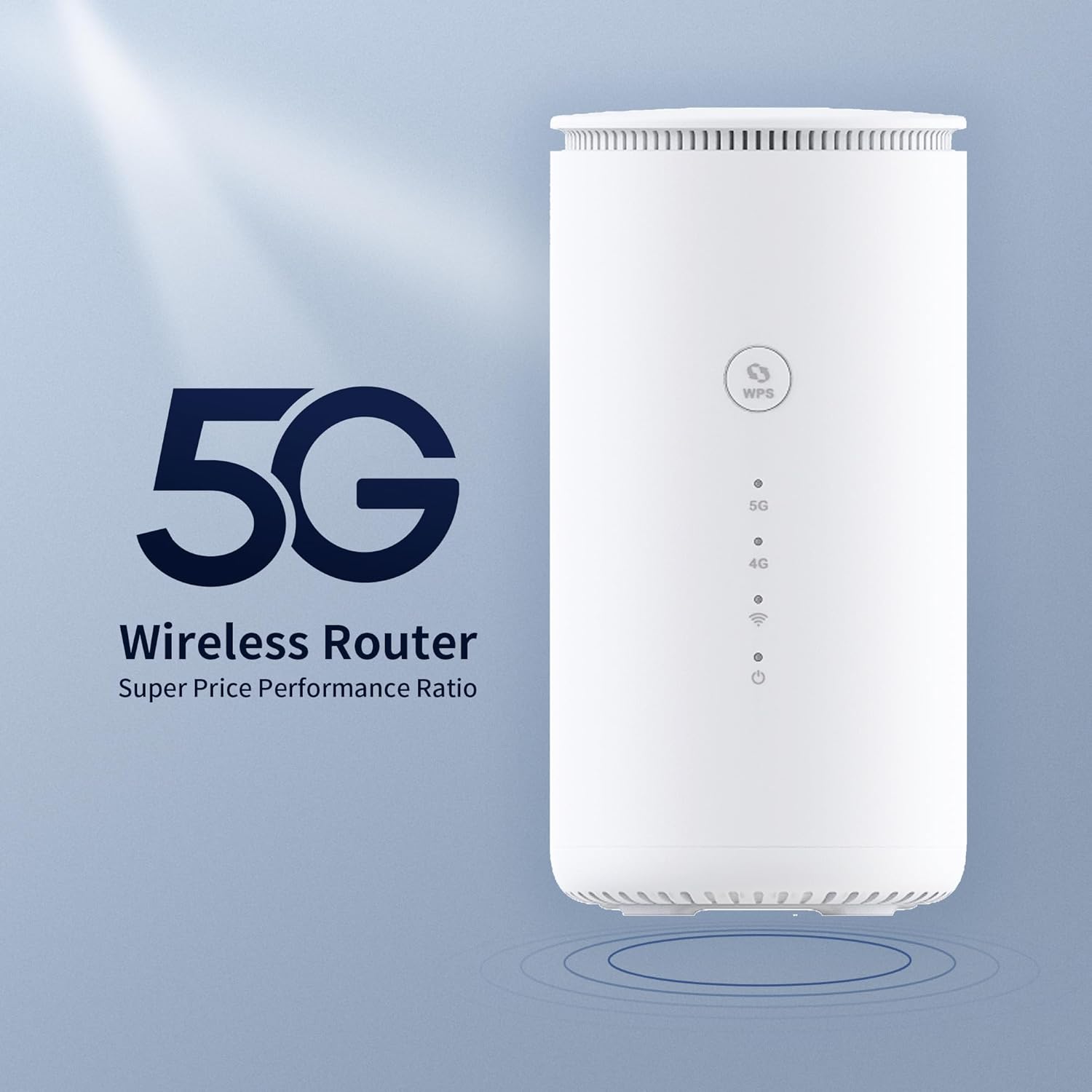
Figure 4.1: Diagram illustrating the Calonny Router's role in a home network, showing connectivity to various devices and the 5G cellular network.
5. Maintenance
Proper maintenance ensures the longevity and optimal performance of your router:
- Placement: Place the router in a central location, away from obstructions, large metal objects, and other electronic devices that may cause interference. Ensure good airflow around the device.
- Cleaning: Regularly clean the router's exterior with a soft, dry cloth. Do not use liquid cleaners or aerosols.
- Firmware Updates: Periodically check the manufacturer's website or the router's web interface for firmware updates. Keeping the firmware updated can improve performance, add new features, and enhance security.
- Restarting: If you experience network issues, try restarting the router by unplugging the power adapter, waiting 10 seconds, and then plugging it back in.
- Temperature: The router is designed with an aluminum heat sink for efficient cooling. Ensure it is not placed in an enclosed space where heat can build up.
6. Troubleshooting
This section addresses common issues you might encounter with your Calonny router.
6.1 No Internet Connection
- Check SIM Card: Ensure the SIM card is correctly inserted and active with your mobile network provider.
- Signal Strength: Check the 5G/4G indicator light. If it's off or blinking, the router may not be receiving a strong enough signal. Try relocating the router to an area with better mobile signal reception.
- APN Settings: Access the web interface and verify that the Access Point Name (APN) settings are correct for your mobile network provider. Some providers may require specific username/password for APN.
- Restart Router: Power cycle the router by unplugging and replugging the power adapter.
- Provider Issues: Contact your mobile network provider to check for service outages in your area.
6.2 Slow Wi-Fi Speed or Frequent Disconnections
- Interference: Move the router away from other electronic devices (cordless phones, microwaves, Bluetooth devices) that might cause interference.
- Channel Congestion: In the web interface, try changing the Wi-Fi channel for both 2.4GHz and 5GHz bands to a less congested one.
- Distance/Obstacles: Ensure devices are within reasonable range of the router and there are no major physical obstructions (thick walls, metal objects) blocking the signal.
- Too Many Devices: While the router supports up to 32 active devices, excessive simultaneous high-bandwidth usage can impact performance.
- Firmware: Ensure the router's firmware is up to date.
6.3 Cannot Access Web Interface (192.168.1.1)
- IP Address: Ensure your computer is set to obtain an IP address automatically (DHCP).
- Cable Connection: If connecting via Ethernet, ensure the cable is securely plugged into a LAN port on the router and your computer.
- Firewall/Antivirus: Temporarily disable any firewall or antivirus software on your computer that might be blocking access.
- Router IP: Confirm the router's default IP address is indeed 192.168.1.1. If it was changed, use the new IP.
- Reset Router: As a last resort, perform a factory reset. Locate the reset button (often a small pinhole) on the router, press and hold it for 5-10 seconds with a paperclip until the lights flash. Warning: This will erase all custom settings and revert to factory defaults.
6.4 Overheating
- Ensure the router is placed in a well-ventilated area.
- Do not cover the router or place it near heat sources.
- If overheating persists, contact customer support.
7. Specifications
| Feature | Detail |
|---|---|
| Brand | Calonny |
| Model Name | C503 |
| Dimensions | 20.5 x 16.2 x 9.5 cm |
| Weight | 800 grams |
| Operating System | Linux |
| Data Transfer Rate | 2.6 Gigabit per second |
| Wireless Type | 802.11b, 802.11ax (WiFi 6), 802.11a, 802.11g, 802.11ac |
| Frequency Band Class | Dual Band (2.4 GHz, 5 GHz) |
| Number of Ports | 3 (1x RJ11, 2x Gigabit LAN/WAN) |
| Connectivity Technology | 5G, Wi-Fi, Ethernet |
| Compatible Devices | PC, Gaming Consoles, Tablets, Laptops, Smartphones |
| Included Components | DC c5021 (Power Adapter) |
8. Warranty and Support
Calonny products are designed for reliability and performance. For warranty information, please refer to the warranty card included with your product or visit the official Calonny website. If you encounter any issues not covered in this manual or require further assistance, please contact Calonny customer support through their official channels.
This product is from a small or medium-sized business registered with Amazon's Brand Registry or an artisan part of Amazon Handmade based in Italy. Your purchase supports small and medium-sized businesses.
Ask a question about this manual
Ask about setup, troubleshooting, compatibility, parts, safety, or missing instructions. Manuals+ will review the question and use this page’s manual context to help answer it.