
Plyisty Plyisty0n4h1td2yg
Plyisty Wireless Music Receiver User Manual
Model: Plyisty0n4h1td2yg
1. Introduction
This manual provides detailed instructions for the setup, operation, and maintenance of your Plyisty Wireless Music Receiver. Please read this manual thoroughly before using the device to ensure proper functionality and to maximize your listening experience.
The Plyisty Wireless Music Receiver transforms traditional audio systems into smart, wireless, multi-room streaming devices. It allows you to stream high-fidelity audio wirelessly from your smartphone, tablet, or computer to your existing HiFi speakers.

Figure 1: Plyisty Wireless Music Receiver. This image shows the compact, circular design of the device with a dark top surface and a silver-grey base, featuring a 'STEREO' audio output port on the front.
2. Package Contents
Please verify that all items listed below are included in your package. If any items are missing or damaged, please contact customer support.
- 1 x HiFi Music Receiver
- 1 x 3.5mm Audio Cable
- 1 x USB Power Cable
- 2 x User Manual (this document)

Figure 2: Included accessories. The image displays the Plyisty Wireless Music Receiver alongside the 3.5mm audio cable and the USB power cable, all neatly bundled.
3. Product Overview
The Plyisty Wireless Music Receiver is designed for seamless integration with your home audio system. Key features include:
- Wireless HiFi Music Streaming: Connects to your existing speakers to stream music wirelessly.
- Multi-Room Audio: Synchronously stream music to up to 8 rooms, playing the same song or different songs simultaneously.
- Strong Signal Range: Offers a robust wireless signal within your network.
- App Control: Manage all speakers and music playback via the AudioCast app.
- Broad Compatibility: Supports DLNA for UPnP music playback and various online music services like Spotify, TuneIn Radio, and DEEZER. Compatible with Android 4.0+, iOS 7+, and OS X 10.9+ devices.
- Additional Features: Includes music alarm and sleep timer functions.
3.1 Device Components
Figure 3: Front view. The front of the device features a 3.5mm audio output port labeled "STEREO".
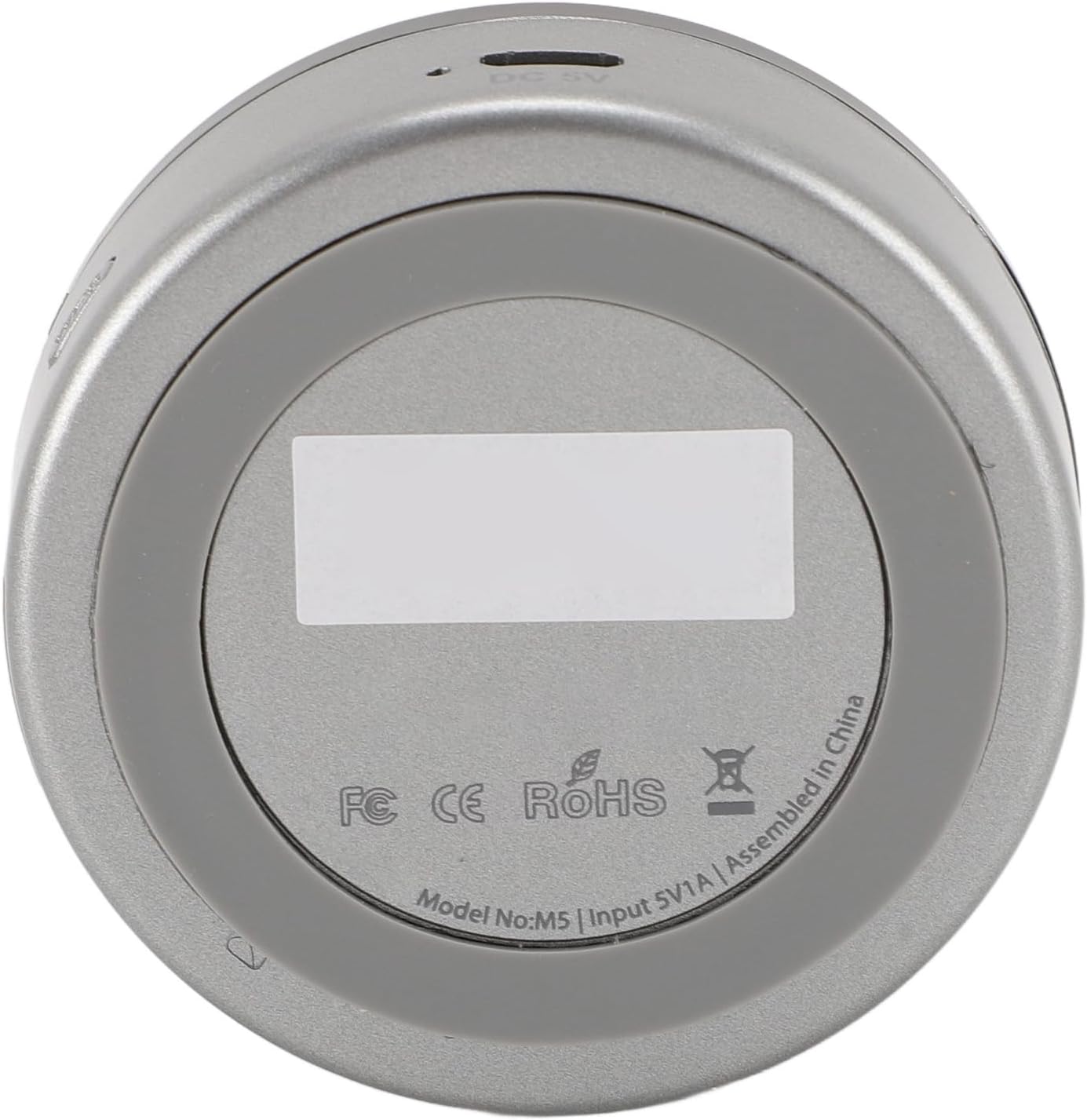
Figure 4: Rear/Bottom view. The rear of the device includes a DC 5V power input port and regulatory compliance markings (FC, CE, RoHS), along with the model number.
4. Setup
4.1 Connecting the Device
- Power Connection: Connect the supplied USB power cable to the DC 5V port on the receiver and plug the other end into a USB power adapter (not included) or a USB port on your audio system.
- Audio Output: Connect the 3.5mm audio cable from the receiver's "STEREO" output port to the AUX input of your amplifier, active speakers, or home audio system.
4.2 App Installation and Network Configuration
- Download the AudioCast App: Search for "AudioCast" in your smartphone's app store (Google Play Store for Android or Apple App Store for iOS) and install it.
- Connect to Wi-Fi:
- Ensure your smartphone is connected to your home Wi-Fi network.
- Open the AudioCast app. The app will guide you through connecting the receiver to your home Wi-Fi network. Follow the on-screen instructions.
- During the initial setup, the receiver may create its own temporary Wi-Fi network. Connect your phone to this network if prompted, then proceed to connect the receiver to your home Wi-Fi.
- Device Recognition: Once connected to your home Wi-Fi, the AudioCast app should detect the receiver. You can then name your device (e.g., "Living Room Speaker").

Figure 5: Receiver connected to a speaker. The image shows the compact receiver placed next to a white speaker, illustrating a typical setup.
5. Operating Instructions
5.1 Basic Music Playback
- Open the AudioCast app on your smartphone or tablet.
- Select the Plyisty Wireless Music Receiver from the device list.
- Choose your desired music source (e.g., local music, Spotify, TuneIn Radio, DEEZER, or other supported online services).
- Start playback. You can control volume, skip tracks, and pause directly from the app.
5.2 Multi-Room Streaming
The Plyisty Wireless Music Receiver supports multi-room audio, allowing you to synchronize music across multiple devices (up to 8) in different rooms.
- Ensure all your Plyisty Wireless Music Receivers are connected to the same Wi-Fi network and configured in the AudioCast app.
- In the AudioCast app, you can group devices to play the same music simultaneously or select individual devices to play different music.
- Follow the app's interface to create groups or manage individual playback zones.
5.3 DLNA/UPnP Playback
The device supports DLNA (Digital Living Network Alliance) for playing music from compatible UPnP (Universal Plug and Play) media servers on your network. Access this feature through the AudioCast app's source selection.
5.4 Music Alarm and Sleep Timer
Utilize the AudioCast app to set a music alarm to wake up to your favorite tunes or a sleep timer to automatically turn off music after a set period.
6. Maintenance
- Cleaning: Use a soft, dry cloth to clean the device. Do not use liquid cleaners or aerosols.
- Storage: Store the device in a cool, dry place away from direct sunlight and extreme temperatures.
- Handling: Avoid dropping the device or subjecting it to strong impacts.
- Firmware Updates: Periodically check the AudioCast app for available firmware updates to ensure optimal performance and access to new features.
7. Troubleshooting
| Problem | Possible Cause | Solution |
|---|---|---|
| No power/Device not turning on. | Power cable not connected properly or faulty power source. | Ensure the USB power cable is securely connected to the device and a working USB power adapter. Try a different USB port or adapter. |
| No sound output. | Audio cable not connected, incorrect input selected on amplifier, or volume too low. | Check the 3.5mm audio cable connection. Ensure your amplifier/speakers are set to the correct input (e.g., AUX). Increase volume on both the app and your audio system. |
| Cannot connect to Wi-Fi. | Incorrect Wi-Fi password, device too far from router, or network interference. | Verify your Wi-Fi password. Move the device closer to your Wi-Fi router. Restart your router and the receiver. Ensure your phone is connected to the same 2.4GHz Wi-Fi band as the receiver (if applicable). |
| Music playback is interrupted or choppy. | Weak Wi-Fi signal, network congestion, or interference. | Ensure the device is within good Wi-Fi range. Reduce network traffic if possible. Avoid placing the device near other wireless devices that may cause interference. |
| AudioCast app not detecting the device. | Device not powered on, not connected to Wi-Fi, or app issue. | Confirm the device is powered on and its indicator light is active. Ensure both your phone and the receiver are on the same Wi-Fi network. Restart the app and the receiver. |
8. Specifications
| Brand | Plyisty |
| Model | Plyisty0n4h1td2yg |
| Wireless Technology | IEEE 802.11 b/g/n |
| Operating Range | Approx. 50 m / 164 ft (within the same wireless network) |
| Audio Output | 3.5mm AUX |
| Platform Support | Android 4.0 and above, iOS 7 and above, OS X 10.9 and above |
| Multi-Room Support | Up to 8 rooms |
| Dimensions | 9 x 9 x 6 cm (approx.) |
| Weight | 115 grams (approx.) |
9. Warranty and Support
For warranty information and customer support, please refer to the documentation provided at the time of purchase or contact your retailer. Keep your proof of purchase for any warranty claims.
For technical assistance or further inquiries, please visit the official Plyisty website or contact their customer service department.
Ask a question about this manual
Ask about setup, troubleshooting, compatibility, parts, safety, or missing instructions. Manuals+ will review the question and use this page’s manual context to help answer it.