
Introduction
Thank you for choosing the Fockety Webcam. This manual provides essential information for the proper setup, operation, and maintenance of your new webcam. Please read these instructions carefully before use to ensure optimal performance and longevity of the device. Keep this manual for future reference.
Product Overview
The Fockety Webcam is designed for high-quality video communication, featuring a 360-degree rotatable camera, adjustable focus, and an external noise-canceling microphone. It offers universal compatibility and plug-and-play functionality for ease of use.
Key Features:
- Universal Compatibility: Supports mainstream computer systems including Windows Vista, 7, 8, and 10.
- Exceptional Sound Clarity: Equipped with a 3-meter omnidirectional noise-canceling microphone for clear audio.
- Crisp and Detailed Video: Features an adjustable focus lens for sharp and stable video.
- 360 Degree Rotation: The camera base allows for full rotation to adjust viewing angles.
- Plug and Play: Simple USB connection without the need for complex software or driver installations.
Components:
The webcam unit consists of the camera head, a flexible gooseneck stand, a stable base, an integrated USB cable, and an external omnidirectional microphone.

Image: Front view of the Fockety Webcam, showing the camera lens, flexible stand, microphone, and base.

Image: Close-up view of the webcam lens, highlighting its adjustable focus capability.
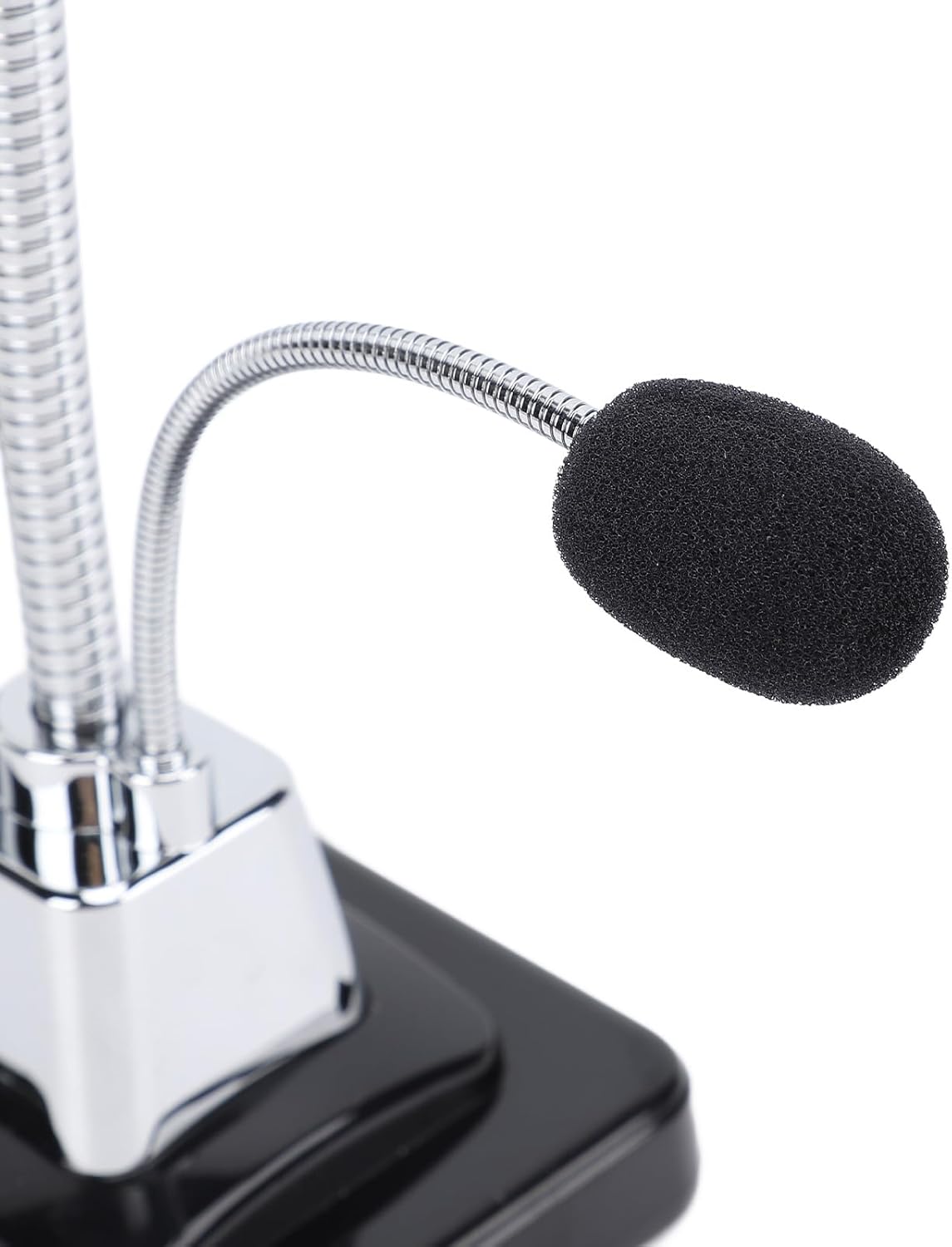
Image: Detail of the webcam showing the LED night vision fill light, which assists in low-light conditions.

Image: Close-up of the anti-slip foot pad located on the base of the webcam, designed for stability.
Setup
Follow these steps to set up your Fockety Webcam:
- Connect the Webcam: Locate an available USB port on your desktop or laptop computer. Plug the USB cable of the webcam firmly into the USB port.
- Automatic Driver Installation: Your computer's operating system (Windows Vista, 7, 8, or 10) should automatically detect the new hardware and install the necessary drivers. This process may take a few moments.
- Verify Installation: Once the installation is complete, you can verify the device in your computer's Device Manager (usually found in Control Panel or System Settings). Look for a device under "Imaging devices" or "Sound, video and game controllers."
- Access the Webcam: To use the webcam, open a video conferencing application (e.g., Zoom, Skype, Microsoft Teams) or a camera application on your computer. Select "USB Video Device" as your camera and microphone input.

Image: A person using the Fockety Webcam with a desktop computer, illustrating its universal compatibility and ease of integration.
Operating Instructions
Video Calls and Conferencing:
After successful setup, open your preferred video communication software. The webcam should be automatically recognized. If not, select "USB Video Device" from the camera and microphone settings within the application.

Image: A composite image demonstrating various applications of the webcam, including video chat, videoconferencing, office use, and personal communication.
Adjusting the Camera:
- 360 Degree Rotation: The camera head can be rotated 360 degrees on its base. Gently turn the camera to achieve your desired viewing angle.
- Adjustable Focus: To achieve a clear image, manually adjust the focus ring around the camera lens until the picture appears sharp.
- Microphone Positioning: The flexible gooseneck microphone can be bent and positioned closer to your mouth for optimal voice capture.
Maintenance
To ensure the longevity and optimal performance of your webcam, follow these maintenance guidelines:
- Cleaning the Lens: Use a soft, lint-free cloth specifically designed for optical lenses to gently wipe the camera lens. Avoid abrasive materials or harsh cleaning chemicals.
- Cleaning the Body: Wipe the webcam body and stand with a dry or slightly damp soft cloth. Do not use excessive moisture.
- Storage: When not in use, store the webcam in a clean, dry place away from direct sunlight and extreme temperatures.
- Cable Care: Avoid bending or twisting the USB cable excessively to prevent internal damage.
Troubleshooting
Common Issues and Solutions:
- Webcam not detected:
- Ensure the USB cable is securely plugged into a working USB port.
- Try a different USB port on your computer.
- Restart your computer.
- Check Device Manager to see if the device is listed or has any error indicators.
- No image or black screen in application:
- Ensure the correct camera ("USB Video Device") is selected in your application's settings.
- Close and reopen the application.
- For Windows 8, 7, Vista users: If you experience issues with the image not appearing, you may need to download and install third-party webcam software such as Amcap.
- Poor image quality (blurry/unclear):
- Manually adjust the focus ring on the camera lens.
- Ensure the lens is clean and free from dust or smudges.
- Check lighting conditions; ensure adequate illumination.
- No sound or poor microphone quality:
- Ensure the correct microphone ("USB Audio Device" or similar) is selected in your application's settings and your computer's sound settings.
- Adjust the microphone's position closer to your mouth.
- Check microphone volume levels in your computer's sound settings.
Specifications
| Feature | Specification |
|---|---|
| Model Number | Focketyk78p1wfv5g |
| Pixels | 640 x 480 |
| Interface | USB |
| Display Frame Rate | Up to 30 frames/second |
| Lighting Requirement | 10 lux.sec and above |
| Image Storage Format | BMP, JPEG |
| Microphone | External 3-meter omnidirectional noise-canceling |
| Rotation | 360 Degree |
| Item Weight | 10.2 ounces (approx. 289 grams) |
| Package Dimensions | 10.63 x 3.94 x 3.94 inches |
Warranty and Support
For warranty information, technical support, or service inquiries, please refer to the documentation provided at the point of purchase or visit the official Fockety website. Keep your purchase receipt as proof of purchase for any warranty claims.