1. Introduction
This manual provides detailed instructions for the setup, operation, and maintenance of your OKYUK T45 4G Kids Smartwatch. Please read this guide thoroughly to ensure proper use and to maximize the features of your device. The OKYUK T45 smartwatch is designed to offer communication, safety, and entertainment features for children, including 4G video calls, GPS tracking, and various utility functions.
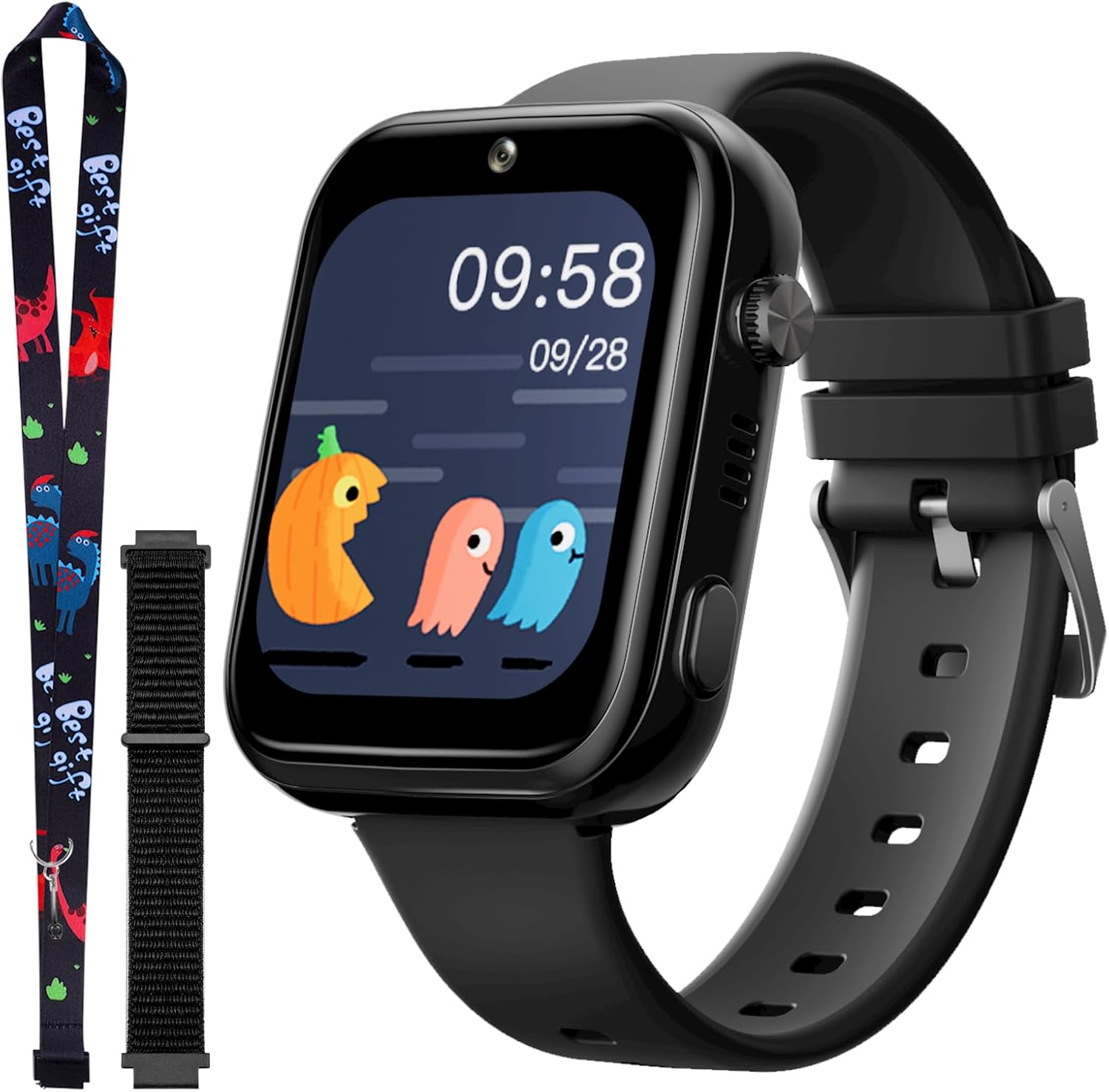
Image: The OKYUK T45 4G Kids Smartwatch, showcasing its design and included accessories.
2. Setup
2.1. Unboxing and Initial Check
Upon opening the package, verify that all components are present: the OKYUK T45 smartwatch, charging cable, and any included accessories like additional straps or lanyards.
2.2. SIM Card Installation
The OKYUK T45 smartwatch requires a Nano SIM card (not included) for 4G connectivity, calls, and advanced tracking features. Ensure the SIM card is active and supports 4G networks.
- Locate the SIM card slot on the side of the smartwatch.
- Carefully open the SIM card slot cover.
- Insert the Nano SIM card into the slot with the gold contacts facing up and the notched corner aligned correctly.
- Gently push the SIM card until it clicks into place.
- Close the SIM card slot cover securely to protect against dust and moisture.

Image: Visual guide for Nano SIM card installation and a note regarding call settings.
2.3. Charging the Smartwatch
Before first use, fully charge the smartwatch. Connect the charging cable to the watch's charging port and plug the other end into a compatible USB power adapter. A full charge typically takes approximately 2 hours.
2.4. App Installation and Pairing
To manage the smartwatch's features, such as GPS tracking, contact lists, and safety zones, you need to install the companion application on your smartphone. The recommended application is Se-Tracker2.
- Download the Se-Tracker2 app from your smartphone's app store (compatible with iOS and Android).
- Register an account and log in.
- In the app, locate the option to add a new device. You will typically need to scan a QR code found on the smartwatch or its packaging, or manually enter the device's registration code. The QR code for binding is often located on the back of the watch or in the watch's settings menu.
- Follow the on-screen prompts in the app to complete the pairing process.
3. Operating Instructions
3.1. Basic Navigation
- Screen Interaction: The smartwatch features a 1.83-inch HD display (240x240 dpi). Swipe left or right to navigate through different applications and menus.
- Rotating Button: Double-click the rotating button on the side of the watch to switch the menu display mode. Scroll the rotating button to display content or navigate through lists.
- Return Button: A dedicated return button allows you to go back to the previous screen or the home screen.

Image: Smartwatch dimensions and controls, including the rotating button and SIM card slot.
3.2. Communication Features
- Video Calls: The smartwatch supports real-time video calls via 4G or Wi-Fi. Initiate video calls through the dedicated app on the watch or from the Se-Tracker2 app on the paired smartphone.
- Voice Calls: Make and receive standard voice calls. Up to 20 frequently used contacts can be saved through the Se-Tracker2 app.
- Messages: Send and receive text messages and voice chats.
- SOS Function: In an emergency, the child can press and hold the SOS button for 3 seconds. The watch will automatically dial up to 3 pre-defined SOS numbers in a loop until one is answered.
- Contact Management: Manage contacts and SOS numbers through the Se-Tracker2 app. Note that rejecting unknown calls is enabled by default; ensure important numbers are saved.

Image: Demonstrates two-way video calling, voice calling, and messaging capabilities.

Image: Visual representation of the SOS emergency call feature.
3.3. Location Tracking
The smartwatch supports 4G, Wi-Fi, GPS, and LBS real-time positioning for enhanced accuracy. GPS functionality is most effective in open outdoor areas.
- Real-time Tracking: Monitor the child's location through the Se-Tracker2 app.
- Location History: View past locations and routes.
- Safe Zones: Set up geofences (safe zones) in the app. You will receive alerts if the child enters or leaves these designated areas.
- Working Mode: Adjust the location update frequency (e.g., every 10 minutes/hourly) within the Se-Tracker2 app settings.

Image: Illustration of 4G, GPS, LBS, and Wi-Fi locator capabilities.

Image: Demonstrates the GPS function and the Se-Tracker2 app interface.
3.4. Multimedia Features
- Camera: The smartwatch includes an HD camera for taking photos and recording videos.
- Photo Album: View and manage captured photos and videos.
- Music Player: Play music files stored on the watch's 8GB memory.
- Video Player: Play video files stored on the watch.
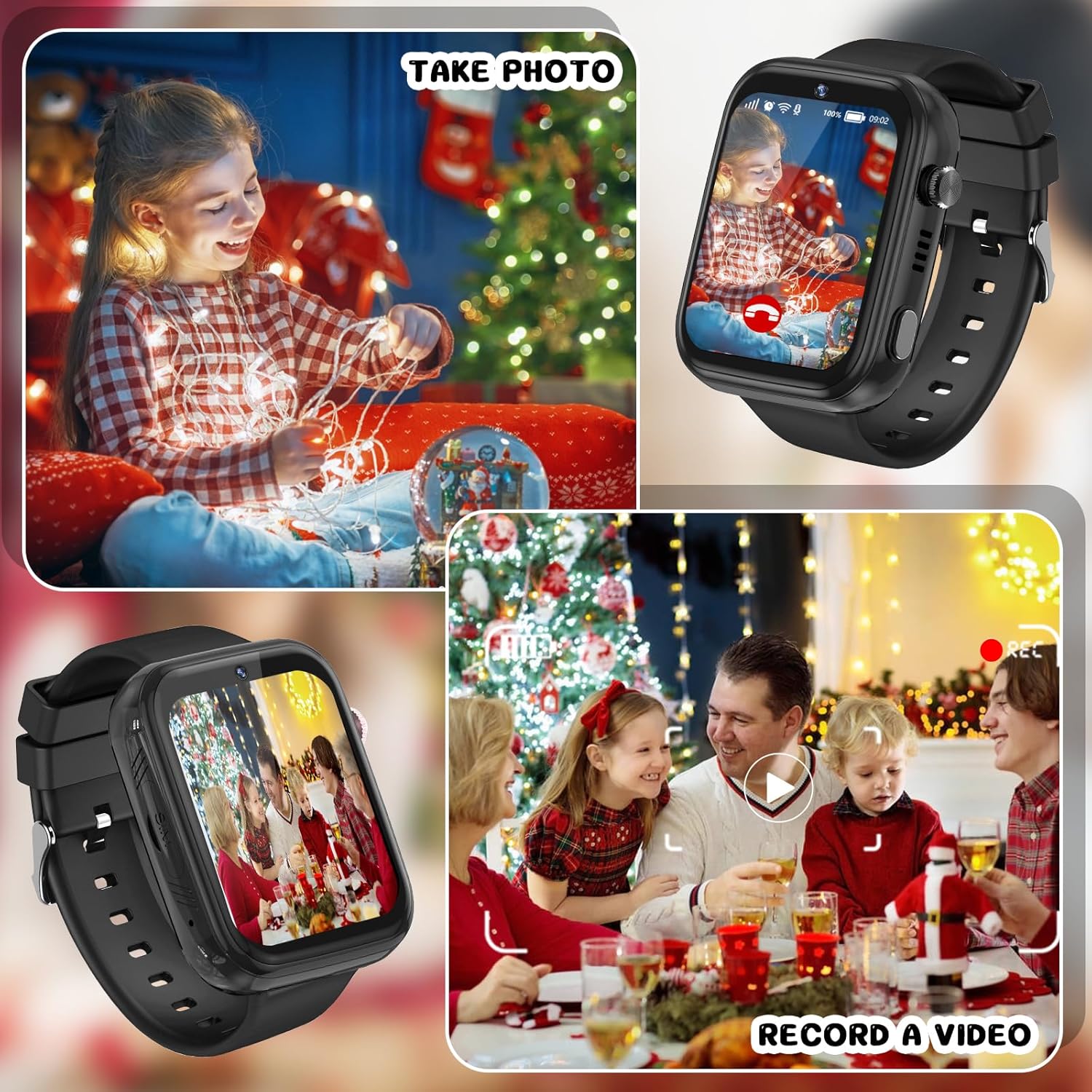
Image: Illustrates the photo and video recording capabilities.

Image: Features the music player and school mode functions.

Image: Overview of multimedia applications including video player, music player, and camera features.
3.5. Utility Features
- Pedometer: Tracks daily steps.
- Alarm Clock: Set multiple alarms for reminders.
- School Mode: Activate this mode during school hours to limit distractions. In school mode, only SOS calls and time display are typically available. This can be configured via the Se-Tracker2 app.
- Flashlight: A built-in flashlight for convenience.
- Adjustable Screen Brightness: Customize the display brightness.

Image: Highlights utility features such as pedometer, calculator, class mode, and alarm clock.
4. Maintenance
4.1. Battery Management
The smartwatch is equipped with a 700 mAh lithium-polymer battery. To ensure optimal battery life:
- Charge the watch fully before first use.
- Avoid completely draining the battery regularly.
- Use the provided charging cable and a compatible power adapter.
- A low battery alarm will notify you when charging is needed.
4.2. Cleaning and Care
- Wipe the watch and strap with a soft, dry cloth.
- Avoid using harsh chemicals or abrasive cleaners.
- While the watch may have some water resistance, avoid submerging it in water or exposing it to excessive moisture unless explicitly stated otherwise in product specifications.
5. Troubleshooting
If you encounter issues with your OKYUK T45 smartwatch, refer to the following common solutions:
- Watch not turning on: Ensure the battery is charged. Connect to the charger and wait a few minutes before attempting to power on.
- SIM card not recognized: Verify that the Nano SIM card is correctly inserted and activated. Check for network coverage in your area. Restart the watch.
- Inaccurate GPS location: GPS works best outdoors. Ensure the watch has a clear view of the sky. Check the working mode settings in the Se-Tracker2 app to ensure location updates are frequent enough.
- Cannot make/receive calls: Confirm the SIM card has an active plan with call services. Ensure contacts are saved in the Se-Tracker2 app, especially if 'reject unknown calls' is enabled. Check network signal strength.
- App connectivity issues: Ensure both the smartwatch and your smartphone have a stable internet connection. Restart both devices and try reconnecting through the Se-Tracker2 app.
- Screen unresponsive: Try restarting the watch. If the issue persists, ensure the screen is clean and dry.
For persistent issues, consult the Se-Tracker2 app's help section or contact customer support.
6. Specifications
| Feature | Detail |
|---|---|
| Brand | OKYUK |
| Model Number | T45 |
| Color | Black |
| Operating System | Android Wear 8.0 |
| Screen Size | 4.6 Centimeters (1.83 inches) |
| Connectivity Technology | USB, Bluetooth |
| Wireless Communication Standard | 802.11ac (Wi-Fi) |
| Special Features | Video Call, Voice Call, SOS Button, GPS, Text Messaging |
| Compatible Devices | Smartphone |
| Battery Composition | Lithium-polymer |
| Rechargeable Battery | Yes |
| Memory Storage Capacity | 8 GB |
| Battery Capacity | 700 mAh |
| GPS | Integrated GPS |
| Shape | Rectangular |
| Manufacturer | OKYUK |
| Country of Origin | China |
| Spare Parts Availability | Information unavailable |
| Guaranteed Software Updates Until | Information unavailable |
7. Warranty and Support
Specific warranty information for the OKYUK T45 smartwatch is not provided in the product details. For any warranty claims, technical support, or inquiries regarding spare parts, please contact the seller or manufacturer directly through their official channels. Retain your proof of purchase for any potential service requests.


