
1. Introduction
Thank you for choosing the EDUP WiFi 6E USB AX3000 Tri-Band Adapter. This device provides high-speed wireless connectivity for your desktop or laptop PC, leveraging the latest WiFi 6E technology across 2.4 GHz, 5 GHz, and 6 GHz frequency bands. This manual will guide you through the installation, operation, and troubleshooting of your new adapter.

Figure 1: EDUP WiFi 6E USB AX3000 Adapter with key features.
2. Package Contents
Please check the package for the following items:
- 1 x EDUP WiFi 6E USB AX3000 Adapter
- 1 x USB Driver Disk (U-disk)
3. Features
- WiFi 6E Tri-Band Connectivity: Supports 6 GHz, 5 GHz, and 2.4 GHz bands for optimal performance and reduced interference.
- AX3000 High Speed: Up to 1200 Mbps on 6 GHz, 1200 Mbps on 5 GHz, and 574 Mbps on 2.4 GHz.
- USB 3.0 Interface: Provides data transfer speeds up to 10 times faster than USB 2.0.
- Dual High-Gain 5dBi Antennas: Enhances signal reception and transmission for extended coverage and stable connections.
- Adjustable Antennas: Multi-directional antennas can be rotated and adjusted for optimal signal reception.
- Advanced WPA3 Security: Offers robust password encryption and enhanced protection against brute-force attacks.
- AP Function (WiFi Hotspot): Allows the adapter to create a WiFi hotspot (functionality depends on operating system support).

Figure 2: High-speed WiFi 6E connectivity across three bands.

Figure 3: Advanced WPA3 security for your home network.
4. System Requirements
- Operating System: Windows 10 (64-bit) or Windows 11 (64-bit)
- Available USB 3.0 Port (backward compatible with USB 2.0, but at reduced speeds)
Note: 6 GHz band functionality is only available on Windows 11. On Windows 10, the adapter will operate on 2.4 GHz and 5 GHz bands only.

Figure 4: Compatible operating systems.
5. Setup Guide
5.1. Driver Installation
- Insert the Driver Disk: Insert the provided USB Driver Disk (U-disk) into an available USB port on your computer.
- Locate the Driver: Open File Explorer, navigate to the U-disk drive, and locate the driver setup file (e.g.,
setup.exeor a similar installer). - Run the Installer: Double-click the setup file and follow the on-screen instructions to complete the driver installation. You may need to restart your computer after installation.
Note: Ensure you install the correct driver for your operating system (Windows 10/11 64-bit).
5.2. Hardware Connection
- Plug in the Adapter: After driver installation, plug the EDUP WiFi 6E USB AX3000 Adapter into an available USB 3.0 port on your desktop or laptop PC.
- Adjust Antennas: Position the dual antennas for optimal signal reception. Refer to Section 6.2 for guidance on antenna adjustment.
5.3. Connecting to a WiFi Network
- Open Network Settings: On your Windows taskbar, click the WiFi icon (or go to Settings > Network & Internet > Wi-Fi).
- Select Network: A list of available WiFi networks will appear. Select your desired network (SSID).
- Enter Password: If prompted, enter the network security key (password) and click Connect.
- Verify Connection: Once connected, the WiFi icon will indicate an active connection.
6. Operating Instructions
6.1. Understanding Tri-Band Operation
The adapter supports three frequency bands:
- 6 GHz Band: Offers the fastest speeds and lowest latency, ideal for gaming and 4K/8K streaming. Requires a WiFi 6E router and Windows 11.
- 5 GHz Band: Provides high speeds suitable for HD streaming and online gaming. Less prone to interference than 2.4 GHz.
- 2.4 GHz Band: Offers wider coverage and better penetration through walls, suitable for general internet browsing and connecting devices further away.
Your computer will automatically connect to the best available band, or you can manually select a specific band if your router broadcasts separate SSIDs for each band.
6.2. Adjusting Antennas
The dual high-gain antennas are multi-directional and can be rotated 360 degrees and tilted 90 degrees. Adjust them to achieve the best signal strength and stability for your environment. Experiment with different angles to find the optimal position.

Figure 5: Adjustable multi-directional antennas.
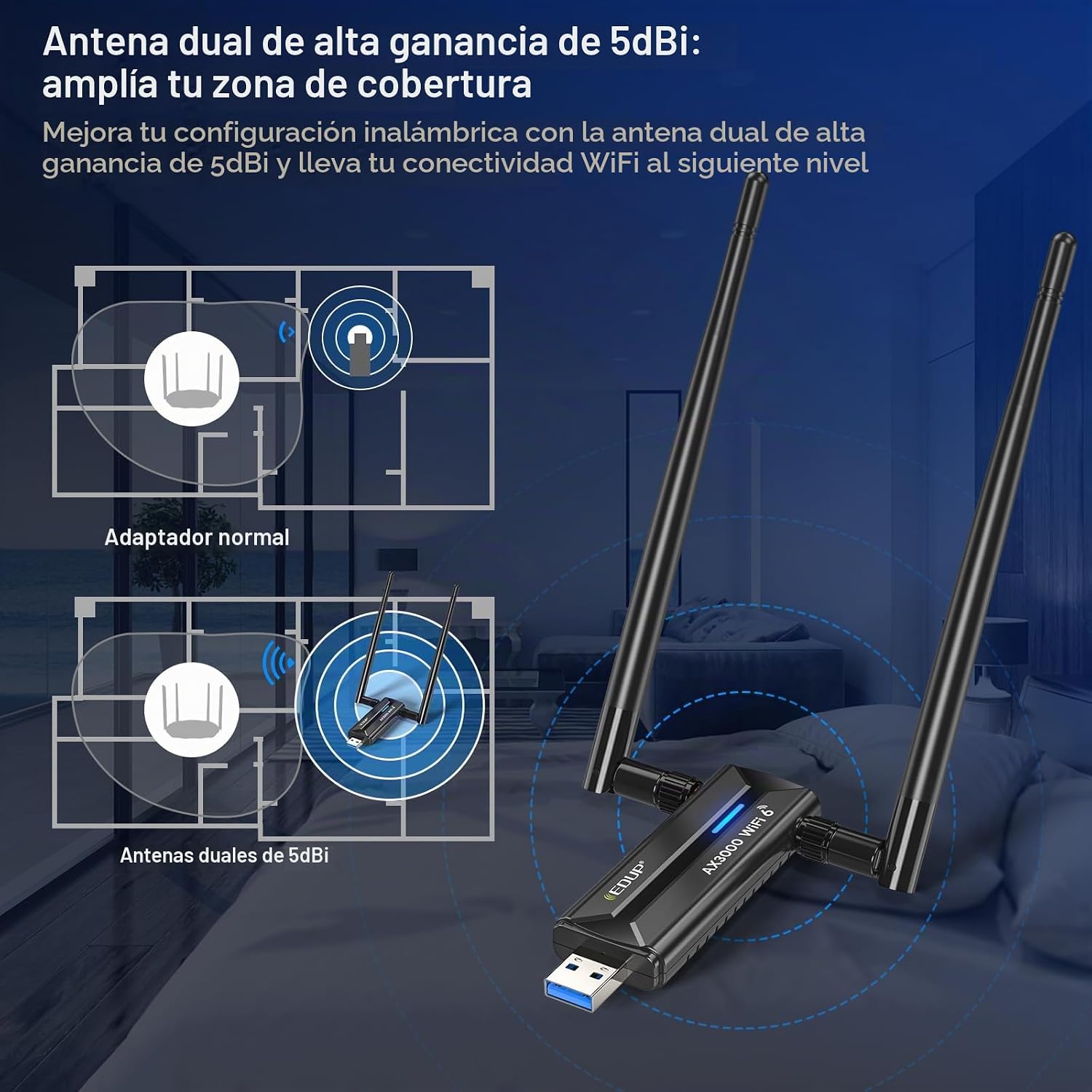
Figure 6: Enhanced coverage with dual high-gain 5dBi antennas.
7. Maintenance
- Keep the adapter in a dry environment, away from direct sunlight and extreme temperatures.
- Avoid physical impact or dropping the device.
- Clean the adapter with a soft, dry cloth. Do not use liquid cleaners.
- Ensure proper ventilation around the adapter if it is in continuous use.
8. Troubleshooting
8.1. No WiFi Networks Detected
- Check Driver: Ensure the driver is correctly installed. Reinstall if necessary.
- Adapter Connection: Make sure the adapter is securely plugged into a USB port. Try a different USB port.
- WiFi Enabled: Verify that Wi-Fi is enabled in your computer's network settings.
- Router On: Ensure your WiFi router is powered on and broadcasting a signal.
8.2. Slow Connection Speed
- USB Port: Ensure the adapter is connected to a USB 3.0 port for optimal performance.
- Antenna Position: Adjust the antennas for better signal reception.
- Router Distance: Move closer to your WiFi router or reduce obstacles between the adapter and router.
- Band Selection: If possible, connect to the 5 GHz or 6 GHz band for faster speeds.
- Router Settings: Ensure your router is configured for WiFi 6/6E and optimal channel selection.
8.3. Cannot Connect to 6 GHz Band
- Operating System: The 6 GHz band is only supported on Windows 11. If you are using Windows 10, this band will not be available.
- Router Support: Ensure your WiFi router is a WiFi 6E router that supports the 6 GHz band.
8.4. Frequent Disconnections
- Signal Strength: Check your signal strength. Weak signals can lead to disconnections. Adjust antennas or move closer to the router.
- Driver Update: Ensure you have the latest driver installed. Check the manufacturer's website for updates.
- Interference: Other electronic devices (microwaves, cordless phones) can cause interference. Try changing your router's WiFi channel.
9. Specifications

Figure 7: Product dimensions.
| Feature | Description |
|---|---|
| Model | AX3000 |
| Wireless Standard | IEEE 802.11ax (WiFi 6E) |
| Frequency Bands | 2.4 GHz, 5 GHz, 6 GHz |
| Data Transfer Rate | Up to 3000 Mbps (1200 Mbps @ 6GHz, 1200 Mbps @ 5GHz, 574 Mbps @ 2.4GHz) |
| Interface | USB 3.0 (backward compatible with USB 2.0) |
| Antenna Type | Dual 5dBi High-Gain External Antennas |
| Wireless Security | WPA3, WPA2, WPA, WEP |
| Operating System | Windows 10 (64-bit), Windows 11 (64-bit) |
| Dimensions (Adapter Body) | Approx. 2.85 cm (W) x 5.9 cm (H) (without antennas) |
| Weight | Approx. 70 g (package weight) |
10. Warranty and Support
10.1. Warranty Information
This EDUP product comes with a three-year warranty from the date of purchase. This warranty covers manufacturing defects and malfunctions under normal use. It does not cover damage caused by misuse, accidents, unauthorized modifications, or improper installation.
10.2. Technical Support
For technical assistance, driver updates, or warranty claims, please refer to the official EDUP website or contact your retailer. When contacting support, please have your product model (AX3000) and purchase details ready.