
Monitech S100
Monitech S100 5K Digital Compact Camera User Manual
Model: S100
Introduction
This manual provides detailed instructions for the proper use and care of your Monitech S100 5K Digital Compact Camera. Please read this manual thoroughly before operating the camera to ensure optimal performance and longevity. Keep this manual for future reference.
Package Contents
Verify that all items listed below are included in your package. If any items are missing or damaged, please contact customer support.

Image: All components included in the Monitech S100 camera package, including the camera body, lenses, batteries, charger, microphone, and cables.
- Monitech S100 Camera Body x1
- Rechargeable Lithium-Ion Battery x2
- Battery Charger x1
- Microphone Cable x1
- User Manual x1
- 32GB TF Card x1
- USB Charging Cable x1
- External Microphone x1
- 52mm Wide Angle Lens x1
- Macro Lens x1
Camera Overview
Familiarize yourself with the main components of your Monitech S100 camera.
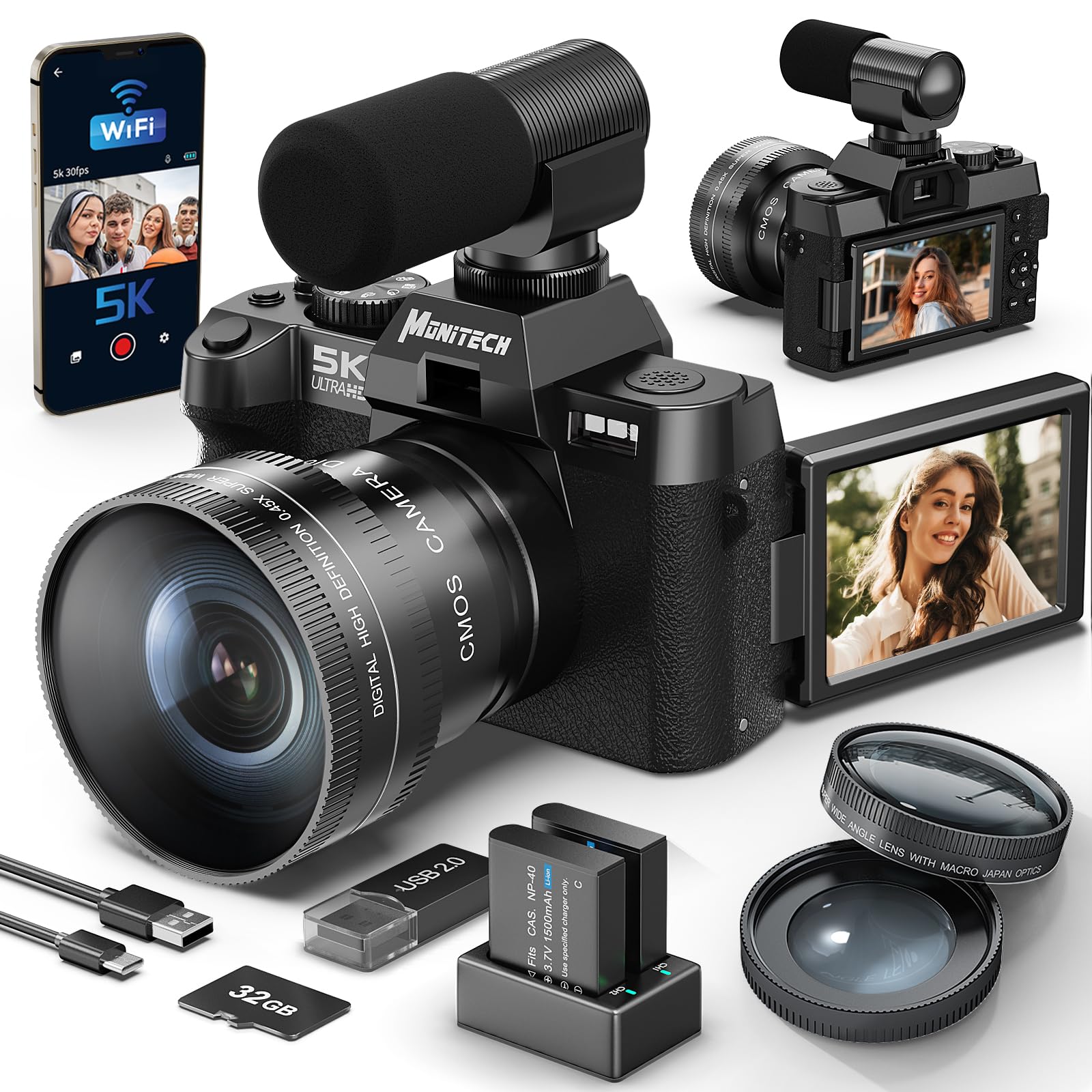
Image: Front view of the Monitech S100 camera with its lens attached.
- Lens Mount: For attaching the included wide-angle and macro lenses.
- 180° Flip Screen: Articulating 3-inch display for flexible viewing angles, ideal for vlogging and selfies.
- Electronic Viewfinder: Provides an alternative viewing option for composing shots.
- Control Buttons: Various buttons for power, shutter, mode selection, menu navigation, and zoom.
- Microphone Input: For connecting the external microphone.
- USB Port: For charging, data transfer, and webcam functionality.
- HDMI Output: For connecting to external displays.
- Tripod Mount: Standard thread for attaching to tripods or other camera supports.
Setup
- Charge the Battery:
Insert one of the rechargeable Lithium-Ion batteries into the provided charger. Connect the charger to a power source using the USB charging cable. The indicator light on the charger will show charging status. Ensure batteries are fully charged before first use.
- Insert TF Card:
Locate the TF card slot on the camera body. Gently insert the 32GB TF card with the metal contacts facing down until it clicks into place. To remove, press the card in again until it springs out.
- Attach Lens:
Align the wide-angle or macro lens with the camera's lens mount. Twist gently until it locks into position. Ensure the lens is securely attached before use.
- Install External Microphone:
Connect the external microphone to the camera's microphone input port using the microphone cable. Secure the microphone to the camera's hot shoe mount if available, or position it appropriately for recording.
Operating the Camera
Basic Operation
- Power On/Off: Press and hold the power button to turn the camera on or off.
- Mode Selection: Use the mode dial or menu options to switch between photo, video, and other shooting modes.
- Shutter Button: Press halfway to focus, press fully to capture a photo or start/stop video recording.
- Zoom: Use the zoom controls to adjust the 16X digital zoom. Note that digital zoom may reduce image quality.
Photography Features

Image: Visual representation of the camera's 16X digital zoom capability, showing different zoom levels on a landscape.
- 16X Digital Zoom: Allows you to magnify your subject.
- Face Focus: The camera automatically detects and focuses on faces in the frame.

Image: Examples of the camera's face focus feature, highlighting detected faces in various group and individual shots.
- Macro Shooting: Use the macro lens for detailed close-up photography.

Image: A close-up shot of red leaves taken with the camera's macro lens, demonstrating its ability to capture fine details.
- Wide Angle Lens: Attach the 52mm wide-angle lens to capture broader scenes.

Image: A scenic landscape photo taken with a wide-angle lens, showcasing its ability to capture expansive views.
- Continuous Shooting: Capture a rapid sequence of photos.

Image: A series of action shots demonstrating continuous shooting, capturing a snowboarder and a geyser in motion.
- Self-Timer: Set a delay before the camera takes a photo. Options typically include 3s, 5s, and 15s.

Image: Examples of using the self-timer for group photos and selfies, showing the timer countdown options.
Video Features
- 5K Video Recording: Capture high-resolution video at 5K.
- Time-Lapse: Record events over a long period and play them back in a compressed, faster sequence.

Image: Time-lapse photography examples, including star trails over a forest and car light trails on a bridge.
- Slow-Motion: Record video at a higher frame rate to play back in slow motion.

Image: Slow-motion video examples, showing athletes in action and a child kicking a ball on a beach.
- Livestream Functionality: Connect the camera to a computer for live streaming.

Image: A person using the camera in a studio setup for livestreaming, demonstrating its connectivity.
- Webcam Functionality: Use the camera as a high-quality webcam by connecting it to your computer via USB.

Image: The camera set up as a webcam during a business meeting, showing its use for video conferencing.
- HDMI Fast Export: Connect the camera to an HDMI-compatible display for quick viewing of photos and videos.

Image: The camera connected to a television via HDMI cable, displaying content for a group of people.
Maintenance
- Cleaning the Lens: Use a soft, lint-free cloth specifically designed for camera lenses. Avoid touching the lens surface with your fingers.
- Cleaning the Screen: Wipe the flip screen gently with a microfiber cloth. Do not use harsh chemicals.
- Battery Care: Store batteries in a cool, dry place. Do not expose them to extreme temperatures. Fully charge batteries before long periods of storage and recharge every few months to maintain their health.
- Storage: When not in use, store the camera in a protective bag or case to prevent dust and scratches. Avoid humid environments.
Troubleshooting
- Camera does not power on:
- Ensure the battery is fully charged and correctly inserted. Try using the second included battery.
- Poor image quality:
- Check if the lens is clean and free from smudges. Ensure adequate lighting. Avoid excessive digital zoom, which can reduce clarity. Verify camera settings are appropriate for the shooting conditions.
- Memory card error:
- Ensure the TF card is inserted correctly. Try reformatting the card (this will erase all data). If the issue persists, try a different compatible TF card.
- Video recording stops unexpectedly:
- Ensure the TF card has sufficient free space and is a high-speed card suitable for 5K video recording. Low battery can also cause recording to stop.
Specifications
| Feature | Detail |
|---|---|
| Model Name | S100 |
| Effective Still Resolution | 48 MP |
| Video Resolution | 5K |
| Digital Zoom | 16X |
| Lens Type | 52mm Wide Angle, Macro |
| Screen Size | 3 inches (Articulating/Flip Screen) |
| Photo Sensor Technology | CMOS |
| Supported File Format | MP4, MOV, JPEG |
| Minimum Shutter Speed | 1/60 seconds |
| Exposure Control Type | Automatic |
| ISO Range | 100-3200 |
| Battery Type | Lithium Ion |
| Memory Storage Capacity | 32 GB (TF Card included) |
| Connectivity | USB, HDMI |
| Special Features | Face Focus, Continuous Shooting, Self-Timer, Time-Lapse, Slow-Motion, Livestream, Webcam |
Warranty and Support
The Monitech S100 camera comes with a limited warranty. For detailed warranty information, please refer to the warranty card included in your package or visit the official Monitech website. For technical support, troubleshooting assistance, or to inquire about replacement parts, please contact Monitech customer service through their official channels.
Manufacturer: Monitech
Model Number: MO-S110-QT-US-2411
ASIN: B0DFY43PL5
Ask a question about this manual
Ask about setup, troubleshooting, compatibility, parts, safety, or missing instructions. Manuals+ will review the question and use this page’s manual context to help answer it.