1. Introduction
This manual provides detailed instructions for the setup, operation, and maintenance of your GravaStar Mercury K1 Pro Wireless Mechanical Gaming Keyboard. Please read this manual thoroughly before using the product to ensure optimal performance and longevity.
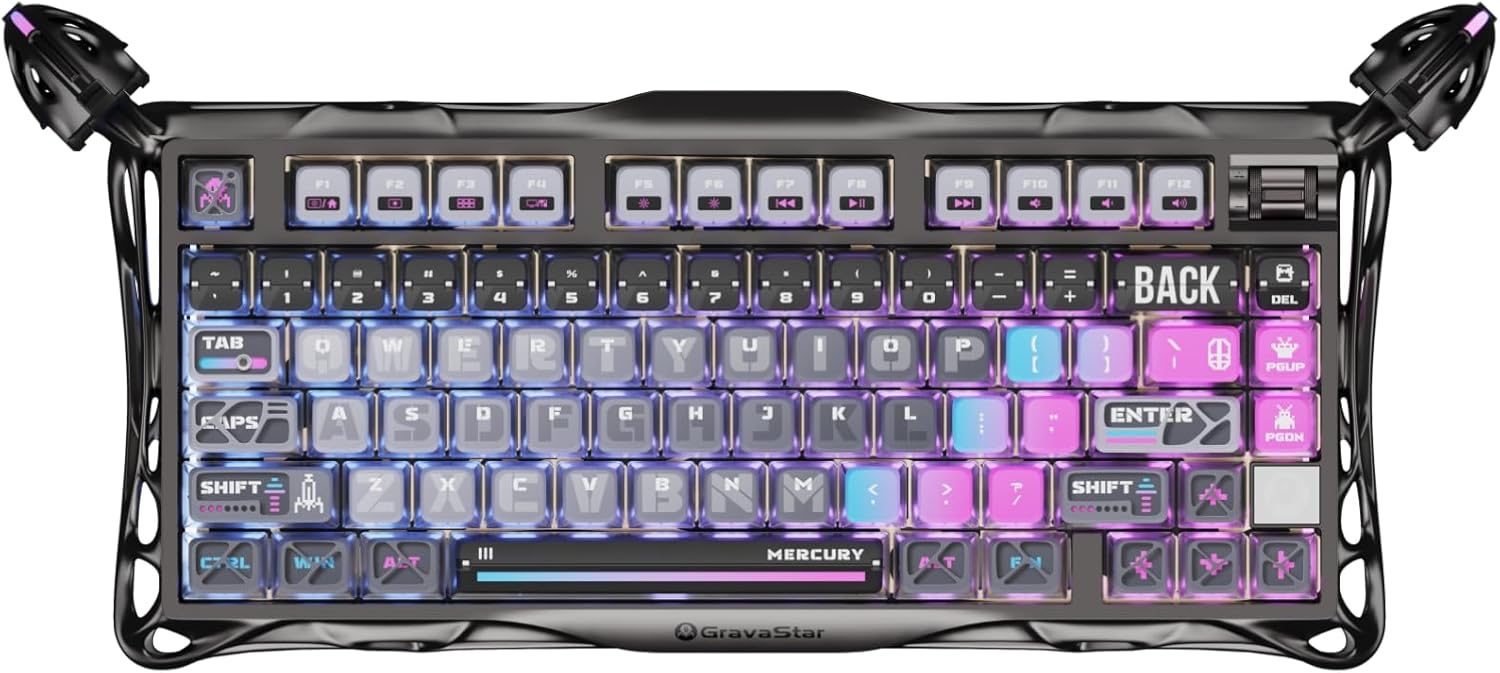
Figure 1: GravaStar Mercury K1 Pro Wireless Mechanical Gaming Keyboard.
2. Key Features
- Futuristic Design & Premium Build: The Mercury K1 Pro features a unique, electroplated glossy frame made from sturdy aluminum alloy, combining durability and portability. Its skeletal frame design stabilizes every keystroke.
- Custom Kailh Speedy Mint Linear Switches: Equipped with custom linear Speedy Mint Linear switches (45gf actuation force, 1.2mm pre-travel), the K1 Pro delivers ultra-responsive keystrokes. These switches have a 70-million keystroke lifespan and smooth POK stems.
- Dual RGB Lighting & Pudding PBT Keycaps: Features dual independent RGB lighting systems with 16.8 million colors and 13 lighting modes. South-facing backlit keys and stylish Pudding PBT keycaps with dye-sublimation art ensure vibrant, customizable lighting.
- 8000mAh Battery & Tri-Mode Connectivity: A massive 8000mAh rechargeable battery provides extended usage. Offers versatile tri-mode connectivity (wired, Bluetooth, 2.4GHz wireless) for seamless compatibility with various devices.
- Premium Typing Feel with Gasket-Mounted Design: Experience a balanced and comfortable typing experience thanks to the gasket-mounted FR4 plate and 5 layers of sound-dampening foam. The 75% compact layout with 79 keys and a programmable control knob maximizes functionality.
3. What's in the Box
The GravaStar Mercury K1 Pro package includes:
- 1 x GravaStar Mercury K1 Pro Wireless Mechanical Gaming Keyboard
- 1 x USB-C to USB-A Cable
- 1 x Keycap & Switch 2-in-1 Puller
- 1 x Cleaning Brush
- 1 x Cleaning Cloth
- 4 x Sample Switches (Speedy Mint, Panda, Crystal Black, Crystal White)
- User Manual

Figure 2: Package contents of the GravaStar Mercury K1 Pro.
4. Setup
4.1 Connectivity Modes
The Mercury K1 Pro supports three connectivity modes: Wired (USB-C), Bluetooth, and 2.4GHz Wireless. A switch located on the back of the keyboard allows you to select your preferred mode.

Figure 3: Connectivity switches and USB-C port.
4.2 Wired Connection
- Ensure the mode switch on the back of the keyboard is set to the 'Wired' position (usually indicated by a cable icon or 'OFF' position if Bluetooth/2.4GHz are separate).
- Connect the provided USB-C to USB-A cable to the keyboard's USB-C port and to an available USB-A port on your computer.
- The keyboard will be automatically recognized and ready for use.
4.3 2.4GHz Wireless Connection
- Locate the 2.4GHz USB dongle stored magnetically on the underside of the keyboard.
- Plug the USB dongle into an available USB-A port on your computer.
- Set the mode switch on the back of the keyboard to the '2.4GHz' position (usually indicated by a wireless icon).
- The keyboard should connect automatically.
4.4 Bluetooth Connection
- Set the mode switch on the back of the keyboard to the 'Bluetooth' position (usually indicated by a Bluetooth icon).
- On your computer or device, navigate to Bluetooth settings and enable Bluetooth.
- Search for available devices and select 'GravaStar K1 Pro' from the list.
- Follow any on-screen prompts to complete the pairing process.
4.5 Operating System Compatibility Switch
The keyboard features a switch to toggle between Windows (WIN) and Mac (MAC) operating system layouts. Ensure this switch is set correctly for your device to ensure proper key functionality.
5. Operating Instructions
5.1 RGB Lighting Control
The Mercury K1 Pro features extensive RGB lighting customization. You can adjust lighting effects, colors, and brightness directly from the keyboard or via dedicated software.
- Changing Effects: Use the Function (Fn) key in combination with designated keys (refer to the manual for specific key combinations) to cycle through 13 lighting modes, including 11 RGB effects, 10 rhythm-reactive modes, and 5 ambient modes.
- Adjusting Brightness/Speed: Use the Function (Fn) key with arrow keys or other designated keys to increase/decrease brightness and speed of lighting effects.
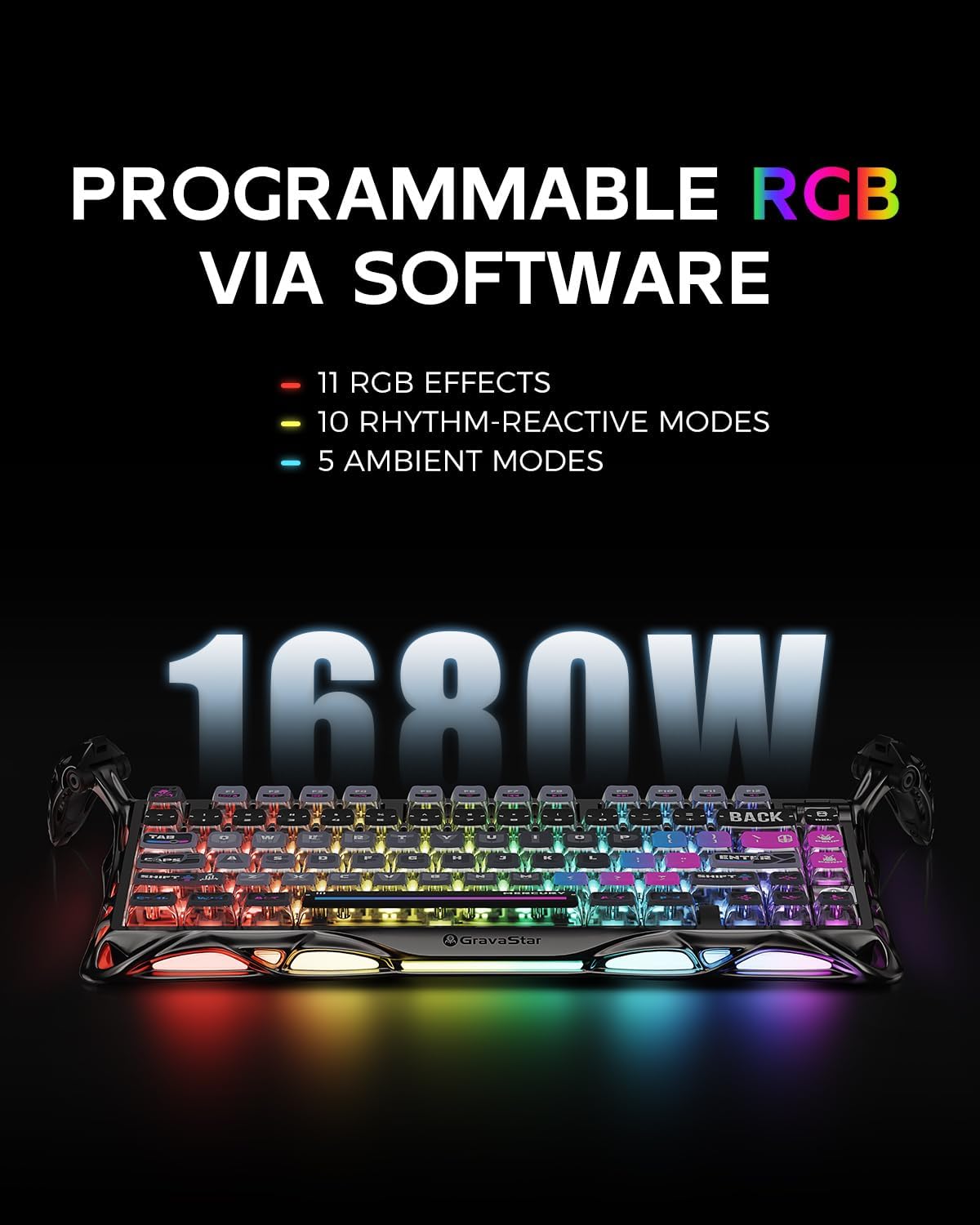
Figure 4: Programmable RGB lighting effects.

Figure 5: Triple-sided RGB glow.
5.2 Volume Control Knob
A dedicated volume control knob is located on the top right corner of the keyboard. Rotate it to adjust the system volume. Pressing the knob typically mutes/unmutes audio.
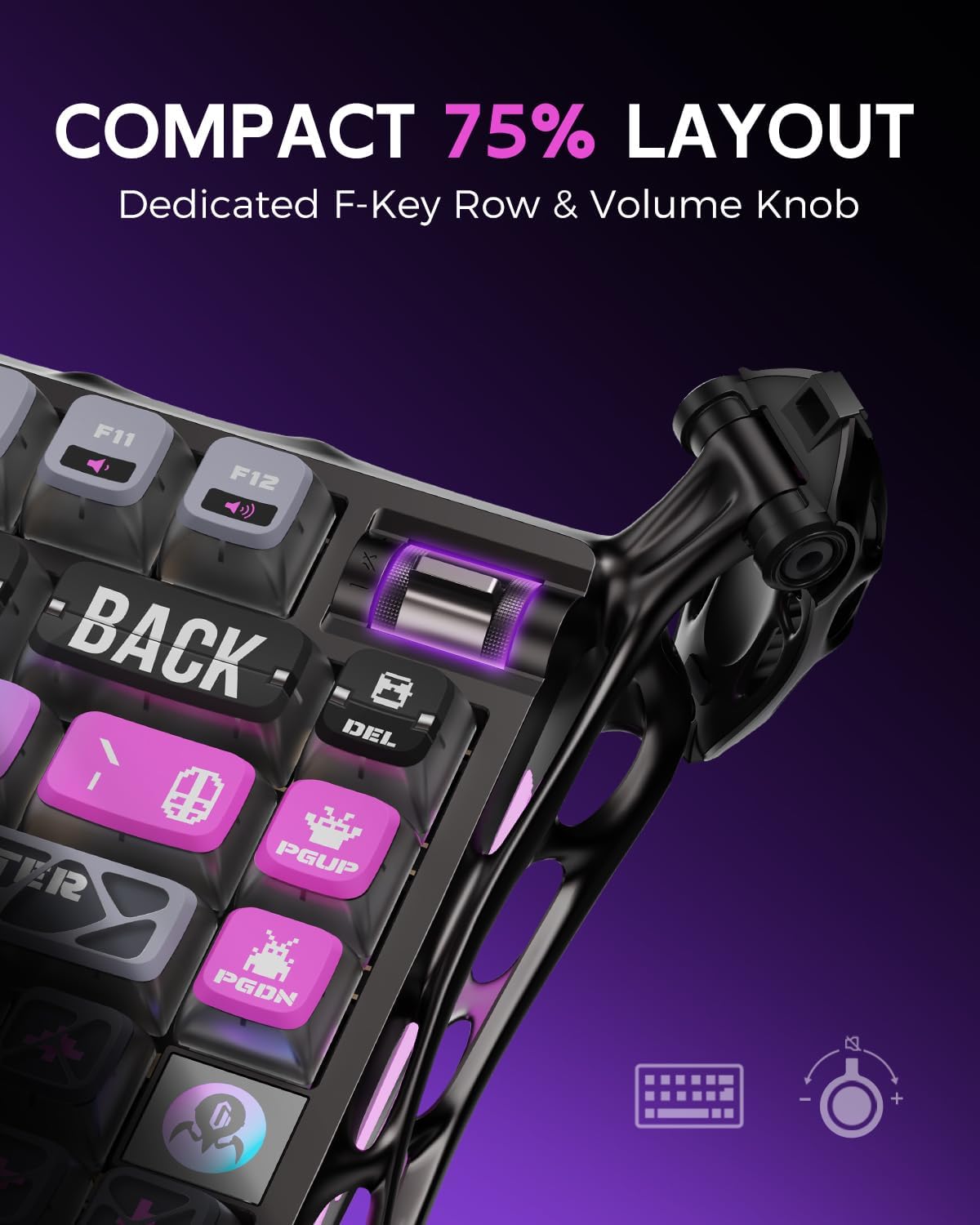
Figure 6: Dedicated volume control knob.
5.3 Adjustable Feet
The keyboard features unique claw-style adjustable feet that allow you to change the typing angle for ergonomic comfort. Simply rotate the feet to your desired position.

Figure 7: Adjustable claw-style feet for ergonomic typing.
5.4 Hot-Swappable Switches
The Mercury K1 Pro is hot-swappable, allowing you to change mechanical switches without soldering. Use the provided keycap and switch puller to remove existing switches and install new ones.

Figure 8: Hot-swappable switches and keycaps.

Figure 9: Kailh Speedy Mint Linear Switch specifications.
6. Maintenance
6.1 Cleaning
Regular cleaning helps maintain the keyboard's appearance and functionality.
- Use the provided cleaning brush to remove dust and debris from between keycaps.
- For general surface cleaning, use the provided microfiber cloth. Dampen it slightly with water or a mild, non-abrasive cleaner if necessary, ensuring no liquid enters the keyboard.
- Avoid harsh chemicals or abrasive materials that could damage the finish or keycaps.
6.2 Battery Care
The 8000mAh rechargeable battery provides long usage times. To prolong battery life:
- Avoid fully discharging the battery frequently.
- Store the keyboard in a cool, dry place when not in use for extended periods.
- If using the keyboard primarily in wired mode, consider turning off wireless connectivity to reduce battery wear.
7. Troubleshooting
7.1 Connectivity Issues
- Keyboard not responding: Ensure the correct connectivity mode (Wired, 2.4GHz, Bluetooth) is selected via the switch on the back. Check battery level.
- 2.4GHz connection unstable: Ensure the USB dongle is securely plugged in and within range. Avoid interference from other wireless devices.
- Bluetooth pairing failure: Ensure the keyboard is in Bluetooth pairing mode. Remove previous pairings from your device's Bluetooth list and try re-pairing.
7.2 Lighting Issues
- RGB lights not working: Check if the lighting is turned off or set to a very low brightness. Adjust using Fn key combinations or software.
- Inconsistent lighting: Ensure the keyboard firmware is up to date.
7.3 Key Functionality
- Keys not registering: Ensure the keyboard is properly connected. For hot-swappable switches, ensure the switch is fully seated.
- Incorrect key output (Mac/Windows): Verify the OS compatibility switch on the back of the keyboard is set to the correct operating system.
7.4 Factory Reset
To perform a factory reset, press and hold the Function (Fn) key + 'R' key for three seconds. This will restore default settings and clear all custom configurations.
8. Specifications
| Feature | Detail |
|---|---|
| Product Dimensions | 16.34 x 7.03 x 2.27 inches |
| Item Weight | 2.6 pounds |
| Item Model Number | K1 PRO |
| Battery | 1 A battery required (included), 8000mAh |
| Connectivity Technology | Bluetooth, USB-C, 2.4GHz Wireless |
| Keyboard Description | Gaming, 75% Layout |
| Compatible Devices | Laptop, PC, Tablet |
| Special Features | Backlit, Ergonomic, Foldable (adjustable feet), Hot-Swappable, Programmable Keys |
| Material | Aluminum |
9. Official Product Videos
How it looks on your desktop
This video demonstrates the aesthetic appeal and lighting effects of the GravaStar Mercury K1 Pro keyboard when placed on a desktop setup.
GravaStar Mercury K1 Pro Gaming Keyboard Cyberpunk
A short video showcasing the overall design and cyberpunk theme of the GravaStar Mercury K1 Pro Gaming Keyboard.
CNC Aluminum Frame, more detail
This video provides a detailed look at the CNC aluminum frame construction of the keyboard, highlighting its robust build quality.
K1 Pro Cyberpunk Mechanical Gaming Keyboard
A comprehensive overview of the K1 Pro Cyberpunk Mechanical Gaming Keyboard, demonstrating its features and design.
10. Warranty and Support
For warranty information and customer support, please refer to the official GravaStar website or contact their customer service directly. Keep your proof of purchase for any warranty claims.


