
1. Introduction
This manual provides detailed instructions for the Vixic D1600 Bluetooth Label Maker. Please read this manual thoroughly before using the device to ensure proper operation and to maximize its lifespan. The Vixic D1600 is a portable, inkless thermal label printer designed for various organizational tasks in homes, offices, and schools.
2. What's in the Box
Upon unpacking your Vixic D1600 Label Maker, please verify that all the following components are included:
- 1 x Vixic D1600 White-Green Label Maker
- 1 x Vixic D1600 Label Tape (Black on White, 1/2 inch x 13 feet)
- 1 x Type-C Cable
- 1 x User Manual
- 1 x Quick Start Guide
- 1 x Packing Box

Image: The Vixic D1600 Label Maker, a roll of label tape, a USB-C charging cable, and the instruction manual are displayed, indicating the contents of the product package.
3. Setup
3.1. Charging the Device
Before initial use, fully charge the Vixic D1600 Label Maker. Connect the provided Type-C cable to the charging port on the device and to a compatible USB power adapter. The built-in 1200mAh lithium battery provides extended use on a single charge. A full charge typically takes approximately 2 hours and allows for continuous printing of up to 80 meters of tape.
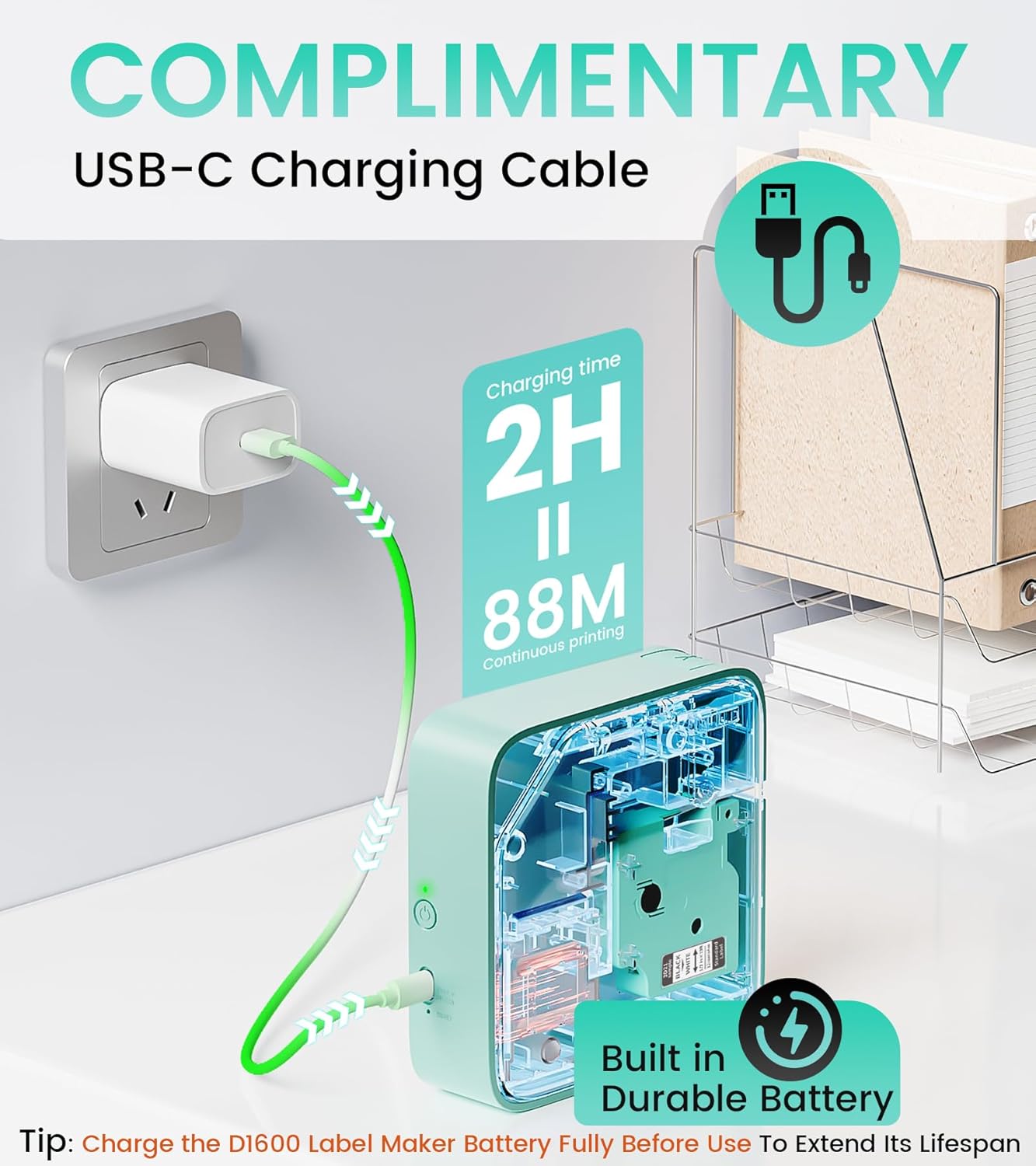
Image: The Vixic D1600 Label Maker is shown connected to a wall charger via a USB-C cable, illustrating the charging process. Text indicates a 2-hour charging time for 88 meters of continuous printing.
3.2. Installing the Label Tape
- Gently press the button on the side of the label maker to open the lid.
- Insert the label tape cartridge into the designated slot, ensuring it clicks into place. The tape should feed out slightly from the printer's exit slot.
- Close the lid securely.

Image: A visual guide showing four steps: 1. Pressing to open the lid, 2. Inserting the DZ label tape, 3. Powering on the device, and 4. Connecting via Bluetooth to print.
3.3. App Installation and Bluetooth Connection
- Download the App: Search for the "Print Master" app on your smartphone's app store (available for iOS and Android).
- Power On: Press and hold the power button on the Vixic D1600 Label Maker until the indicator light turns on.
- Connect via Bluetooth: Open the "Print Master" app on your smartphone. Follow the in-app instructions to connect to your D1600 device via Bluetooth. Ensure Bluetooth is enabled on your phone.

Image: A smartphone screen displays the "Print Master" app, showcasing various label templates, fonts, and icons available for customization, with the Vixic D1600 Label Maker in the background.

Image: A sequence of four smartphone screens illustrating the process: 1. Downloading the "Print Master" app, 2. Connecting to the D1600 Label Maker, 3. Editing a label, and 4. Initiating the printing process.
4. Operating Instructions
4.1. Creating Labels
The "Print Master" app offers extensive customization options for your labels:
- Text: Enter your desired text.
- Fonts: Choose from over 110 fonts.
- Symbols & Icons: Access over 1600 symbols and icons.
- Frames: Select from 287 frames to enhance your label design.
- Templates: Utilize 26 pre-designed templates for quick label creation.
- Barcodes & QR Codes: Generate various types of barcodes and QR codes.
The app allows for easy editing, resizing, and positioning of elements on your label.
4.2. Printing Labels
Once your label design is complete in the app:
- Review the preview of your label to ensure accuracy.
- Adjust the quantity if you need multiple copies of the same label (up to 999+ copies).
- Tap the "Print now" button in the app. The label maker will print your labels quickly.
- Carefully tear off the printed label from the device's output slot.

Image: The Vixic D1600 Label Maker is shown printing a continuous strip of labels with different designs, demonstrating its ability to print any length and multiple copies.
5. Maintenance
5.1. Cleaning the Device
To maintain optimal print quality and device longevity:
- Ensure the device is powered off before cleaning.
- Use a soft, dry, lint-free cloth to wipe the exterior of the label maker.
- If print quality degrades, gently clean the thermal print head with a cotton swab lightly dampened with isopropyl alcohol. Allow it to dry completely before use.
- Do not use abrasive cleaners or solvents.
5.2. Battery Care
- Charge the battery fully before its first use to extend its lifespan.
- Avoid completely draining the battery frequently.
- If storing the device for an extended period, charge it to approximately 50% and store in a cool, dry place. Recharge every few months to prevent deep discharge.
6. Troubleshooting
| Problem | Possible Cause | Solution |
|---|---|---|
| Device does not power on | Low battery; Device malfunction | Charge the device; Contact customer support |
| Cannot connect via Bluetooth | Bluetooth off; Device not discoverable; App issue | Ensure Bluetooth is enabled on phone and device; Restart device and app; Re-pair device in app |
| Poor print quality / Faded labels | Print head dirty; Incorrect tape; Low battery | Clean print head; Ensure correct DZ label tape is used; Charge device |
| Label tape not feeding | Tape jammed; Incorrect installation | Open lid and re-install tape; Clear any obstructions |
7. Specifications
- Model Series: D1600
- Printing Technology: Thermal
- Connectivity Technology: Bluetooth
- Maximum Print Resolution: 203 dpi (Black and White, Color)
- Maximum Media Size: 1/2 inch (12mm)
- Compatible Cartridge: DZ Label Tape
- Ink Color: Black (on label tape)
- Battery: 1200mAh Lithium Ion (included)
- Charging Port: Type-C USB
- Product Dimensions: 2"D x 5"W x 5"H
- Item Weight: 14.6 ounces (0.91 Pounds)
- Special Feature: App "Print Master" provides 1600+ symbols, 287 frames, 110+ fonts, 11 languages.
8. Warranty and Support
8.1. Warranty Information
The Vixic D1600 Label Maker comes with a limited warranty. Please refer to the warranty card included in your packaging or contact Vixic customer support for specific terms and conditions.
8.2. Customer Support
For any questions, technical assistance, or warranty claims, please contact Vixic customer support. You can typically find contact information on the official Vixic website or through the retailer where you purchased the product.

Image: A visual guide demonstrating how to contact the seller (Vixic) on Amazon for support, by navigating to the product page and using the 'Ask a question' feature.


