
Bewinner Bewinnernhw91gkeft-12
Bewinner Smart Watch with Earbuds User Manual
Model: Bewinnernhw91gkeft-12
Introduction
This manual provides comprehensive instructions for the Bewinner Smart Watch with Earbuds. Please read this manual carefully before using the product to ensure proper operation and to maximize its features.

Image: The Bewinner Smart Watch with its integrated earbuds, showcasing the sleek design of both components.
The Bewinner Smart Watch with Earbuds is a versatile 2-in-1 device, combining a smart watch with Bluetooth earphones. It offers a seamless experience for music, calls, and fitness tracking, making it an ideal companion for various activities.
Package Contents
Upon opening the package, verify that all components are present:
- Bewinner Smart Watch with integrated Earbuds
- Charging Cable (USB)
- Additional Watch Strap
- User Manual (this document)

Image: A clear view of all items included in the product package: the smartwatch, two earbuds, a USB charging cable, and an additional watch strap.
Setup
1. Charging the Device
Before initial use, fully charge the smart watch and earbuds. Connect the provided USB charging cable to the charging port on the watch and a compatible USB power source. The watch display will indicate charging status.
The earbuds charge automatically when placed inside the watch's compartment, provided the watch has sufficient battery.

Image: Top-down view of the smartwatch with its earbud storage compartment open, showing the charging contacts for the earbuds.
2. Powering On/Off
To power on the watch, press and hold the side button until the screen illuminates. To power off, navigate to the settings menu on the watch, select "Power Off," and confirm.
3. Pairing with Your Smartphone
- Download the companion application from your smartphone's app store (compatible with Android 7.0+ and iOS 11.0+).
- Enable Bluetooth on your smartphone.
- Open the companion application and follow the on-screen instructions to search for and connect to your Bewinner Smart Watch.
- Confirm the pairing request on both your smartphone and the watch.
Once paired, the watch will synchronize time, date, and notifications from your phone.
Operating Instructions
1. Navigating the Smart Watch Interface
The watch features a 2.01-inch HD touch screen. Swipe left, right, up, or down to access different functions and menus. Tap to select an option.
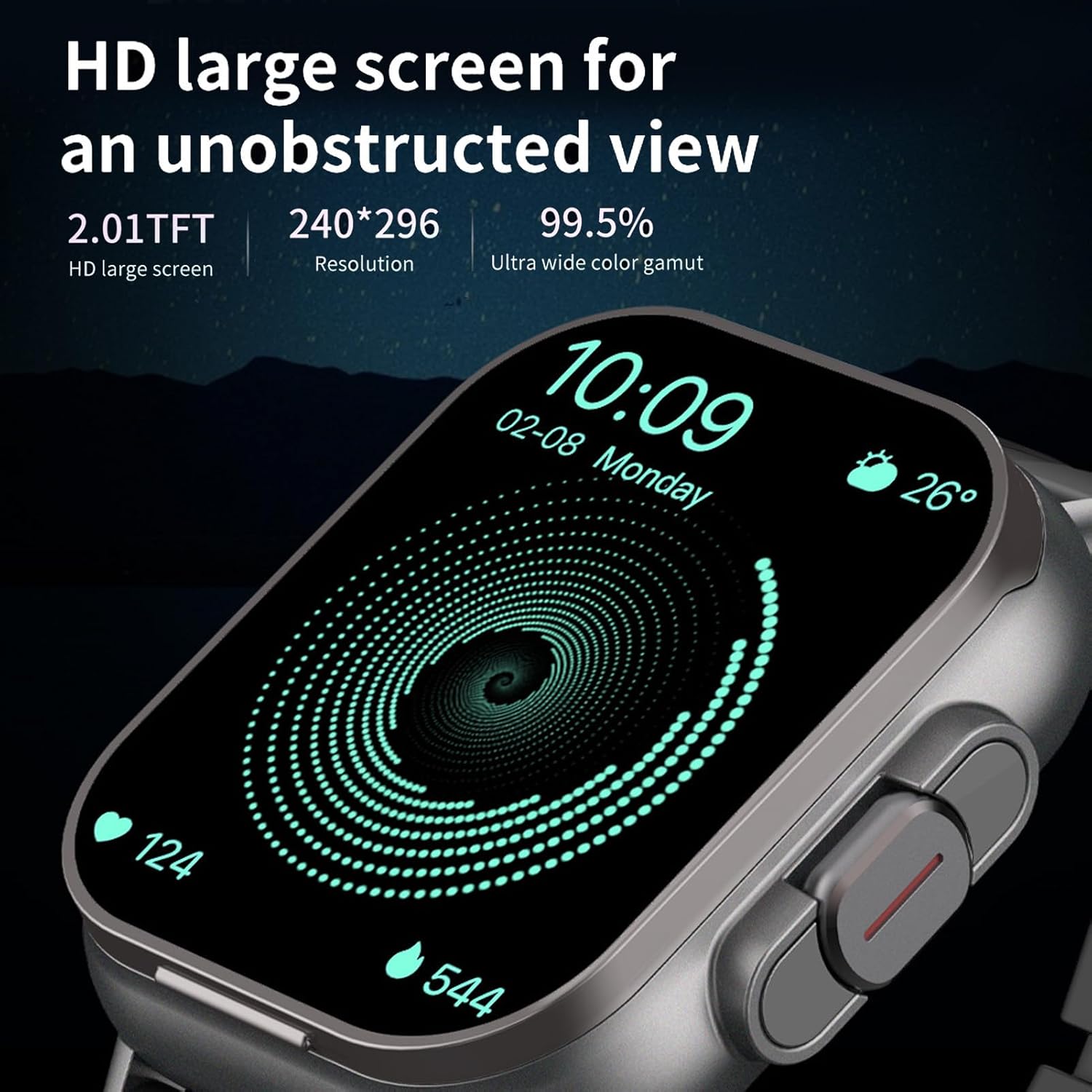
Image: A close-up of the smartwatch's vibrant 2.01-inch HD display, showcasing its clear resolution and wide color gamut.
2. Using the Integrated Earbuds
The earbuds are stored within the watch itself. To access them, gently touch the clasp to open the upper cover of the watch.

Image: The smartwatch with its top cover flipped open, revealing the earbuds as they are ejected for easy access.
Once removed, the earbuds will automatically attempt to connect to your paired smartphone. They are designed for stable music playback and call handling.
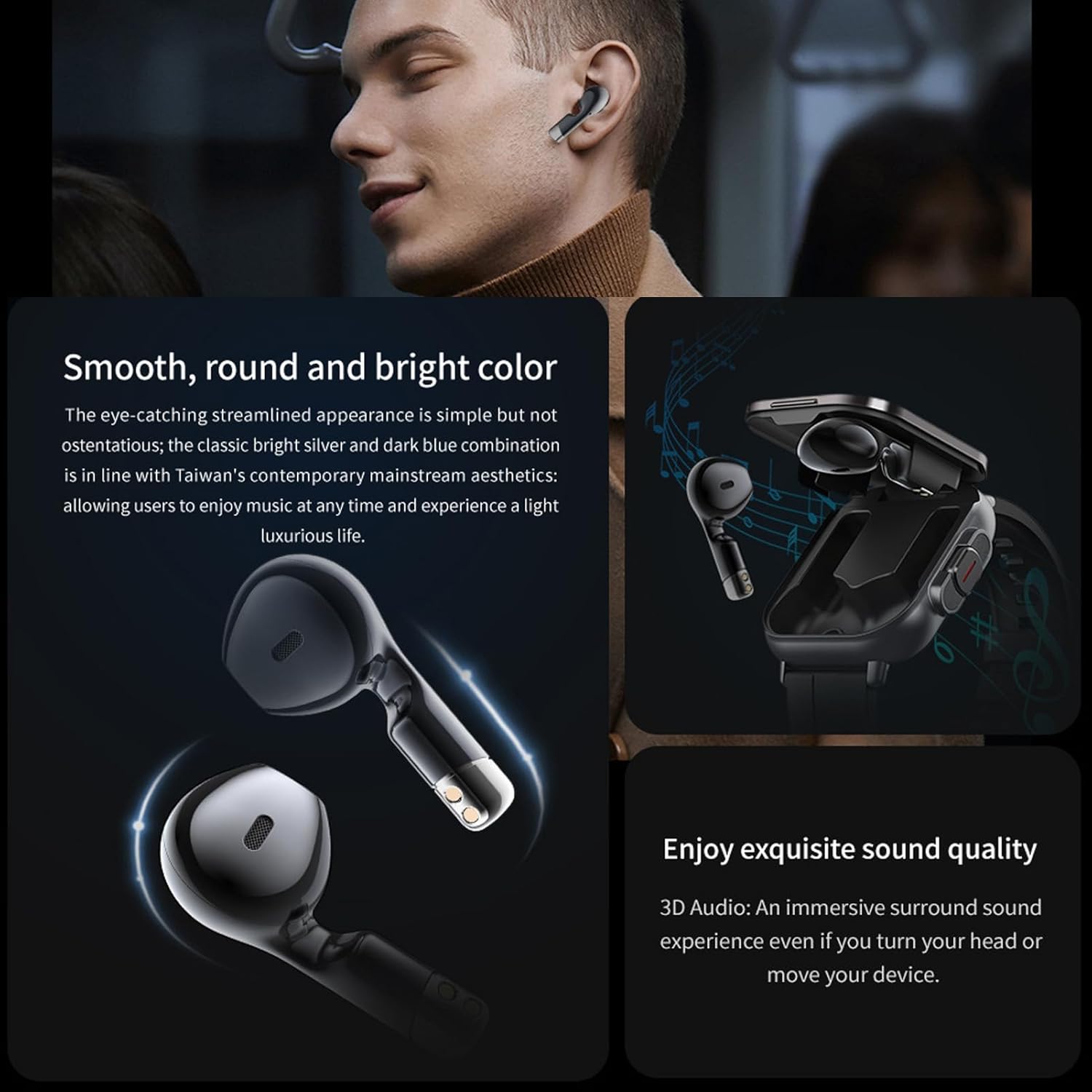
Image: A person wearing the earbuds, with an inset showing the earbuds and the smartwatch, illustrating their combined use for audio and timekeeping.
3. Fitness Tracking Features
The watch supports various sports modes and fitness tracking functions:
- Heart Rate Monitoring: Continuously tracks your heart rate.
- Step Counter: Records daily steps taken.
- Calorie Burn: Estimates calories burned based on activity.
- Multiple Sports Modes: Includes outdoor running, hiking, functional strength training, badminton, and more.
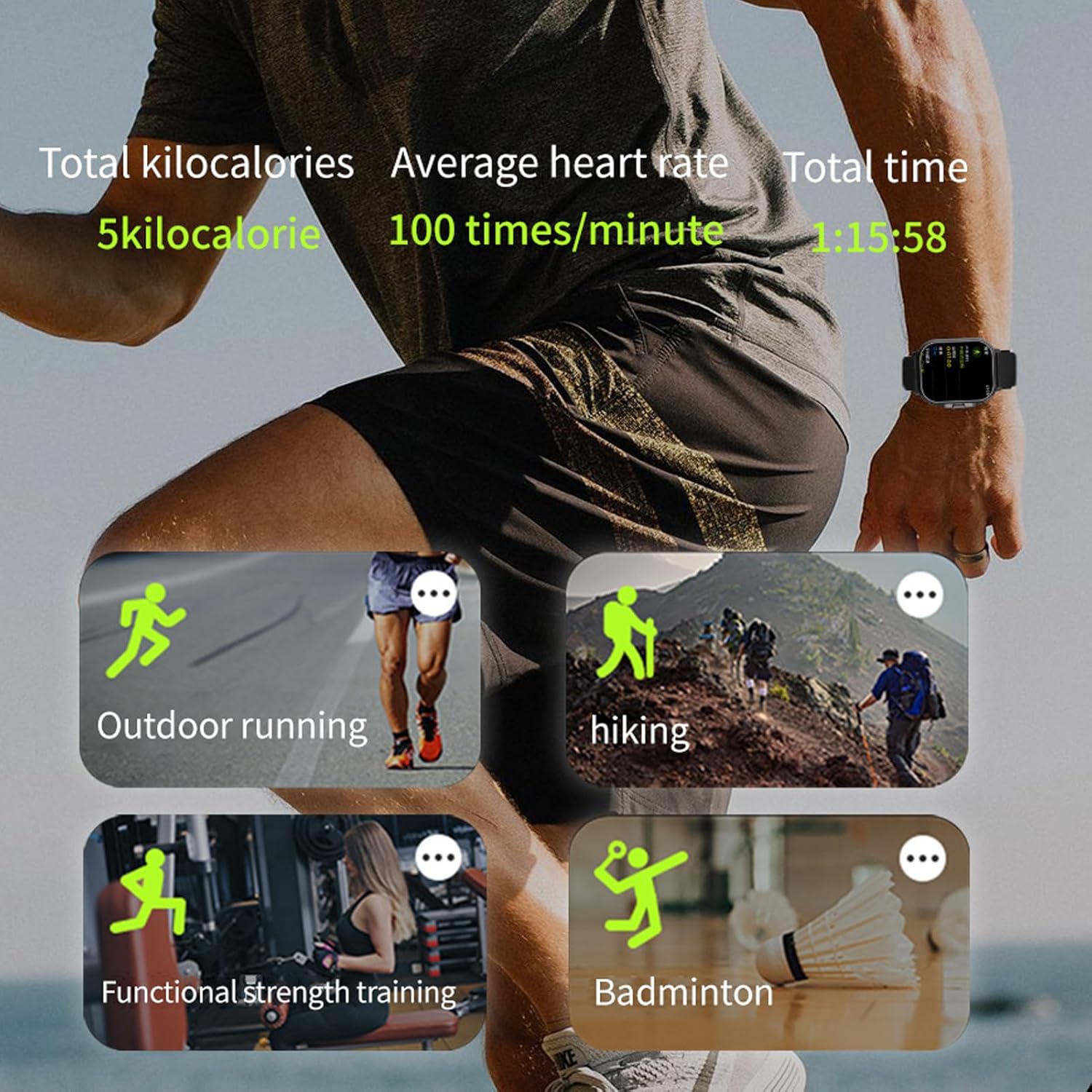
Image: The smartwatch display showing various sports tracking metrics like total kilocalories, average heart rate, and total time, alongside icons for different activities such as outdoor running, hiking, functional strength training, and badminton.
4. Notifications and Other Functions
Once paired, the watch can display notifications for messages, calls, and app alerts from your smartphone. Other features include:
- Remote Camera Control
- Weather Forecast
- Smart Alarm
- Find Mobile Phone function
Maintenance
1. Cleaning
Regularly clean the watch screen and strap with a soft, dry cloth. For stubborn smudges, a slightly damp cloth can be used, followed by immediate drying. Avoid using harsh chemicals or abrasive materials.
Clean the earbud charging contacts and the watch's earbud compartment periodically to ensure proper charging and connection.
2. Battery Care
To prolong battery life, avoid fully discharging the device frequently. Charge the watch and earbuds regularly. Store the device in a cool, dry place when not in use for extended periods.
3. Water Resistance
Refer to the product specifications for details on water resistance. Avoid submerging the device beyond its rated capabilities. Do not press buttons underwater.
Troubleshooting
| Problem | Possible Cause | Solution |
|---|---|---|
| Watch not powering on | Low battery; device malfunction | Charge the watch for at least 30 minutes. If still unresponsive, contact support. |
| Earbuds not charging | Dirty contacts; watch battery low; improper placement | Clean charging contacts on earbuds and watch. Ensure watch is charged. Re-seat earbuds correctly. |
| Cannot pair with phone | Bluetooth off; app issue; watch not in pairing mode | Ensure Bluetooth is on. Restart phone and watch. Reinstall app. Check watch's Bluetooth settings. |
| Inaccurate fitness data | Improper watch fit; sensor obstruction; software glitch | Ensure watch is snug on wrist. Clean sensor area. Restart watch. Update firmware if available. |
Specifications
- Model Name: Bewinnernhw91gkeft-12
- Screen Size: 2.01 Inches HD Touch Screen
- Battery Capacity: 250 mAh (Watch)
- Earbud Playback Time: Approximately 4.5 hours (continuous music)
- Connectivity: Bluetooth
- Compatibility: Android 7.0+ / iOS 11.0+
- Special Feature: Adjustable strap
- Style: Fitness Tracker
Warranty and Support
For warranty information and technical support, please refer to the official Bewinner website or contact your retailer. Keep your purchase receipt as proof of purchase.
For further assistance, you may visit the Bewinner Store on Amazon.
Ask a question about this manual
Ask about setup, troubleshooting, compatibility, parts, safety, or missing instructions. Manuals+ will review the question and use this page’s manual context to help answer it.