
1. Product Overview
This manual provides instructions for the Podofo Android 13 Car Stereo, designed specifically for FIAT TIPO EGEA models manufactured between 2015 and 2017. This unit features a 7-inch touchscreen, Android 13 operating system, wireless Carplay and Android Auto, GPS navigation, Bluetooth connectivity, FM/RDS radio, and support for an AHD rear camera and steering wheel controls via CANBUS.
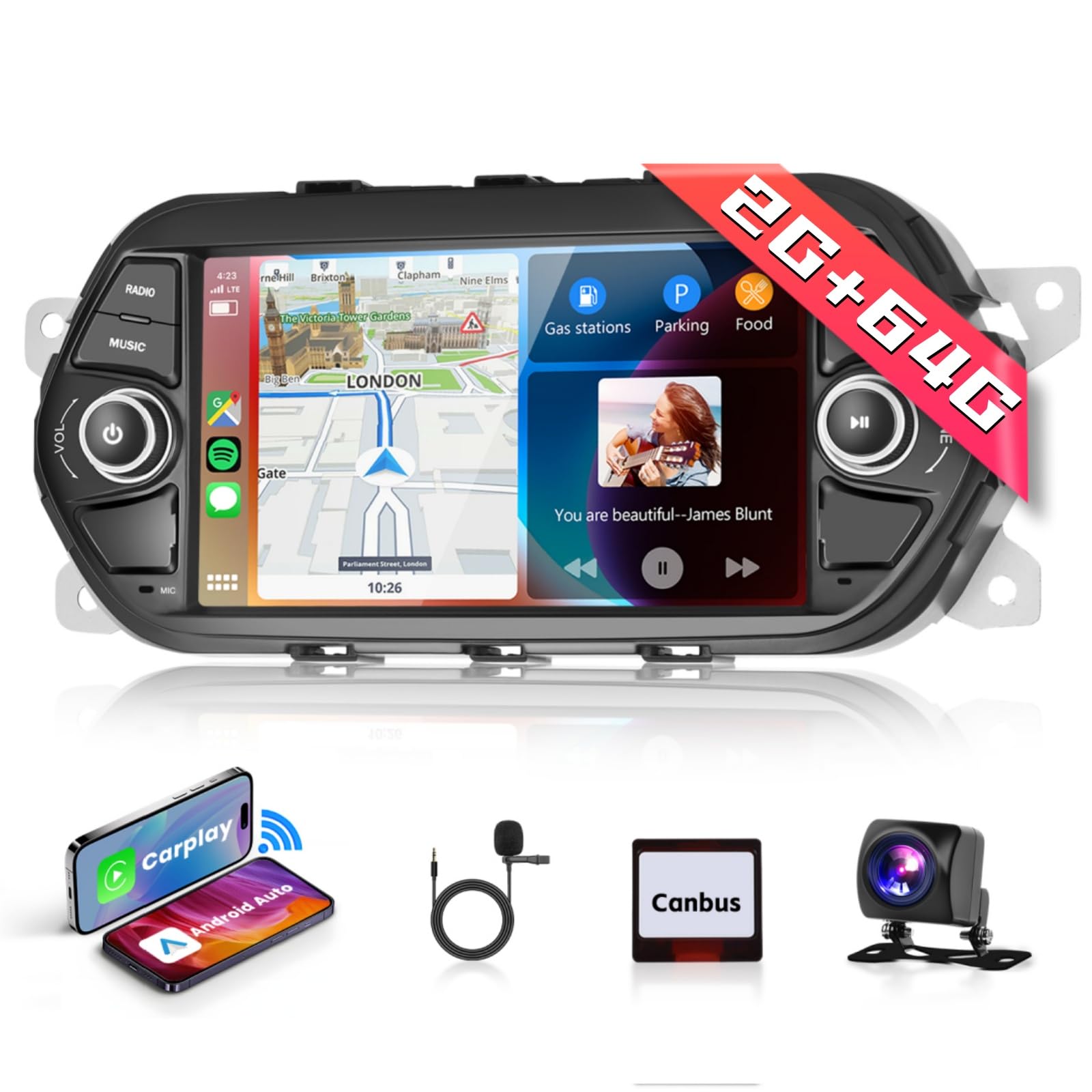
Image: Main unit of the Podofo Android 13 Car Stereo.
2. Package Contents
Please verify that all components listed below are included in your package:
- 1 x Car Stereo Unit
- 1 x Power Cable
- 1 x Antenna Adapter
- 1 x Installation Tool Set
- 1 x GPS Antenna
- 1 x Rear Camera Input Cable
- 1 x RCA Cable
- 2 x USB Cables
- 2 x Mounting Brackets
- 4 x Screws
- 1 x User Manual
- 1 x AHD Rear Camera
- 1 x CANBUS Decoder
- 1 x Microphone (MIC)

Image: Visual representation of the car stereo unit and all included accessories.
3. Setup and Installation
3.1 Compatibility Check
This car stereo is designed for FIAT TIPO EGEA models from 2015 to 2017. Ensure your vehicle's dashboard matches the compatible configuration before proceeding with installation.

Image: Illustration showing compatible and incompatible dashboard types for installation.
3.2 Installation Steps
- Disconnect Battery: Before starting, disconnect the vehicle's negative battery terminal to prevent electrical shorts.
- Remove Old Unit: Carefully remove the existing car stereo and dashboard trim.
- Connect Wiring: Connect the provided power cable, CANBUS decoder, GPS antenna, radio antenna, USB cables, RCA cables, and rear camera input cable to the corresponding ports on the new stereo and vehicle harness.
- Mounting: Secure the new car stereo using the provided mounting brackets and screws.
- Test Functionality: Before fully reassembling the dashboard, reconnect the battery and test all functions of the new stereo.
- Reassemble: Once all functions are verified, reassemble the dashboard trim.

Image: Visual comparison of the dashboard before and after the Podofo car stereo installation.
4. Operating Instructions
4.1 Basic Operation
- Power On/Off: Press and hold the power button on the unit or use the vehicle's ignition.
- Volume Control: Adjust volume using the physical knobs or touchscreen controls.
- Touchscreen Interface: Navigate through menus and applications by tapping and swiping on the 7-inch HD touchscreen.

Image: Examples of the user interface display, showing different application screens and settings.
4.2 Wireless Carplay / Android Auto / Mirrorlink
Connect your smartphone wirelessly or via USB to access Carplay or Android Auto features, including navigation, music, and calls. Mirrorlink allows screen mirroring for compatible devices.
- Enable Bluetooth/Wi-Fi: Ensure Bluetooth and Wi-Fi are enabled on your smartphone.
- Pair Device: On the car stereo, go to the Carplay/Android Auto/Mirrorlink section and follow the on-screen instructions to pair your device.
- USB Connection: For wired connection, connect your phone to one of the USB ports.

Image: Display of Carplay, Android Auto, and Mirrorlink interfaces on the car stereo screen.
4.3 WiFi and GPS Navigation
Connect the stereo to a Wi-Fi network or mobile hotspot to access online services and download apps. The integrated GPS allows for both online and offline navigation.
- Wi-Fi Connection: Go to Settings > Network > Wi-Fi to connect to an available network.
- Online Navigation: Use pre-installed navigation apps like Google Maps when connected to Wi-Fi.
- Offline Navigation: Download offline maps from the Play Store for navigation without an internet connection.
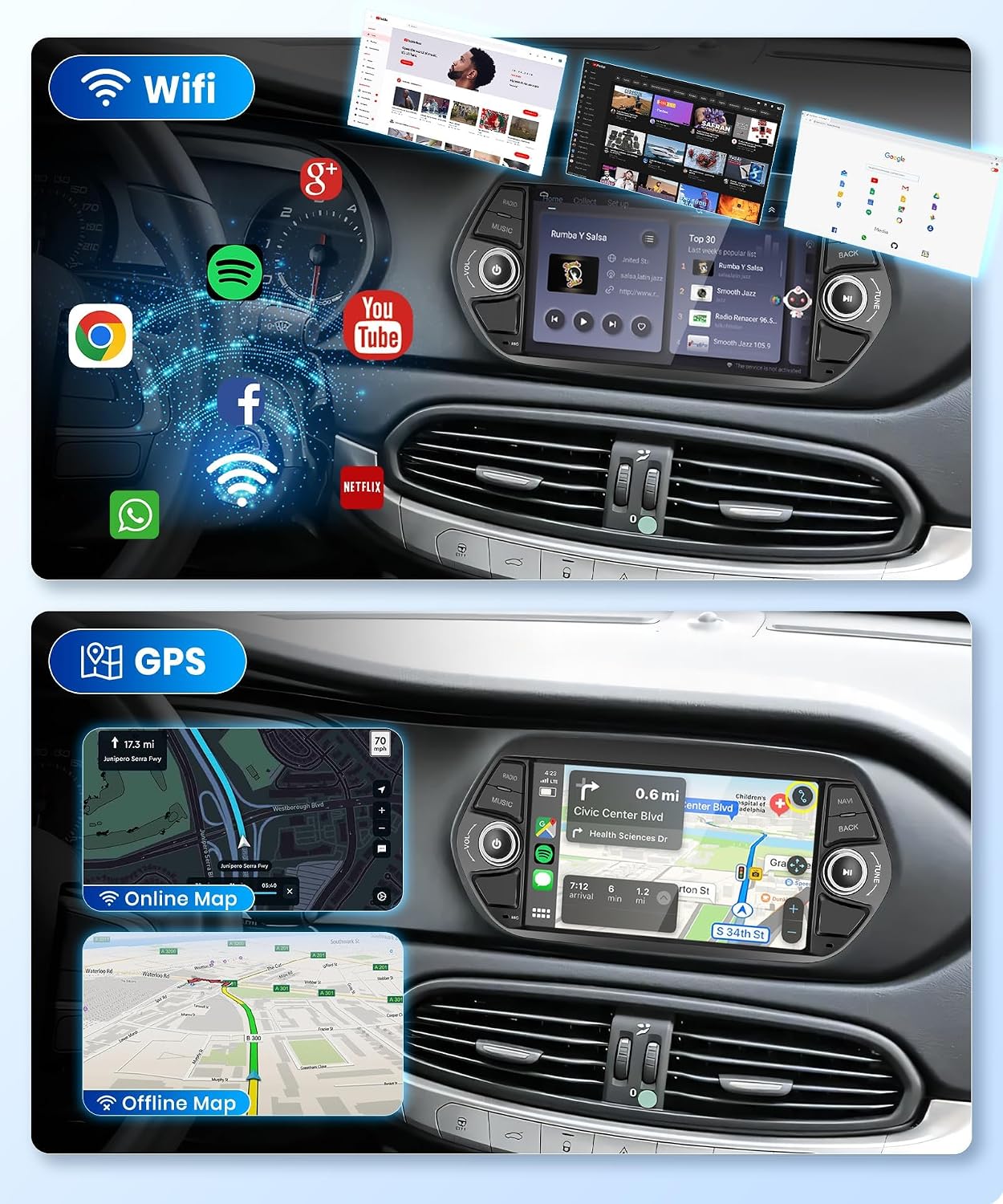
Image: Demonstrates Wi-Fi connectivity for app usage and GPS navigation with both online and offline map views.
4.4 Bluetooth, HIFI, RDS, and FM Radio
The unit supports Bluetooth for hands-free calling and music streaming. The FM/RDS radio provides clear reception and station information.
- Bluetooth Pairing: Enable Bluetooth on your phone and search for the car stereo. Pair the devices.
- Hands-Free Calling: Make and receive calls directly from the stereo screen.
- Music Streaming: Play audio from your phone via Bluetooth.
- FM/RDS Radio: Access the radio application to scan for stations. RDS displays station names and program information.

Image: Illustrates Bluetooth phone connectivity and the FM radio interface with RDS features.
4.5 AHD Rear Camera and Steering Wheel Control (SWC)
The included AHD rear camera provides a clear view when reversing. The CANBUS integration allows you to use your vehicle's original steering wheel controls.
- Rear Camera: The screen automatically switches to the rear camera view when the vehicle is in reverse gear.
- Steering Wheel Control Setup: Access the SWC settings in the stereo menu to program the buttons on your steering wheel for functions like volume, track change, and mode selection.

Image: Displays the rear camera view and the interface for programming steering wheel controls.
4.6 Audio Equalizer (EQ)
Customize your audio experience using the built-in equalizer. Select from various presets or adjust individual frequency bands to suit your preferences.

Image: The audio equalizer interface, showing various sound presets and adjustable frequency bands.
5. Maintenance
To ensure the longevity and optimal performance of your Podofo car stereo, follow these maintenance guidelines:
- Screen Cleaning: Use a soft, lint-free cloth to gently wipe the touchscreen. Avoid abrasive cleaners or harsh chemicals.
- Software Updates: Periodically check for and install software updates to ensure the system runs efficiently and has the latest features.
- Environmental Conditions: Avoid exposing the unit to extreme temperatures, direct sunlight for prolonged periods, or excessive moisture.
- Cable Connections: Ensure all cables are securely connected. Loose connections can lead to intermittent issues.
6. Troubleshooting
If you encounter issues with your car stereo, refer to the following common problems and solutions:
- No Power:
- Check all power cable connections.
- Verify the vehicle's fuse for the stereo is intact.
- Ensure the vehicle battery is properly connected and charged.
- No Sound:
- Check speaker wire connections.
- Ensure volume is not muted or set too low.
- Verify audio output settings in the stereo menu.
- GPS Not Working:
- Ensure the GPS antenna is properly installed and has a clear view of the sky.
- Check GPS settings in the system menu.
- Verify that location services are enabled for navigation apps.
- Bluetooth Connection Issues:
- Ensure Bluetooth is enabled on both the stereo and your phone.
- Delete previous pairings and try pairing again.
- Restart both the stereo and your phone.
- Rear Camera Not Displaying:
- Check the rear camera input cable connection.
- Ensure the camera is receiving power.
- Verify the vehicle is in reverse gear.
For persistent issues, please contact Podofo customer support.
7. Specifications
| Brand | podofo |
| Model Number | 2+64G |
| Operating System | Android |
| Screen Size | 7 Inches |
| Resolution | 1024 x 600 |
| Storage Capacity | 64 GB |
| Connectivity Technology | Bluetooth, Wi-Fi |
| Special Features | Bluetooth, GPS, Touchscreen, Carplay, Android Auto, RDS, AHD Camera Support, CANBUS |
| Audio Output Mode | Stereo |
| Mounting Type | On-dash |
| Compatible Vehicle Type | Automobile (FIAT TIPO EGEA 2015-2017) |
| Item Dimensions (LxWxH) | 17L x 21W x 15H cm |
8. Warranty and Support
8.1 Warranty Information
The Podofo Android 13 Car Stereo comes with a 2-year warranty from the date of purchase. This warranty covers manufacturing defects and malfunctions under normal use. Please retain your proof of purchase for warranty claims.
8.2 Customer Support
For any questions, technical assistance, or warranty claims, please contact Podofo customer support. Podofo has over ten years of experience in car electronics and provides lifetime support for its products.
Contact information can typically be found on the official Podofo website or through your retailer.


