
1. Introduction
This manual provides detailed instructions for the installation, operation, and maintenance of your MekedeTech M6 Pro Android 13 Car Radio. This head unit is specifically designed for Opel Mokka models manufactured between 2012 and 2016. It features an IPS touch screen, Android 13 operating system, and advanced connectivity options to enhance your driving experience.
Please read this manual thoroughly before installation and use to ensure proper function and safety.
2. Setup and Installation
The MekedeTech M6 Pro head unit is designed for a plug-and-play installation in compatible Opel Mokka vehicles. While designed for ease of installation, professional installation is recommended to ensure correct wiring and functionality, especially if you are unfamiliar with car audio systems.
2.1 Package Contents
Verify that all components are present before beginning installation. The package typically includes the head unit, power harness, GPS antenna, 4G antenna, and necessary mounting accessories.
2.2 Installation Steps
- Preparation: Ensure the vehicle's ignition is off and the battery is disconnected to prevent electrical damage.
- Remove Original Head Unit: Carefully remove the existing car radio and dashboard trim. Refer to your vehicle's service manual for specific instructions on trim removal.
- Connect Wiring Harness: Connect the provided wiring harness to the vehicle's existing harness. Ensure all connections are secure.
- Connect Antennas: Connect the Fakra GPS Antenna and Fakra 4G Antenna to their respective ports on the M6 Pro unit. Position the antennas in a location that provides optimal signal reception, typically on the dashboard or under the windshield.
- Mount Head Unit: Securely mount the M6 Pro head unit into the dashboard opening.
- Test Functionality: Reconnect the vehicle battery and turn on the ignition. Power on the M6 Pro unit and test basic functions such as audio, touch screen response, and radio reception before reassembling the dashboard trim.
- Reassemble Dashboard: Carefully reassemble all dashboard trim pieces.

Image 2.1: Comparison of the car dashboard before and after the installation of the MekedeTech M6 Pro car radio. The top image shows the new unit installed, displaying a navigation map and media player. The bottom left shows the original car radio, and the bottom right shows the new unit installed from a different angle.
3. Operating Instructions
The MekedeTech M6 Pro operates on Android 13, offering a user-friendly interface and a wide range of features.
3.1 Power On/Off and Basic Navigation
Press and hold the power button to turn the unit on or off. Navigate the system using the responsive IPS touch screen. Swipe gestures and taps are used to access applications and settings.
3.2 Wireless Carplay & Android Auto
The unit supports wireless Carplay and Android Auto, allowing seamless integration with your smartphone. Connect your device via Bluetooth for wireless access to navigation, calls, messages, and music directly on the head unit's screen.

Image 3.1: This image illustrates several key features. Top left shows voice control commands like "Call 911 Now" and "Navigate to the airport". Top right depicts 4G super speed experience with a cyclist. Bottom left displays the Carplay and Android Auto interface on the screen. Bottom right highlights the built-in high power cooling fan.
3.3 Voice Control
Utilize the intelligent voice control feature for hands-free operation. This allows you to issue commands for navigation, music playback, calls, and more, enhancing driving safety and convenience. The system is compatible with Siri and other voice control applications.
3.4 DSP 36-Band EQ and DTS Sound System
The integrated Digital Sound Processor (DSP) offers a 36-band equalizer for precise audio tuning. This allows for detailed adjustments to low-pass filters, tone compensation, balanced mode, and surround sound settings. The unit also supports DTS 4.1/5.1 channel surround systems, providing a dynamic and immersive audio experience.

Image 3.2: This image highlights the Qualcomm Bluetooth 5.1 chip, showing improved connection range, stability, and transmission speed compared to Bluetooth 5.0. It also illustrates the DSP 36-band EQ interface for professional sound tuning and the DTS 4.1/5.1 channel surround systems for enhanced audio.
3.5 Radio Functionality
The M6 Pro includes an FM/AM RDS radio with a TDA7708 radio IC. You can search for stations automatically or manually and save your favorite channels. The RDS (Radio Data System) provides additional information like station name and program type.
3.6 Split Screen Mode
The split-screen feature allows you to run two applications simultaneously on the display, such as navigation and music, for improved multitasking and convenience.
3.7 GPS Navigation
The unit features accurate GPS positioning with support for GPS, GLONASS, and BDS systems. Real-time traffic conditions and precise navigation are available through pre-installed or downloaded navigation applications.

Image 3.3: This image showcases several operational aspects. Top left shows the FM/AM RDS Radio interface. Bottom left illustrates the split-screen functionality with navigation and another app. Top right displays options to customize the main interface. Bottom right shows the multi-language support settings. The bottom section also details GPS accurate positioning and the specially designed M6 Pro motherboard.
3.8 4G LTE and Wi-Fi Connectivity
With built-in 4G LTE support and 5GHz Wi-Fi, the M6 Pro allows you to stay connected on the go. Stream live content, play online games, watch videos, and browse the internet directly from your head unit.
3.9 Bluetooth 5.1
Equipped with a Qualcomm 3031 Bluetooth 5.1 chip, the unit offers low power consumption, faster transmission speeds, and a more stable signal for calls and music streaming, with strong anti-interference capabilities.
3.10 UI Display Customization
The M6 Pro offers various UI display themes and customization options, allowing you to personalize the interface to your preferences.
4. Specifications
| Feature | Specification |
|---|---|
| Operating System | Android 13 |
| CPU | UIS7862S 2.0GHz 8-core (2x ARM Cortex A75 + 6x ARM Cortex A55) |
| Screen | 1280x720 QLED IPS Touch Screen |
| Memory (RAM+ROM) | 4GB RAM + 64GB ROM |
| Connectivity | 4G LTE, 5GHz WiFi, Bluetooth 5.1 (Qualcomm 3031 chip) |
| Power Amplifier IC | TDA7850/7851 |
| Radio IC | TDA7708 |
| Audio Features | DSP, RDS, DTS 4.1/5.1, 36-band Equalizer |
| Interaction | Wireless Carplay, Android Auto, Voice Control |
| Camera Support | ADAS DVR front camera, AHD rear camera |
| Cooling | Built-in powerful cooling fan |
| Antennas | Improved Fakra GPS Antenna, Fakra 4G Antenna |
| Compatibility | Opel Mokka 2012, 2013, 2014, 2015, 2016 |
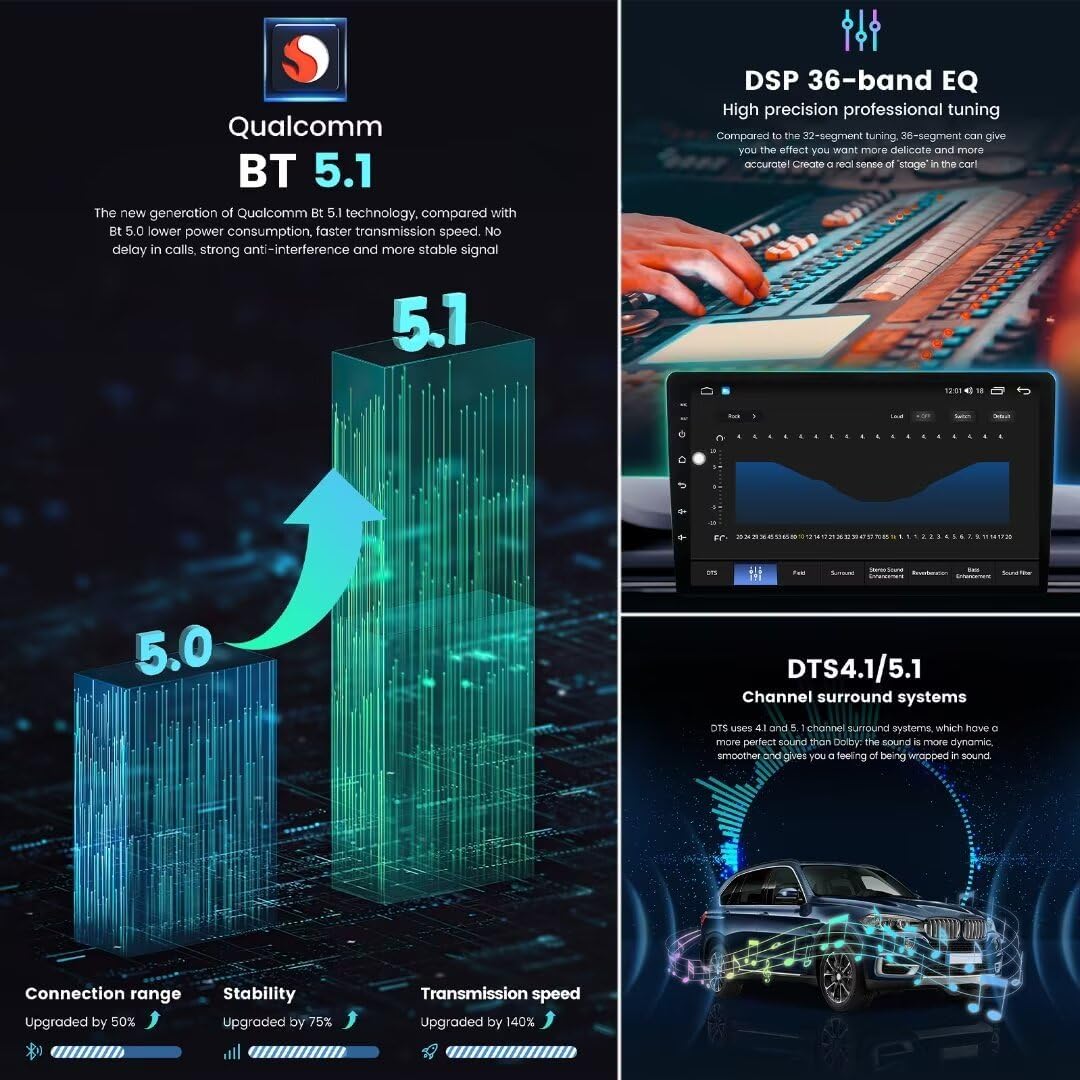
Image 4.1: This image details the 12NM processor (CPU) with 8 cores at 2.0GHz, highlighting performance, heat dissipation, and productivity upgrades. It also shows the 1280x720 QLED screen resolution and explains the benefits of a full-fit screen compared to a non-full-fit screen, emphasizing better display effect and reduced reflection.
5. Troubleshooting
If you encounter issues with your MekedeTech M6 Pro, refer to the following common troubleshooting steps:
- No Power: Check all power connections to ensure they are securely plugged in. Verify the vehicle's battery is connected and charged. Check the fuse for the car radio circuit.
- No Sound: Ensure the volume is not muted or set to minimum. Check speaker connections. Verify audio settings in the system menu.
- Touch Screen Unresponsive: Restart the device. If the issue persists, a factory reset might be necessary (note: this will erase all user data).
- GPS Signal Issues: Ensure the GPS antenna is properly connected and placed in an area with a clear view of the sky. Avoid placing it under metal objects.
- Bluetooth Connection Problems: Ensure Bluetooth is enabled on both the head unit and your mobile device. Try unpairing and re-pairing the devices.
- Carplay/Android Auto Not Connecting: Verify that your phone's operating system is up to date. Ensure the Carplay/Android Auto app is installed and updated on your phone. Check Bluetooth and Wi-Fi connections.
For persistent issues, contact customer support.
6. Maintenance
Proper maintenance will ensure the longevity and optimal performance of your MekedeTech M6 Pro car radio.
- Screen Cleaning: Use a soft, lint-free cloth to clean the touch screen. For stubborn smudges, lightly dampen the cloth with a screen cleaner solution designed for electronics. Avoid abrasive materials or harsh chemicals.
- Software Updates: Periodically check for software updates provided by MekedeTech to ensure your system has the latest features and security patches.
- Environmental Conditions: Avoid exposing the unit to extreme temperatures, direct sunlight for prolonged periods, or excessive moisture.
- Ventilation: Ensure the built-in cooling fan and ventilation openings are not obstructed to prevent overheating.
7. Warranty and Support
For warranty information, please refer to the documentation provided at the time of purchase or contact the seller directly. MekedeTech products typically come with a manufacturer's warranty covering defects in materials and workmanship.
For technical support, troubleshooting assistance, or inquiries regarding your product, please contact Mekedetech, the seller, through your purchase platform. Provide your product model number (M6Pro) and purchase details for efficient service.