1. Introduction
This manual provides instructions for the INNOCN 45C1R 45-inch Ultrawide Curved Gaming Monitor. This monitor features a 5120x1440p resolution, a 120Hz refresh rate, and a 1500R curvature for an immersive viewing experience. It includes HDR400 support, USB Type-C with 65W power delivery, and Picture-in-Picture/Picture-by-Picture (PIP/PBP) functionality.

Figure 1: INNOCN 45C1R Ultrawide Curved Gaming Monitor. This image displays the front view of the 45-inch ultrawide curved monitor with its stand.
2. Setup
2.1 Package Contents
Verify that all items are present in the package:

Figure 2: Package Contents. This image shows the monitor, stand, base, power cable, Type-C cable, USB upstream cable, HDMI cable, DP cable, instructions, and color calibration report.
- INNOCN 45C1R Monitor
- Stand
- Base
- Power Cable
- USB Type-C Cable
- USB Upstream Cable
- HDMI Cable
- DisplayPort (DP) Cable
- Instruction Manual
- Color Calibration Report
2.2 Monitor Assembly
- Carefully remove the monitor and components from the packaging.
- Attach the stand to the base using the provided screws.
- Secure the assembled stand to the back of the monitor. Ensure it clicks into place or is fastened securely with screws, depending on the design.
- Place the monitor on a stable, flat surface.
2.3 Connecting the Monitor
Connect the monitor to your computer or other devices using the appropriate cables.

Figure 3: Rear Ports of the INNOCN 45C1R Monitor. This image details the available ports: RJ45, USB-A 3.0 (x2), USB-B 3.0, HDMI 2.1 (x2), DisplayPort 1.4, USB Type-C 65W, and Audio Out.
- Power Connection: Connect the power cable to the monitor's power input and then to a power outlet.
- DisplayPort (DP 1.4): For optimal performance (5120x1440p @ 120Hz), connect the included DP cable from your computer's graphics card to the monitor's DP input.
- HDMI (HDMI 2.1 x2): Connect an HDMI cable from your device to one of the monitor's HDMI inputs. Supports up to 5120x1440p @ 60Hz.
- USB Type-C (65W Power Delivery): Connect a USB Type-C cable from a compatible laptop or device to this port. This port supports video signal, data transfer, and provides up to 65W of power delivery to charge your connected device.
- USB Upstream (USB-B 3.0): Connect the USB upstream cable from your computer to the monitor's USB-B port to enable the monitor's USB-A ports.
- USB Downstream (USB-A 3.0 x2): Connect USB peripherals like keyboards, mice, or external drives to these ports.
- RJ45 (Ethernet): Connect an Ethernet cable for network connectivity through the monitor.
- Audio Out (3.5mm Jack): Connect external headphones or speakers.
2.4 Initial Power On
Press the power button on the monitor. The power indicator light will illuminate, and the display will turn on. If no signal is detected, ensure your input source is active and correctly connected.
3. Operating the Monitor
3.1 On-Screen Display (OSD) Menu
The OSD menu allows you to adjust various monitor settings. Typically, buttons located on the back or bottom of the monitor are used to navigate the menu. Refer to the quick start guide for specific button functions.
- Brightness/Contrast: Adjust the display's luminance and contrast levels.
- Color Settings: Modify color temperature, gamma, and color space (e.g., sRGB).
- Input Source: Manually select the active input (DP, HDMI 1, HDMI 2, Type-C).
- Picture Settings: Adjust sharpness, aspect ratio, and other image enhancements.
- Audio Settings: Control volume for the built-in speakers or connected audio devices.
- PIP/PBP Settings: Configure Picture-in-Picture or Picture-by-Picture modes.
- System Settings: Access language, OSD timeout, and other general monitor settings.
3.2 Key Features
- Ultrawide Curved Display (1500R): The 45-inch 1500R curved screen provides an immersive field of view, reducing eye strain compared to flat monitors during extended use.
- High Resolution and Refresh Rate: Enjoy a sharp 5120x1440p (5K2K) resolution and a smooth 120Hz refresh rate, ideal for gaming and content creation.
- HDR400 Support: The monitor supports DisplayHDR 400, offering enhanced contrast and color performance with a 3000:1 contrast ratio and 99% sRGB color gamut.
- Adaptive-Sync Technology: Synchronizes the monitor's refresh rate with your graphics card's frame rate to eliminate screen tearing and stuttering.
- USB Type-C with 65W Power Delivery: A single USB-C cable can transmit video, data, and provide up to 65W of power to charge compatible devices.
- PIP/PBP Functionality: Display content from two separate input sources simultaneously on the screen, enhancing multitasking capabilities.
- Built-in Speakers: The monitor includes integrated stereo speakers for audio output.
- Ergonomic Adjustments: The stand allows for tilt, swivel, and height adjustments to achieve an optimal viewing position.

Figure 4: 1500R Curvature. This image illustrates the 1500R curvature of the monitor, highlighting its ergonomic benefits.

Figure 5: 120Hz Smooth Refresh Rate. This image visually compares the smoothness of 120Hz versus 60Hz refresh rates in a fast-moving scene.

Figure 6: DisplayHDR 400 Certification. This image shows the monitor displaying a vibrant city scene, indicating HDR capabilities.
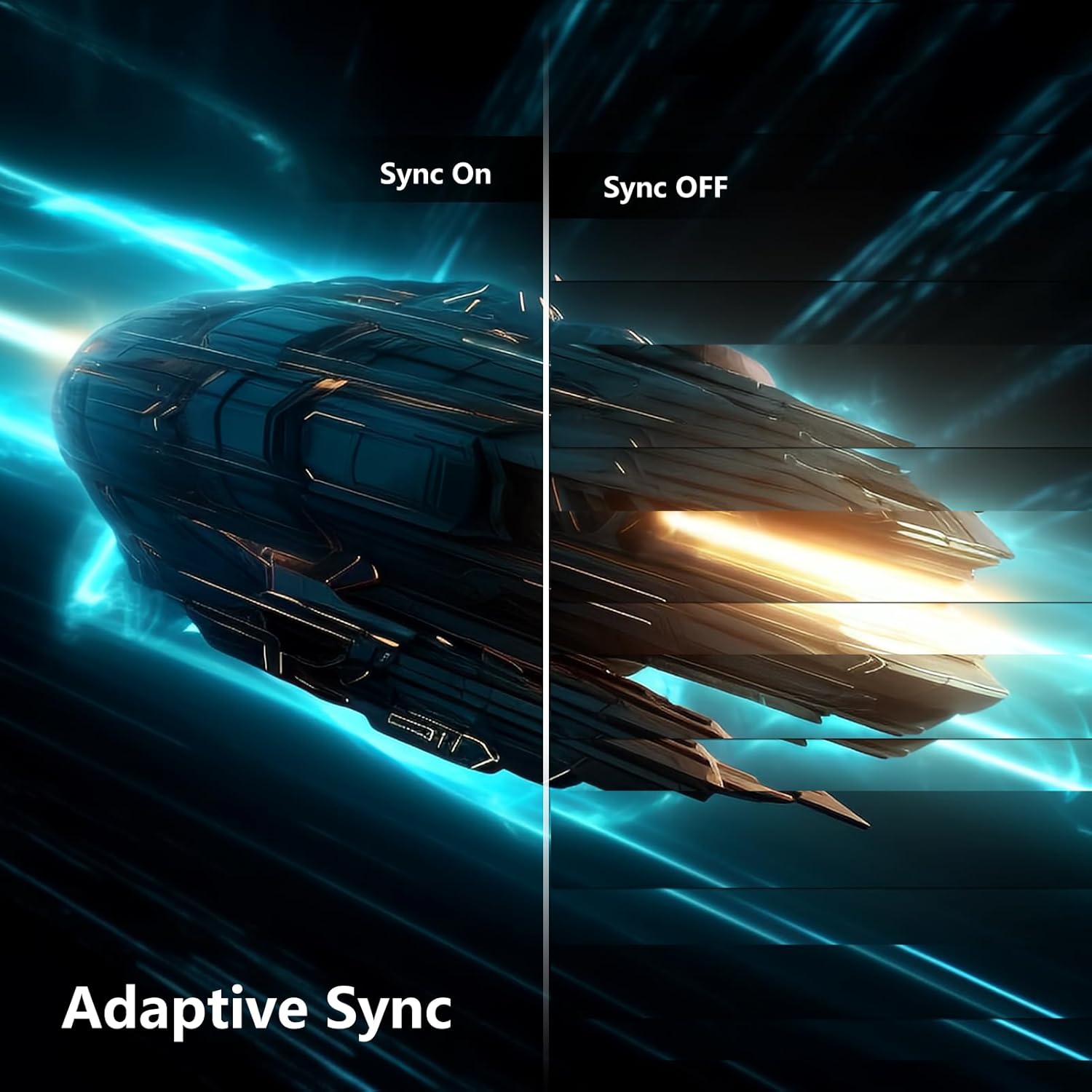
Figure 7: Adaptive Sync On vs. Off. This image demonstrates the visual difference between Adaptive Sync enabled and disabled, showing smoother motion with Sync On.

Figure 8: USB Type-C 65W Power Delivery. This image shows a laptop connected to the monitor via a USB-C cable, indicating power delivery and display functionality.

Figure 9: Integrated Stereo Speakers. This image highlights the monitor's built-in speakers with sound wave graphics.
4. Maintenance
4.1 Cleaning the Monitor
- Always unplug the monitor from the power outlet before cleaning.
- Use a soft, lint-free cloth slightly dampened with water or a non-abrasive screen cleaner.
- Do not spray cleaner directly onto the screen. Apply it to the cloth first.
- Avoid using benzene, thinner, ammonia-based cleaners, or abrasive materials, as these can damage the screen or casing.
- Wipe the screen gently to remove dust and smudges.
4.2 General Care
- Keep the monitor away from direct sunlight, excessive heat, and moisture.
- Ensure proper ventilation around the monitor to prevent overheating.
- Avoid placing heavy objects on the monitor or its cables.
- If the monitor will not be used for an extended period, unplug it from the power source.
5. Troubleshooting
If you encounter issues with your monitor, refer to the following common troubleshooting steps:
| Problem | Possible Cause | Solution |
|---|---|---|
| No image on screen |
|
|
| Image is blurry or distorted |
|
|
| No audio from speakers |
|
|
| USB ports not working |
|
|
6. Specifications
| Feature | Detail |
|---|---|
| Brand | INNOCN |
| Model Number | 45E3R |
| Screen Size | 45 Inches |
| Resolution | 5120x1440 Pixels (QHD Ultra Wide 1440p) |
| Aspect Ratio | 32:9 |
| Refresh Rate | 120Hz |
| Curvature | 1500R |
| Panel Type | VA |
| HDR Support | DisplayHDR 400 |
| Connectivity |
|
| Built-in Speakers | Yes |
| Ergonomics | Tilt, Swivel, Height Adjustable |
| Product Dimensions | 10 x 47 x 18 inches |
| Item Weight | 26.5 pounds |
7. Warranty & Support
INNOCN products are designed and manufactured to the highest quality standards. For information regarding warranty coverage, technical support, or service inquiries, please refer to the warranty card included in your product packaging or visit the official INNOCN website.
Official INNOCN Website: www.innocn.com


