1. Introduction
Thank you for choosing the awatrue Kids Bluetooth Headphones. This manual provides essential information for setting up, operating, and maintaining your headphones. Please read it thoroughly to ensure optimal performance and longevity of your device. These headphones are designed to provide a safe and immersive audio experience for children and teens, featuring a safe volume limit, long battery life, and versatile connectivity.
2. Package Contents
Ensure all items are present in the package:
- awatrue Kids Bluetooth Headphones
- User Manual
- USB-C Charging Cable
- 3.5mm Audio Cable
3. Product Overview
Familiarize yourself with the components and controls of your headphones.

Figure 3.1: awatrue Kids Bluetooth Headphones (Black)
This image displays the overall design of the awatrue Kids Bluetooth Headphones in black, showcasing the over-ear design and adjustable headband.
3.1. Controls and Ports

Figure 3.2: Headphone Controls and Ports
This diagram illustrates the location of the various buttons and ports on the headphone. Key components include the Power Button, Volume Control (85/94dB), Multi-Function Button (MFB) for play/pause/answer/hang up, 3.5mm Audio Port (for wired connection and sharing), and the USB-C Charging Port.
- Power Button: Used to turn the headphones on or off.
- Volume Control (85/94dB): Adjusts the listening volume and switches between safe volume modes.
- Multi-Function Button (MFB): Controls playback (play/pause) and call management (answer/hang up).
- 3.5mm Audio Port: For wired connection to devices or for audio sharing with another headphone.
- USB-C Charging Port: Used to charge the headphone battery.
- ENC Microphone: Integrated microphone for clear voice calls with environmental noise cancellation.
3.2. Design Features
- Foldable Design: The headphones can be folded for easy portability and storage.
- Adjustable Headband: Ensures a comfortable fit for various head sizes.
- Memory-Protein Ear Pads: Designed for soft, comfortable wear during extended listening sessions.
- Durable Construction: Built with sturdy metal frame and shock-absorbing materials for enhanced durability.
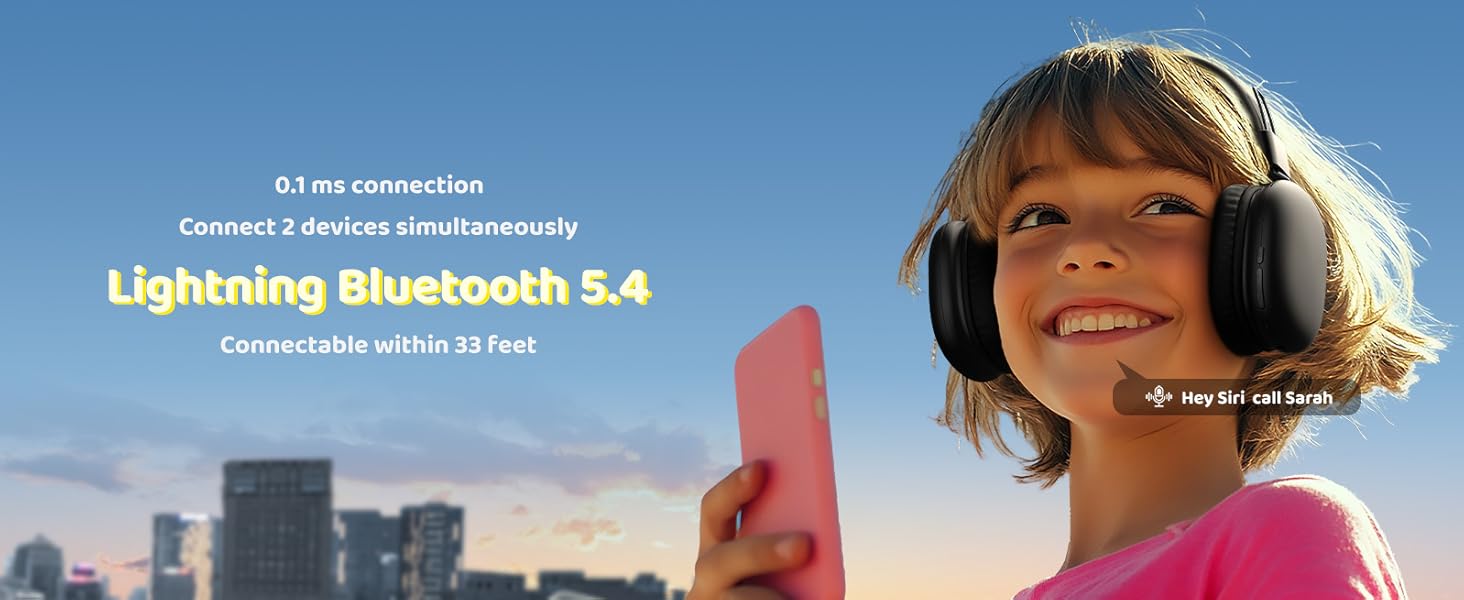
Figure 3.3: Adjustable and Foldable Design
This image highlights the adjustable headband for a snug fit and the foldable design, making the headphones easy to carry and store.
4. Setup
4.1. Initial Charging
Before first use, fully charge your headphones.
- Connect the provided USB-C charging cable to the USB-C port on the headphones.
- Connect the other end of the cable to a USB power adapter (not included) or a computer's USB port.
- The charging indicator light will illuminate. Once fully charged (approximately 1.5 hours), the light will change or turn off.
A 5-minute charge can provide approximately 1.6 hours of playtime.

Figure 4.1: Charging the Headphones
This image shows the headphones connected to a charging cable, indicating the charging process.
4.2. Bluetooth Pairing
To connect your headphones wirelessly:
- Ensure the headphones are charged and turned off.
- Press and hold the Power Button until the indicator light flashes, indicating pairing mode.
- On your device (smartphone, tablet, laptop), enable Bluetooth and search for available devices.
- Select "AT8" from the list of devices.
- Once connected, the indicator light will stop flashing and remain solid.
The headphones feature Bluetooth 5.4 for stable connection up to 33 feet (10 meters) and can connect to two smart devices simultaneously for seamless switching.

Figure 4.2: Bluetooth Pairing
This image shows a smartphone's Bluetooth settings screen with the headphones listed as an available device for connection, illustrating the pairing process.
4.3. Wired Connection
For a wired connection or when the battery is depleted:
- Plug one end of the 3.5mm audio cable into the 3.5mm audio port on the headphones.
- Plug the other end into the audio jack of your device.
- The headphones will automatically switch to wired mode.
5. Operating Instructions
5.1. Power On/Off
- Power On: Press and hold the Power Button for 2-3 seconds until the indicator light turns on.
- Power Off: Press and hold the Power Button for 3-4 seconds until the indicator light turns off.
5.2. Volume Control
- Increase Volume: Press the Volume Up button.
- Decrease Volume: Press the Volume Down button.
- Safe Volume Mode: The headphones feature a hearing protection mode that limits volume to 85/94dB. Refer to the product specifications for default settings and any available toggles.
5.3. Music Playback and Calls (MFB)
- Play/Pause: Press the Multi-Function Button (MFB) once.
- Next Track: Double-press the MFB.
- Previous Track: Triple-press the MFB.
- Answer/End Call: Press the MFB once during an incoming call.
- Reject Call: Press and hold the MFB for 2 seconds during an incoming call.
- Activate Voice Assistant: Press and hold the MFB for 2 seconds (when not on a call).
5.4. Audio Sharing
The 3.5mm sharing jack allows another person to connect their headphones to yours and share the audio output.
- Connect your headphones to a device via Bluetooth or wired connection.
- Plug a second pair of headphones into the 3.5mm sharing jack on your awatrue headphones.
- Both headphones will now play the same audio.
6. Maintenance
6.1. Cleaning
- Wipe the headphones with a soft, dry, lint-free cloth.
- Do not use abrasive cleaners, solvents, or spray cleaners directly on the headphones.
- Keep the charging port and audio jack free of dust and debris.
6.2. Storage
- Store the headphones in a cool, dry place away from direct sunlight and extreme temperatures.
- Utilize the foldable design for compact storage when not in use.
6.3. Battery Care
- To preserve battery life, charge the headphones regularly, even if not used frequently.
- Avoid fully discharging the battery for extended periods.
7. Troubleshooting
| Problem | Possible Cause | Solution |
|---|---|---|
| Headphones do not power on. | Low battery. | Charge the headphones fully. |
| Cannot pair via Bluetooth. | Headphones not in pairing mode; device Bluetooth off; too far from device. | Ensure headphones are in pairing mode. Turn device Bluetooth off/on. Move headphones closer to device. Forget device on your phone and re-pair. |
| No sound or low volume. | Volume too low; incorrect audio source; wired cable not fully inserted. | Increase volume on headphones and device. Check audio source. Ensure 3.5mm cable is fully inserted if using wired mode. |
| Sound distortion. | Too far from device; interference. | Move closer to the Bluetooth device. Avoid strong electromagnetic interference. |
| Microphone not working. | Device settings; microphone blocked. | Check microphone settings on your device. Ensure microphone port is not obstructed. |
8. Specifications
| Feature | Detail |
|---|---|
| Model Name | AT8 |
| Brand | awatrue |
| Connectivity Technology | Wireless (Bluetooth 5.4), Wired (3.5mm Jack) |
| Bluetooth Range | Up to 10 meters (33 feet) |
| Audio Driver Type | 40mm Dynamic Driver |
| Noise Control | ENC (Environmental Noise Cancellation) Microphone |
| Safe Volume Limit | 85/94dB |
| Battery Life | Up to 50 hours playtime |
| Charging Time | Approximately 1.5 hours |
| Charging Port | USB-C |
| Weight | 9.2 ounces |
| Compatible Devices | Smartphones, Tablets, Laptops, Desktops, Gaming Consoles, Televisions |
| Age Range (Description) | 4-80 |
| Included Components | User Manual |
9. Warranty and Support
awatrue provides a 365-day free warranty service for this product from the date of purchase. This warranty covers manufacturing defects and ensures your product functions as intended.
For warranty claims, technical support, or any inquiries regarding your awatrue Kids Bluetooth Headphones, please contact awatrue customer support through the retailer's platform or the official awatrue website. Please have your purchase details and product model number (AT8) ready when contacting support.


