
1. Introduction
The Carlinkit 5.0 Wireless CarPlay/Android Auto Adapter converts your car's existing wired CarPlay or Android Auto system into a wireless connection. This device is designed to provide a seamless and convenient experience, allowing you to access your smartphone's features on your car's display without the need for cables.
What's in the Box
- Packaging box x 1
- Wireless Adapter x 1
- USB-A to USB-C cable x 1
- USB-C to USB-C cable x 1
- Product manual x 1
2. Compatibility
This adapter is designed for vehicles equipped with factory-installed wired Apple CarPlay or wired Android Auto. Please review the compatibility requirements below before use.
Vehicle Compatibility
- Supports original cars with factory built-in wired Apple CarPlay (for iPhone connection only).
- Supports original cars with factory built-in wired Android Auto (for Android phone connection only).
- Important Note: This product converts wired CarPlay to wireless CarPlay and wired Android Auto to wireless Android Auto. It does not support converting wired Android Auto to wireless CarPlay or wired CarPlay to wireless Android Auto.

Image: Compatibility overview for car and phone models.
Exclusions: The following car models are not compatible with this adapter: Nissan Murano (2017) and Mitsubishi L200 (2021).
Mobile Phone Compatibility
- For iPhone: Supports iOS 10 and above (iPhone 6 and newer).
- For Android Phones: Supports Android 11.0 and above.

Image: Visual representation of compatible car stereos and mobile phone operating systems.
3. Setup Instructions
The Carlinkit 5.0 adapter features a simple plug-and-play setup. Follow these steps to establish a wireless connection.
Initial Connection Steps
- Plug into the USB port: Connect the Carlinkit 5.0 adapter to your car's USB port that supports wired CarPlay or Android Auto.
- Bluetooth Pairing: On your mobile phone, ensure both Wi-Fi and Bluetooth are turned on. Search for the adapter's Bluetooth signal (e.g., "AutoKit_XXX") and pair with it.
- Successful Connection: Once paired, your car's display should automatically switch to wireless CarPlay or Android Auto.

Image: Three-step guide for initial setup and connection.

Image: Detailed visual steps for connecting the adapter.
Video Guides for Connection
Connecting for iPhone
Video: Demonstrates the automatic connection process for iPhone users after initial pairing. Ensure Wi-Fi and Bluetooth are open on your phone to receive the adapter's Bluetooth signal.
Connecting for Android Phone
Video: Demonstrates the automatic connection process for Android phone users after initial pairing. Ensure Wi-Fi and Bluetooth are open on your phone to receive the adapter's Bluetooth signal.
Easy Connect Overview
Video: A general overview of the easy connection process for the Carlinkit 5.0 adapter.
4. Operating the Adapter
Once connected, the Carlinkit 5.0 adapter provides a stable and responsive wireless experience for CarPlay and Android Auto.
Automatic Reconnection
After the initial pairing, the adapter will automatically reconnect to your phone each time you start your car, provided your phone's Wi-Fi and Bluetooth are active.
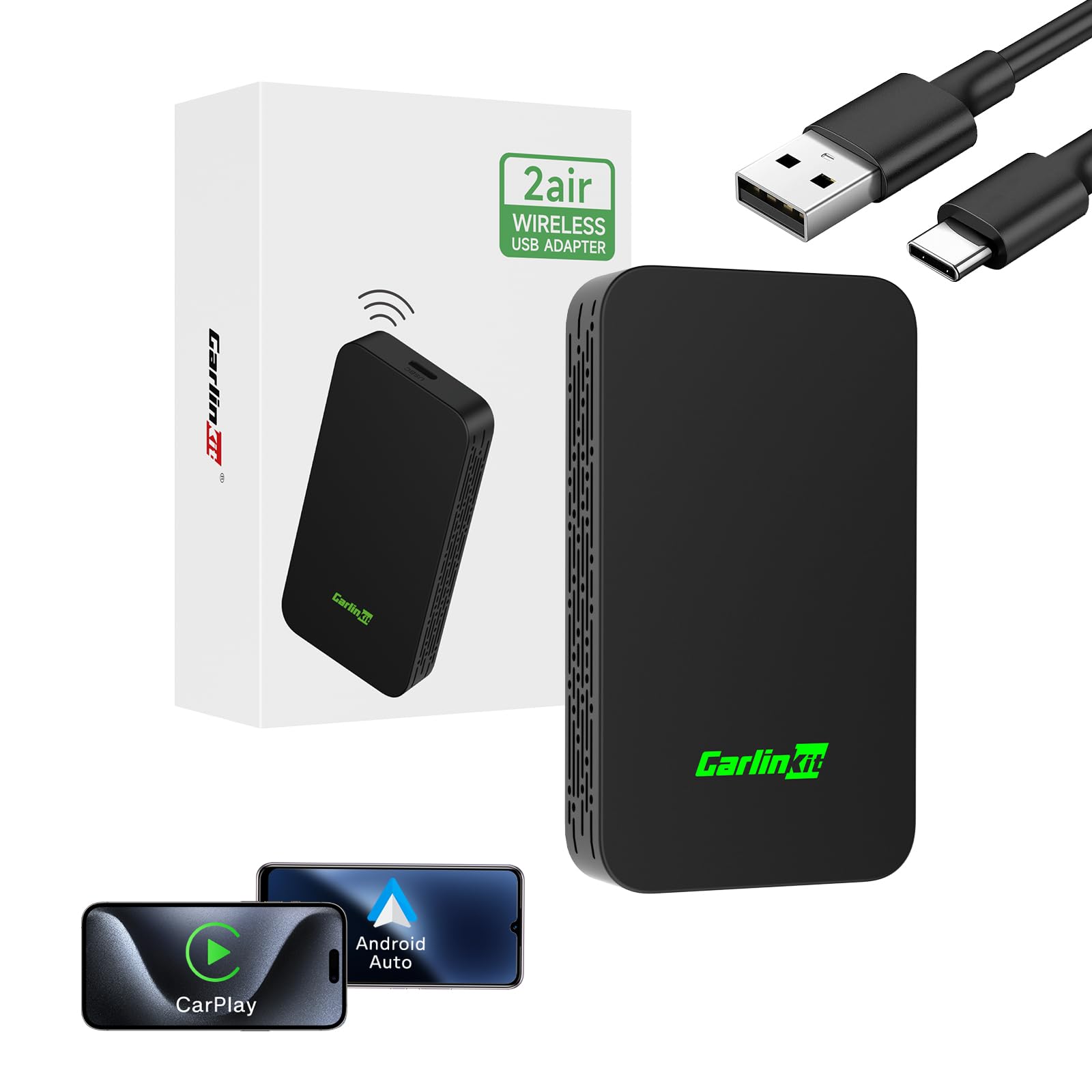
Image: Illustration of automatic reconnection upon car start.
Seamless Wireless Experience
Enjoy the full functionality of CarPlay and Android Auto wirelessly, including navigation, music playback, calls, and messaging, without the need for physical cables.

Image: Demonstrates the wireless conversion from wired CarPlay/Android Auto.

Image: Visual comparison of wired vs. wireless connection.
Retaining Original Vehicle Controls
The adapter integrates with your car's original control methods, allowing you to use the steering wheel controls, knob controls, and touchscreen for navigation and interaction within CarPlay or Android Auto.

Image: Demonstrates how the adapter retains original vehicle control functionality.

Image: Overview of retained original vehicle controls.
Multi-Device Support
The device can store up to 5 paired devices, enabling seamless automatic connections without repetitive setup. This feature facilitates easy sharing with family and friends, ensuring a smooth user experience.

Image: Illustration of multi-device support for seamless connectivity.
5. Maintenance and Updates
OTA Online Upgrade
The Carlinkit 5.0 adapter supports Over-The-Air (OTA) online updates, allowing you to update the device's firmware directly from your mobile phone to ensure optimal performance and access to the latest features.
- After inserting the adapter into the car's USB port, turn on your mobile phone's Wi-Fi.
- Search for a Wi-Fi signal starting with "VOLKSW" or "Auto". The password is "12345678".
- Open the browser on your phone and enter the URL: 192.168.50.2 to access the device's background page. Click "Check update" to upgrade online.

Image: Steps for performing an OTA online upgrade.

Image: Detailed visual steps for OTA online upgrade.
6. Troubleshooting
If you encounter issues with your Carlinkit 5.0 adapter, refer to the following common troubleshooting tips.
Connection Issues
If your car cannot connect to the device:
- Verify that your car is equipped with OEM wired CarPlay or OEM wired Android Auto. The adapter requires an existing wired system to convert to wireless.
- Ensure your mobile phone's Wi-Fi and Bluetooth are both enabled and not occupied by other signals.
- Confirm that the adapter is securely plugged into the correct USB port in your vehicle.

Image: Conditions for device connection.
Stable Connection
To ensure a stable connection, the device utilizes an upgraded Wi-Fi tech module. However, external interferences can affect performance:
- Avoid placing the adapter near other devices that emit strong Wi-Fi signals or electromagnetic interference, such as Wi-Fi cameras. These can disrupt your phone's connection.
- If connection issues persist, try restarting both your phone and the car's infotainment system.

Image: Information on maintaining a stable connection.
Video Playback
The Carlinkit 5.0 adapter converts wired CarPlay/Android Auto to wireless. Due to limitations of CarPlay and Android Auto platforms, direct video playback from streaming services is generally not supported through these interfaces while driving. The device supports the use of all applications that CarPlay and Android Auto natively support.

Image: Clarification on video playback limitations.
7. Specifications
| Feature | Detail |
|---|---|
| Model Number | CarlinKit 5.0 |
| Brand | Carlinkit |
| Color | Black |
| Item Weight | 3.84 ounces |
| Package Dimensions | 6.97 x 5.75 x 1.73 inches |
| Connector Type | USB-A to USB-C, USB-C to USB-C |
| Compatible Devices | iPhone 6 and above (iOS 10+), Android phones (Android 11.0+) |
| Bluetooth Version | 4.1 |
| Wi-Fi Transmission Rate | 5.8GHz |
| CPU | Atmel AT91SAM9260 |
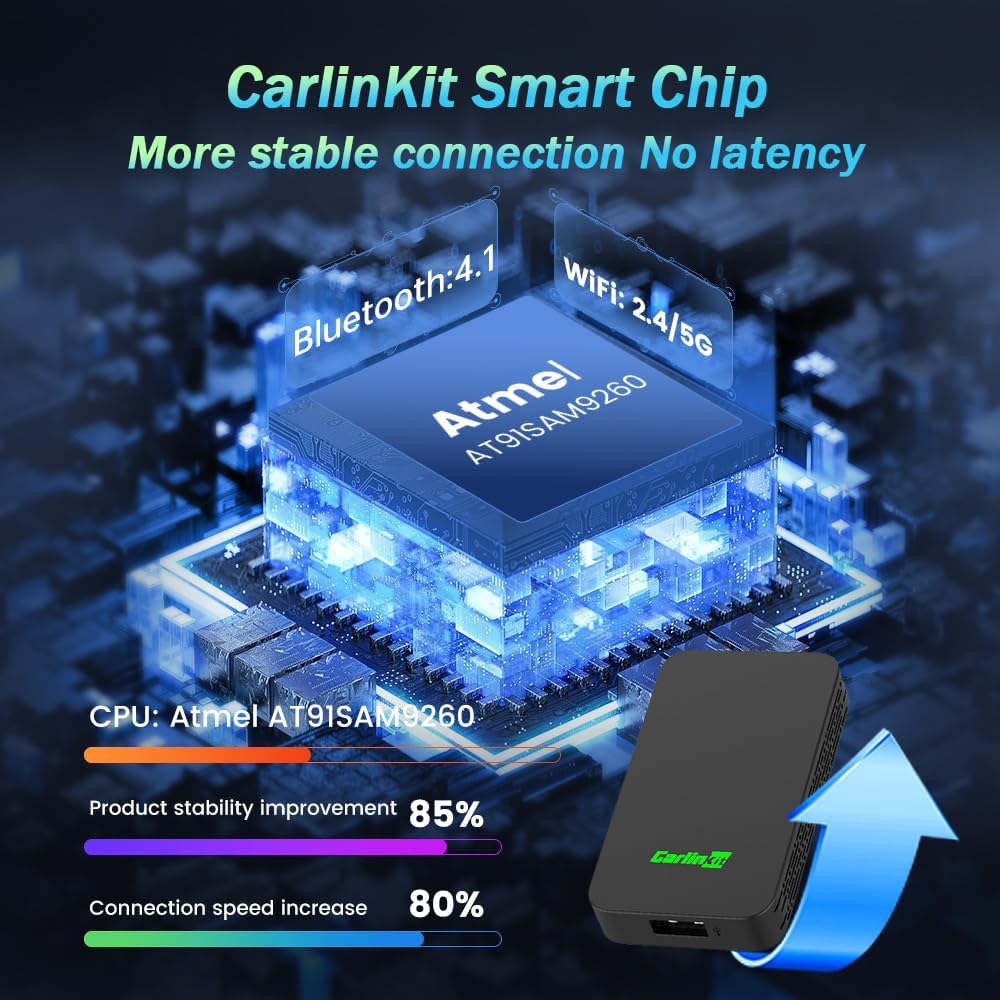
Image: Internal components and performance metrics of the adapter.

Image: Compact design and dimensions of the adapter.
8. Warranty and Support
Carlinkit provides professional customer support and reliable after-sales service for peace of mind. If you encounter any product problems or require technical assistance, please contact Carlinkit customer service.

Image: Carlinkit customer support team.


