
1. Introduction
This manual provides essential instructions for setting up, operating, and maintaining your Epson SureColor F570 Pro 24-inch Desktop Sublimation Printer. Please read this manual thoroughly before using the printer to ensure optimal performance and longevity.

Figure 1: Epson SureColor F570 Pro printer with included accessories and sublimation blanks.
2. Setup
2.1 Unpacking and Placement
Carefully remove the printer from its packaging. Due to its size and weight (approximately 152 pounds), it is recommended that two people handle the printer during unpacking and placement to prevent injury or damage. Place the printer on a sturdy, level surface capable of supporting its weight and dimensions (32"D x 38"W x 10"H).

Figure 2: Front view of the Epson SureColor F570 Pro printer, showing its compact design.
2.2 Ink Installation
The printer uses T49M CMYK dye-sublimation inks. Follow the on-screen instructions on the printer's 4.3" touchscreen interface for proper ink bottle installation. Ensure each color ink bottle is inserted into its corresponding tank.

Magenta Ink

Yellow Ink

Black Ink
The printer comes with two full sets of 140ml CMYK ink bottles (8 bottles total).
2.3 Software and Driver Installation
Install the necessary software and drivers for your operating system (Windows 10, 8, Apple macOS, macOS X). The Epson Edge Print Pro software is included and features an Adobe PostScript 3 and Adobe PDF Print Engine for advanced print controls. Drivers and additional software are available for download at support.epson.com.

Figure 3: Epson Edge Print Pro Software Feature Comparison.
2.4 Connectivity
Connect your printer using Wireless, USB, or Ethernet. The printer features integrated connectivity options for flexible setup.
3. Operation
3.1 Loading Media
The SureColor F570 Pro supports versatile media handling:
- Roll Media Handling: High ease of use with Auto-Loading and de-skewing. Supports roll widths from 8.3" to 24.4" on a 2" diameter core.
- Auto-Sheet Feeder: Automatically switches between roll to cut-sheet without unloading/loading paper. Supports sheet sizes from 8.3"x11" to 11"x17". Includes a removable output stacker for organized printing. Max input sheet capacity is 50 sheets.
- Manual Sheet Feeder: Supports manually loading of custom sheets up to 24.4" wide and 708" long.

Figure 4: Advanced Media Handling capabilities.
3.2 Printing Process
Utilize the Epson Edge Print Pro software for job layout, nesting, pattern repeats, and advanced color controls. The PrecisionCore MicroTFP printhead offers Precision Droplet Control for outstanding clarity and reliability with Nozzle Verification Technology. The printer is optimized for high photo quality on rigid materials with minimal grain and excellent coverage on soft/fabrics materials.

Figure 5: The printer in operation, producing vibrant sublimation prints.
4. Maintenance
4.1 General Cleaning
Regularly clean the exterior of the printer with a soft, damp cloth. Avoid using harsh chemicals or abrasive materials. Keep the print area free of dust and debris to prevent print quality issues.
4.2 Ink System Care
Ensure genuine Epson T49M inks are used for optimal performance and to maintain warranty validity. The printer's automatic maintenance cycles help keep the printhead in good condition. If print quality degrades, perform a nozzle check and head cleaning through the printer's control panel or software.
5. Troubleshooting
5.1 Common Issues
- Poor Print Quality: Check ink levels, perform nozzle checks and head cleaning. Ensure correct media type is selected in software.
- Paper Jams: Carefully remove any jammed media following the instructions on the printer's display. Ensure media is loaded correctly and not wrinkled.
- Connectivity Problems: Verify network connections (Wi-Fi, Ethernet) or USB cable connection. Restart the printer and computer.
5.2 Error Messages
Refer to the printer's display for specific error codes and messages. Consult the online support documentation at support.epson.com for detailed solutions related to specific error codes.
6. Specifications
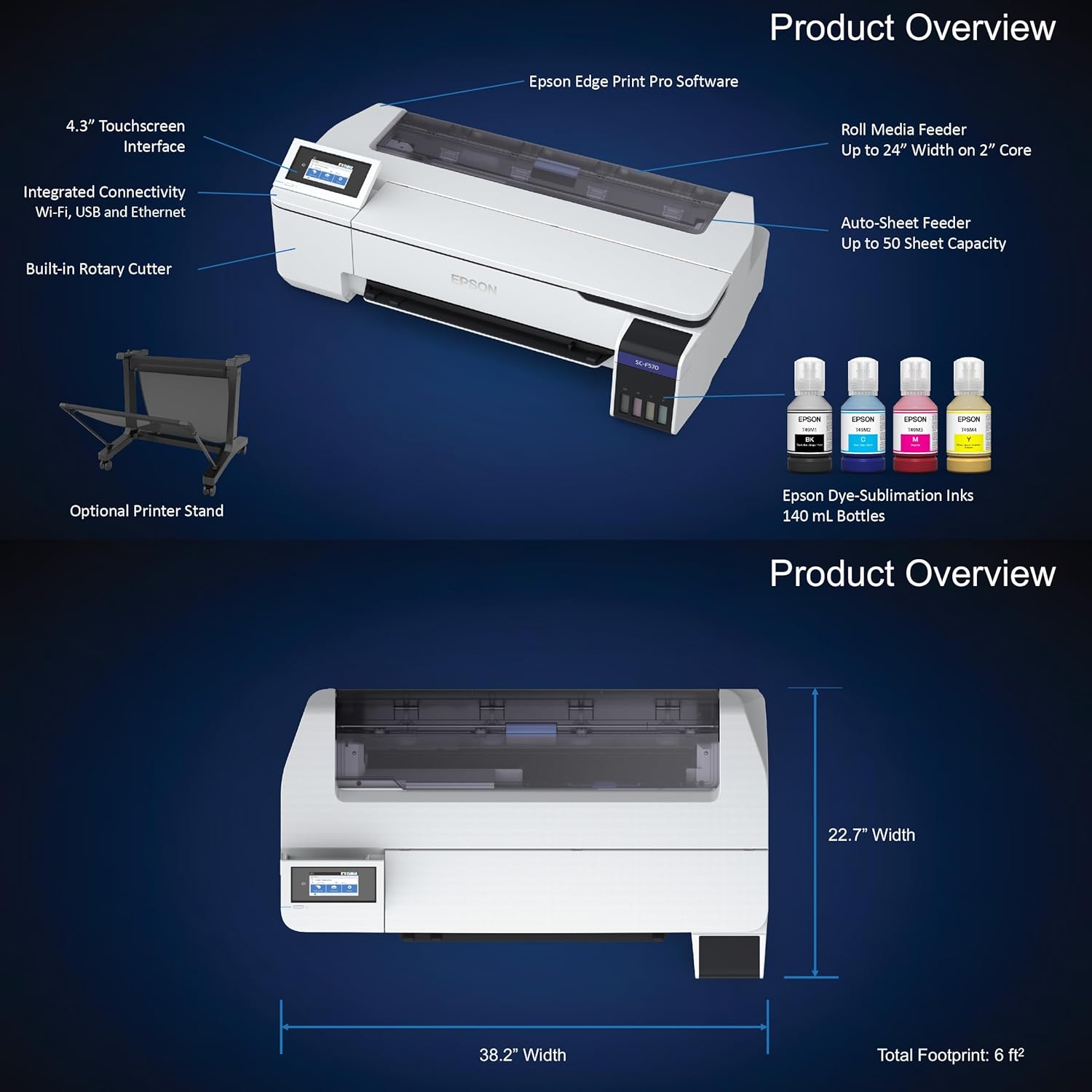
Figure 6: Product Overview and Key Features.
| Feature | Detail |
|---|---|
| Model Name | SureColor F570 Pro Dye-Sublimation Printer |
| Item Model Number | SCF570 |
| Manufacturer | Epson |
| Printing Technology | Dye Sublimation |
| Printer Output | Color |
| Ink Color | CMYK (T49M inks) |
| Maximum Media Size | 24" x 100' |
| Sheet Size Support | 8.3"x11" to 11"x17" (Auto-Sheet Feeder), up to 24.4" wide and 708" long (Manual Sheet Feeder) |
| Max Input Sheet Capacity | 50 sheets |
| Print Media | Fabric, Polyester, Coated Ceramics, etc. |
| Connectivity Technology | Wireless, USB, Ethernet |
| Control Method | Remote, Touch (4.3" Touchscreen Interface) |
| Product Dimensions | 32"D x 38"W x 10"H |
| Item Weight | 152 pounds |
| Included Components | Epson Surecolor F570 Sublimation Printer |
| Warranty Type | Limited Warranty |
7. Warranty Information
The Epson SureColor F570 Pro printer comes with a limited warranty. For specific terms and conditions, please refer to the warranty documentation included with your product or visit the official Epson support website.
8. Support and Resources
For additional support, drivers, software downloads, and frequently asked questions, please visit the official Epson support website:


