1. Product Overview
The HIFI WALKER H20 Ultra is a high-resolution digital audio player designed for audiophiles. It features advanced audio processing, versatile connectivity, and a user-friendly interface, delivering studio-grade sound quality in a portable form factor.

2. Package Contents
Verify that all items listed below are included in your package:
- H20 Ultra MP3 Player
- USB-C Data Cable
- 128GB TF Card
- Velvet Storage Bag
- User Manual

3. Device Layout and Controls
Familiarize yourself with the physical layout and controls of your H20 Ultra player.
Side Controls

- Volume Knob: Rotatable knob for precise volume adjustment.
- Power Button: Press and hold to power on/off. Short press to toggle screen on/off.
- Previous/Next Track Buttons: Navigate between tracks.
- Play/Pause Button: Control music playback.
Top and Bottom Ports
- 3.5mm Single-Ended Output: Standard headphone jack.
- 4.4mm Balanced Output: For high-fidelity audio with compatible headphones.
- USB-C Port: For charging, data transfer, and USB DAC functionality.
- MicroSD Card Slot: For expandable storage up to 1TB.
4. Setup
4.1 Charging the Device
Before first use, fully charge your H20 Ultra. Connect the provided USB-C cable to the device and a compatible USB power adapter (not included). The device supports 3-hour fast charging and offers up to 36 hours of playback on a full charge.

4.2 Inserting the MicroSD Card
The H20 Ultra comes with 128GB of internal storage and supports expandable storage via a microSD card up to 1TB. Gently insert the microSD card into the designated slot until it clicks into place.
4.3 Powering On/Off
Press and hold the Power button on the side of the device for a few seconds to power it on or off. A short press will toggle the screen on or off during operation.
4.4 Initial Language Selection
Upon first startup, you will be prompted to select your preferred language from the touchscreen interface.
5. Operating Instructions
5.1 User Interface Navigation
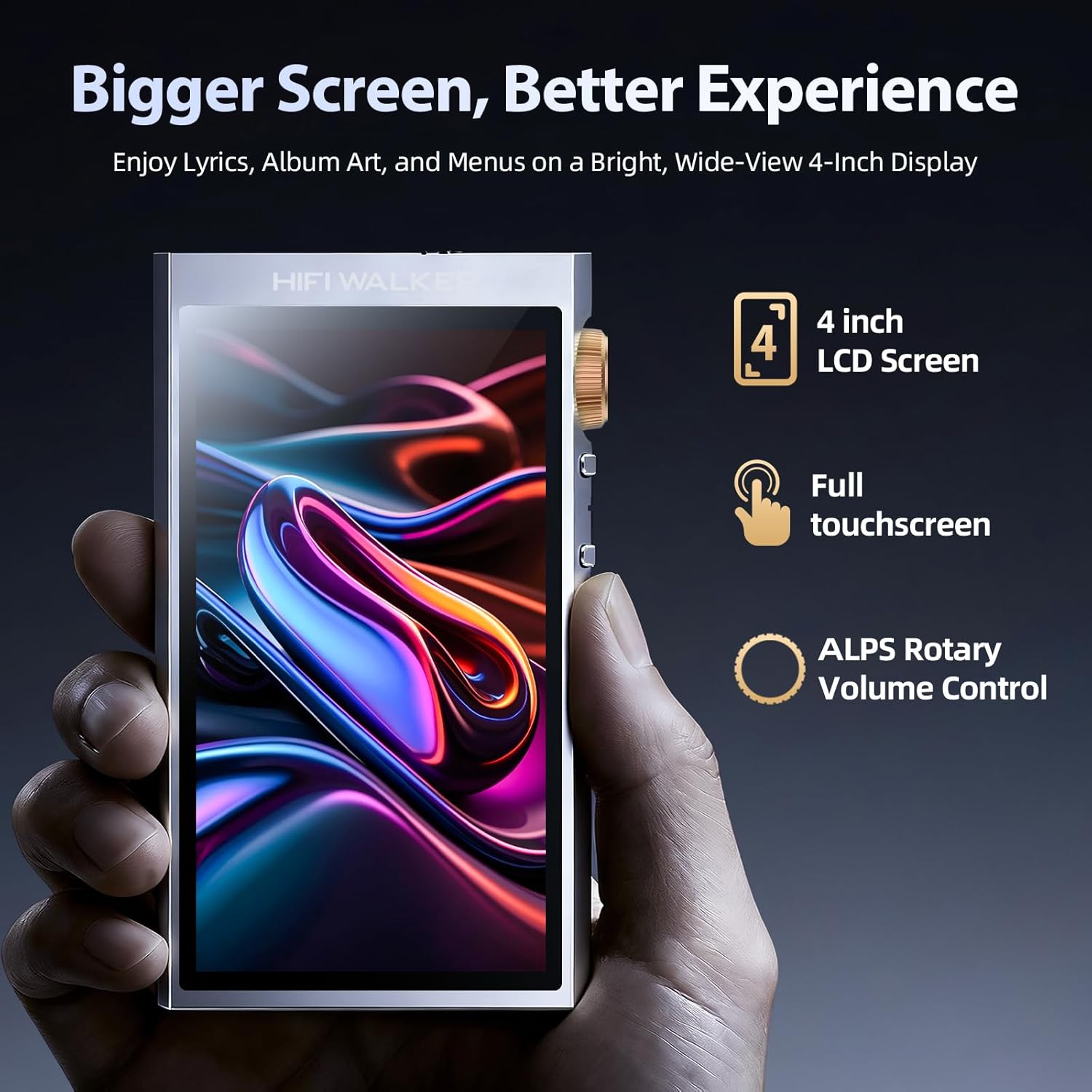
The H20 Ultra features a 4-inch full touchscreen with an intuitive UI. Navigate through menus and options by tapping and swiping. Physical buttons on the side provide quick access to playback controls and volume adjustment.

5.2 Music Playback
The H20 Ultra supports a wide array of high-resolution audio formats, including DSD, FLAC, WAV, ALAC, APE, M4A, and MP3. It offers native DSD256 decoding and PCM up to 768kHz/32bit.

Browsing Music
Access your music library through categories such as All Songs, Folders, Albums, Artists, and Genres. You can also create and manage playlists.
Equalizer Settings
Customize your audio experience with the built-in equalizer. Choose from preset modes (e.g., Pop, Blues, Classic, Jazz, Rock, Dance, Metal, Voice) or create a custom profile to suit your preferences.

5.3 Bluetooth Connectivity
The H20 Ultra features Bluetooth 5.2 with support for aptX HD and LDAC codecs, ensuring high-resolution wireless audio streaming. It supports both transmitter (TX) and receiver (RX) modes.

Pairing with Bluetooth Devices
- Go to Settings > Wireless Settings > Bluetooth.
- Toggle Bluetooth ON.
- Select Bluetooth Scan to search for available devices.
- Choose your desired device from the list to pair.
5.4 Wi-Fi Connectivity
The device supports Wi-Fi for firmware updates and receiving songs wirelessly. To connect to Wi-Fi, navigate to Settings > Wireless Settings > Wi-Fi, turn it ON, and select your network.
5.5 USB DAC Functionality
The H20 Ultra can function as a USB DAC, allowing it to process digital audio from your computer or other devices for enhanced sound quality. Connect the device to your computer via the USB-C cable and select the USB DAC mode in the settings.
6. Maintenance
6.1 Battery Care
To prolong battery life, avoid fully discharging the device frequently. Charge the 3000mAh battery regularly. The device supports up to 36 hours of playback and 3-hour fast charging.
6.2 Cleaning
Use a soft, dry cloth to clean the device. Avoid using harsh chemicals or abrasive materials that could damage the screen or casing.
6.3 Firmware Updates
Periodically check for firmware updates to ensure optimal performance and access to new features. Connect the device to Wi-Fi and navigate to Settings > System Settings > Firmware Update.
7. Troubleshooting
- Device not powering on: Ensure the device is fully charged. Connect it to a power source and try again.
- No sound: Check headphone connections (3.5mm or 4.4mm) and ensure volume is not muted or too low. Verify that the correct output mode is selected.
- Bluetooth connection issues: Ensure Bluetooth is enabled on both the H20 Ultra and the pairing device. Try unpairing and re-pairing the devices. Move closer to the Bluetooth device to reduce interference.
- Files not recognized: Ensure audio files are in a supported format. Verify that the microSD card is properly inserted and not corrupted. Try updating the music database via settings.
- Touchscreen unresponsive: Restart the device. If the issue persists, perform a factory reset (note: this will erase all data).
8. Specifications
| Item Model Number | H20 Ultra |
| Brand | HIFI WALKER |
| DAC Chip | ESS ES9038Q2M |
| Memory Storage Capacity | 128 GB (expandable up to 1TB via microSD) |
| Connectivity Technology | Bluetooth 5.2 (aptX HD, LDAC), USB-C, Wi-Fi |
| Screen Size | 4 Inches |
| Battery | 3000mAh (up to 36 hours playback) |
| Audio Output | 3.5mm Single-Ended, 4.4mm Balanced |
| Supported Audio Formats | DSD256, PCM up to 768kHz/32bit, WAV, FLAC, ALAC, APE, M4A, MP3, etc. |
| Item Weight | 14.4 ounces |
| Manufacturer | HIFI WALKER |
9. Warranty and Support
For warranty information and customer support, please refer to the specific warranty card included in your product package or visit the official HIFI WALKER website. The manufacturer is HIFI WALKER.


