
Introduction
This manual provides detailed instructions for the setup, operation, and maintenance of your Canyon MW-04 Wireless Mouse. Please read this manual thoroughly before using the device to ensure optimal performance and longevity.
Package Contents
Verify that all items are present in the package:
- Canyon MW-04 Wireless Mouse
- AA Alkaline Battery
- User Manual (this document)

Image: Retail packaging for the Canyon MW-04 Wireless Mouse, showing the mouse and branding.
Product Overview
Familiarize yourself with the components of your Canyon MW-04 Wireless Mouse.
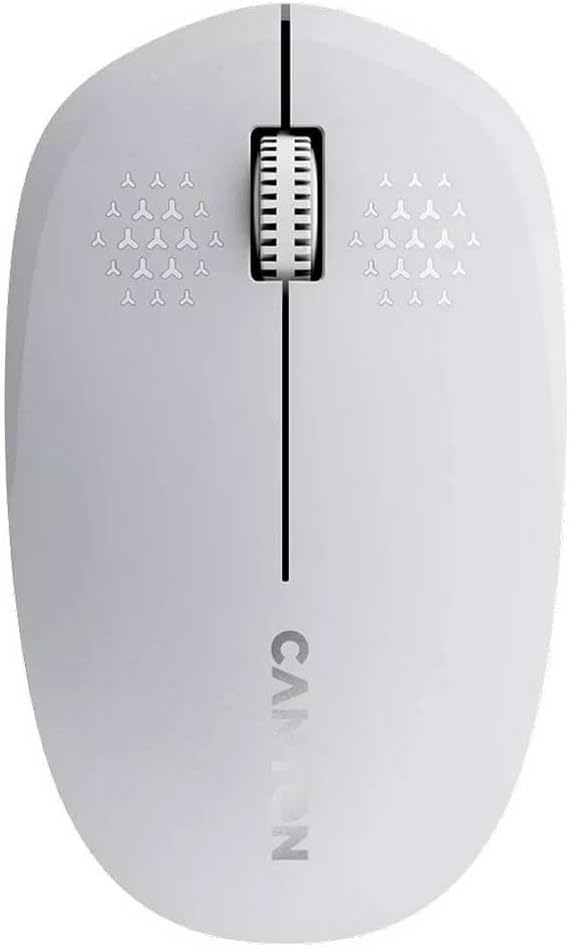
Image: Top view of the Canyon MW-04 Wireless Mouse, highlighting the left button, right button, and scroll wheel.
- Left Click Button: Primary selection and activation.
- Right Click Button: Accesses contextual menus.
- Scroll Wheel / Middle Click Button: Scrolls documents and web pages vertically; can also be pressed for middle-click functionality.
- Optical Sensor: Located on the underside for tracking movement.
- Battery Compartment: Located on the underside for battery installation.
- Power Switch: Located on the underside to turn the mouse on/off.
Setup
1. Battery Installation
- Locate the battery compartment on the underside of the mouse.
- Open the battery compartment cover.
- Insert one AA alkaline battery, ensuring correct polarity (+/-).
- Close the battery compartment cover securely.

Image: Underside view of the Canyon MW-04 Wireless Mouse, showing the battery compartment and optical sensor.
2. Connecting via Bluetooth
- Turn on the mouse using the power switch located on the underside.
- On your computer or device, navigate to Bluetooth settings.
- Enable Bluetooth and search for new devices.
- Select "Canyon MW-04" from the list of available devices to pair.
- Once paired, the mouse is ready for use.
The Canyon MW-04 uses Bluetooth 5.0 for connection, offering stable and efficient wireless communication.
Operating the Mouse
Basic Functions
- Left Click: Used for selecting items, opening files, and activating functions.
- Right Click: Displays context-sensitive menus for various options.
- Scroll Wheel: Rotate to scroll vertically through documents and web pages. Pressing the scroll wheel often acts as a middle-click, which can have various functions depending on the application.
DPI (Dots Per Inch)
The Canyon MW-04 features a 1200 DPI optical sensor, providing precise and responsive cursor control. This DPI setting is fixed and optimized for general productivity and navigation.
Ambidextrous Design
The ergonomic design of the Canyon MW-04 mouse ensures comfortable use for both left-handed and right-handed users.

Image: Angled view of the Canyon MW-04 Wireless Mouse, showcasing its symmetrical design suitable for both left and right hands.
Maintenance
Cleaning
- Disconnect the mouse from your device and turn it off.
- Use a soft, dry cloth to wipe the surface of the mouse.
- For stubborn dirt, lightly dampen the cloth with water. Avoid harsh chemicals or abrasive materials.
- Clean the optical sensor area gently with a cotton swab if tracking issues occur.
Battery Replacement
When the mouse performance degrades or it stops responding, it may be time to replace the battery. Follow the "Battery Installation" steps in the Setup section.
Troubleshooting
Mouse Not Responding
- Ensure the mouse is turned on using the power switch.
- Check the battery. Replace it with a fresh AA alkaline battery if necessary.
- Verify the Bluetooth connection on your computer or device. Try re-pairing the mouse if it's disconnected.
- Move the mouse closer to your device to rule out range issues.
- Try connecting the mouse to a different device to determine if the issue is with the mouse or the original device.
Erratic Cursor Movement
- Clean the optical sensor on the underside of the mouse with a soft, dry cloth or cotton swab.
- Ensure you are using the mouse on a suitable surface. Avoid highly reflective, transparent, or uneven surfaces. A mouse pad is recommended for optimal performance.
Specifications
| Feature | Detail |
|---|---|
| Model | MW-04 |
| Connectivity | Bluetooth 5.0 |
| Sensor Type | Optical |
| DPI | 1200 |
| Buttons | 3 (Left, Right, Scroll Wheel/Middle) |
| Battery Type | 1 x AA Alkaline |
| Durability | 3 million clicks |
| Design | Ambidextrous, Lightweight, Compact |
| Compatible OS | Windows, macOS, Linux |
Warranty and Support
The Canyon MW-04 Wireless Mouse comes with a standard manufacturer's warranty. For detailed warranty information, please refer to the warranty card included with your product or visit the official Canyon website.
For technical support, troubleshooting assistance, or to inquire about spare parts, please contact Canyon customer service through their official website or authorized service centers.
Official Website: https://canyon.eu


