1. Introduction
The aphqua CP101 Car Multimedia Player is an advanced in-car entertainment and safety system designed to enhance your driving experience. It integrates wireless Apple CarPlay and Android Auto, a high-definition dual dash cam system, and multiple audio output options, all accessible via a 9-inch HD IPS touchscreen. This manual provides detailed instructions for setup, operation, maintenance, and troubleshooting to ensure optimal performance and user satisfaction.

Image: The aphqua CP101 Car Multimedia Player displaying its main interface with icons for phone, music, maps, and messages.
2. Safety Information
- Driving Safety: Always prioritize safe driving. Do not operate the device or adjust settings in a way that distracts you from the road.
- Installation: Ensure the device is securely mounted and does not obstruct your view or interfere with vehicle controls. Improper installation can lead to accidents.
- Power Source: Use only the provided car charger. Using incompatible power adapters may damage the device or cause fire hazards.
- Temperature: Avoid exposing the device to extreme temperatures, direct sunlight for prolonged periods, or high humidity.
- Cleaning: Disconnect power before cleaning. Use a soft, dry cloth. Do not use liquid cleaners or aerosols.
- Disassembly: Do not attempt to disassemble or repair the device yourself. Refer all servicing to qualified personnel.
3. Package Contents
Verify that all items listed below are included in your package:

Image: A visual representation of all components included in the aphqua CP101 package.
- 1 x aphqua CP101 2.5K Portable Device
- 1 x 1080P Rear Camera
- 1 x 64GB Micro SD Card (pre-installed or included separately)
- 1 x Suction Mount
- 1 x 3M Sticker Mount
- 1 x Suction Cup Gasket
- 1 x Car Charger with Extra USB Port
- 1 x 3.5mm Audio Cable (AUX)
- 1 x User Manual
4. Setup
4.1 Mounting the Device
The CP101 offers two primary mounting options: a suction mount for windshields or dashboards, and a 3M sticker mount for a more permanent dashboard placement. Ensure the mounting surface is clean and dry before attachment.

Image: Step-by-step guide showing how to attach the CP101 screen to its mount and secure the mount to the car's dashboard or windshield.
- Attach Screen to Mount: Align the screen with the chosen mount (suction or 3M sticker) and slide it into place until it locks securely. The screen can be rotated 350 degrees on the mount for optimal viewing angle.
- Secure Mount: For the suction mount, press firmly onto the desired surface (windshield or dashboard) and engage the lever to create suction. For the 3M sticker mount, peel off the protective film and firmly press the mount onto a clean, flat dashboard surface for at least 30 seconds.
- Positioning: Adjust the screen's angle and rotation to ensure a clear view of the road and easy access to the touchscreen, without obstructing your driving visibility.
4.2 Power Connection
Connect the provided car charger to the CP101's power input port and plug the other end into your vehicle's 12V cigarette lighter socket. The device will power on automatically when the vehicle's ignition is turned on.
4.3 Rear Camera Installation (Optional)
The 1080P rear camera provides a backup view and can be integrated for dual recording. Professional installation is recommended for optimal routing of the camera cable.
- Mount the rear camera at the back of your vehicle, typically near the license plate or rear window, ensuring a clear view.
- Route the camera cable discreetly through the vehicle's interior to the CP101 unit.
- Connect the rear camera cable to the designated input port on the CP101.
5. Operating Instructions
5.1 Wireless Apple CarPlay & Android Auto
The CP101 supports seamless wireless connectivity for both Apple CarPlay and Android Auto, allowing access to navigation, music, calls, and messages directly from your smartphone.

Image: Demonstrates the wireless Apple CarPlay, Android Auto, and Mirror Link interfaces on the CP101 screen.
5.1.1 Apple CarPlay Connection

Image: Visual guide for connecting an iPhone to the CP101 for Apple CarPlay.
- On the CP101, select the Apple CarPlay icon.
- On your iPhone, go to Settings > Wi-Fi and Bluetooth, and ensure both are enabled.
- Search for the device's Bluetooth name (e.g., "APHQUA-xxxx") and pair.
- Confirm the pairing request on your iPhone and select "Use CarPlay."
- The connection will be successful, and the CarPlay interface will appear on the CP101 screen.
5.1.2 Android Auto Connection

Image: Visual guide for connecting an Android phone to the CP101 for Android Auto.
- On the CP101, select the Android Auto icon.
- On your Android phone, open Android Auto and find the connected devices settings.
- Add a new device and search for the CP101's Bluetooth name (e.g., "APHQUA-xxxx").
- Click "Pair" and activate the connection.
- The connection will be successful, and the Android Auto interface will appear on the CP101 screen.
5.2 Voice Control (Siri/Google Assistant)
Utilize voice commands for hands-free operation of navigation, music, calls, and messages. Simply activate Siri or Google Assistant through the device's interface or a dedicated voice button (if available).
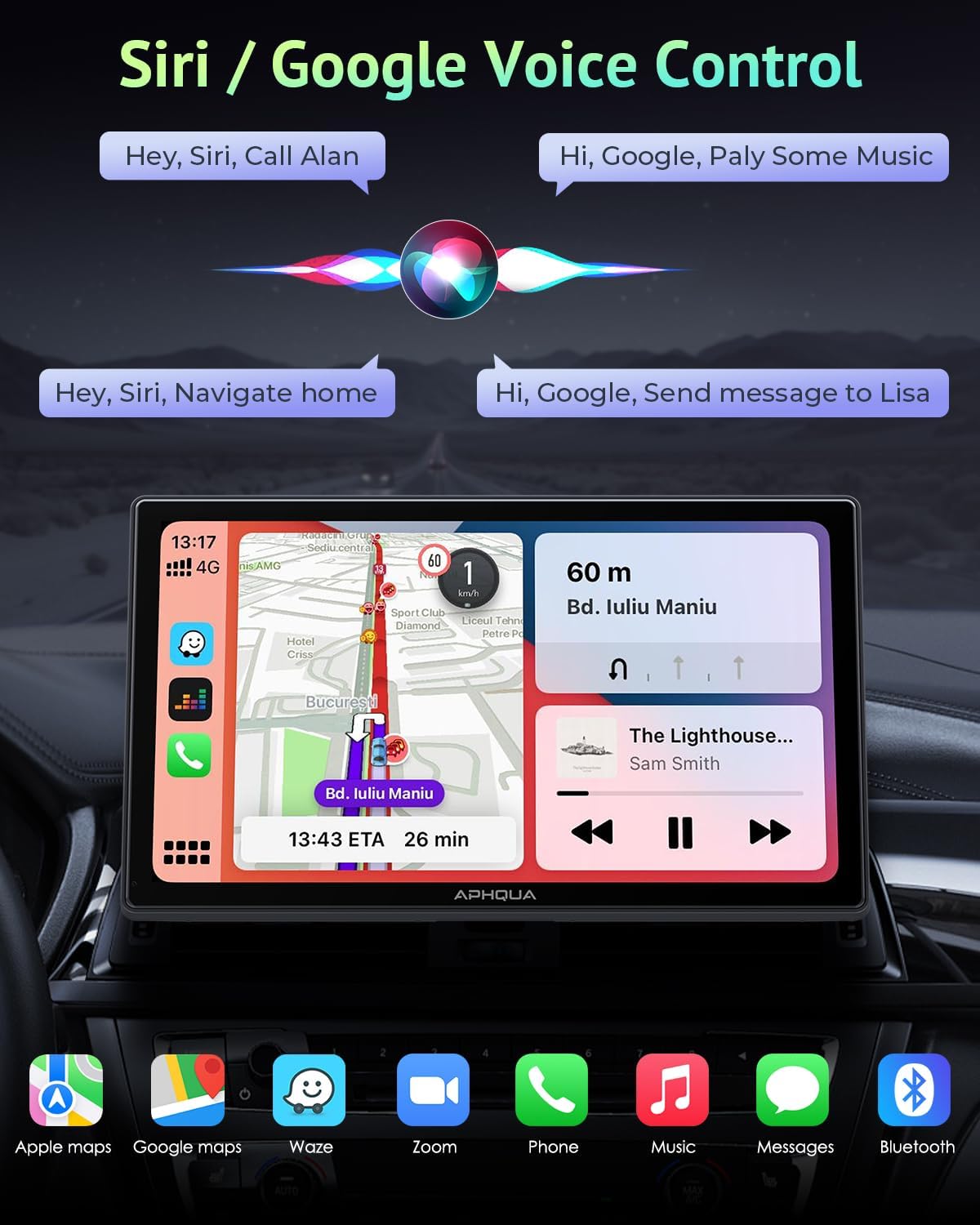
Image: Examples of voice commands for Siri and Google Assistant on the CP101, such as "Hey, Siri, Call Alan" or "Hi, Google, Play Some Music."
5.3 Dash Cam Loop Recording System
The CP101 features a 2.5K front dash cam and supports a 1080P rear camera for comprehensive driving records. The front camera has a 350-degree adjustable rotation.

Image: Illustrates the 2.5K front camera and 1080P rear camera recording capabilities, including locked video and video playback.
- Automatic Recording: The dash cam automatically begins recording when the device powers on.
- Loop Recording: Footage is recorded in continuous loops, automatically overwriting the oldest files when the 64GB Micro SD card is full.
- G-Sensor: In the event of a sudden impact or collision, the built-in G-sensor will automatically lock the current video segment to prevent it from being overwritten.
- Adjustable Camera: The front camera can be manually rotated 350 degrees to capture the desired view.
- Seamless Playback: Recorded footage can be viewed directly on the CP101 screen or transferred to a smartphone via a mobile scanning program. Scan the QR code on the device for the app download link. Download App Here
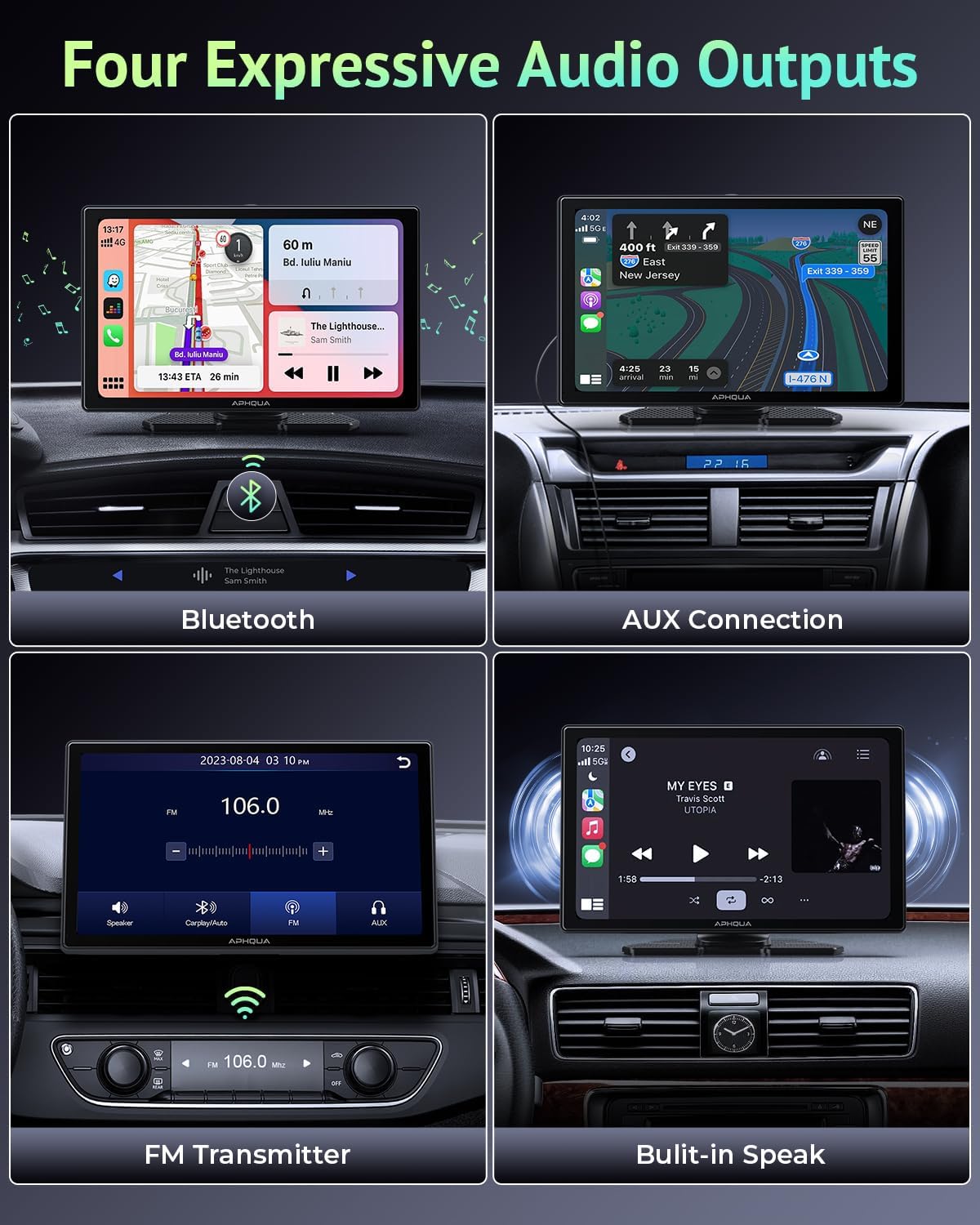
Image: Shows the seamless playback feature and the QR code for downloading the mobile scanning program to transfer footage.
5.4 Audio Output Options
The CP101 offers multiple ways to output audio, ensuring compatibility with various car audio systems.
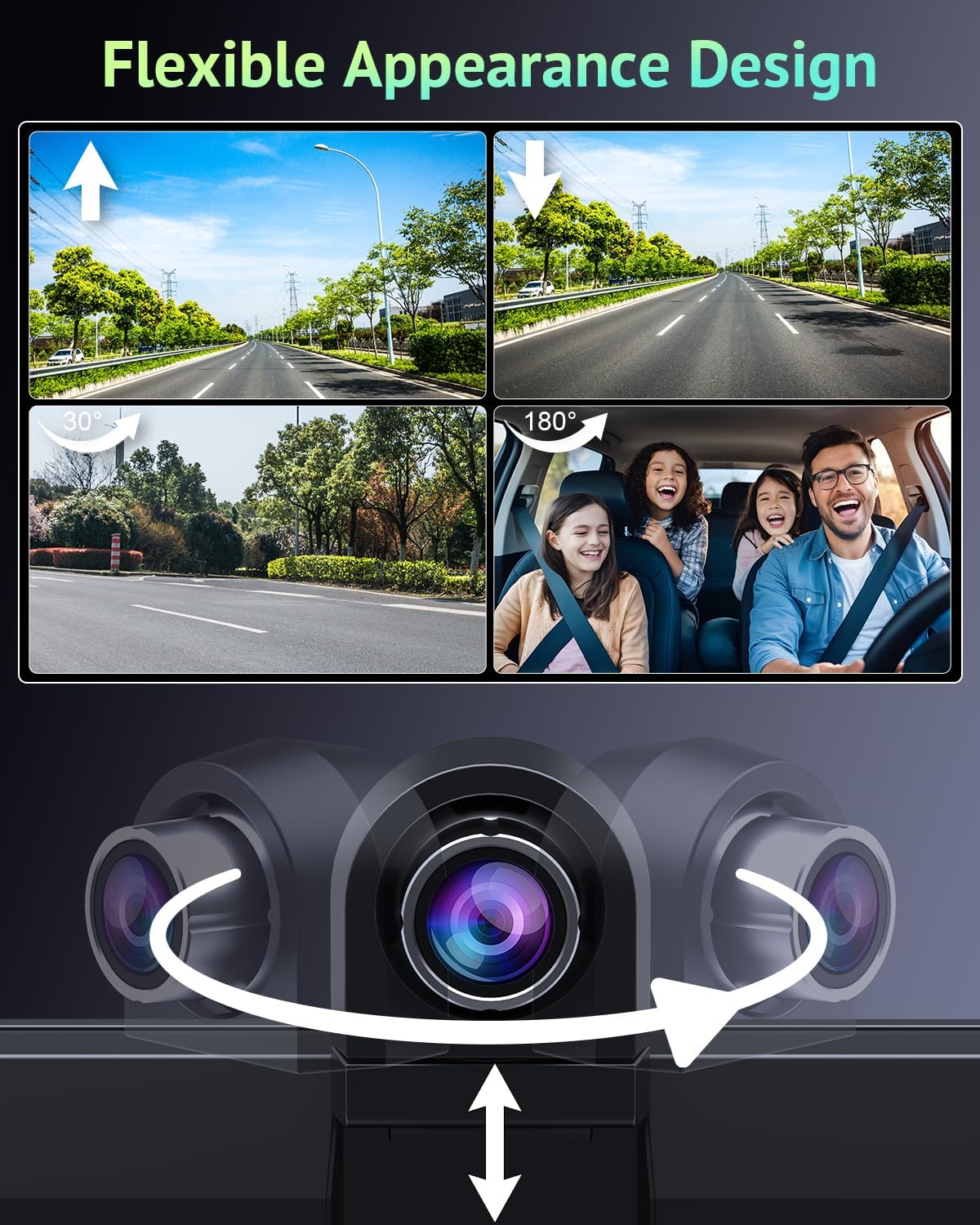
Image: Depicts the four available audio output methods: Bluetooth, FM Transmitter, AUX Connection, and the Built-in Speaker.
- Bluetooth: Connect the CP101 to your car's Bluetooth system for audio playback through your vehicle's speakers.
- FM Transmitter: Transmit audio from the CP101 to your car's FM radio by tuning both devices to the same FM frequency.
- AUX Cable: Use the provided 3.5mm AUX cable to connect the CP101 directly to your car's AUX input for a wired audio connection.
- Built-in Speaker: The CP101 has an integrated speaker for direct audio output, suitable for navigation prompts or basic audio.
5.5 Mirror Link
Mirror Link allows you to display your smartphone's screen directly onto the CP101, enabling viewing of videos or other content.
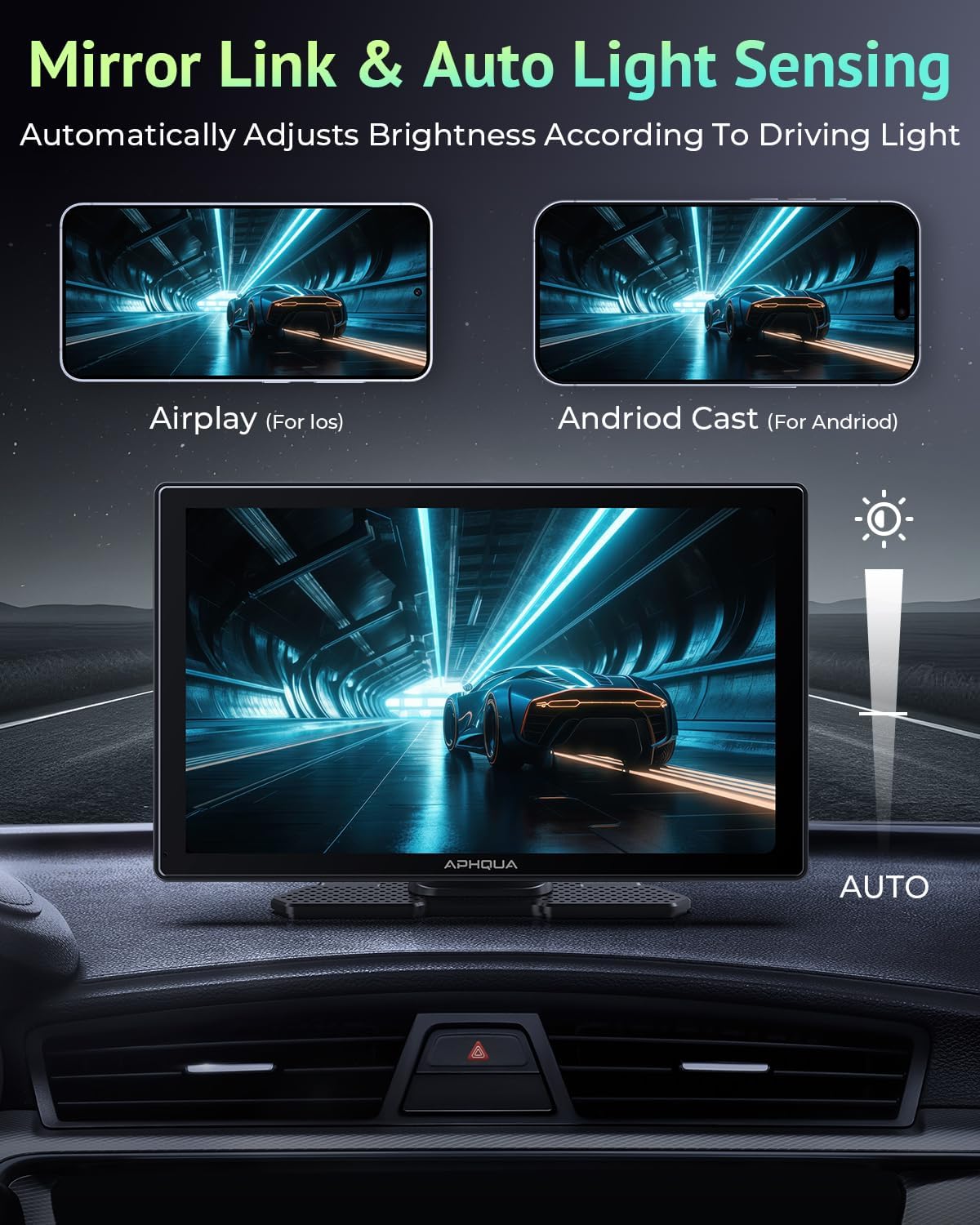
Image: Shows the Mirror Link function for both iOS (Airplay) and Android (Android Cast), alongside the auto light sensing feature.
5.6 Brightness Adjustment
The CP101 features auto light sensing to adjust screen brightness based on ambient light conditions. Manual adjustment is also available through the device settings.

Image: Illustrates the manual brightness adjustment slider for optimal visibility in both bright daylight and dark night conditions.
5.7 Personalized Startup Screen
The device supports custom startup logos. Contact aphqua after-sales service upon arrival to customize your startup screen.
6. Maintenance
- Cleaning: Regularly wipe the screen and device body with a soft, lint-free cloth. For stubborn smudges, slightly dampen the cloth with water. Avoid harsh chemicals or abrasive materials.
- Software Updates: Periodically check the aphqua website or contact support for available software updates to ensure optimal performance and access to new features.
- Storage: If storing the device for an extended period, disconnect it from power and store it in a cool, dry place away from direct sunlight.
- SD Card Management: While loop recording manages the 64GB SD card automatically, it is good practice to occasionally back up important footage and format the card (after backing up) to maintain performance.
7. Troubleshooting
This section addresses common issues you might encounter with your aphqua CP101.
| Problem | Possible Cause | Solution |
|---|---|---|
| Device does not power on. | No power from 12V socket; loose connection; faulty charger. | Check 12V socket for power (test with another device). Ensure charger is securely plugged into both the device and the car socket. Try a different 12V socket if available. |
| Wireless CarPlay/Android Auto fails to connect or disconnects frequently. | Bluetooth/Wi-Fi interference; incorrect pairing; multiple devices trying to connect. | Ensure only one phone is attempting to connect. Forget the device on your phone's Bluetooth settings and re-pair. Check for strong Wi-Fi signal. Disable CarPlay/Android Auto on other nearby devices. |
| Screen is laggy or unresponsive. | Temporary software glitch; too many background processes. | Restart the device by unplugging and replugging the power. Close any unnecessary applications running on the device. |
| Screen glare or insufficient brightness in sunlight. | Direct sunlight; brightness setting too low. | Adjust the screen's angle to minimize glare. Manually increase brightness in the device settings. Consider using a sunshade. |
| Mount loses suction. | Dirty surface; temperature changes; worn suction cup. | Clean the mounting surface and the suction cup thoroughly. Apply a small amount of moisture to the suction cup before reattaching. Ensure the lever is fully engaged. Avoid extreme temperature fluctuations. |
| Poor FM transmitter audio quality. | Interference; weak signal; incorrect frequency. | Try a different FM frequency, preferably one that is clear and unused in your area. Ensure the CP101 and car radio are tuned to the exact same frequency. Minimize other electronic devices that may cause interference. |
| Cannot play MP3 music from SD card. | SD card primarily for dash cam recordings. | The SD card is primarily designated for dash cam video storage. Music playback is typically handled via connected smartphone (CarPlay/Android Auto) or Bluetooth streaming. |
| Device does not automatically power off with car. | Vehicle's 12V socket is always powered. | If your vehicle's 12V socket remains powered when the ignition is off, you will need to manually unplug the device to prevent battery drain. |
8. Specifications
| Feature | Detail |
|---|---|
| Brand | aphqua |
| Model | CP101 |
| Screen Size | 9 inches / 23 cm (Visible Diagonal) |
| Display Resolution | 1024x600 HD IPS |
| Front Camera Resolution | 2.5K |
| Rear Camera Resolution | 1080P |
| Video Encoding | H.264 |
| Storage | Built-in 64GB Micro SD card |
| Connectivity | Wireless Apple CarPlay, Wireless Android Auto, Bluetooth, Auxiliary (3.5mm), FM Transmitter, USB (for charging) |
| Compatible Devices | Smartphones (iOS & Android), Car Speakers |
| Audio Output Mode | Stereo |
| Surround Sound Channel Configuration | 4.0 |
| Special Features | GPS Navigation, System Update Support, Dash Cam, Backup Camera, Built-In Bluetooth, Voice Control (Siri/Google), SD Card Slot, Type-C Charge Port, Hands-Free Calling, Two Mounting Options, Mirror Link, Auto Light Sensing, G-Sensor |
| Item Weight | 2.2 pounds |
| Package Dimensions | 9.76 x 6.34 x 4.21 inches |
| Color | Black |
9. Warranty and Support
aphqua is committed to providing high-quality products and excellent customer service.

Image: Details of aphqua's customer support, including 24-hour response, 90-day return/exchange policy, and lifetime after-sale service.
- Professional Sales Support Team: A dedicated support team is available to assist with any issues related to your device, including installation, functionality questions, or after-sales service.
- 24-Hour Response: Expect quick responses and professional assistance within 24 hours.
- 90-Day Return/Exchange: Enjoy a 90-day period for returns or exchanges if you are not satisfied with the product.
- Lifetime After-Sale Service: aphqua provides lifetime after-sale service for products and accessories, ensuring long-term support.
For support, please refer to the contact information provided in your product packaging or visit the official aphqua website.


